Serious Discussion Network Monitor & Antivirus

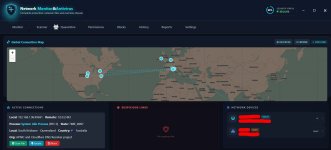
And here it is the Google Maps / Google Street View window which popped up when I clicked on "Locate button" for Firefox.exe process., remote address 35.186.224.34. Google Cloud should be near there, I guess or maybe the location is a generic reference to Kansas city, I wouldn't know.

View attachment 297164View attachment 297165View attachment 297166
Thank you for sharing. I will continue to make corrections and implement new features in each update.
 
  • Like
Reactions: simmerskool
Thank you for sharing. I will continue to make corrections and implement new features in each update.
Hello, I really hope you can implement the real-time monitoring in the future. That would be a great improvement in my opinion. With real-time monitoring I mean that currently Network Monitor & Antivirus scans the Network at regular intervals (default 5 minutes) but if a program opens new connections during that interval, they would not be identified as Active Connection or Suspicious Link and also shown on the World map until the next Network scan. I could reduce the interval between Network scans to 1 minute but it still wouldn't be the same as constant monitoring.
I think that GlassWire Premium and Connection Explorer from Stardock do it but they are subscription-based while Network Monitor & Antivirus requires just a one-time payment.

Just as comparison:

Network Monitor & Antivirus € 9.89 (One-time payment) (Up to 10 Windows devices)

GlassWire Premium € 2.99 / month paid annually so € 35.88 (1 License) (Only the Premium version monitors the connections on a World map and includes the firewall feature, not the Free version. As far as I know once GlassWire was completely free so this explain the incorrect webpage title and description, which haven't been fixed yet. Also this thread on GlassWire official forum clarifies the matter Misleading product

Connection Explorer (version 1.0 has been just released) € 22.00 (Currently discounted to € 17.71) 1 Year subscription (Up to 5 active installs)

I must add that GlassWire Premium isn't a 3rd party firewall but it's a enhanced GUI for the Windows Firewall and includes other features, listed on the above webpage so I guess it's the reason of the higher price.

Network Monitor & Antivirus is already a excellent software, anyway.
 
Last edited:
  • Like
Reactions: simmerskool
Hello, I really hope you can implement the real-time monitoring in the future. That would be a great improvement in my opinion. With real-time monitoring I mean that currently Network Monitor & Antivirus scans the Network at regular intervals (default 5 minutes) but if a program opens new connections during that interval, they would not be identified as Active Connection or Suspicious Link and also shown on the World map until the next Network scan. I could reduce the interval between Network scans to 1 minute but it still wouldn't be the same as constant monitoring.
I think that GlassWire Premium and Connection Explorer from Stardock do it but they are subscription-based while Network Monitor & Antivirus requires just a one-time payment.

Just as comparison:

Network Monitor & Antivirus € 9.89 (One-time payment) (Up to 10 Windows devices)

GlassWire Premium € 2.99 / month paid annually so € 35.88 (1 License) (Only the Premium version monitors the connections on a World map and includes the firewall feature, not the Free version. As far as I know once GlassWire was completely free so this explain the incorrect webpage title and description, which haven't been fixed yet. Also this thread on GlassWire official forum clarifies the matter Misleading product

Connection Explorer (version 1.0 has been just released) € 22.00 (Currently discounted to € 17.71) 1 Year subscription (Up to 5 active installs)

I must add that GlassWire Premium isn't a 3rd party firewall but it's a enhanced GUI for the Windows Firewall and includes other features, listed on the above webpage so I guess it's the reason of the higher price.

Network Monitor & Antivirus is already a excellent software, anyway.
Okay, I'll add the real-time scan option in the settings in the next update, so that the user can choose the scan mode between time intervals or in real-time mode.
 
I need a clarification about Suspicious Links because until now, for legitimate processes (Firefox.exe, svchost.exe, System Idle Process) I've noticed that they are referring to:
- APNIC and Cloudflare DNS Resolver project
- AWS EC2 (us-east-1)
- Microsoft Azure Cloud
- Microsoft Azure One Ds Collector (eastus)
- Cloudflare, Inc.
- Google Cloud
- Google LLC

Why are those connections considered suspicious ? Moreover my Secure DNS are from Cloudflare so APNIC and Cloudflare DNS Resolver project and Cloudflare, Inc. should not be considered as suspicious. I guess it should be the same for AWS EC2, which are Amazon Web Services, Microsoft Azure Cloud, Microsoft Azure One Ds Collector, Google Cloud and Google LLC.
 
@NAC-Nuno how exactly does the detection work?

Are you using heuristics, bloom filters, APIs or some/all of these?

I know one open source project which very aggressively flags a lot of IPs from providers mentioned by @Avethil.
 
  • +Reputation
Reactions: simmerskool
I need a clarification about Suspicious Links because until now, for legitimate processes (Firefox.exe, svchost.exe, System Idle Process) I've noticed that they are referring to:
- APNIC and Cloudflare DNS Resolver project
- AWS EC2 (us-east-1)
- Microsoft Azure Cloud
- Microsoft Azure One Ds Collector (eastus)
- Cloudflare, Inc.
- Google Cloud
- Google LLC

Why are those connections considered suspicious ? Moreover my Secure DNS are from Cloudflare so APNIC and Cloudflare DNS Resolver project and Cloudflare, Inc. should not be considered as suspicious. I guess it should be the same for AWS EC2, which are Amazon Web Services, Microsoft Azure Cloud, Microsoft Azure One Ds Collector, Google Cloud and Google LLC.
Correct, but the warnings (yellow) are marked as "Warnings" by the system only to remind you that, although the provider is trustworthy, there may be the possibility of similar endpoints or traffic being masked, and the user can investigate all connection processes and files before allowing the process. However, I will filter this in the next update and make the app smarter, adding the option for real-time monitoring.
 
@NAC-Nuno how exactly does the detection work?

Are you using heuristics, bloom filters, APIs or some/all of these?

I know one open source project which very aggressively flags a lot of IPs from providers mentioned by @Avethil.
Detection in Network Monitor and Antivirus works through a hybrid approach, combining local intelligence (heuristics), integration with global APIs, and native operating system tools.
Bloom Filters?
Currently, I don't use Bloom Filters. Although they are excellent for quickly verifying if an item belongs to a set, I opted for:
Local Caching (GEO_CACHE): Instead of a probabilistic structure, we use an in-memory Map with TTL (Time-To-Live). This ensures 100% accuracy in identifying repeated IPs without the risk of "false positives" that Bloom Filters can introduce.
Sem título.png
 
@NAC-Nuno
Hello,
about active connections and remote IP addresses I just noticed a discrepancy between what it's shown in the 3rd party firewall I'm using and Network Monitor & Antivirus
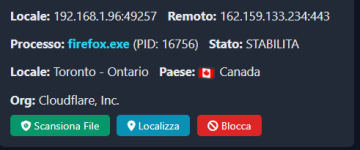
For example Firefox.exe: I'm currently connected to Discord website. For the same IP address the 3rd party firewall shows gateway.discord.gg while Network Monitor & Antivirus shows Cloudflare, Inc.

3rd party firewall (1).pngNM&AV (1).png

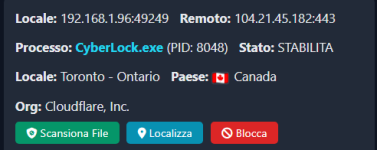
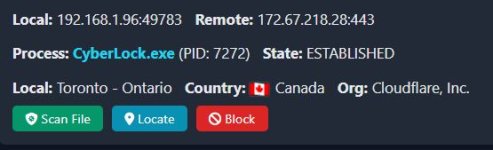
The same for CyberLock.exe: I've CyberLock software in my system. The 3rd party firewall shows cyberlock.global while Network Monitor & Antivirus shows Cloudflare, Inc.

3rd party firewall.pngNM&AV.png

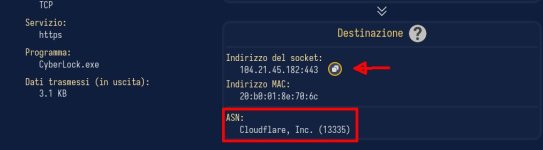
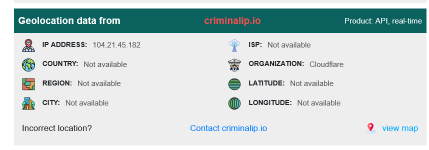
*edited* I must add that for CyberLock.exe also Sniffnet detects the remote IP address 104.21.45.182 as Cloudflare Inc, not cyberlock.global, so I'm rather confused :confused:

Sniffnet (Cyberlock).jpg

What could be the reason of different infos on the same IP address ? I suspect, but I'm not 100 % sure that cyberlock.global is the domain assigned that specific IP address, while Cloudflare, Inc is the Internet Service Provider (ISP) which assign that IP address / domain.
I could be wrong, of course.

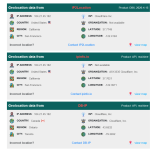
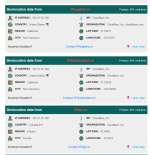
About the geographic location of a specific IP address, in this case 104.21.45.182, different Geolocation providers show different geographic locations. The subsequent three screenshot are taken from the website IPLocation.net IP Lookup | Find Your Public IP Address Location Out of 7 Geolocation providers, 4 of them show San Francisco (California - USA), 2 of them show Toronto (Ontario - Canada). The last Geolocation provider wasn't able to find the geographic location of the IP address. All of them show Cloudflare, Inc. as ISP / Organization except the last one which show Cloudflare.

Geolocation providers (1).pngGeolocation providers (2).pngGeolocation providers (3).png

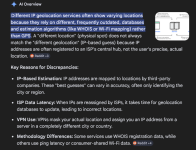
The reason, after a Google search

Google search.png

Also this thread on Quora, old but still actual I think https://www.quora.com/Why-would-dif...ices-show-different-locations-for-the-same-IP
 
Last edited:
  • Like
Reactions: simmerskool
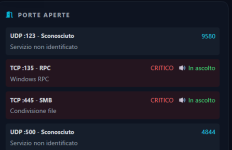
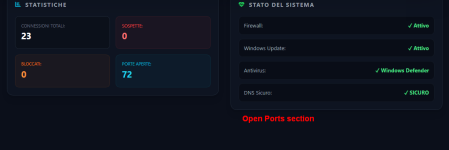
Currently the Open Ports section isn't immediately visible because it is found at the end of Active Connections' list so you have to scroll the whole list to see it. As usually there are many active connections there, in my opinion the Open Ports section should be moved under System Status section because there is a lot of empty space there.

Open Ports section.pngOpen Ports section (1).png
 
Last edited:
  • Like
Reactions: simmerskool
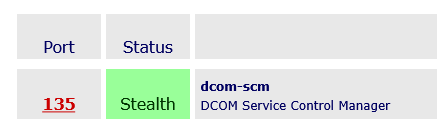
I was curious about the open ports so after a Google search I found this article on Kaspersky website Kaspersky Knowledge Base . I guess that Network Monitor & Antivirus uses the same command netstat -a to list the open ports. After opening a Command Prompt as Admin I typed that command and there were a lot of them, included those in the screenshot I posted above, indeed Network Monitor & Antivirus showed 72 open ports. I'm not a expert on the matter but I presume that whatever firewall is installed it hides / stealth the specific ports which could be dangerous if a attacker / hacker could "see" them. Just as example, as they were the only ports shown as "Critical" by Network Monitor & Antivirus, I probed TCP Port 135 and TCP Port 445 at Gibson Research Corporation website: For TCP Port 135 at GRC | Port Authority, for Internet Port 135 I obtained "Stealth" result.

TCP Port 135.png
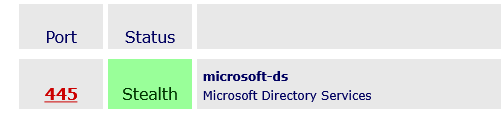
I obtained the same result for TCP Port 445 at GRC | Port Authority, for Internet Port 445

TCP Port 445.png
 
Last edited:
  • Like
Reactions: simmerskool
I was curious about the open ports so after a Google search I found this article on Kaspersky website Kaspersky Knowledge Base . I guess that Network Monitor & Antivirus uses the same command netstat -a to list the open ports. After opening a Command Prompt as Admin I typed that command and there were a lot of them, included those in the screenshot I posted above, indeed Network Monitor & Antivirus showed 72 open ports. I'm not a expert on the matter but I presume that whatever firewall is installed it hides / stealth the specific ports which could be dangerous if a attacker / hacker could "see" them. Just as example, as they were the only ports shown as "Critical" by Network Monitor & Antivirus, I probed TCP Port 135 and TCP Port 445 at Gibson Research Corporation website: For TCP Port 135 at GRC | Port Authority, for Internet Port 135 I obtained "Stealth" result.

View attachment 297268
I obtained the same result for TCP Port 445 at GRC | Port Authority, for Internet Port 445

View attachment 297269

About the open ports
That's an excellent observation! The confusion here lies in the difference between being "Open in the System" (Internal View) and being "Visible on the Internet" (External View)
Network Monitor & Antivirus shows ports 135 and 445 as critical, while the GRC website (Steve Gibson) says they are in "Stealth". Both are correct. I will explain why:
GRC (Stealth): This means that your Router is blocking attacks coming from the Internet. You are invisible to the outside world.
App (Open/Critical): This means your Windows keeps these ports ready for use within your Local Area Network (Wi-Fi). They are "open" to devices inside your home.
Why does this matter? GRC says you are safe from remote hackers. Our App warns that if a virus gets into your Wi-Fi (e.g., via an infected cell phone), it may try to use these "open" ports to attack your PC.

Summary: GRC tests the external "wall"; Network Monitor tests the "ports" of your own home. Both are correct.
 
@NAC-Nuno
Hello,
about active connections and remote IP addresses I just noticed a discrepancy between what it's shown in the 3rd party firewall I'm using and Network Monitor & Antivirus
For example Firefox.exe: I'm currently connected to Discord website. For the same IP address the 3rd party firewall shows gateway.discord.gg while Network Monitor & Antivirus shows Cloudflare, Inc.

View attachment 297262View attachment 297263

The same for CyberLock.exe: I've CyberLock software in my system. The 3rd party firewall shows cyberlock.global while Network Monitor & Antivirus shows Cloudflare, Inc.

View attachment 297264View attachment 297265

*edited* I must add that for CyberLock.exe also Sniffnet detects the remote IP address 104.21.45.182 as Cloudflare Inc, not cyberlock.global, so I'm rather confused :confused:

View attachment 297274

What could be the reason of different infos on the same IP address ? I suspect, but I'm not 100 % sure that cyberlock.global is the domain assigned that specific IP address, while Cloudflare, Inc is the Internet Service Provider (ISP) which assign that IP address / domain.
I could be wrong, of course.

About the geographic location of a specific IP address, in this case 104.21.45.182, different Geolocation providers show different geographic locations. The subsequent three screenshot are taken from the website IPLocation.net IP Lookup | Find Your Public IP Address Location Out of 7 Geolocation providers, 4 of them show San Francisco (California - USA), 2 of them show Toronto (Ontario - Canada). The last Geolocation provider wasn't able to find the geographic location of the IP address. All of them show Cloudflare, Inc. as ISP / Organization except the last one which show Cloudflare.

View attachment 297278View attachment 297279View attachment 297280

The reason, after a Google search

View attachment 297284

Also this thread on Quora, old but still actual I think https://www.quora.com/Why-would-dif...ices-show-different-locations-for-the-same-IP
Your suspicion is absolutely correct. This is a very common question in network monitoring. I will explain technically the reason for this difference and why both programs are "correct," but looking at different layers.

1. ASN (Network Owner) vs. Domain Name
Network Monitor & Antivirus is showing the Organization (ASN) information, which is the "legal" owner of the IP address block.
Cloudflare, Inc. is an infrastructure provider (CDN/Proxy). They are the "owners" of the cable and the server where the website is hosted.
gateway.discord.gg and cyberlock.global are the Domain Names (the friendly "addresses") that point to Cloudflare's servers.

2. Why the discrepancy?
Thousands of different websites use Cloudflare for protection and performance. Because of this, they share the same IP addresses.

The Network Monitor: Uses Geolocation APIs (such as ip-api or ipwhois) that query worldwide databases of IP records. These databases simply say: "This IP belongs to Cloudflare."
The Third-Party Firewall: You probably use a technique called DPI (Deep Packet Inspection) or monitor your Windows DNS Cache. It "saw" when Firefox asked "What is Discord's IP?" and linked that name to the destination IP at the time of connection.

3. The Location Issue (The Magic of "Anycast")
Regarding the location switching between San Francisco (USA) and Toronto (Canada): IP 104.21.45.182 is what we call an Anycast IP. This means that the same IP address is "live" on hundreds of Cloudflare servers around the world at the same time.

When you connect, the network routes you to the server closest to you (probably in Toronto or another local node). Some GeoIP providers log the company's headquarters (California), while others try to map where the traffic actually ends up (Toronto). Because Cloudflare dynamically changes these routes to optimize traffic, geolocation databases are never 100% accurate.

Technical Summary:
Cloudflare: This is the "ISP/Provider" (as you suspected). It's the one that provides the security and infrastructure.
Discord/Cyberlock: These are the "Tenants" that use this infrastructure.
Difference in Apps: Your Network Monitor prioritizes identifying the infrastructure (ASN) to know if the server belongs to a reputable company (like Cloudflare), while the firewall focuses on the hostname to help the user know which website they are visiting.

Tip: In your Network Monitor code, I saw that we already classified Cloudflare as a "Yellow" alert (warning), because it's a reliable service, but it can mask the real destination, exactly as you noticed!

If you'd like, I can try implementing a reverse DNS feature in the future so that our software also attempts to display the domain name (e.g., Discord) alongside the organization name. Would you like me to make this change?
 
If you'd like, I can try implementing a reverse DNS feature in the future so that our software also attempts to display the domain name (e.g., Discord) alongside the organization name. Would you like me to make this change?

I think it's a excellent idea. Any additional information on active connections is welcome.
Thank you also for the detailed explanation regarding my recent questions.
 
  • Like
Reactions: simmerskool
A new version has been released.

What's new in this version


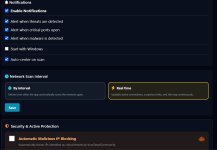
- New features and real-time monitoring.
- Intelligent privilege management: The application now requests administrator permissions only when necessary (when blocking/unblocking an IP), instead of requiring the application to always be launched as administrator.


Here are some screenshots of the new version

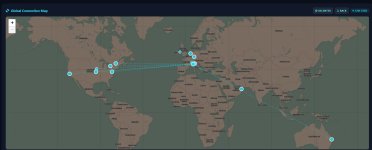
New World map and Network Device panel

Main Panel 1.jpgWorld Map.jpg

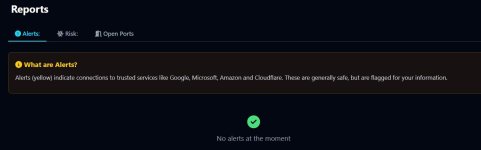
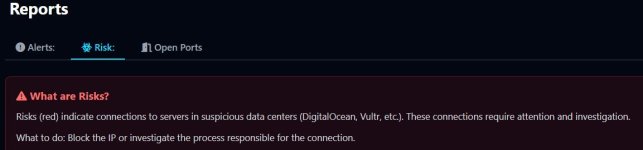
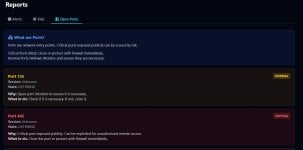
A clear explanation of Alerts / Warning, Risks and Open Ports

Alerts.jpgRisks.jpgOpen Ports.jpg

Network scanning in real-time

Settings.jpg
 
Last edited:
  • Like
Reactions: simmerskool
I notice that when Network Monitor&Antivirus is updated to a new version the "Permission" list is reset. I would be useful to keep it between version to avoid whitelisting the same processes again.
The same with Network scan interval: previously I had set real-time but today, after updating to version 1.1.3 it was set back to "By interval"

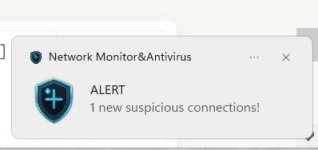
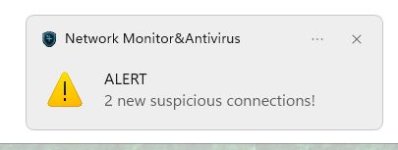
In my opinion it would be usefuI that a popup notification should also show the process that triggered it and the Organization / Domain towards which the connection is directed. If this feature were added, in the case of multiple simultaneous connections, separate notifications would need to be shown, unlike what happens now.
Moreover, comparing the two screenshot below, both refer to suspicious connection but why the first one shows the Network Monitor&Antivirus icon while the second one shows the "Danger" icon ?
*edited* The reason is that i'm getting duplicate notifications, I just verified that. For a single Suspicious Link I got 2 consecutive notifications, one with the Network Monitor&Antivirus icon and the other with the "Danger / Alert" icon, I don't remember which one first.

Popup notification.jpgMultiple connection.jpg
 
Last edited:
  • Like
Reactions: simmerskool
If you'd like, I can try implementing a reverse DNS feature in the future so that our software also attempts to display the domain name (e.g., Discord) alongside the organization name. Would you like me to make this change?
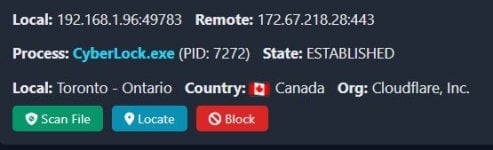
I don't know if this feature has already been added. I'm on version 1.1.3 but the Active Connection panel only shows the organization, not the domain as well. This occurs not only for Cyberlock.exe but also for other processes.
In my Firewall I've allowed, for Network Monitor&Antivirus executable all the following connections:

TCP Port 80 Outgoing
TCP Port 443 Outgoing
UDP Port 53 Outgoing


Cyberlock (Firewall).jpgCyberlock NM & AV.jpg
 
Last edited:
  • Like
Reactions: simmerskool
I don't know if this feature has already been added. I'm on version 1.1.3 but the Active Connection panel only shows the organization, not the domain as well. This occurs not only for Cyberlock.exe but also for other processes.
In my Firewall I've allowed, for Network Monitor&Antivirus executable all the following connections:

TCP Port 80 Outgoing
TCP Port 443 Outgoing
UDP Port 53 Outgoing


View attachment 297343View attachment 297344
Next week I'll release another update and I'll try to implement these aspects as well.
 
I think that the Active Connections and Suspicious Links panel should show the full process path because a program is not always easily identified by the name of its process. In the attached example it is clear but this may not always so. In my case, the panel should show C:\Program Files\CyberLock\CyberLock.exe.

Cyberlock NM & AV.jpg
 
I apologize for the frequent request of new features but if I can think of something that could possibly improve Network Monitor&Antivirus, I'll mention it.