Troubleshooting Stuck on Blurry Background Login Screen

King Alpha

Level 25
Verified
Top Poster
Content Creator
Well-known
Forum Veteran
Describe the problem
Unable to login because the password bar is not appearing.
What have you tried?
Ctrl+Alt+Del, Multiple Restarts, Startup Repair
Hello guys! I badly need your help, I couldn't get pass the login screen. When I click the left button or hit enter I can only see a blurry login background. I couldn't even enter the password because the password bar isn't there. I also tried Ctrl+Alt+Del but to no avail. What could be the fix here? I also want to know the culprit. Thank you in advance!
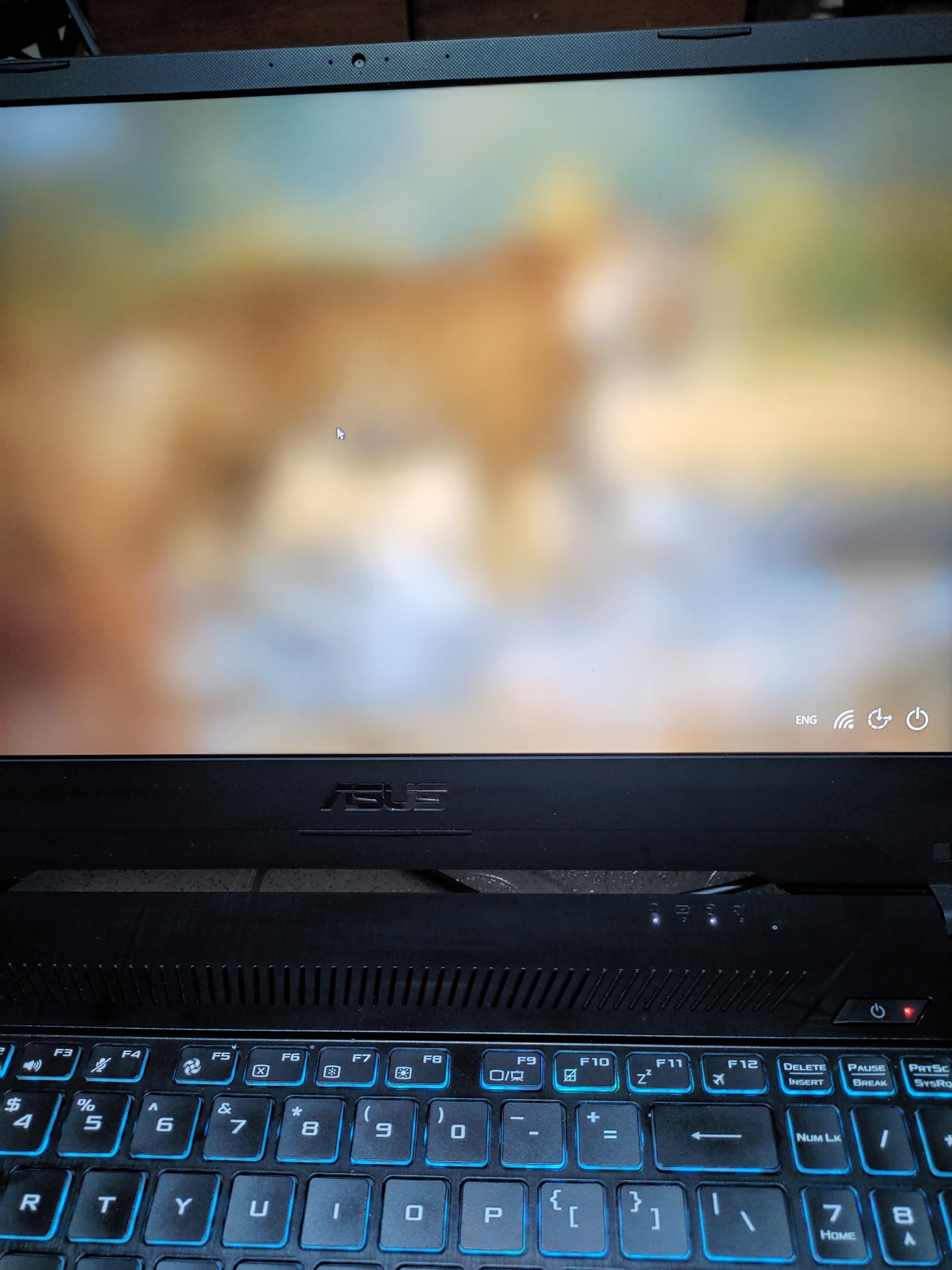
P_20200715_191812.jpg
 
Try
Just a question on the 1st method. Should I type "CD" together with "%windir%\system32\config\systemprofile\appdata\local\microsoft\windows\caches" or should I type it in separately? Thank you so much.
 
Upvote 0
Just a question on the 1st method. Should I type "CD" together with "%windir%\system32\config\systemprofile\appdata\local\microsoft\windows\caches" or should I type it in separately? Thank you so much.
That's all one command line -> CD %windir%\system32\config\systemprofile\appdata\local\microsoft\windows\caches
 
Upvote 0
What should I do next here? Should I type in and enter "DEL"? I couldn't see any .db files
 

Attachments

  • P_20200715_210110.jpg
    P_20200715_210110.jpg
    1.6 MB · Views: 651
Upvote 0
Hello,
According to screen shot, you're still on the X:\ -drive.
You need to go to system drive C:\ by typing: c: (and press enter)
Then type: cd %windir%\system32\config\systemprofile\appdata\local\microsoft\windows\caches (and press enter)
Then type: dir (and press enter)

Is there now any .db files? If so, then type: del *.* (and press enter)

Kind regards,
-sepik
 
Upvote 0
After typing dir, it seems that you're still on root of the C: drive
Try to type path manually:
cd windows
cd system32
cd config
cd systemprofile
cd appdata
cd local
cd microsoft
cd windows
cd caches
dir
 
Upvote 0
Okay guys, so, I've tried all those methods but still couldn't fix it. Is there any other way? Or should I reset the PC? :(
 
Upvote 0
I give up. First, I tried to delete caches files manually. They couldn't be deleted so I used command prompt to forcefully delete those files. I thought I made it, but after restarting I still have that blurry screen. :(
 
Upvote 0

Recently browsing

Members who viewed this thread in the last 5 minutes

Back
Top