- Describe the problem
- PC won't restart from GUI, needs multiple attempts to start after shutdown
- What have you tried?
- Ran sfc /scannow and DISM, disabled Intel Management Engine, uninstalled security softs and recovery app, deleted and merged partitions.
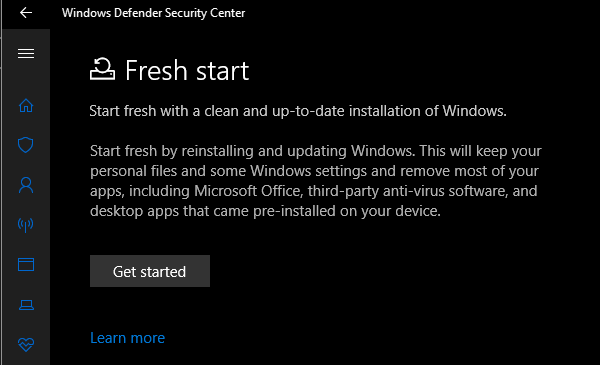
I need to clean install Windows 10 but I'm having trouble entering BIOS to change the boot order > USB. Is it possible to clean install W10 using MCT's setup.exe?  It looks to me like it only allows an in-place install with options to keep apps & files, files only or nothing at all. I've never clean installed Windows before but I'd prefer to as this would be the best option so I can wipe my entire disk.I'm not certain I can do this without entering BIOS, etc. TIA
It looks to me like it only allows an in-place install with options to keep apps & files, files only or nothing at all. I've never clean installed Windows before but I'd prefer to as this would be the best option so I can wipe my entire disk.I'm not certain I can do this without entering BIOS, etc. TIA