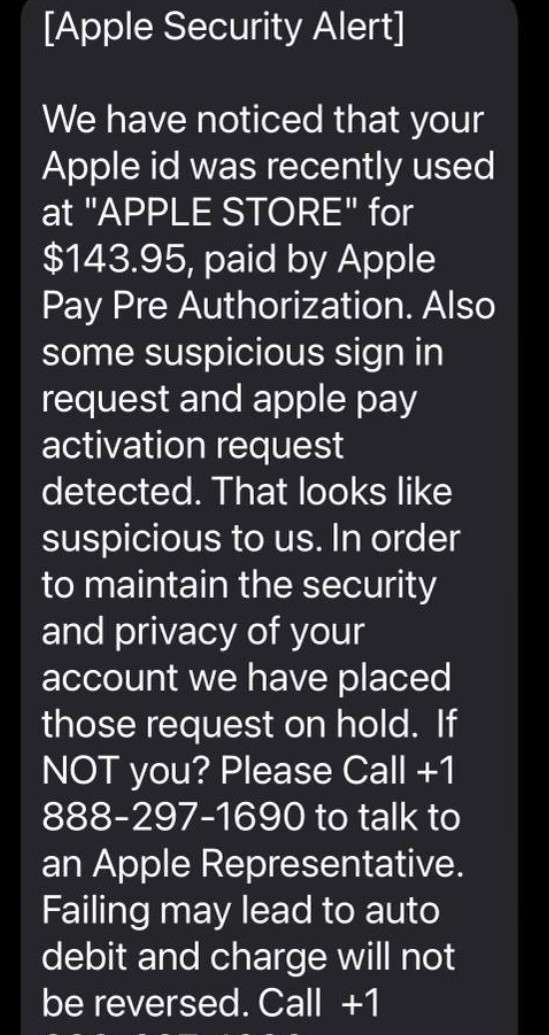
Your phone buzzes with a new text message. It looks like an urgent alert from Apple, claiming someone used your Apple Pay account to make an unauthorized purchase. Your heart races as you read on, learning that your Apple ID has been compromised. The message insists you call a number immediately to secure your account and avoid further fraudulent charges.
But hold on – before you dial, take a closer look. Is this really a legitimate alert from Apple, or could it be a scam designed to steal your sensitive information and hard-earned cash? In this article, we’ll dive deep into the world of the Apple Pay text scam, exposing the tactics scammers use to trick unsuspecting victims and providing crucial tips to protect yourself from falling prey to this cunning con.
Scam Overview
The Apple Pay text scam is a phishing atack that targets iPhone users. Scammers send out mass text messages disguised as security alerts from Apple, claiming that the recipient’s Apple ID was used to make an unauthorized purchase via Apple Pay at an Apple Store.
A typical scam text reads: “Apple Security Alert: We noticed your Apple ID was recently used at an Apple Store for $143.95 via Apple Pay. Suspicious login and Apple Pay activation requests detected. We’ve placed these requests on hold to protect your account. Please call [fake number] to resolve the issue.”
The message is carefully crafted to appear legitimate, often using official-sounding language and creating a false sense of urgency. It includes a phone number for the victim to call immediately to supposedly resolve the issue and secure their account.
However, the phone number doesn’t connect to Apple support – instead, it directs callers to a fake call center operated by the scammers. Their goal is to trick victims into revealing sensitive information like Apple ID passwords, bank account details, and credit card numbers.
This insidious scam preys on people’s fears about unauthorized charges and account security breaches. By making the victim believe their account has been compromised, scammers hope to panic them into acting quickly without stopping to scrutinize the message’s legitimacy.
It’s crucial to understand that Apple will never send unsolicited text messages about account issues or request sensitive information via text or phone call. Always be cautious of unexpected alerts pressuring you to take urgent action, especially through unofficial channels. If you have concerns about your Apple account’s security, contact Apple directly using the contact information provided on their official website.
How the Scam Works
The Apple Pay text scam is a calculated, multi-step scheme designed to manipulate victims into surrendering their sensitive data and money. Here’s a detailed breakdown of how it typically unfolds:
Step 1: The Deceptive Text
The scam begins with an unsolicited text message claiming to be a security alert from Apple. The text states that your Apple ID was used to make an unauthorized purchase, usually in the range of $100-$500, at an Apple Store via Apple Pay. It includes a phone number you’re urged to call immediately to resolve the issue and protect your account.
Step 2: The Fake Support Call
If you call the provided number, you’ll be connected to a scammer posing as an Apple support representative. They’ll claim to be investigating the suspicious Apple Pay charge and ask you to verify your identity.
Step 3: The Information Heist
The scammer will request personal information like your full name, Apple ID email and password, and possibly your bank account or credit card details. They may also ask for the verification code sent to your iPhone, claiming it’s necessary to secure your account. In reality, they’re simply harvesting your sensitive data for fraudulent purposes.
Step 4: The Technical Trap
In some cases, the scammer may allege that your iPhone has been hacked and insist on establishing a remote connection to run diagnostics and remove supposed security threats. If you grant remote access, the scammer can potentially install malware, spy on your activity, and even lock you out of your own device.
Step 5: The Financial Sting
After gaining access to your device, the scammer will likely claim to have found serious security issues or malware infections. They’ll pressure you into paying for phony tech support services or purchasing gift cards, prepaid debit cards, or cryptocurrency as payment. Once you provide the gift card codes or crypto wallet address, the scammer disappears with your money.
Step 6: The Aftermath
Victims of the Apple Pay text scam often face a range of consequences, from compromised accounts and identity theft to financial loss and psychological distress. Undoing the damage can be a time-consuming and emotionally draining process.
What to Do If You’ve Fallen Victim to the Apple Pay Text Scam
If you believe you’ve been tricked by the Apple Pay text scam, take the following steps to minimize the damage and protect your accounts:
Immediately change your Apple ID password and enable two-factor authentication if you haven’t already. Check your Apple account for any unauthorized changes or transactions.
Contact your bank and credit card companies to alert them of potential fraud. Request a freeze on your accounts and dispute any unauthorized charges that may have occurred.
If you gave the scammer remote access to your iPhone, update all passwords stored on your device, especially those for sensitive accounts like email, social media, and online banking. Run a full virus and malware scan using reputable security software. Consider having your device professionally inspected to ensure its integrity.
Report the scam text to your mobile carrier by forwarding it to 7726 (SPAM). This helps carriers identify and block scam numbers.
File reports with the Federal Trade Commission (FTC) at ReportFraud.ftc.gov and the FBI’s Internet Crime Complaint Center (IC3) at IC3.gov. Include as much detail as possible to aid in tracking and combating these scams.
Stay vigilant for follow-up scams. Once scammers have your information, they may sell it to other fraudsters or use it for future schemes. Be wary of unsolicited calls, emails, or texts claiming to be from Apple or other companies seeking your personal data.
Is Your Device Infected? Scan for Malware
If your computer or phone is slow, showing unwanted pop-ups, or acting strangely, malware could be the cause. Running a scan with Malwarebytes Anti-Malware Free is one of the most reliable ways to detect and remove harmful software. The free version can identify and clean common infections such as adware, browser hijackers, trojans, and other unwanted programs.
Malwarebytes works on Windows, Mac, and Android devices. Choose your operating system below and follow the steps to scan your device and remove any malware that might be slowing it down.
Malwarebytes for WindowsMalwarebytes for MacMalwarebytes for Android
Run a Malware Scan with Malwarebytes for Windows
Malwarebytes stands out as one of the leading and widely-used anti-malware solutions for Windows, and for good reason. It effectively eradicates various types of malware that other programs often overlook, all at no cost to you. When it comes to disinfecting an infected device, Malwarebytes has consistently been a free and indispensable tool in the battle against malware. We highly recommend it for maintaining a clean and secure system.
Download Malwarebytes
Download the latest version of Malwarebytes for Windows using the official link below. Malwarebytes will scan your computer and remove adware, browser hijackers, and other malicious software for free.
(The above link will open a new page from where you can download Malwarebytes)
Install Malwarebytes
After the download is complete, locate the MBSetup file, typically found in your Downloads folder. Double-click on the MBSetup file to begin the installation of Malwarebytes on your computer. If a User Account Control pop-up appears, click “Yes” to continue the Malwarebytes installation.
Follow the On-Screen Prompts to Install Malwarebytes
When the Malwarebytes installation begins, the setup wizard will guide you through the process.
You’ll first be prompted to choose the type of computer you’re installing the program on—select either “Personal Computer” or “Work Computer” as appropriate, then click on Next.
Malwarebytes will now begin the installation process on your device.
When the Malwarebytes installation is complete, the program will automatically open to the “Welcome to Malwarebytes” screen.
On the final screen, simply click on the Open Malwarebytes option to start the program.
Enable “Rootkit scanning”.
Malwarebytes Anti-Malware will now start, and you will see the main screen as shown below. To maximize Malwarebytes’ ability to detect malware and unwanted programs, we need to enable rootkit scanning. Click on the “Settings” gear icon located on the left of the screen to access the general settings section.
In the settings menu, enable the “Scan for rootkits” option by clicking the toggle switch until it turns blue.
Now that you have enabled rootkit scanning, click on the “Dashboard” button in the left pane to get back to the main screen.
Perform a Scan with Malwarebytes.
To start a scan, click the Scan button. Malwarebytes will automatically update its antivirus database and begin scanning your computer for malicious programs.
Wait for the Malwarebytes scan to complete.
Malwarebytes will now scan your computer for browser hijackers and other malicious programs. This process can take a few minutes, so we suggest you do something else and periodically check the status of the scan to see when it is finished.
Quarantine detected malware
Once the Malwarebytes scan is complete, it will display a list of detected malware, adware, and potentially unwanted programs. To effectively remove these threats, click the “Quarantine” button.
Malwarebytes will now delete all of the files and registry keys and add them to the program’s quarantine.
Restart your computer.
When removing files, Malwarebytes may require a reboot to fully eliminate some threats. If you see a message indicating that a reboot is needed, please allow it. Once your computer has restarted and you are logged back in, you can continue with the remaining steps.
Once the scan completes, remove all detected threats. Your Windows computer should now be clean and running smoothly again, free of trojans, adware, and other malware.
If your current antivirus allowed this malicious program on your computer, you may want to consider purchasing Malwarebytes Premium to protect against these types of threats in the future. If you are still having problems with your computer after completing these instructions, then please follow one of the steps:
Malwarebytes for Mac is an on-demand scanner that can destroy many types of malware that other software tends to miss without costing you absolutely anything. When it comes to cleaning up an infected device, Malwarebytes has always been free, and we recommend it as an essential tool in the fight against malware.
Download Malwarebytes for Mac.
You can download Malwarebytes for Mac by clicking the link below.
When Malwarebytes has finished downloading, double-click on the setup file to install Malwarebytes on your computer. In most cases, downloaded files are saved to the Downloads folder.
Follow the on-screen prompts to install Malwarebytes.
When the Malwarebytes installation begins, you will see the Malwarebytes for Mac Installer which will guide you through the installation process. Click “Continue“, then keep following the prompts to continue with the installation process.
When your Malwarebytes installation completes, the program opens to the Welcome to Malwarebytes screen. Click the “Get started” button.
Select “Personal Computer” or “Work Computer”.
The Malwarebytes Welcome screen will first ask you what type of computer are you installing this program, click either Personal Computer or Work Computer.
Click on “Scan”.
To scan your computer with Malwarebytes, click on the “Scan” button. Malwarebytes for Mac will automatically update the antivirus database and start scanning your computer for malware.
Wait for the Malwarebytes scan to complete.
Malwarebytes will scan your computer for adware, browser hijackers, and other malicious programs. This process can take a few minutes, so we suggest you do something else and periodically check on the status of the scan to see when it is finished.
Click on “Quarantine”.
When the scan has been completed, you will be presented with a screen showing the malware infections that Malwarebytes has detected. To remove the malware that Malwarebytes has found, click on the “Quarantine” button.
Restart computer.
Malwarebytes will now remove all the malicious files that it has found. To complete the malware removal process, Malwarebytes may ask you to restart your computer.
After scanning, delete any detected threats. Your Mac should now be free from adware, unwanted extensions, and other potentially harmful software.
If your current antivirus allowed a malicious program on your computer, you might want to consider purchasing the full-featured version of Malwarebytes Anti-Malware to protect against these types of threats in the future. If you are still experiencing problems while trying to remove a malicious program from your computer, please ask for help in our Mac Malware Removal Help & Support forum.
Run a Malware Scan with Malwarebytes for Android
Malwarebytes for Android automatically detects and removes dangerous threats like malware and ransomware so you don’t have to worry about your most-used device being compromised. Aggressive detection of adware and potentially unwanted programs keeps your Android phone or tablet running smooth.
Download Malwarebytes for Android.
You can download Malwarebytes for Android by clicking the link below.
In the Google Play Store, tap “Install” to install Malwarebytes for Android on your device.
When the installation process has finished, tap “Open” to begin using Malwarebytes for Android. You can also open Malwarebytes by tapping on its icon in your phone menu or home screen.
Follow the on-screen prompts to complete the setup process
When Malwarebytes will open, you will see the Malwarebytes Setup Wizard which will guide you through a series of permissions and other setup options. This is the first of two screens that explain the difference between the Premium and Free versions. Swipe this screen to continue. Tap on “Got it” to proceed to the next step. Malwarebytes for Android will now ask for a set of permissions that are required to scan your device and protect it from malware. Tap on “Give permission” to continue. Tap on “Allow” to permit Malwarebytes to access the files on your phone.
Update database and run a scan with Malwarebytes for Android
You will now be prompted to update the Malwarebytes database and run a full system scan.
Click on “Update database” to update the Malwarebytes for Android definitions to the latest version, then click on “Run full scan” to perform a system scan.
Wait for the Malwarebytes scan to complete.
Malwarebytes will now start scanning your phone for adware and other malicious apps. This process can take a few minutes, so we suggest you do something else and periodically check on the status of the scan to see when it is finished.
Click on “Remove Selected”.
When the scan has been completed, you will be presented with a screen showing the malware infections that Malwarebytes for Android has detected. To remove the malicious apps that Malwarebytes has found, tap on the “Remove Selected” button.
Restart your phone.
Malwarebytes for Android will now remove all the malicious apps that it has found. To complete the malware removal process, Malwarebytes may ask you to restart your device.
When the scan is finished, remove all detected threats. Your Android phone should now be free of malicious apps, adware, and unwanted browser redirects.
If your current antivirus allowed a malicious app on your phone, you may want to consider purchasing the full-featured version of Malwarebytes to protect against these types of threats in the future. If you are still having problems with your phone after completing these instructions, then please follow one of the steps:
Restore your phone to factory settings by going to Settings > General management > Reset > Factory data reset.
After cleaning your device, it’s important to protect it from future infections and annoying pop-ups. We recommend installing an ad blocker such as AdGuard. AdGuard blocks malicious ads, prevents phishing attempts, and stops dangerous redirects, helping you stay safe while browsing online.
Frequently Asked Questions About the Apple Pay Text Scam
Q1: What is the Apple Pay text scam?
A: The Apple Pay text scam is a phishing scheme in which scammers send fraudulent text messages claiming that the recipient’s Apple ID was used to make an unauthorized purchase via Apple Pay at an Apple Store. The texts include a phone number for the victim to call immediately to resolve the issue, but the number connects to a fake Apple support center run by the scammers, who aim to steal sensitive information and money.
Q2: How can I spot a fake Apple Pay scam text?
A: Scam texts often convey a sense of urgency, pressuring you to act quickly. They may contain grammatical errors, misspellings, or odd phrasing. Crucially, they ask you to provide personal information or click on a suspicious link. Bear in mind that Apple will never request sensitive details like your password or financial information via text, phone, or email.
Q3: What should I do if I receive a suspicious Apple Pay scam text?
A: Do not reply to the message or call the provided phone number. Instead, report the text as spam by forwarding it to 7726 (SPAM), then delete it. If you’re worried about your Apple account’s security, contact Apple support directly through their official website or app.
Q4: I called the number in the Apple Pay scam text. What should I do now?
A: If you shared any personal information with the scammer, immediately change your Apple ID password and enable two-factor authentication if you haven’t already. Contact your bank and credit card companies to notify them of potential fraud and request a freeze on your accounts. Check your statements for unauthorized charges and dispute any that appear.
Q5: I allowed the scammer to remotely access my iPhone/PC. What steps should I take?
A: If you granted remote access, your device may be compromised. Change all passwords stored on your iPhone, particularly those for sensitive accounts like email and online banking. Run a comprehensive virus and malware scan using trusted security software.
Q6: I paid the scammer with gift cards or cryptocurrency. Is there a way to recover my money?
A: Unfortunately, once you’ve sent gift card codes or cryptocurrency to a scammer, it’s virtually impossible to recover those funds. Scammers prefer these payment methods because they are essentially untraceable and irreversible.
Q7: How can I report the Apple Pay text scam?
A: In addition to reporting the scam text to your carrier by forwarding it to 7726 (SPAM), you can file complaints with the Federal Trade Commission (FTC) at ReportFraud.ftc.gov and the FBI’s Internet Crime Complaint Center (IC3) at IC3.gov. Providing as much detail as possible helps authorities track and combat these scams more effectively.
Q8: What measures can I take to avoid falling victim to the Apple Pay text scam?
A: Always be wary of unsolicited messages claiming account issues or unauthorized charges, especially those urging immediate action through unofficial channels. Avoid clicking on links or calling numbers provided in suspicious texts. If you’re uncertain about a message’s authenticity, contact the company directly using verified contact information from their official website. Enable two-factor authentication on your accounts whenever possible and regularly review your financial statements for unusual activity.
By familiarizing yourself with the tactics employed in the Apple Pay text scam and implementing proactive measures to safeguard your information, you can protect yourself against this and similar phishing schemes. Remember, a cautious and vigilant approach is essential in maintaining the security of your digital life.
The Bottom Line
The Apple Pay text scam is a ruthless con designed to exploit people’s trust in Apple’s brand and their fears about account security. By impersonating Apple and creating a false sense of urgency, scammers manipulate victims into revealing sensitive information and paying for nonexistent security issues.
Always be skeptical of unexpected messages claiming account problems or unauthorized transactions, especially those pressuring you to act immediately via unofficial channels. Remember, Apple will never ask for your personal details or account credentials over text, phone, or email.
If you receive a suspicious text about an Apple Pay charge, do not engage with the sender. Forward the message to 7726 (SPAM) to report it, then delete it. If you have concerns about your Apple account, contact Apple support directly through their official app or website.
Staying informed about popular scams and maintaining a cautious approach to unsolicited messages are key to protecting your sensitive information and financial well-being. By understanding the tactics used in the Apple Pay text scam and taking proactive steps to secure your accounts, you can safeguard yourself against this and similar phishing schemes.”
Thomas is an expert at uncovering scams and providing in-depth reporting on cyber threats and online fraud. As an editor, he is dedicated to keeping readers informed on the latest developments in cybersecurity and tech.