


The moment you can’t get into your phone, everything else becomes harder. The same device often holds your contacts, messages, and the codes you need to sign in elsewhere.
If you’re looking at a screen you don’t recognize, leave it as it is for a moment. What you can still access will determine the safest next move.
Overview
DroidLock can take away access to an Android device
DroidLock is Android malware that researchers at Zimperium documented in a phishing campaign aimed at Spanish-speaking users. The app requested powerful access after being installed outside ordinary store channels.
The researchers reported lock-screen disruption, broader control of an affected device, and threats involving a reset or deletion. Some actions depend on the permissions the app actually obtained.
For the person holding the phone, the immediate problem can be simple: their known PIN no longer gets them where they need to go.
That doesn’t diagnose DroidLock on its own.
The lock screen and the data are separate problems
This is not a guide to decrypting files with a new extension.
DroidLock was documented on Android, where access controls and the threat of data loss matter more than a list of renamed files.
An inaccessible phone may still have intact data. Conversely, getting back into the phone doesn’t tell you what the app saw or whether particular data was already removed.
Give yourself two tasks: confirm what can be restored, and identify which accounts need protection independent of the phone. You can start both from a second device.
What clues are useful when you contact support?
- Write down the name of the download or site you remember.
- Tell support when the lock appeared and whether your old PIN stopped working.
- Mention unusual app permission requests, especially accessibility or device administration.
- Record whether calls, data, or notifications were working before the lockout.
- Say whether the device belongs to an employer, school, or another organization.
The name on a window can be misleading, and it may not match the name in Settings.
Describe what you saw rather than trying to identify an unfamiliar icon from memory.
If another person helped you install the app or sent the link, preserve that conversation. They may have been tricked or had an account compromised themselves.
Android shows legitimate lock screens after a restart, and managed devices can be locked for ordinary administrative reasons. There are also other Android threats that display demands.
Look at the incident as a whole. A new app, a permission demand, and a lock screen appearing together is a stronger reason to investigate than a forgotten PIN alone.
If the locked phone is your only way to call anyone, borrow a phone you trust. Ask the carrier about a lost-access scenario rather than following unsolicited setup directions.
Don’t ask the person helping you to sign into your bank, email, or cloud backups as you.
You can accept help with a call without sharing the keys to your accounts.
If you’ve lost access to the number itself, tell providers that at the beginning. They may give different verification instructions when you cannot receive SMS.
How the DroidLock Infection Happens
Step 1: A link offers something to download
In the campaign researchers examined, recipients were directed toward a site that supplied an Android app. The link comes before the installation, so there is still an opportunity to stop.
A downloaded APK is an Android installation package. Downloading one to the phone is not the same as approving its installation and granting the permissions it wants afterward.
People sometimes expect to install legitimate apps outside a store for work. In that situation, confirm the exact file and instructions with the administrator you already know.
Step 2: The new app asks for unusually powerful access
A newly installed app can frame a permission request as the final step in setup.
In this case, permissions that give an app more control are more consequential than a simple notification request.
Accessibility serves real users and legitimate tools. The warning sign is an unknown app demanding access it has no convincing reason to need, not the existence of the Android feature.
The same reasoning applies to device administration. If you don’t know why a new app needs that role, exit the request and verify with an independent contact.
Step 3: The phone no longer responds as expected
Once the malware has sufficient access, the affected phone can become hard to use, including through lock-screen interference. A displayed demand may make you feel you must respond immediately.
You don’t know whether the person sending the demand can return the phone to normal. Money or credentials sent in response create another problem without resolving that uncertainty.
If the phone still lets you reach Settings, you’re in a different situation from someone who cannot pass the lock screen. The recovery paths below reflect that distinction.
Step 4: The attacker can threaten data or use other access
Zimperium documented capabilities that went beyond displaying a lock screen, including remote commands and the possibility of wiping the device.
Not every permission or action is confirmed on any given phone.
That is why a lockout can be both a data-recovery problem and an account-security problem. The label on the lock screen doesn’t tell you which accounts were affected.
Your phone number may be central to the recovery process.
Ask the carrier or account provider about legitimate recovery options if you can’t receive a verification code where you normally would.
What to Do if You Think DroidLock Affected Your Phone
-
Stop negotiating through the lock screen. Don’t pay a demand or enter another password to see what happens. Capture the screen using a second device if you safely can.
Photograph the device without showing messages, account information, or unrelated notifications. Save any support ticket numbers on the second device, where you can still find them.
-
Separate the phone from routine account use. If you can reach normal connectivity controls safely, disconnect Wi-Fi and mobile data while you arrange next steps.
If you’re locked out, don’t try workarounds from a stranger or remove the device from account records in a rush. Use another device to speak to support.
-
Protect your finances from another phone or computer. Call your bank using a channel you already trust if banking was active on the device or transactions look unfamiliar.
Ask about active sessions, mobile banking access, and verification alternatives. A lock-screen demand isn’t a trustworthy way to contact a bank or regain access.
-
Flag an affected work or school phone. Notify your help desk before resetting a managed device. Its administrators may be able to check device status and protect the associated account.
Tell the help desk which actions you already took. A clear sequence is more useful than simply reporting that the screen locked.
-
Check what is actually backed up. Use a separate trusted device to see whether photos, contacts, or documents are visible in services you already use.
Don’t assume that a full Android backup includes every authenticator, local download, or chat. Write down what you can confirm so a reset decision is based on evidence.
-
Verify recovery before giving up the only working sign-in. Check that you can sign in to the Google Account tied to the phone and reach a backup verification method.
Secure recovery email and important accounts if needed. Don’t share recovery codes or one-time codes with anyone who contacts you about unlocking the device.
How to Remove DroidLock From an Android Phone
Step 1: If Settings still opens, identify the app before removing anything
Start with recently installed apps and compare them with the download you remember.
If you can’t establish which app is suspicious, ask your provider or device manufacturer before removing system tools.
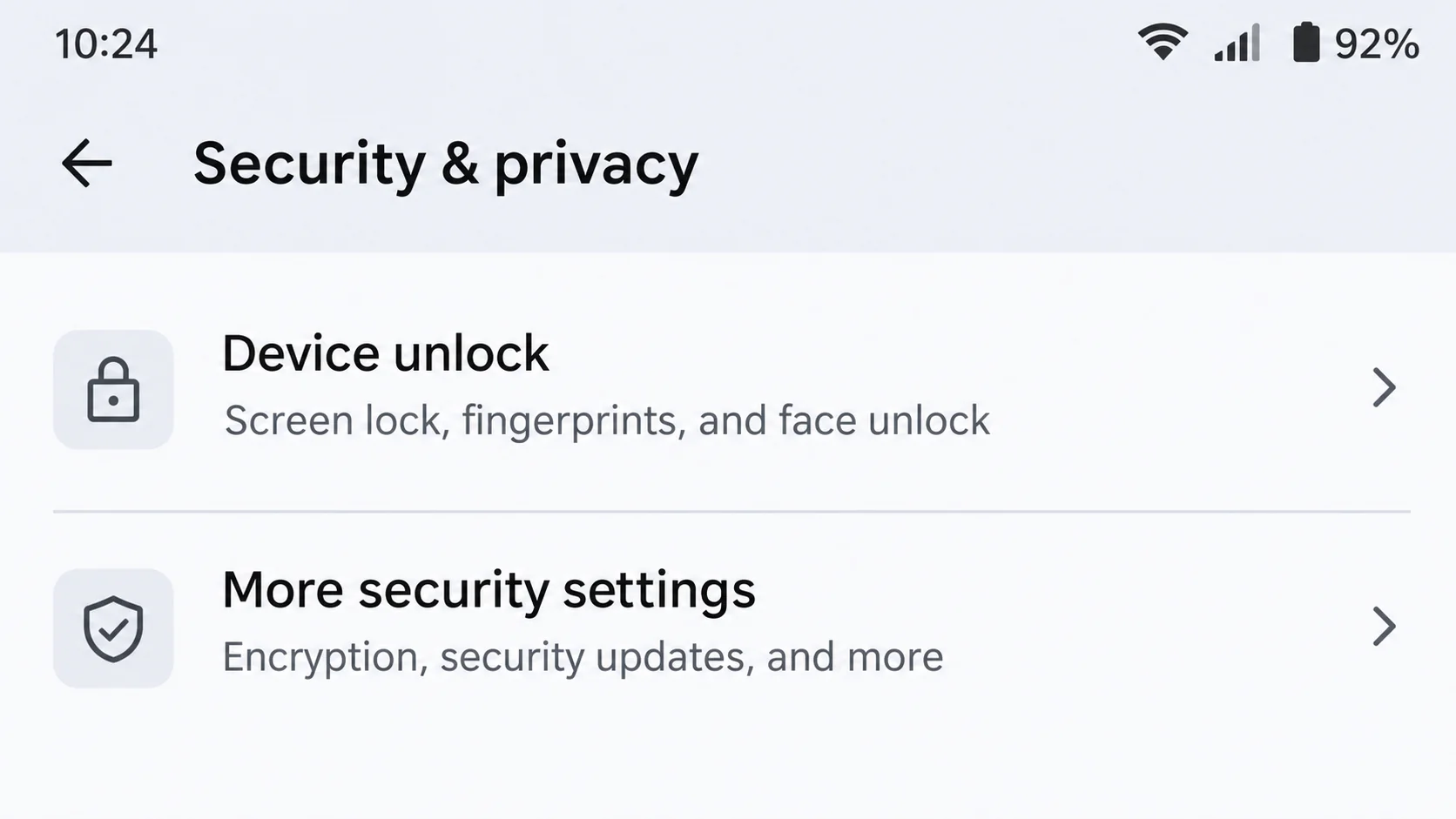
Menu names differ by Android version and manufacturer. Search Settings for Accessibility and Device admin apps to find the lists on your own device.
If you can positively identify the suspect app, revoke those special permissions if the device allows it. Go to Settings > Apps, select the confirmed suspect app, and choose Uninstall.
Don’t give another app extra permissions just to remove the first one. Avoid changing employer management or accessibility tools you depend on without talking to support.
Step 2: When you can safely install a scanner
After the device responds normally, run Google Play Protect through the profile menu in Google Play. Review any warnings about apps you didn’t expect.
For another check, open the genuine Malwarebytes listing in Google Play. Verify the developer and reach the store via its own app or this known listing.
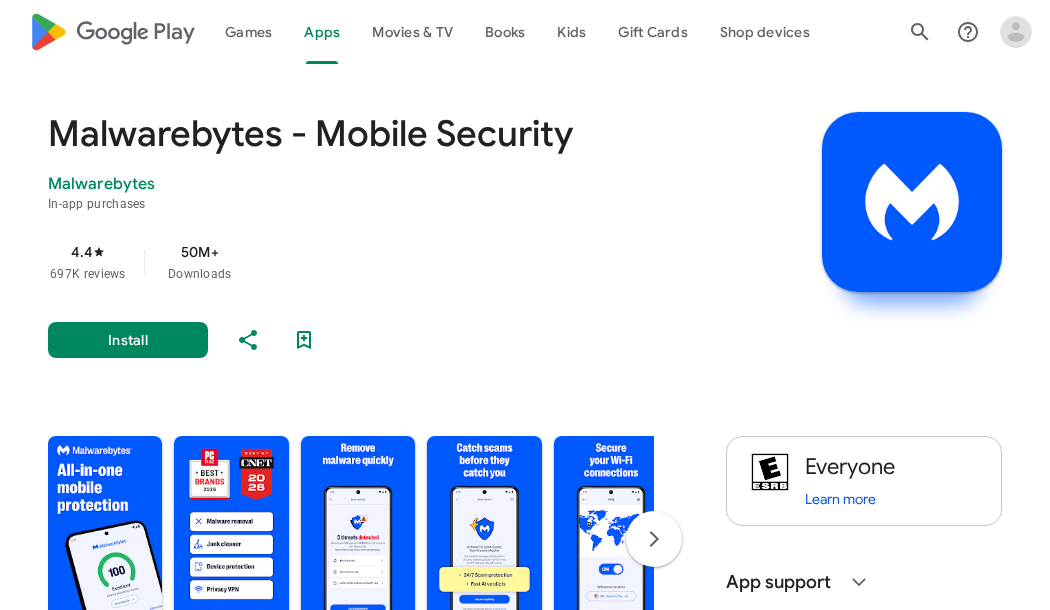
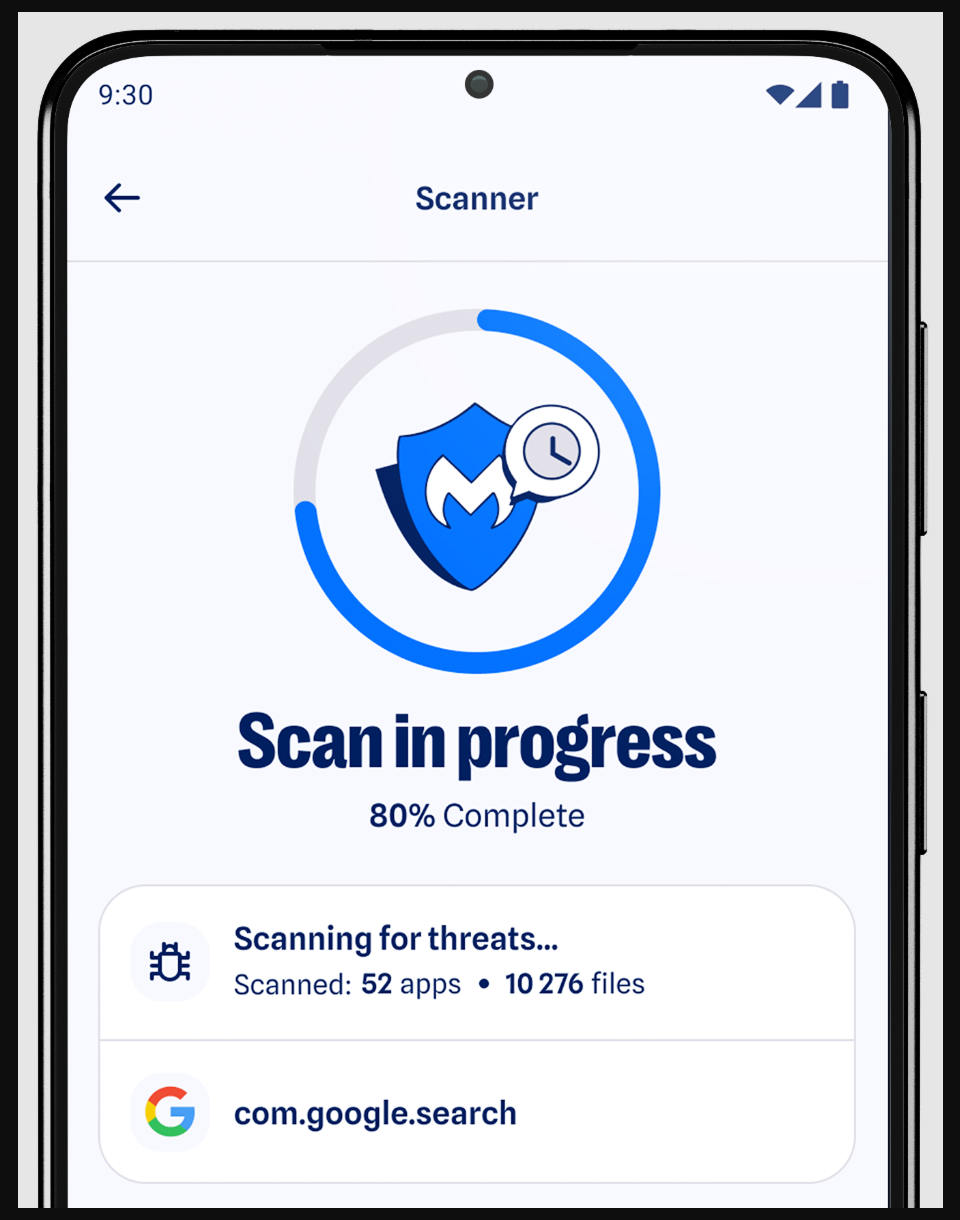
Launch the app you installed directly from the store. Review its permission requests and use the scan control described in the Android scan instructions.
The scanner may provide a list of detected apps. Review those results and follow the app’s uninstall prompt if the flagged app matches what you were investigating.
On a personal phone, restart after removal and see whether access and settings stay normal. Look out for an app or permission that returns unexpectedly.
An optional Malwarebytes for Android upgrade uses an affiliate link. Installing a scanner isn’t a route around a device lock you can’t get past.
Step 3: If the phone is locked, use the manufacturer’s recovery path
Open the device maker’s official support site from another screen. Provide the exact model and explain that the device stopped accepting the old unlock method after a suspicious app installation.
Only follow safe-mode guidance for your exact model if support says it applies. Safe mode is not a way around a legitimately configured Android screen lock.
Ask support about the point at which a reset becomes necessary. If the phone contains important evidence or work data, wait for the organization responsible before erasing anything.
How to Regain Access and Recover Backed-Up Data
Before agreeing to erase a personal phone
Google’s reset guide explains why you need to know the account and password used on the device. Review the guide and the manufacturer’s model-specific steps before acting.
An Android reset erases local data. Don’t confuse regaining a usable device with getting back every local photo, offline note, or app backup.
Review Google’s device protection guidance as well. If you can’t access the necessary Google Account, get help recovering it through the official route before you erase the phone.
Restore selectively once the phone is trusted
Set up Android with current system updates and known app sources. Reinstall apps manually if restoring the old app set could bring back the download that caused the problem.
Check separate backups for messaging and authentication apps before assuming something was lost. There may be an account recovery route even when the app itself did not restore.
Keep the incident notes until any disputes or work reviews are resolved. For a persistent problem, use the manufacturer, your employer, or the MalwareTips mobile malware help forum.
Check what returned after setting up a replacement
Start with one service you can confirm independently, such as contacts synchronized to an account. Check the newest and oldest items before assuming the entire collection made it back.
For apps that store data separately, sign in only through their legitimate installation. If messages or authenticator entries are missing, use the service’s official recovery instructions.
Take note if an unfamiliar screen appears before you restore anything. That timing might point to a device or account problem rather than something brought back by a specific app.
You may have to keep the old phone offline during this stage. Before removing or trading it in, make sure your support team no longer needs it to investigate.
Frequently Asked Questions
Is DroidLock the same as ransomware that encrypts files?
It is often described as Android ransomware because lockout and threats can be used for extortion. The documented behavior doesn’t establish Windows-style file encryption.
What if I only saw the download page?
Seeing the page doesn’t establish an installation. If you also downloaded an APK, check whether you actually installed it or granted access before deciding how far to go.
Should I delete the device from my Google account?
Don’t do that as a first response to an unfamiliar lock screen. Get the model-specific guidance and confirm what account you’ll need after a reset.
Can I install Malwarebytes on a locked phone?
The steps here assume you can use the device and open Google Play. If you cannot access the phone, the proper starting point is the manufacturer’s support or your administrator.
Does getting back in make the banking app safe to use?
Not automatically, because the events before the lock still matter. Use a separate device to check transactions and confirm with the bank what access may need to be removed.
Will paying get my phone and photos back?
There is no reliable reason to assume the person demanding payment can return either. Verify independent backups and work with the device maker before considering any irreversible change.
The Bottom Line
With DroidLock, the decision that matters most is whether you can still safely reach Android Settings. If you cannot, switch to a second device and seek official support.
Recovering data, protecting accounts, and removing a suspect app are separate jobs. Tackle them in that order whenever an irreversible reset could destroy the only copy of something important.

Join the discussion
0 commentsShare your experience or ask a question about this article.
Your progress
Did these steps help?
Let us know how the guide worked for you.
Describe what you see and the step you reached. Keep passwords and other private information out.
Discussion
Start the conversation
Have a question or something useful to share? Add the first comment.