


A fake GTA 6 leak offered a Windows disk image that looked like a game download, right down to the installer icon.
The question is whether you opened the disk image or actually ran the installer, because those actions call for very different responses.

Overview
The leak offered a game but delivered a destructive installer
Huntress analyzed one fake GTA 6 ISO before release and found a Windows installer that could damage files and expose accounts instead of launching the game.
In the sample, one component encrypted smaller files and overwrote larger ones, which means a password or decryptor would not repair everything.
Huntress found this sample in a sandbox, so its results explain what that package could do, not how many players ended up affected.
Your next step depends on what you opened
- If you only saved the ISO, delete that known download without opening it, and do not try a second copy from another account.
- If you saw a new drive in File Explorer but did not start a program from it, eject the virtual drive and remove the ISO.
- If the installer ran or personal files started changing, isolate the computer and keep backups away from it until you have a recovery plan.
A backup is different from a repair tool
Scanners may find malicious files, but they cannot replace the photos, videos, or projects the installer already changed before you stopped it.
An untouched backup gives you an independent copy, while a tool that merely reads old versions on the damaged PC depends on those versions surviving.
Start with backups stored elsewhere and dated before the installer ran, then open test copies in a safe location before restoring a whole folder.
How the Fake GTA 6 ISO Scam Works
Step 1: A large file makes the leak look believable
An ISO is a disk image that Windows can show as a drive, and many legitimate software vendors use this format to distribute installers.
During the pre-release search for playable leaks, Huntress saw supposed GTA 6 images promoted through search results, gaming forums, social media, and torrent sites.
Some of the offers the researchers encountered used files over 100 GB, which can make a download seem plausible if you expect a large game.
The report distinguished those bloated files from what was inside them, so the size shown by your downloader could not tell you who made the installer.
Check the game and its supported platforms at Rockstar’s official GTA VI page, rather than taking a file name or an uploader’s profile as proof.
Step 2: The installer gives you an excuse for a failure
The suspect package included an installer with a GTA 5 icon, although it offered GTA 6 and had no connection to the genuine release.
Its introductory message claimed that the game was an unlicensed leak, and it warned that the software might show a missing license error.
That warning made the eventual error sound like an ordinary problem with the supposed leak, even after other programs had started running in the background.
The message also encouraged users to contact its sender for a fix, so do not reply or return to the thread looking for another installer.
Step 3: The download puts accounts and files at risk together
Huntress identified more than one remote access program in the package, meaning the risk was not limited to the application window that displayed the error.
It also found a program designed to steal information from browsers and gaming services, including saved logins and data that can keep accounts signed in.
This is not the separate fake GTA VI cloud player case, which used a different lure and did not establish the file damage described here.
Even if your files still open normally, treat accounts used on the affected PC as potentially exposed if you actually ran the fake installer.
Step 4: The file damage is not a normal ransom negotiation
The destructive component identified by Huntress used Chaos ransomware, but the researchers did not see a practical demand that would let victims buy a key.
In that sample, files of 200 MB or less were encrypted, while larger files were overwritten, replacing their original contents rather than locking them.
The 200 MB cutoff describes this specimen, so it should not be used to decide whether another file from an unrelated offer is safe.
Huntress reported that this component needed administrator privileges, but the fake installer also carried other programs that put your accounts at risk.
Huntress also saw the sample remove local snapshots and interfere with recovery, so do not count on Windows to have a working copy automatically.
A note in a folder can help identify an incident, but it cannot establish that every affected file was encrypted instead of overwritten.
What to Do If You Have Fallen Victim to This Scam
- If you ran it, turn off Wi-Fi and unplug Ethernet, then leave the computer off the network while you decide how to handle it.
- Disconnect external backup drives and leave any backup that was already offline untouched, because the fake installer could reach storage connected to that computer.
- If it is a work or school computer, use another device to contact IT before running scanners, deleting files, or restarting the affected system.
- Use a trusted device to secure your email and then the other important accounts you used on the affected PC, starting with recovery and finance.
- Photograph the error or existing note, record when you ran the file, and keep those details separate from your only known backup.
If the computer is already off and files were visibly changing before shutdown, do not start it just to take a screenshot or check the damage.
If a personal PC is still damaging files after you disconnect it, stop using it and seek urgent help instead of waiting for a scan.
Use account security settings on your other device to reset any exposed password and sign out unfamiliar sessions, following the affected provider’s current instructions.
Google’s compromised-account guidance explains how to check security activity and devices, while Microsoft offers sign out everywhere for browsers and apps.
If you already see unauthorized charges or trades, contact the payment provider or platform using details you find independently of the offer or note.
How to Remove the Fake GTA 6 ISO Malware From Windows
- Step 1: Check what you opened
- Step 2: Scan with Malwarebytes
- Step 3: Scan with HitmanPro
- Step 4: Verify the PC before restoring
Step 1: Match the response to what you actually started
If you merely mounted the image, open File Explorer, select This PC, right-click the virtual drive for the ISO, and choose Eject.
Remove the known ISO from Downloads after ejecting it, but do not eject or delete another drive simply because its name is unfamiliar.
Closing a mounted image does not stop an installer you already ran, so check your antivirus alerts if you are uncertain about what opened.
If a scan runs on a personal computer where the installer may have started, keep offline backups disconnected and do not sign in on that PC.
If records show confirmed execution and valuable files are damaged, prioritize preserving the affected drive instead of installing recovery utilities on it to see what happens.
Step 2: Scan with Malwarebytes
MalwareTips may earn a commission if you buy a paid product through one of the links below.
Use the official download on a trusted computer, and keep the affected PC offline until you can install and scan it without introducing more risk.
In Downloads, open the installer you obtained from Malwarebytes and approve the Windows prompt only if it matches the expected program and publisher.
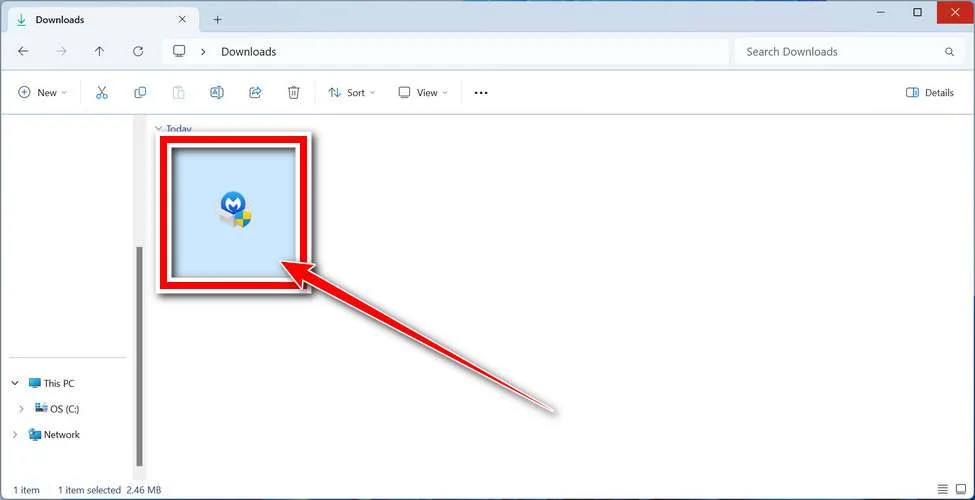
Choose Install and Personal if prompted, then skip optional offers and select Open Malwarebytes when the installer finishes on your computer.
The manual scan is available without a paid subscription, so you do not need to buy protection or add another browser extension to continue.
Select Scan from the dashboard and watch for the results, rather than assuming that removing the ISO also removed programs it installed.
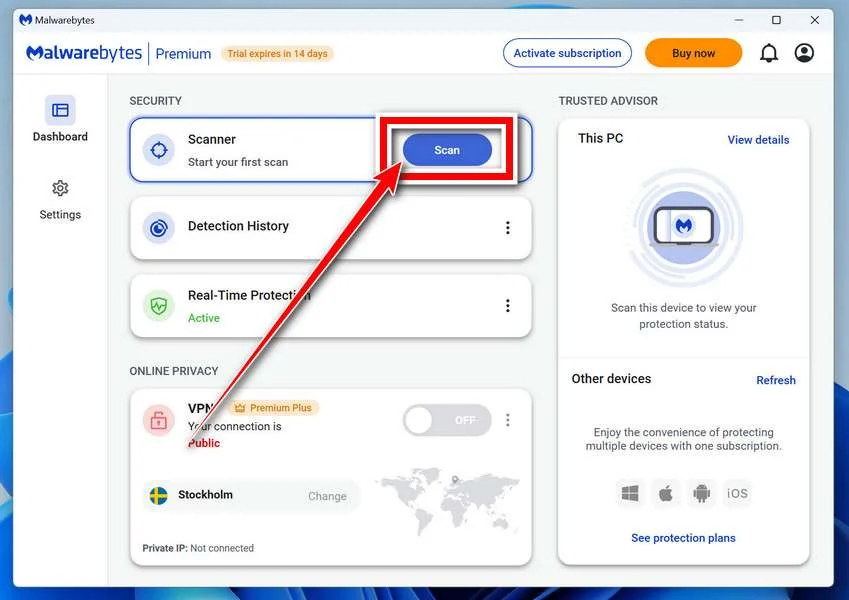
Review the detections and choose Quarantine for the identified threats, then save the report and restart only if the scanner requests it.
After restarting, open the report again and look for anything still unresolved before moving to another tool or turning any backups back on.
If the scanner will not run or the system cannot start, keep the disk isolated and get help rather than bypassing security warnings.
Step 3: Scan with HitmanPro
Use HitmanPro for a second check after the first scan finishes, but only when reconnecting for cloud checks is appropriate for that computer.
If Malwarebytes still shows an active threat or you have not saved critical evidence, get help before reconnecting solely to run a second scanner.
Download the plain HitmanPro product for your Windows system from the Sophos page, then open the verified file and select Next to continue.
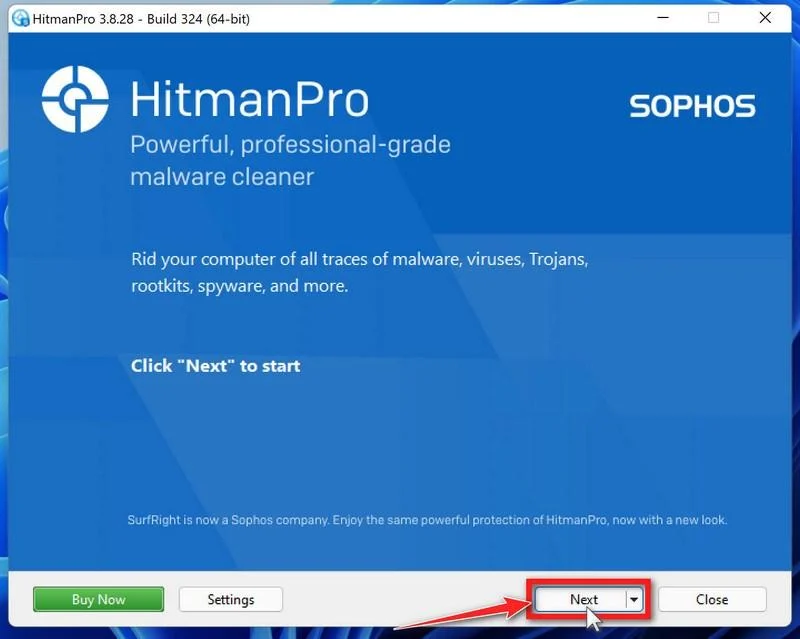
When the setup asks whether to store a copy, select the option for a one-time scan and choose Next to begin.
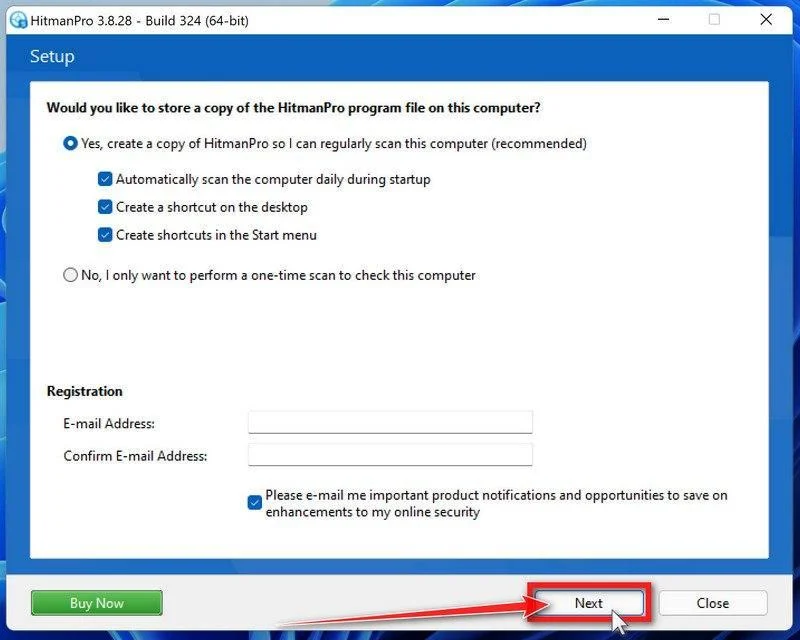
Wait for the scan results, review the listed items before choosing Next, and use Save Log if you need a record for help.
Scanning is free, but HitmanPro requires an eligible one-time 30-day trial or an existing license to remove the threats it detects.
When the program offers Activate free license, use it only if the computer is eligible and you want the tool to remove confirmed threats.
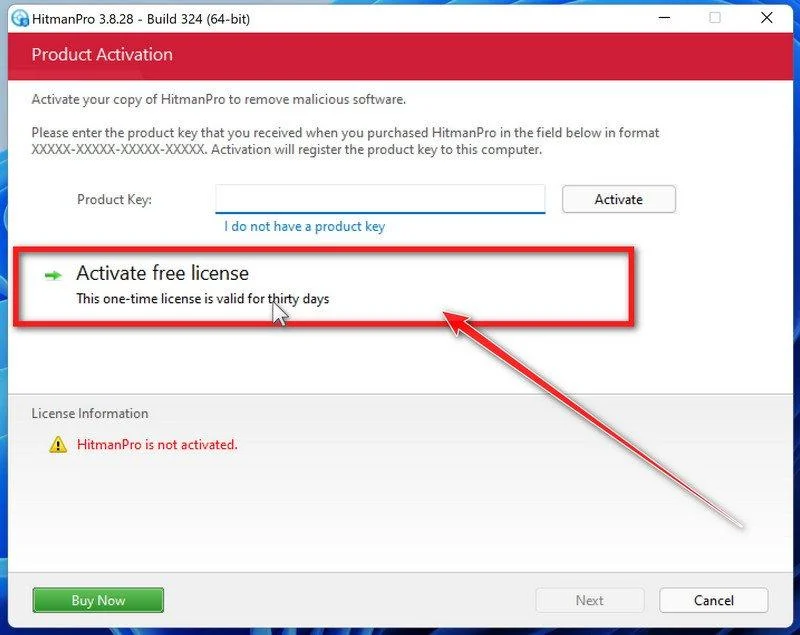
If the trial is unavailable, save the results and use the MalwareTips Windows removal forum or a trusted technician rather than buying under pressure.
If HitmanPro removes a threat and requests a restart, save your work first, then check the cleanup report for findings that still need attention.
Step 4: Verify the computer before reconnecting backups
If the installer ran and you cannot establish that cleanup worked, keep the PC away from accounts, synchronized folders, and backup media until it is checked.
Scans are useful, but the confirmed package included remote access and changes to Windows, so do not assume that two clear reports prove the system is trustworthy.
A clean installation from Microsoft’s installation media can replace a compromised Windows installation, but it will not make the damaged files readable again.
Before choosing a reinstall, verify backups and access to the BitLocker recovery key if needed, because a clean installation can delete data, applications, and settings.
If the affected drive holds the only copy of important files, preserve it first and ask a recovery professional about working from a disk image.
How to Recover Files Without Overwriting Surviving Copies
Start with a backup that predates the fake installer
Make a short list of the folders that matter and identify which copies existed before the incident, including external backups and another computer’s copies.
On a known clean computer, use the backup app to browse an older snapshot and restore a few priority files to a separate clean folder.
Open several representative documents, photos, and videos to check their contents, because a correct name and file size do not prove the file is usable.
When the test copies work, restore the remaining folders in groups and leave the original backup intact until you have confirmed the recovered copies.
Look for OneDrive versions from a separate device
Use the OneDrive website on a trusted device, right-click an affected file, choose Version history, and look for a version dated before the damage.
Open or review that version, then select its three dots and choose Restore when you are ready to make it the current copy.
If files disappeared instead of changing, check OneDrive’s Recycle bin from the website before trying to roll back the entire cloud account.
With an eligible personal Microsoft 365 subscription, open OneDrive online and choose Settings, Options, then Restore your OneDrive for changes within the last 30 days.
Pick a point before the suspicious changes, review the activity you will undo, then select Restore only when the selected date looks right.
Review the activity and safeguard recent good work before a whole-drive restore, because newer files can move to the recycle bin after the rollback.
Check File History only if you already had it running
After the system is safe, find the original folder in File Explorer, right-click its name, and choose Restore previous versions from its menu.
On Windows 11, select Show more options if needed, then choose a version dated before the suspicious install from the list that opens.
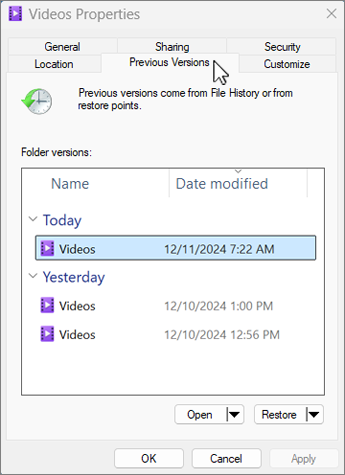
Open the version first to check its contents, then use Restore to if available so you can keep the new copy separate.
Microsoft’s File History guidance warns that an in-place restore replaces the current version, which is why a separate test folder is safer.
If the list is empty, activating File History today cannot create copies from yesterday, and a snapshot tool cannot recreate snapshots the malware deleted.
Keep damaged originals when there is no usable backup
For files that may only be encrypted, check No More Ransom on a clean device and only try a verified variant-specific tool on copies.
A tool that matches another Chaos variant does not make it suitable here, so avoid tools circulated alongside the fake game or recommended in unsolicited messages.
If the original bytes were overwritten, a decryptor cannot reconstruct them, and the useful question is whether another copy exists on different storage.
Even if a recovery program lists the original file name, avoid writing recovered files to the source drive or installing tools on the only affected disk.
If preserving those files matters more than getting the PC back today, leave the drive alone and ask a recovery specialist what can be saved.
Frequently Asked Questions
Is an ISO automatically malware when I download it?
No, ISO is a normal file format, and the threat in Huntress’s example came from the installer inside the fake game image.
If you only downloaded it and did not run anything, remove that specific download and avoid returning to the source for another copy.
Does the missing license message mean the installer did nothing?
No, the tested installer showed a license error after it had already started other programs, so that message was part of the deception.
Treat the computer as potentially affected if you ran the installer, even when the process did not open a game window afterward.
Can a scanner recover my encrypted videos and documents?
A scanner can find or quarantine malicious software, but that does not restore the old contents of a file changed by the malware.
Use backups or earlier versions for recovery, and test any matching decryptor only on copies after you establish that the files were encrypted.
Is every file over 200 MB definitely lost?
Huntress reported an overwrite rule for larger files in one sample, which cannot tell you whether that exact component ran on your computer.
Before giving up on a video or project, look for a clean copy elsewhere and verify that it plays or opens as expected.
Do I have to buy a license to check for the malware?
Malwarebytes provides a free manual scan, and HitmanPro lets you view scan results for free, although HitmanPro removal requires an eligible trial or license.
Get help if the scan leaves an unresolved detection, because buying an additional tool is not a substitute for checking the system or preserving files.
Can I plug my backup drive into the affected computer now?
Leave your backup drive disconnected until the affected PC is trusted, and check its files from a clean system if you can do so safely.
If the drive was connected when the installer ran, treat it as possibly affected and test with separate copies rather than assuming it is clean.
The Bottom Line
Do not run a fake GTA 6 ISO to check whether the game works, because the specimen Huntress tested could steal information and destroy files.
If you ran it, isolate the PC and secure accounts from a separate device before following the Malwarebytes and HitmanPro steps or arranging professional cleanup.
Keep your best backup offline until you have a safe place to restore it, then open a few test files before committing to a full restore.

Join the discussion
0 commentsShare your experience or ask a question about this article.
Community experiences
Did this happen to you?
Your experience could help someone recognize the same scam. Submit a private report for our team to review.
I experienced this tooReports are reviewed before publication. Sharing publicly is always your choice.
Discussion
Start the conversation
Have a question or something useful to share? Add the first comment.