


The fake GTA 6 Google Colab download promised a free Windows copy, but Cynet found WARDEN Stealer in the installer it tested.
If you ran that file, disconnect the PC and use another device to secure your email before trusting any existing browser session.
Overview
What Cynet found in the download
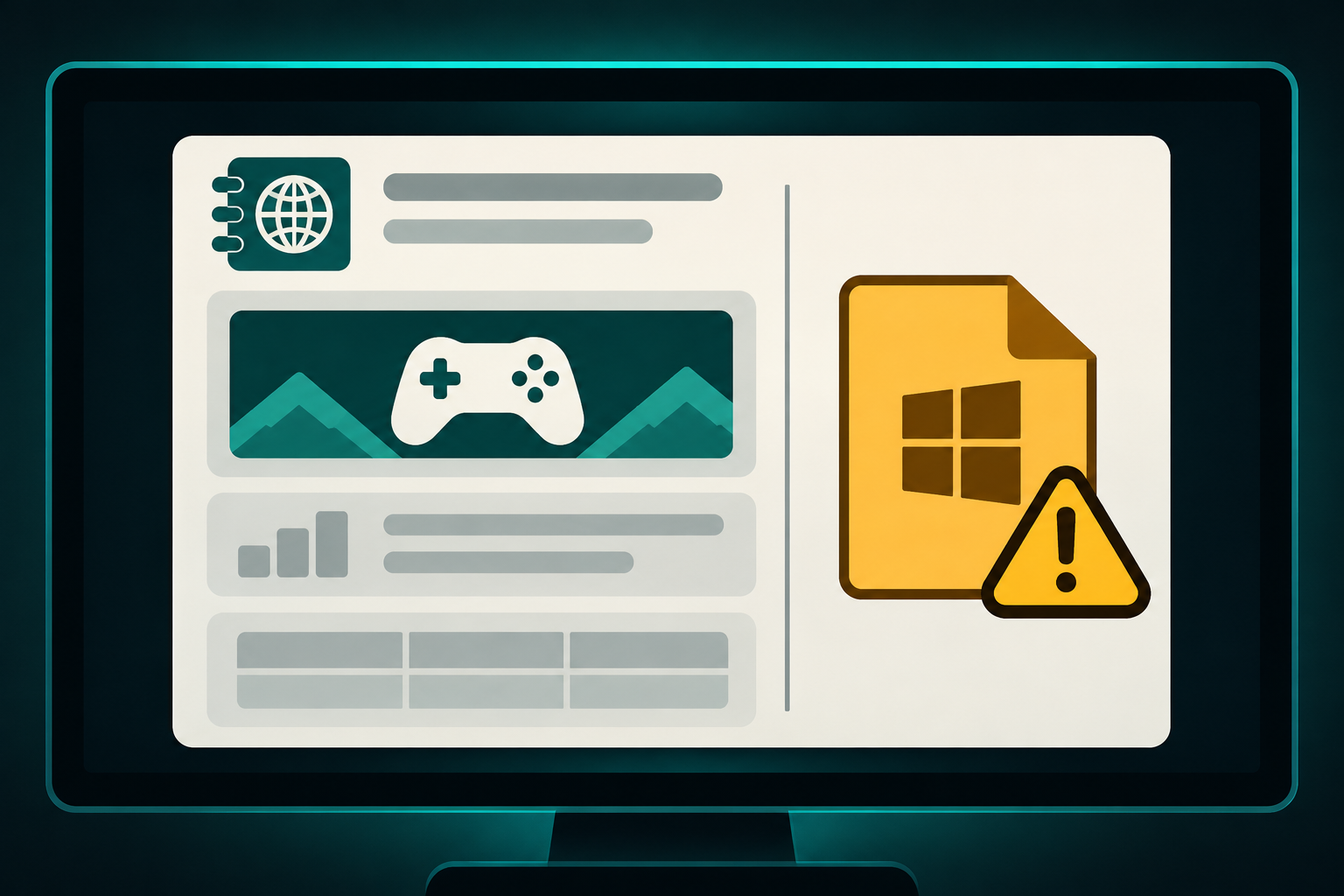
The Colab page promoted a file hosted elsewhere, and the download page claimed it was verified without showing any link to Rockstar.
Cynet tested the advertised download in a controlled environment and reported that its security software blocked malicious activity from the executable inside the archive.
The researchers identified WARDEN Stealer in the file, not a game that failed to install because the computer lacked the right hardware.
Which signs matter most
- The download can look like an ordinary software listing even though the seller never demonstrates that Rockstar supplied or signed the file.
- A security claim on the page has little value when the included instructions ask you to ignore the warnings on your computer.
- A missing game window does not tell you whether the executable started, which is why clicking it calls for a different response.
Why opening the notebook is not the same as running the installer
In the case Cynet reported, the Colab page presented the lure, while the Windows executable inside the separate download contained the malware.
The report does not show that viewing Colab automatically installed anything, and it does not identify a person who lost an account.
If you entered a password or installed something else from a related page, respond to that separately rather than assuming this report covers it.
How the Fake GTA 6 Google Colab Download Works
Step 1: The Colab notebook makes the offer look less suspicious
Google Colab is a real service, but seeing a Google address tells you where the notebook is hosted, not who supplied its download.
The notebook placed the GTA 6 offer above a link, so a reader could recognize the platform without recognizing where the file goes.
You can test the claim without opening that link by visiting Rockstar’s official GTA VI page separately and checking which platforms it currently lists.
Rockstar lists PlayStation 5 and Xbox Series X|S there, and a genuine console listing does not authenticate a Windows executable somebody posted elsewhere.
Step 2: A separate page supplies numbers and security badges
Cynet showed a separate page calling itself Windows Software Hub, with a version number, a download count, and several claims about safety.
The page said it had found zero threats, but that was a claim made by the page offering the file, not an independent check.
A version number can help you identify a genuine release when it matches the publisher’s records, which the page did not establish here.
If a listing relies on security labels rather than an announcement from the publisher, leave the listing and check the publisher’s own store.
Step 3: The archive includes a file and instructions to ignore warnings
The offer advertised a 72 MB download, and Cynet’s screenshot showed a 796 KB executable alongside a README inside the archive.
The advertised download size and the size of one file inside the archive measure different things, so the comparison does not prove fraud.
The useful evidence came from inspecting the executable and watching what it did, not from assuming every small installer must contain malware.
The included note also asked readers to override Windows security warnings, which is enough reason to stop without trying the installer on another device.
Step 4: The installer can target much more than a gaming account
Cynet identified code designed to steal browser passwords and session cookies, which are pieces of data websites use to keep you signed in.
The report also identified risks to browser extensions, gaming accounts, and cryptocurrency wallets, even though the lure itself only promised a free game.
The researchers showed alerts for a malicious binary and unauthorized memory access in their test, but those alerts do not document a particular victim’s losses.
A separate fake GTA VI cloud player used another download offer, so a similar promise does not establish that the same program was involved.
What to Do If You Have Fallen Victim to This Scam
- If you only saw the offer, close the tab and leave any download or sign-in prompt alone rather than returning to investigate.
- If you saved the archive without opening an executable, remove the archive and any extracted copies you can identify without opening them again.
- If you tried the installer and cannot confirm it was blocked before running, disconnect the computer and use a different device for account recovery.
- If you saw an unfamiliar purchase, password reset, or change to a recovery address, save the details and contact the affected company directly.
- If the computer belongs to work or school, call the help desk from another device before deleting files or changing managed security settings.
A file in Downloads is not the same as an installed program, and there is no need to reset a PC just because a file arrived.
Opening or extracting the ZIP in File Explorer normally does not start the program, but double-clicking the executable or approving a prompt changes the situation.
Check the browser’s download history to identify the copy you saved, but do not select an option that opens the file or repeats the download.
If you want help interpreting a warning, write down its exact wording and the time it appeared without sharing passwords or account recovery codes.
How to Secure Your Accounts After Running the File
Start with the email account that receives password resets
Use a device you trust, such as your own phone if it never handled the download, and enter your email provider’s address yourself.
Your main email comes first because anyone who controls it could receive password resets or stop you from seeing security alerts from other services.
For a Google account, follow Google’s recovery checklist and open the Security section to review recent activity before removing devices you do not recognize.
Update the password, confirm the recovery phone and email still belong to you, and turn on two-step verification if it is not already enabled.
Under Your devices, select Manage all devices, open a device or session you do not recognize, and use Sign out where it appears.
If you use Gmail, look for forwarding rules and filters you did not create, since they can hide warnings or send copies elsewhere.
End unknown sessions as well as changing passwords
On each affected service, use its security settings to remove unfamiliar devices or sign out existing sessions when the provider offers that choice.
A stolen session can let someone act as you without typing the password again, so changing a password is not the only step.
For Microsoft accounts, use the account security page to review sign-ins and choose Sign out everywhere if you cannot tell which session somebody else used.
Microsoft says that the sign-out can take up to 24 hours and excludes Xbox consoles, so check console access separately if it concerns you.
Change reused passwords on other accounts, then check recent orders, gifts, trades, or saved payment methods before trusting alerts that arrive outside the app.
Respond to what was accessible on that PC
Check accounts you actually used in the affected browser first, including the email, shopping, or gaming accounts that stayed signed in between visits.
If you kept a wallet extension in that browser, use a separate trusted device and consult the wallet provider’s guidance for possible key exposure.
Do not share a recovery phrase with anybody offering help, even if that person knows the name of the malware or the account involved.
If you notice a payment you did not make, call the issuer using the number from your card, statement, or official mobile app.
Keep receipts, security messages, and transaction dates in a private folder so you can share the relevant details without exposing account secrets publicly.
How to Remove the Fake GTA 6 Installer From Windows
- Step 1: Disconnect the PC and protect your accounts
- Step 2: Check whether your security software blocked the file
- Step 3: Check for an identifiable installed program
- Step 4: Scan with Malwarebytes
- Step 5: Scan with HitmanPro
- Step 6: Recheck Windows and the affected accounts
Step 1: Disconnect the computer before using it again
If you ran the file on a personal PC, turn off Wi-Fi and unplug the Ethernet cable if one is connected to the computer.
Disconnecting can stop further network activity from that PC, but it does not undo anything that happened while the machine was still online.
Start securing important accounts from a different device rather than signing back into email on the computer you are trying to check.
On a managed computer, tell your help desk when it happened and what you clicked, then follow its instructions for isolation and evidence.
Step 2: Check whether your security software blocked the file
Open your antivirus app and check its recent alerts or detection history for a file whose name, location, and time match the download.
A record saying the file was blocked before it opened differs from an alert that appeared after the program had already started.
Do not allow or restore the file to test it, and do not remove other protections to make either scanner in this guide run.
If you never launched anything from the archive, remove the known download and any extracted copies instead of treating a saved file as an infection.
Step 3: Remove an installed program only if you can identify it
Check the installed apps list if you saw a setup wizard or if a scan report points to a program installed during the incident.
On Windows 11, press Windows + I to open Settings, then select Apps and Installed apps to check what was installed.
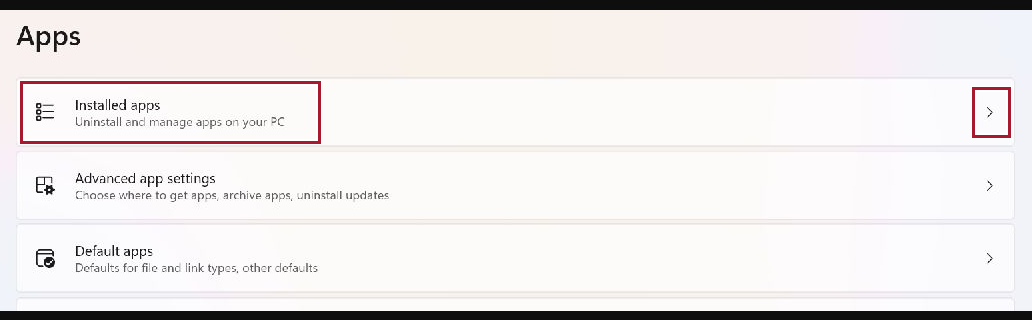
Use the name, publisher, and install date together to identify the entry, since a recent date or an unfamiliar name alone does not prove infection.
For a confirmed entry, select the three dots next to it, choose Uninstall, and confirm the name shown before accepting the prompt.
If you use Windows 10, open Settings, select Apps and Apps & features, then select the verified program and choose Uninstall.
If the program asks you to download another file or turn off security to remove it, cancel and get help with the original detection.
Not every stealer has a visible app entry, so if you find nothing connected to this download, continue to the first scan without guessing.
Step 4: Scan with Malwarebytes
MalwareTips may earn a commission if you buy a paid product through one of the links below.
Use Malwarebytes for the first scan if the installer ran or you cannot establish that the computer blocked it before it opened.
-
Download Malwarebytes for Windows
Malwarebytes Free for WindowsManual malware scan and quarantineIf you are keeping the PC offline, obtain the installer on a trusted computer and get help if you cannot transfer or install it safely.
-
Install and open Malwarebytes
Open the verified Malwarebytes installer from Downloads, confirm that Windows names Malwarebytes as the publisher, and approve the prompt only if it matches.
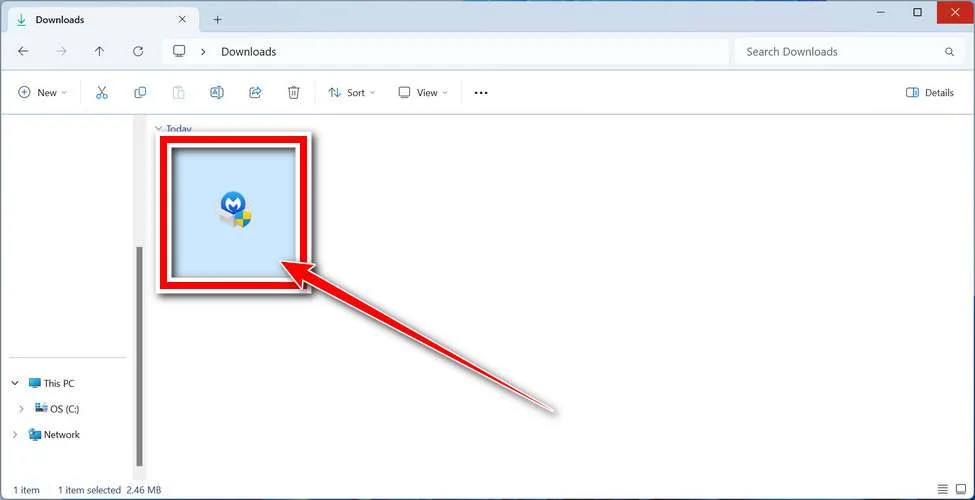
Select Install, choose Personal if asked what kind of PC this is, and skip optional offers before choosing Open Malwarebytes.
You do not need to activate a subscription or add a browser extension to use the free manual scan for this check.
-
Run the scan and review detections
On the dashboard, select Scan and let the scan finish before you decide which of the detected items should go into quarantine.
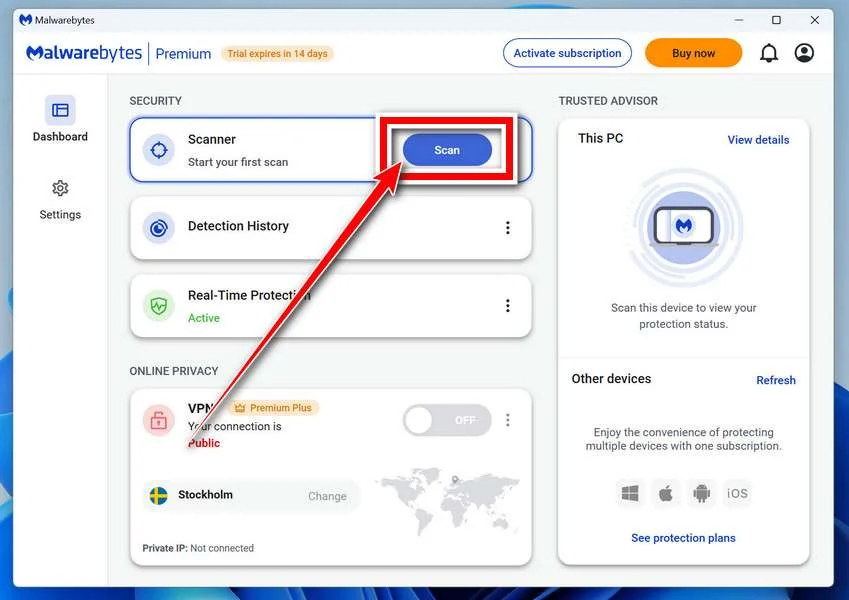
Review the reported paths, select the threats you have identified, and choose Quarantine to prevent those files from running on the computer.
If you see a detection you cannot identify, use View report to keep the details before asking for help instead of restoring or excluding it.
-
Finish quarantine and restart if asked
Save any open work before restarting if Malwarebytes asks, then reopen the app and check the report for items that still need action.
Step 5: Scan with HitmanPro
Use HitmanPro as a second check after Malwarebytes finishes, so you can compare the reports without trying to interpret two scans at once.
The scanner uses an internet connection for cloud checks, so get help before reconnecting if the first scan could not contain a detection.
-
Get the HitmanPro scanner
HitmanPro for WindowsIf you are unsure which version to get, open Settings, select System and About, then check the entry labeled System type.
On the download page, choose the HitmanPro version for your system rather than HitmanPro.Alert, which is a separate product you do not need here.
-
Start HitmanPro and choose a one-time scan
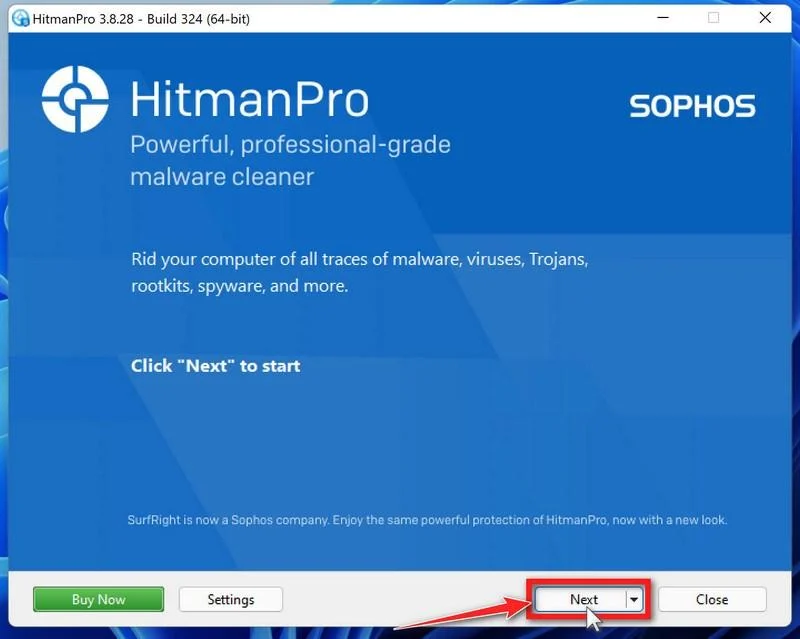
Open the verified HitmanPro file in Downloads, approve the Windows prompt only if it is for that file, then select Next.
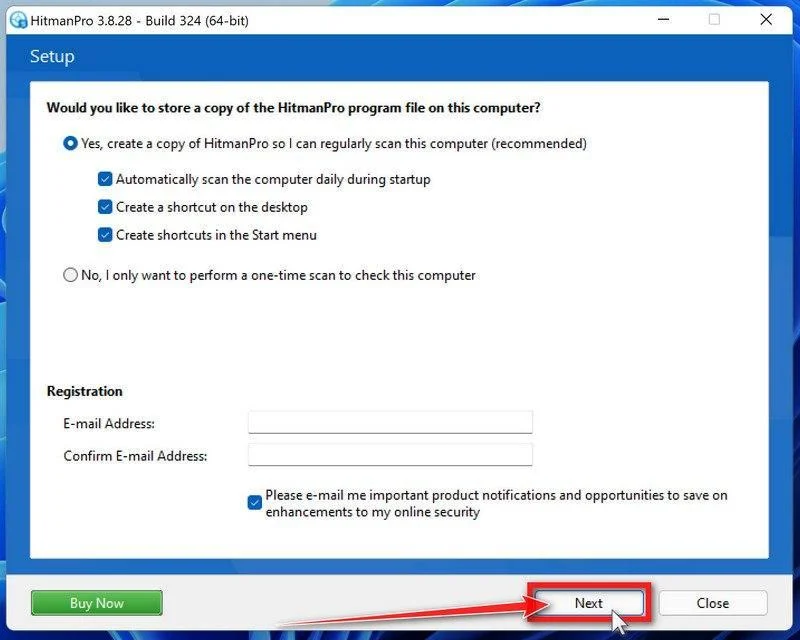
If the setup screen asks to keep a copy, choose the one-time scan option and select Next to start checking the computer.
Leave the scan open until it finishes, then read the results and choose Save Log if you need to keep a copy.
-
Review results and check trial eligibility
Check each detection before selecting Next to remove confirmed threats, since an ordinary tracking cookie does not mean the fake installer is still active.
Scan results are free to view, but removal requires a paid license or the one-time 30-day trial if this computer is still eligible.
If the activation screen offers Activate free license, use it only if you want to apply the trial to remove the confirmed detections.
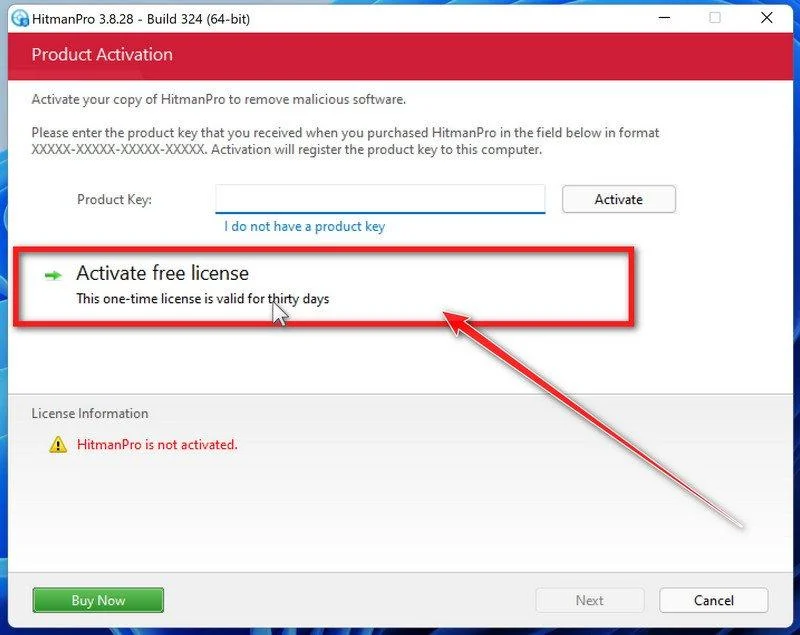
If the trial is unavailable, keep the scan log and ask for assistance with the findings rather than buying a license just to finish the guide.
After cleanup, review the summary, then select Reboot if prompted or close the tool if the computer does not need to restart.
Step 6: Verify what changed before returning to normal use
After restarting, check the reports for unresolved items, and remove only the known fake archive and extracted copies if they are still in Downloads.
If you know the installer ran but cannot resolve alerts, get help before using the computer to access payment, work, or cryptocurrency accounts again.
The MalwareTips Windows removal forum can help you interpret reports, but do not include passwords, session data, personal files, or wallet secrets in a post.
If a qualified technician recommends reinstalling Windows, confirm your backups and recovery access first because reinstalling can remove personal files and installed software.
Even after scans finish without a detection, check important accounts from the separate device for unexpected changes the scanners cannot see or reverse.
Frequently Asked Questions
Was the GTA 6 download inside the notebook genuine?
No, Cynet’s test found a Windows file containing WARDEN Stealer, and its report did not find playable GTA 6 content in that executable.
The Colab notebook was part of the advertising path, so a real Google address did not make the third-party download a real Rockstar release.
Can viewing the notebook infect my computer in this case?
Cynet did not report an infection from viewing the notebook alone, and its analysis tied detected malicious activity to the separate Windows executable.
If you only viewed the page, close it without running files; if you typed a password somewhere else, review the affected account separately.
What if Windows blocked the file or nothing appeared afterward?
A clearly identified block before execution is different from pressing Run and seeing no window, because programs can start without opening a visible screen.
If the security history cannot confirm the block or you approved an unexpected prompt, follow the account and Windows checks for possible execution.
Is this the same as the generic WARDEN Stealer alert?
The WARDEN Stealer removal guide covers the malware family generally, while this article describes a specific route that used GTA 6 and Google Colab.
Another download can use the same game title with a different file, so match the event in your security history before drawing that conclusion.
Do I need a paid scanner or a Windows reset?
Malwarebytes offers a free manual scan, and HitmanPro lets you scan for free, but removing detections with HitmanPro requires an eligible trial or license.
A reset is not the first step for an archive you never ran, and repeated detections call for individual support before any destructive change.
Can a clean scan tell me nothing was stolen?
No scan can determine whether another person previously used copied login data, so check account activity and sign out unknown sessions from a separate device.
Even if your antivirus found and removed a threat, continue the account checks if you had already launched the file or approved a prompt.
The Bottom Line
The fake GTA 6 Google Colab download used a real Google service to advertise a Windows file that Rockstar had not supplied.
If you stopped before running anything, remove the download and verify game availability through Rockstar instead of trying a second copy of the installer.
If you ran it, disconnect the PC, secure your email and active sessions from another device, then scan with Malwarebytes and follow up with HitmanPro.

Join the discussion
0 commentsShare your experience or ask a question about this article.
Community experiences
Did this happen to you?
Your experience could help someone recognize the same scam. Submit a private report for our team to review.
I experienced this tooReports are reviewed before publication. Sharing publicly is always your choice.
Discussion
Start the conversation
Have a question or something useful to share? Add the first comment.