


A missing Gmail message might be in Spam, but it could just as easily be archived or caught by a rule you created months ago.
Start by finding where the message went. Then fix the setting responsible without giving unfamiliar mail a free pass around Gmail’s spam protection.
Overview
A missing message is not always a delivery failure
Look beyond the Inbox before asking someone to resend. Gmail’s normal search does not include Trash and Spam, so a message can exist without appearing in ordinary results.
A filter can make mail look lost
Gmail rules can skip the Inbox, apply a label, or send a matching message to Trash. Check the rules before blaming the sender or changing your spam settings.
Choose the repair that matches what you found
- Trusted mail in Spam: Verify the sender, report the message as not spam, and consider a narrowly scoped rule only if the problem keeps happening.
- Mail in Trash or under a label: Restore the message if necessary, then check for rules that delete or archive future messages matching the same criteria.
- No matching message anywhere: Confirm the intended address, check available storage and ask the sender whether they received a delivery error.
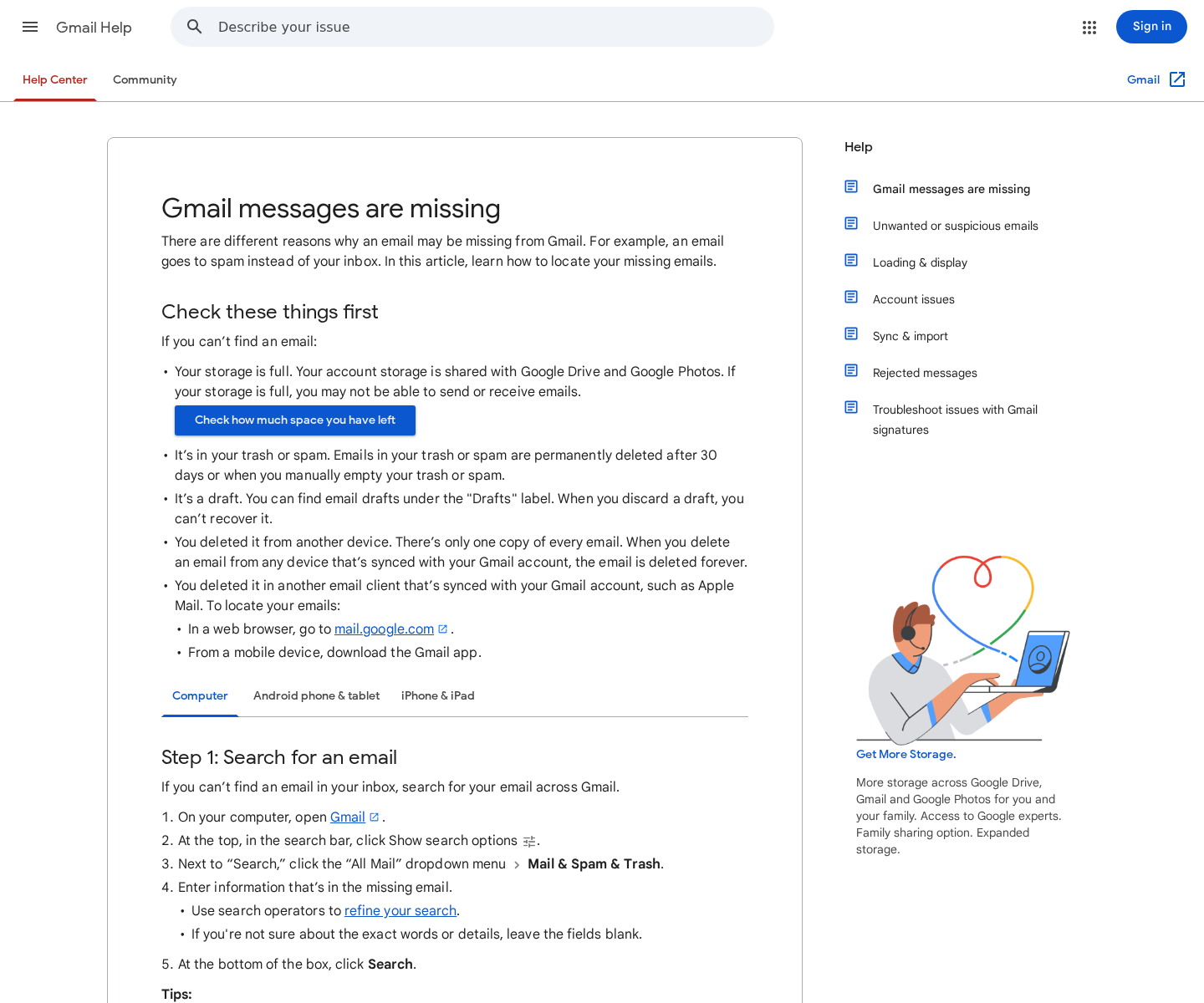
Search All of Gmail Before Changing Any Settings
Use Gmail on a computer for the complete walkthrough. You can search and report spam in the mobile app, but Google’s filter-editing steps use the desktop website.
- Open Gmail in your browser and check the account shown under the profile icon. Make sure it is the account the sender actually used.
- Click the search field, type
in:anywherefollowed by a distinctive word from the expected subject, and press Enter. This scope includes Spam and Trash. - When you know the sender’s exact address, add
from:followed by that address. Remove the sender filter if a service might have changed which address it uses. - Open the relevant result and check its location. Note whether it is in Spam, Trash, another category, or only in the broader mail view.
For example, search in:anywhere subject:invoice if the sender expects invoice in the subject. Add another clue only if the search returns too many results.
Google lists more options in its Gmail search reference. Search clues help you locate a message; they do not prove the contents or sender are trustworthy.
If the sender gives you a subject line, ask for an approximate send time too. That helps separate a new message from older mail in the same thread.
Check message dates before concluding the newest copy is still missing. A conversation can contain several messages that share a subject but arrived on different days.
If you see a sender you recognize but the request is unexpected, verify it separately. A familiar display name is not enough to justify opening an attachment or entering credentials.
If you have multiple Gmail accounts in the same browser, search them separately. A successful search in one account says nothing about what arrived in the other.
People sometimes give a business an old address and then search the account they use today. Ask the sender to confirm only the destination details needed to resolve that mismatch.
For a missing password reset, start from the website’s known address and request another. Do not reuse an old reset message simply because you found it.
If you prefer menus to search operators, open Show search options beside the search field. Change the scope from All Mail to Mail & Spam & Trash.
Enter one clue such as the sender or subject, then select Search. You can use that menu even if you do not remember the exact search syntax.
Rescue Trusted Mail From Spam Without Opening the Door to Imposters
When you find an expected message in Spam, compare the actual sender address with one from a reliable source. Contact the organization independently if the message still looks unusual.
To move the verified message, open the Spam folder, select or open it, and choose Not spam or Report not spam, depending on the interface.
Then look for the same message outside Spam. Do not judge the result by whether it appears at the top of the Inbox; its original date may be older.
If several legitimate messages keep landing in Spam, tell the sender what happened. A sender can investigate its own delivery and identity checks; you cannot repair its email setup.
If you trust the exact sender and still need a rule, first preview which messages match. Do not use generic subject words such as payment or invoice to bypass Spam.
Never build that rule from an address copied from suspicious mail. Find the sender independently, and consider asking them for the mailbox that routinely sends the expected messages.
Review Gmail Spam Filter Rules Before Creating a New One
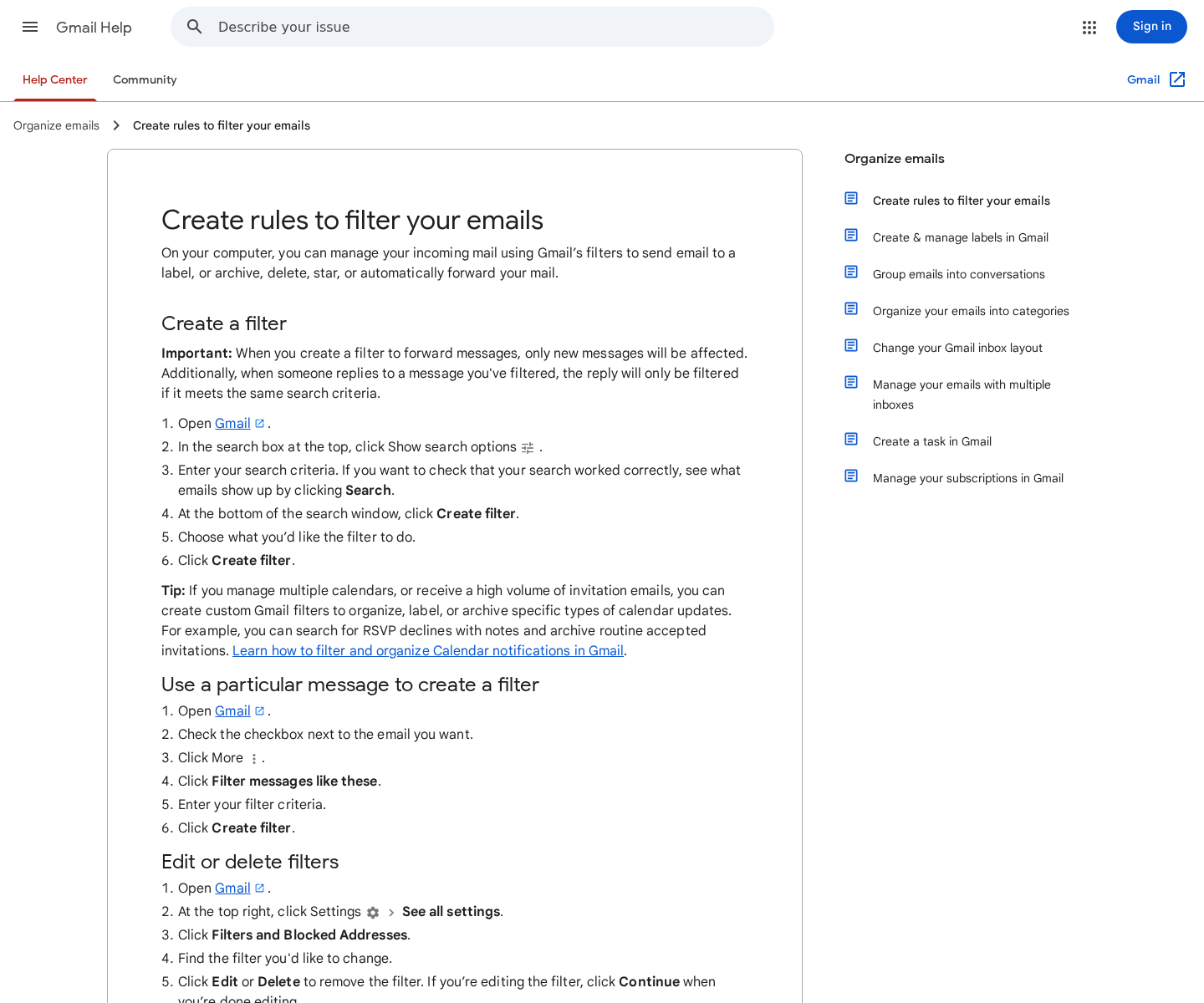
Filters can make a mistake look consistent. If messages from the same sender disappear every week, review what your mailbox is already doing before adding a second rule.
- On desktop Gmail, click the gear icon and choose See all settings. Open the Filters and Blocked Addresses tab.
- Find rules for the sender, recipient, subject, or words in the missing message. Examine actions such as Skip the Inbox and Delete it.
- Use Edit to narrow a rule you still need, or Delete to remove it. Review the matching address and actions before saving.
- Check the blocked addresses list for a sender you recognize. If an old block no longer belongs there, unblock that exact address.
An old filter that archives a newsletter can also match a receipt if it uses a broad condition. Change only the part of the rule responsible for the overlap.
Do not assume deleting the rule moves old messages back. Look for them using the earlier search, then move or restore the ones you still need.
For a new filter, use the search options button in the search bar. Enter the confirmed address in From, and select Search to see what would match.
If the results are narrower than you expected, check whether the service uses different mailboxes for receipts and reminders. If they are broader, tighten the criteria before continuing.
Choose Create filter, then select only the action you need. A label can make legitimate messages easier to find without changing what Gmail considers spam.
Use Never send it to Spam only for a verified sender when necessary. Even when future messages land in the Inbox, treat unusual links and payment requests with care.
Google’s filter documentation covers how to edit, delete, and export rules. Avoid applying a new deletion rule to existing conversations as a first experiment.
If two rules apply to the same sender, inspect both before deciding which to keep. A label from one rule will not explain why the Inbox label is missing.
For a test, ask a trusted sender to send a harmless message with a distinctive subject. Check where it arrives and whether it picked up the expected label.
Keep the test narrow. If the sender uses a mailing platform, a personal test email may come from a different address than the future newsletter or service notice.
Write down an old rule’s criteria and action before editing it. You can restore that rule if the change unexpectedly affects other mail.
Tell Archiving, Categories, and Deletion Apart
Archived messages are not deleted. They can still appear in search and in All Mail, even though the Inbox label is no longer attached to them.
If a message is simply archived, select it and choose the action that moves it to the Inbox. Then check whether a filter will archive the next one too.
A message in Promotions or another category may already be in the Inbox under a different tab. Use search to locate it before changing the layout of the Inbox.
Messages placed in Trash can be moved out while still available. Select the actual message and choose where it belongs rather than emptying the folder to start over.
Gmail normally removes messages from Spam and Trash after 30 days. If you need a message that is no longer available, request a new copy through a trusted channel.
If a mail app also opens the same mailbox, ask whether someone deleted or moved a message there. One interface is not necessarily a separate copy of your mail.
Another useful check is to look in Gmail on the web rather than trusting a delayed phone notification. A phone can miss an alert even when the message arrived.
If the web copy is present but the app does not show it, check which account the app uses. This can be a viewing issue rather than spam filtering.
Check Storage and Delivery When the Search Finds Nothing
Google’s missing-mail guide says a full account can stop mail from arriving. Check the storage warning in your account before assuming Gmail classified the missing message as spam.
Free up space carefully if the account is full. Review messages and other stored items before deleting them permanently, especially if you use the account for important documents.
Ask the sender to confirm the exact destination address and whether their system returned a failure notice. An email missing from all folders was not necessarily delivered.
Once storage or the destination address is corrected, have the sender resend it. Do not assume a message rejected during the problem will appear by itself.
If the message concerns a deadline, access the sender’s official service directly. A new payment link sent by an unknown account is not a substitute for the missing invoice.
For a work or school mailbox, report the sender, send time and expected subject to your administrator through the normal support channel. Some delivery controls are managed centrally.
If a sender can provide an error code without forwarding unrelated content, save it for support. A rejection tells a different story from a message accepted by the receiving service.
For a subscription or order you recognize, use the relevant account page to check its status while you wait. You may not need the missing email to verify the transaction.
What to Do if Unexpected Mail or Rules Appear
- For suspicious messages in your Inbox, select them and use Report spam. If a message is pretending to be a trusted service, use Gmail’s phishing reporting option where available.
- Review unfamiliar rules before disabling them. A rule you never created that forwards, deletes, or hides security messages is more concerning than one unwanted email reaching your Inbox.
- If you suspect unauthorized access, open your Google Account directly and review your security activity, devices, and recovery information. Then remove unrecognized forwarding and mailbox settings.
- During a sudden flood, open important services independently to check for account alerts or purchases. Do not rely on a link surfaced among the incoming messages.
Try not to solve a flood by deleting every message that contains unsubscribe. Some real mail could match the same word, and a blanket rule may hide important messages.
Use unsubscribe for newsletters you recognize and no longer want. Report suspicious messages instead of clicking a link they provide or replying to ask them to stop.
A blocked sender and a spam report are different tools. Blocking an address affects mail from that address; it does not stop offers from every lookalike sender.
Do not add a spoofed sender to your contacts while investigating it. Keep any suspicious message in the appropriate folder and use an independently verified address if you need contact.
Frequently Asked Questions
How do I find a missing Gmail message quickly?
Search with in:anywhere and a distinctive subject word or exact sender address. Then inspect the message location so you can choose the right fix.
Does Not spam make every future email from that sender safe?
No, it tells Gmail about a message you trust. Continue to check unusual requests, especially if a message wants a password, an attachment opened, or a new payment destination.
Can a Gmail filter delete messages before I see them?
Yes, a matching rule can send messages to Trash or skip the Inbox. Look under Filters and Blocked Addresses, and review the rule before making changes.
Can I create a new Gmail filter on my phone?
Use the desktop Gmail website to create and edit filters through the documented settings. The mobile app is useful for locating messages and reporting obvious unwanted mail.
Why did an archive rule not return my old mail after I deleted it?
Changing a rule does not automatically undo past actions. Find the archived messages with search, then move the ones you still want to the Inbox.
When should I ask the sender to resend?
Ask when you cannot find the message anywhere and have verified the destination and storage. If the original bounced, senders may need to try again after you fix the problem.
The Bottom Line
Leave Gmail’s spam protection in place and diagnose the actual message first. Look in all mail locations, then fix the specific rule, block, storage issue, or delivery problem you find.
Verify a trusted sender’s address before creating an exception. If a rule appeared without your knowledge, check the account’s security before trusting the Inbox again.

Join the discussion
0 commentsShare your experience or ask a question about this article.
Discussion
Start the conversation
Have a question or something useful to share? Add the first comment.