


Turning off AI training in Mistral Vibe does not remove an old conversation or stop Vibe from remembering details about you. Those are separate settings.
If you used Le Chat before it became Vibe, check the Knowledge page as well as your chat history. Some older memories may have moved there.
Overview
Model training controls what Mistral can use to improve models
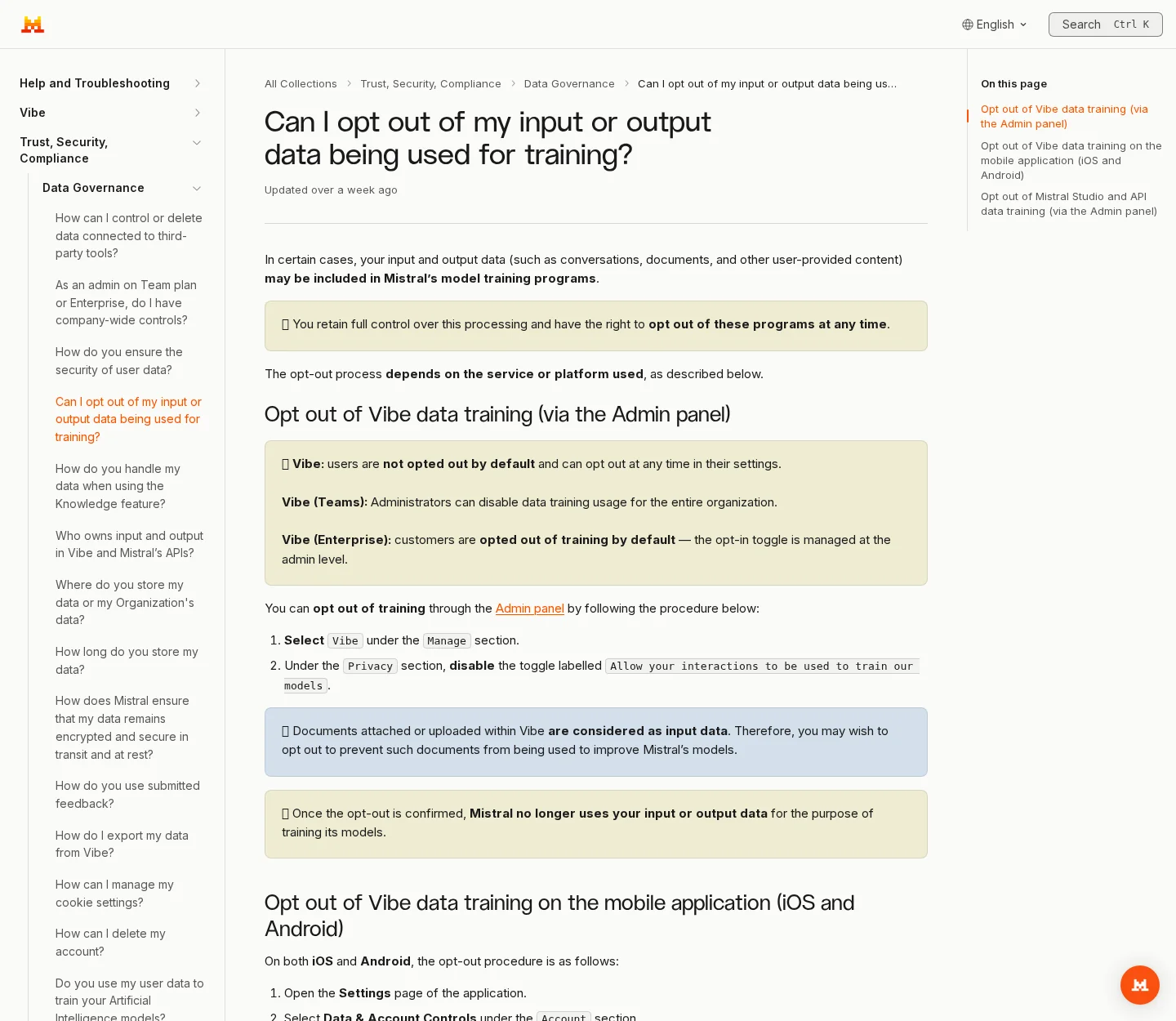
Mistral documents a training opt-out for Vibe. It affects eligible input and output, including documents you attach, but it does not remove those documents from your conversation list.
Knowledge controls what Vibe can carry forward
Knowledge saves details the assistant can use in later conversations. Turn it off to stop that personalization, and delete saved entries separately if you want them gone.
History controls what you can reopen
- Stop training use: Change the Vibe training preference in your account or ask an administrator to check the workspace’s policy.
- Stop a fact from carrying forward: Review the Knowledge page, remove the relevant entry and decide whether to leave Knowledge enabled.
- Remove an old conversation: Delete the thread after saving anything you need. An exception may allow limited retention in the service’s systems.
Check Whether You Are in Vibe or an Older Le Chat View
Mistral renamed Le Chat to Vibe in August 2026. Its announcement says existing accounts and conversations carried over, so a new name does not mean a clean slate.
The September 2026 update combined the main conversation experience and said former Chat Memories migrated into Knowledge. That is where to look if an old detail still influences a reply.
Some instructions for the legacy view still use the word Memories. If the interface offers Knowledge instead, check there first rather than looking for an identical switch.
Before changing settings, check which account and organization are selected. A personal subscription and a work workspace can have different privacy controls, even when their conversation pages look similar.
If you cannot change an organization setting, do not move work documents into your personal account as a workaround. Ask the administrator which policy applies to those documents.
Mistral Vibe Privacy Settings on Desktop and Mobile
Mistral’s training instructions document the Admin panel on desktop and a separate route in the mobile application. The wording to look for differs between them.
- On desktop, open the Admin panel for the account or workspace you intend to change. Under Manage, select Vibe, then open its Privacy section.
- Turn off Allow your interactions to be used to train our models. Reopen the page and confirm the setting for the organization you intended to change.
- On iPhone or Android, open the Vibe app’s settings. In the Account section, open Data & Account Controls and turn off Enable data sharing.
- If you also use Mistral Studio or the API, review their separate privacy control. An opt-out for Vibe does not also change the Studio or API preference.
If you return to Vibe through a different account or workspace, check the privacy state there before relying on the change. The presence of the app tells you little.
Mistral says Enterprise customers are opted out of training by default, with the opt-in managed by an administrator. The Vibe help page describes an administrator control for Teams.
Do not assume a plan name or a greyed-out toggle proves which organization policy is active. On a managed account, confirm the actual workspace setting with your administrator.
Mistral includes uploaded documents in its explanation of training inputs. If you do not want such material used for model improvement, check the training preference before supplying the document.
The setting concerns model training after you opt out. Do not assume changing it removes previous conversations or takes information out of models that have already been trained.
It is also not a promise that the service processes nothing. The assistant must handle your input to answer it, and product functions such as history remain separate.
Pay attention to where the settings page takes you. The application may open an administration page with its own organization picker instead of changing a preference inside the chat window.
If the desktop and app settings appear to disagree, compare the signed-in email and active workspace before deciding which display is correct. Keep a record of any mismatch for support.
Find and Remove Details Stored in Knowledge
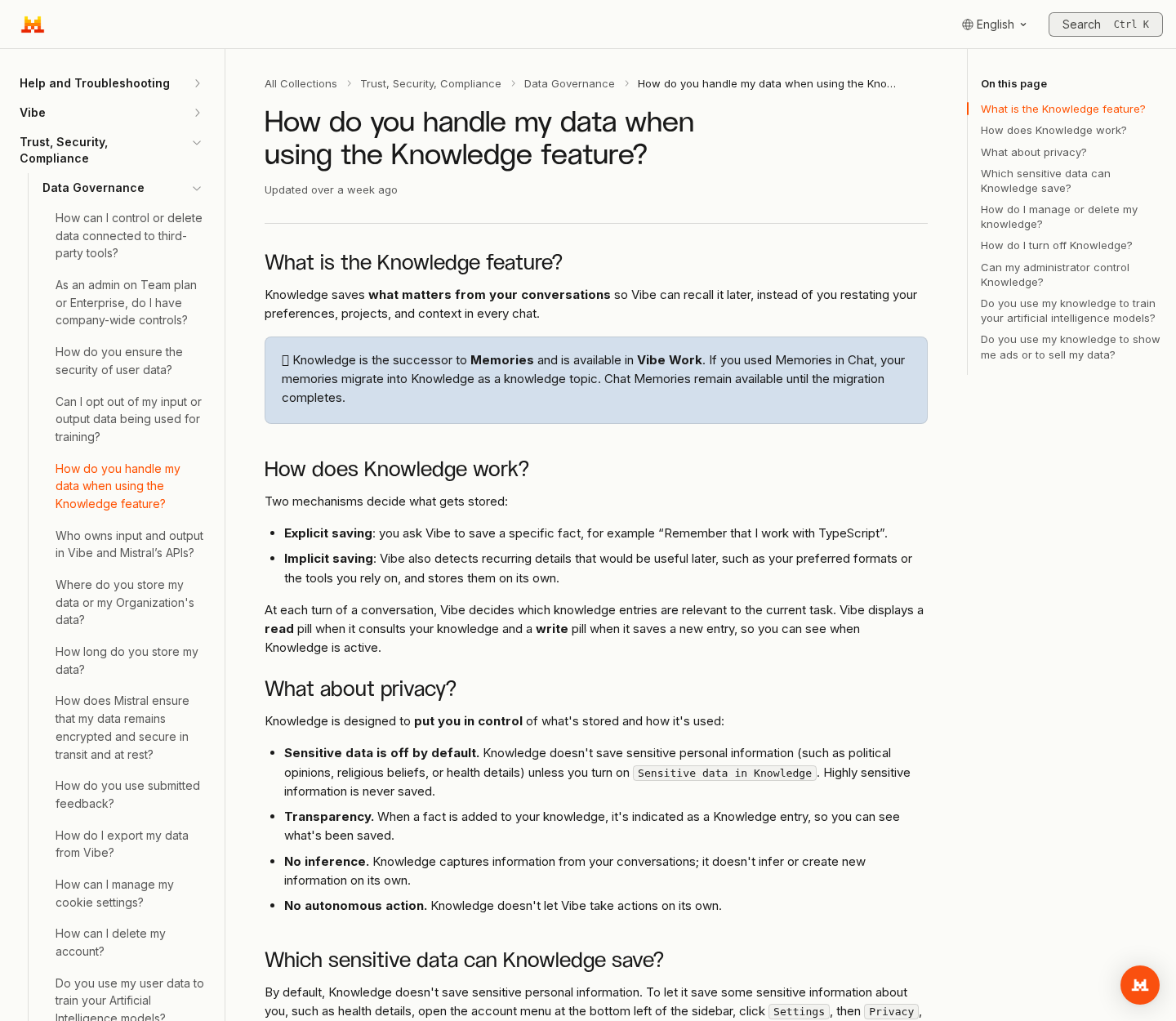
Open Knowledge in Vibe’s sidebar and look at the entries and topics shown there. A single topic can contain several facts carried forward from earlier conversations.
Read the topic before deciding how much to remove. You may want to delete a former home address while keeping the preferences from the rest of that topic.
Mistral’s Knowledge documentation describes editing a topic, deleting a topic from its three-dot menu, or asking Vibe in conversation to remove a specific saved item.
For one detail, refer to the topic or field without repeating the sensitive value where possible. Reopen Knowledge and verify that the entry itself has changed.
For a whole topic, open it and use the three dots at the upper right to select the delete option. Check neighboring topics for another copy of the same fact.
If you want to remove everything, use Delete all knowledge from the Knowledge page menu or from the Privacy settings. Mistral says this action cannot be reversed.
To stop using Knowledge, open the account menu at the bottom of the sidebar and choose Settings, then Privacy. Turn off Knowledge under Personalization.
When you want both outcomes, remove the saved entries before turning the feature off. Then confirm that the toggle is off and the list no longer contains the information.
Turning off Sensitive data in Knowledge also does not delete anything already saved. Review and remove affected entries directly, especially if you previously allowed sensitive information to be stored.
Previous Le Chat memories deserve their own check. The move to Knowledge does not mean the old contents were discarded or assessed again against your current preferences.
An empty Knowledge list does not prove that a matching phrase is absent from old chats, an attached source or a connected tool. Review those surfaces separately.
Vibe can save details you ask it to remember as well as recurring details it identifies. Check the Knowledge page even if you never asked it to save anything.
Mistral distinguishes the indicators for reading and writing Knowledge. If you notice a new saved entry after a conversation, open the referenced topic rather than assuming nothing was added.
For example, imagine you asked Vibe to write reminders for an old workplace and it saved that employer as context. Edit the topic so future answers do not use it.
Deleting that fact will not rewrite a message where you typed the employer’s name. If that earlier conversation also needs to disappear from history, review and remove it separately.
Delete an Old Chat Without Confusing It With Knowledge
Find the conversation in your history and open the three-dot menu next to its title. Select Delete, review the confirmation and confirm only when you are ready.
Mistral’s chat deletion guide says you cannot restore the conversation after deleting it. Save the parts you need first, through an appropriate account and storage location.
Reopen the history and verify the chat is no longer listed. Next, check the Knowledge page if the discussion contained information that might have been saved separately.
Mistral says underlying data may be kept for different periods, for example for policy enforcement or legal obligations. A missing chat is not independent proof of immediate backend erasure.
If a file came from a connected service, consider where the original still lives. Removing a Vibe conversation does not mean you removed the source file from that service.
For an organization, Mistral’s connector guidance says administrators may control connections. Changes to some indexed files can take time to appear after synchronization.
Do not disconnect a shared tool to clean up a single chat without checking who else uses it. Work with the owner of that source or the workspace administrator.
If material contains a password, API token or recovery code, revoke or rotate it through the issuing service. Deleting the source chat is not a substitute for invalidating the secret.
Preserve only the material you still need
If you need copies before deleting, Mistral documents a separate Vibe data export tool. Use its Export action only if you have an appropriate place to keep the resulting data.
An export creates another copy of material you may be trying to remove. Do not transfer it to personal cloud storage if it contains work information you cannot store there.
If you need one harmless answer rather than a full account export, copy that answer privately before removing its conversation. Double-check that your copy does not include the sensitive prompt.
Account deletion is broader than chat deletion. If the problem is one chat or a few saved facts, examine those controls before resorting to closing your account.
Use Temporary Chat for a New Conversation You Do Not Want in History
Mistral’s current Vibe documentation says Temporary Chat is excluded from history, search, memory and model training. Check that you selected it before sending the first message.
Keep the distinction between a temporary session and private browsing in your web browser. A browser’s private window does not change the settings of the Vibe account you use.
Temporary Chat is not a tool for undoing earlier uploads. If you shared something in a regular conversation yesterday, review that conversation and any associated Knowledge entries separately.
Do not take the name Temporary Chat as permission to send material you are not authorized to share. For work documents, follow your employer’s rules and tool permissions.
For a question that does not need customer names or account numbers, remove those details before using any conversation mode. A shorter, redacted excerpt is often sufficient.
For instance, if you want help revising a letter, use placeholders for names, ticket numbers and contact details. The assistant can help with the wording without seeing the original identifiers.
If the question depends on a document in your connected drive, check its sharing rules first. The conversation mode does not grant you authority to disclose that document.
What to Do After Sharing Material You Want Removed
- Identify the account or workspace, chat and file in question. Note exactly what you shared and whether anyone else had access to the source or conversation.
- If the material included a live secret, revoke or rotate it first. For sensitive work information, follow your organization’s incident reporting process rather than deciding alone.
- Review and delete the conversation when appropriate. Check Knowledge for related details; if the data came from a connected service, inspect that original separately.
- Check the training preference and choose the right mode for future conversations. If you need a formal data request, use the controls described in Mistral’s privacy policy.
Do not share the data again just to test whether Vibe remembers it. Inspect the documented controls and stored entries instead, and keep an internal record if appropriate.
For a managed account, ask the administrator what is retained under your organization’s policy and what actions you are allowed to take. Avoid deleting records required for investigation.
Afterwards, check three things without resubmitting anything private: the old chat is absent from history, the relevant Knowledge item is gone and the training preference matches your choice.
In an organization, it may be appropriate to save a dated note identifying the controls checked rather than a full screenshot that exposes the very material you meant to protect.
Frequently Asked Questions
Does opting out of training delete past conversations?
No, training use and chat history have different controls. If you want to remove a previous conversation from your history, use the Delete action on that conversation.
Does turning off Knowledge erase the things Vibe remembered?
No, Mistral says saved entries remain until removed. Delete the entries or topics you no longer want first, then turn Knowledge off if that is your preference.
Where did my previous Le Chat memories go?
Mistral says its September update migrated Chat Memories into a Knowledge topic. Open Knowledge in the correct account and check what was brought over before deciding what to remove.
Can turning off Vibe training change my API settings too?
No, Mistral documents separate preferences for Vibe and Studio or API use. Check both places if you use both services, and confirm that the right organization is selected.
Does a deleted chat disappear from Mistral’s systems immediately?
Not necessarily, according to Mistral’s deletion guidance. The conversation disappears from your history, but certain underlying information can be retained under applicable policies, agreements or legal requirements.
Is Temporary Chat the same as turning off Knowledge?
No, Temporary Chat applies to a new conversation. Turning off Knowledge is an account preference, and it does not delete the entries you had already saved.
The Bottom Line
Mistral Vibe privacy settings address separate jobs: turn off training use, remove unwanted Knowledge entries and delete individual conversations from history when you no longer need them.
Check which account you are in before changing anything. If the information came from a connected source or exposed a credential, deal with that source or credential separately.

Join the discussion
0 commentsShare your experience or ask a question about this article.
Your progress
Did these steps help?
Let us know how the guide worked for you.
Describe what you see and the step you reached. Keep passwords and other private information out.
Discussion
Start the conversation
Have a question or something useful to share? Add the first comment.