


The first email looks like a stranger trying to start a conversation. Then several more arrive under different names, and the address after the at sign keeps repeating.
That is the pattern recipients reported with hchbkm.com. If blocking individual senders hasn’t helped, the next step depends on where the messages are landing.
Overview
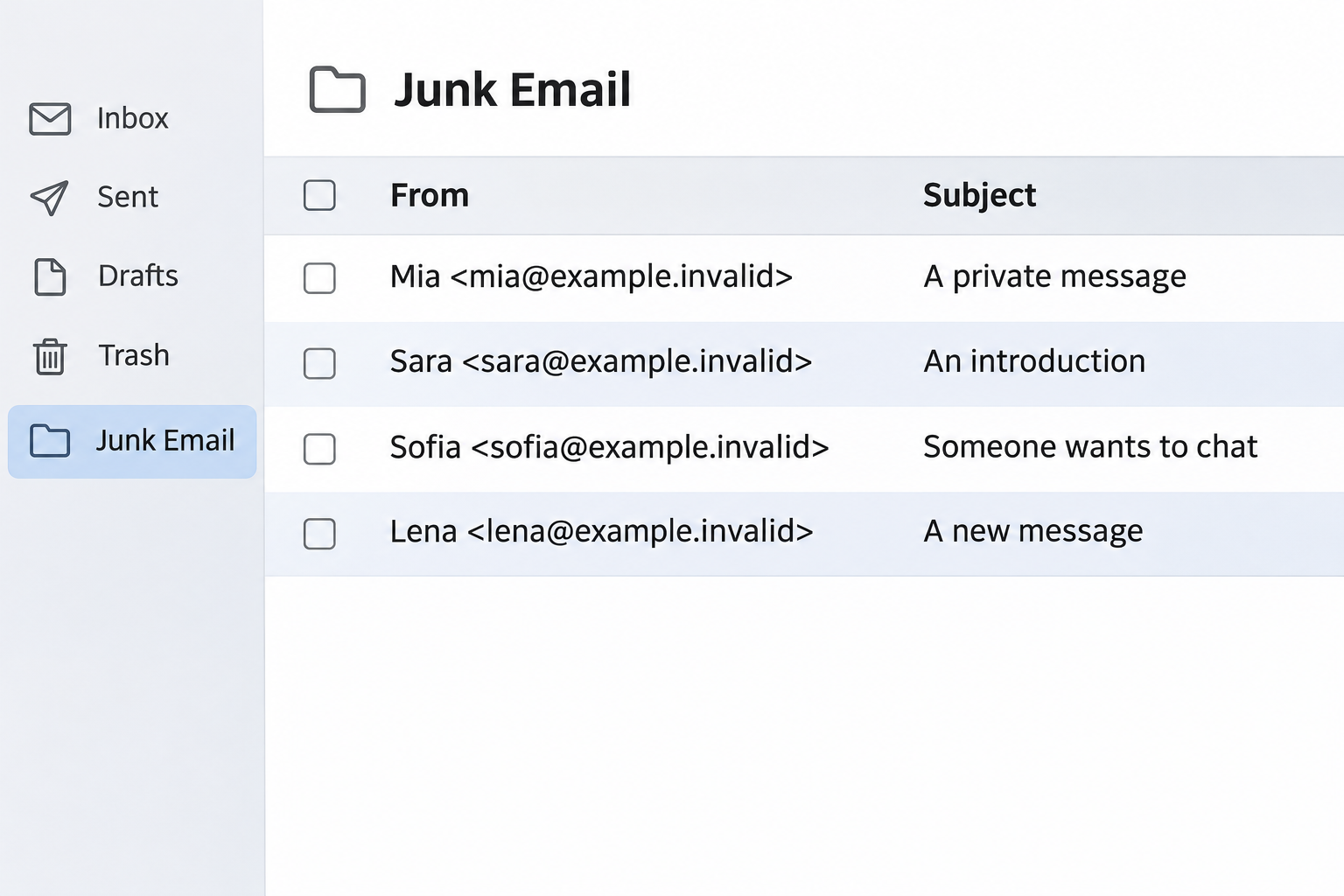
The name changes while the sender domain stays the same
Public complaints about hchbkm.com describe batches of unwanted emails with suggestive subject lines. Several recipients recognized the same ending on addresses that appeared to belong to different people.
The illustration uses invented addresses to show that difference. Compare the actual address on a message you received, not the name that appears beside its icon.
Separate the spam from what it asks you to do
Several October 2026 complaints preserved enough message information to identify what the email claimed to be from and a domain found in the body.
The reports support treating messages in this pattern as unwanted and unsafe to engage with. They do not establish that receiving an email infected anyone’s device.
Decide whether you have an inbox or a junk-folder problem
- Check the part after the at sign rather than blocking each displayed name.
- Use the mailbox provider’s report and filtering tools rather than a link inside the message.
- Preserve a sample if you submitted information, opened a file or need to show continuing harassment.
A domain block can stop matching messages from reaching the inbox in Outlook. It does not promise an empty Junk Email folder or block mail from every lookalike.
What the Hchbkm.com Emails Have in Common
An October 25 Outlook.com support forum question describes the problem in practical terms. The user’s junk folder was filling up, even after they created a rule.
Other recipients reported many messages with different sender names and the same domain. The individual addresses are why blocking one contact at a time can feel like starting over.
A public complaint from October 19 preserves a parsed sender address under hchbkm.com and identifies skrotrack.com in the message body. Another October complaint identifies the same body domain.
Those are observations about submitted email samples. A display address is not a verified person, and the domain found in a body is not the same as an authenticated sender.
The names in a subject line may differ from the names shown next to the sender. A conversational subject is not evidence that someone you know initiated the exchange.
Do not visit the address just to see if there is a website. The page your browser might load and the mail that displays the domain are separate things.
Why Blocking One Sender Was Not Enough
An email address has a name before the at sign and a domain after it. Blocking an address based on the whole string leaves the other addresses outside the rule.
When the same unfamiliar domain appears across the messages, blocking that exact domain saves you from repeating the same decision each time the local name changes.
Check the spelling before adding anything. A broad condition for a common first name or a word such as message can sweep up ordinary correspondence you wanted to keep.
A message can also use a similar-looking domain rather than the exact one. Inspect the address again if the same bait reappears after you apply your filter.
Displayed sender information is not a complete account of who sent an email. Use your provider’s reporting tools so its abuse team can examine the message information available to it.
How to Block Hchbkm.com in Outlook Without Losing Good Mail
Change settings for the mailbox receiving the spam. If you read Gmail in Outlook, apply the filter in Gmail rather than in the Outlook app.
-
In Outlook.com or new Outlook, select the Settings gear. Open Mail, then Junk email, and select Blocked senders and domains under the sender controls.
In a client with several accounts, choose the affected Microsoft mailbox first. The wrong mailbox can leave the real inbox unchanged.
-
Select Add blocked sender and enter hchbkm.com as a domain, without an at sign or a web address. Confirm the entry and select Save when displayed.
Return to the list to confirm the entire domain was saved. A single address will only cover that address, not all the other aliases.
-
When another matching message arrives, check that it did not reach the inbox. Outlook’s documented result is to send mail from a blocked domain to Junk Email.
You may still see the messages in Junk Email. An empty inbox is the expected result, not a guarantee the provider rejects the mail before delivery.
These steps follow Microsoft’s junk-mail settings. If the setting is missing in a company account, speak to your administrator instead of changing organization-wide mail rules yourself.
Classic Outlook uses a different menu
On classic Outlook for Windows, select Home, then Junk and Junk E-mail Options. On a compact ribbon, open the Block Sender menu to find Junk E-mail Options.
Choose the Blocked Senders tab, select Add, and enter the domain. Select OK to confirm the domain and close the settings dialog when you are finished.
Look under Blocked Senders if you need to reverse the change later. Select the domain and remove only that entry, leaving other blocked senders intact.
For a personal Microsoft mailbox, check the web version if you cannot find the controls in the desktop client. Use the provider’s own controls for a third-party mailbox.
If the Junk Email folder is already full
Search for hchbkm.com inside the mail account and verify that the results are the messages you intend to remove. Use a folder filter to narrow the search to Junk Email.
Check a few rows before selecting matching results in bulk. A search can also find legitimate forwards or conversations that mention the domain while discussing spam.
Delete only messages you have identified, keeping one safely if you need to report it. Don’t empty a whole folder without checking for legitimate mail.
The Outlook.com forum report concerns messages already sorted into Junk Email. Do not count on an inbox rule to clear those messages even if its wording matches them.
How to Filter Matching Messages in Gmail
Open Gmail in a browser on a computer. Blocking one sender from an open message is useful for one address; a search-based filter can cover a recurring sender domain.
-
Select Show search options beside the search box. Enter hchbkm.com in the From field and select Search to see the kinds of messages Google matches.
Review the actual sender addresses in the results. If the search includes mail you want to keep, narrow the criteria before you turn it into a filter.
-
Open Show search options again with your verified criteria. Select Create filter, then choose Skip the Inbox and apply a dedicated label if you want a reversible first pass.
Leave Never send it to Spam unchecked. You do not want to make an exception to Google’s spam checking for a suspicious sender.
-
Select Create filter to save it. Reopen Settings, See all settings, then Filters and Blocked Addresses to verify the new entry and edit or delete it if necessary.
Only apply it to existing conversations if you checked the results. That checkbox makes the filter affect older matching mail, not just future arrivals.
Google’s filter documentation describes these controls. For messages already in Spam, leave them there or remove the exact matches after reviewing legitimate messages first.
Use one narrow test before applying the filter in bulk
Review a label created for the rule after the next match. If it catches legitimate correspondence, open the filter settings and edit the conditions or remove the rule.
Keep the filter limited to the observed sender pattern. Do not add every domain in quoted text or every first name you saw to the same rule.
A forwarded conversation can put the suspect address in the body rather than the From field. That distinction explains why a general search may return more than the filter.
What to Do If You Opened or Responded to One
-
If you only saw or read the email, stop there and report the message using the controls in your mail app. Do not open an attached file to inspect it.
In Gmail, select the message or its row and use Report spam. In Outlook, select it and use Report to choose Junk or Phishing, depending on what it requests.
-
If you opened a link but did not type anything or install a file, close it. Check your downloads only if the browser indicated it downloaded something.
If a page asked for notifications and you allowed them, remove that site’s permission through your browser’s settings. Do not revisit the page to look for an unsubscribe option.
-
If you entered a password, open the real service independently and change the password. End sessions you do not recognize, then check its recovery details and multifactor settings.
Change the same password anywhere else you used it. An email address alone being reused across your accounts is not the same as reusing a compromised password.
-
If you entered card details or made a payment, use the payment provider’s official app or the contact number from your card. Explain exactly what information you supplied.
Keep the payment reference and your message without sending the full card number in a public report. Ask the provider about account protection and filing deadlines.
-
If you ran a file, notify your IT team on a work device. On a personal device, stop using it for sensitive accounts and get trusted malware-removal help.
Use a different trusted device for urgent password changes. Record the file name and what you observed without sending an executable to friends or running it again.
Keep the Right Evidence Without Spreading It
If the problem repeats, note the exact sender domain, which folder received it and roughly when it happened. That helps support distinguish new deliveries from older junk.
Keep the original email in your account if your provider requests it. A screenshot is useful for the visible wording, but it does not preserve full message headers.
Find the From line without using the link in the email
To inspect an already received message in Outlook.com, use the three-dot More actions menu at the top of the message. Choose View, then View message details.
In the details, find the From field and compare the address in angle brackets with the text displayed in the message list. Do not follow the Reply-To address.
The Microsoft header instructions also show how to find this in other Outlook versions. On a work account, send the details only through your authorized reporting route.
A mismatch is a reason to let a provider investigate, not proof that the person named in the message sent it. Store the sample privately and avoid forwarding links socially.
For Gmail, open the message’s More menu and select Show original. From there, review the header or copy it for your provider when requested, without visiting any message links.
Public screenshots should hide your address and any personal details. You can describe a repeated subject or domain without pasting the entire message and its links into a comment.
When a provider’s spam button is missing in Junk Email, check whether its phishing option appears in the message menu or use the provider’s own reporting instructions.
Do not mark a suspicious message as safe just to see more options. If a company or school account is involved, use the business’s approved abuse-report path instead.
If the harassment contains a personal threat, preserve the message and check your local reporting options. Generic unwanted mail and a threat targeting you personally require different responses.
Frequently Asked Questions
Why do the hchbkm.com emails have different names?
Reports describe different names and individual addresses sharing the same ending. A filter on that exact domain addresses the repeating part rather than guessing which name will appear next.
Does a message in Junk Email mean the Outlook block failed?
No, moving blocked mail to Junk Email is the documented behavior. Check whether it is still reaching your main inbox before deciding the setting is broken.
Can I add the same domain to every mail app?
Use the provider that hosts the mailbox. An app showing your Gmail account does not necessarily control Gmail’s server-side filtering or blocked-sender settings.
Should I reply or click Unsubscribe to make the messages stop?
Do not use an unsubscribe or reply route inside unsolicited suspicious mail. Mark it as spam through your mailbox and use a filter if the same domain keeps appearing.
Is receiving the message proof that my email account was taken over?
No, an incoming message does not establish an account takeover. Unknown sign-ins, changed recovery settings or sent messages you didn’t write are separate reasons to investigate.
Should I block the domain the link points to instead?
If your problem is incoming mail, start with the sender domain as displayed and verified across the messages. A domain in the email body is a different field.
The Bottom Line
Don’t engage with the reported hchbkm.com messages. Block or filter the exact recurring sender domain through your mail provider, and expect Outlook to keep matching messages in Junk Email.
If you disclosed a password, paid or ran a file, address that exposure first. Changing a mail filter can cut future noise but cannot reverse what you already shared.

Reviews & discussion
0 commentsShare a firsthand experience, or ask a question.
Community reviews
hchbkm.com
Moderated reader experiences, not an editorial verdict.
Start the conversation
Have a question or something useful to share? Add the first comment.