


You may have received an alarming “Hello Perv” email claiming to have compromising footage or information about you, and demanding payment in bitcoin to keep it private. Emails like these, threatening to expose supposed porn viewing habits or other embarrassing information unless funds are paid, are an increasingly common scam.
This article will provide an in-depth look at this “sextortion” or “Hello Perv” scam campaign, how the emails work to trick recipients, what you should do if you receive one, and how to protect yourself online to avoid falling victim in the future. We’ll examine real examples of these fraudulent emails, explain why their claims are false, and give recommendations for responding and safeguarding your reputation.
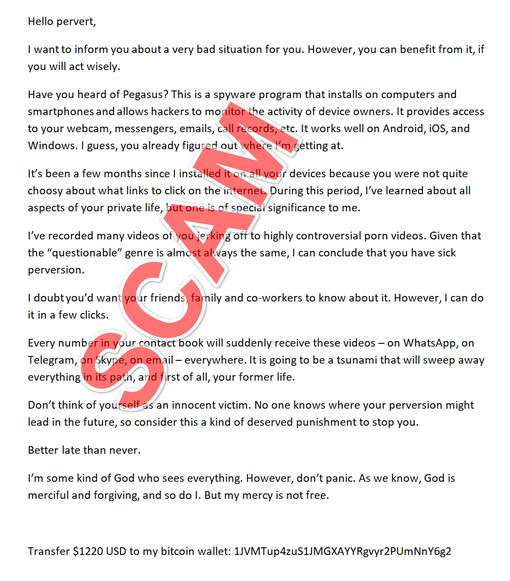
Overview of the “Hello Perv” Scam
The “Hello Perv” or sextortion scam involves emails being sent en masse to recipients, claiming to have explicit videos or information about the recipient watching pornography, and threatening to release the supposed videos publicly or to the recipient’s contacts if payment is not made.
The emails are made to appear as if the sender has legitimate, compromising footage of the recipient through malware, hacking their device, or other made-up technological means. In reality, this is a bluff – the sender does not have any such footage or information. The emails are merely a fraudulent attempt to scare victims into paying up.
Here is how the “Hello Perv” emails will look:
Subject: Hi perv. I recorded you masturbating! I have captured ‘ .mp4’!
ATTN:
THIS IS NOT A JOKE – I AM DEAD SERIOUS!
Hi perv,
The last time you visited a p0rnographic website with teens,
you downloaded and installed software I developed.My program has turned on your camera and recorded
the process of your masturbation.My software has also downloaded all your email contact lists
and a list of your friends on Facebook.I have both the ‘*********.mp4’ with your masturbation
as well as a file with all your contacts on my hard drive.You are very perverted!
If you want me to delete both the files and keep the secret,
you must send me Bitcoin payment. I give you 72 hours for payment.If you don’t know how to send Bitcoins, visit Google.
Send 2.000 USD to this Bitcoin address immediately:
3JkyLvpShtrCRFyxnooCD7dQ6n4oBmVtD7
(copy and paste)1 BTC = 3,580 USD right now, so send exactly 0.567380 BTC
to the address provided above.
Do not try to cheat me!
As soon as you open this Email I will know you opened it.This Bitcoin address is linked to you only,
so I will know if you sent the correct amount.
When you pay in full, I will remove the files and deactivate my program.If you don’t send the payment, I will send your masturbation video
to ALL YOUR FRIENDS AND ASSOCIATES from your contact list I hacked.Here are the payment details again:
Send 0.567380 BTC to this Bitcoin address:
—————————————-
3JkyLvpShtrCRFyxnooCD7dQ6n4oBmVtD7, 32r5aJ5KAN7Q1mEd1a9xUhtHh5JfpYkrKX
—————————————-You саn visit police but nobody will help you. I know what I am doing.
I don’t live in your country and I know how to stay anonymous.Don’t try to deceive me – I will know it immediately – my spy ware is
recording all the websites you visit and all keys you press.
If you do – I will send this ugly recording to everyone you know,
including your family.Don’t cheat me! Don’t forget the shame and if you ignore this message your
life will be ruined.I am waiting for your Bitcoin payment.
If you need more time to buy and send 0.567380 BTC,
open your notepad and write ’48h plz’.
I will consider giving you another 48 hours before I release the vid.Anonymous Hacker
Some common claims made in the scam emails include:
- Having video of the recipient masturbating to porn obtained through malware or activating their webcam
- Access to the recipient’s contacts to send the video to if payment isn’t made
- Ability to monitor the recipient’s activities through spyware or other remote access
- Possession of child pornography that will be edited to include the recipient
- Threats to send edited videos to friends/family if payment isn’t received in time
The sender demands payment, usually via untraceable bitcoin, to keep the footage private. Amounts demanded are often $500-$2000 or more. The emails imply grave consequences – reputation destruction, public humiliation, loss of relationships, or even legal trouble – if the demands aren’t met.
Don’t Panic – It’s a Fake Threat
Rest assured – the extortionists do not actually possess any videos or compromising information about you. These emails are sent out en masse, hoping recipients will believe the threats and pay up.
The claims made in the emails about having personal footage or contacts are complete fabrications. Any threats to release footage or send emails to contacts are empty scare tactics. You have not been hacked and your information is secure.
The senders are cybercriminals running a mass extortion racket for quick money, not sophisticated hackers who have compromised your devices. Their only power is the ability to spark fear through false claims. No real evidence exists.
How the “Hello Perv” Scam Works
To understand why you should not put any stock in the alarming claims made in sextortion emails, it’s important to examine how these scams operate.
1. Emotional Manipulation
The emails are carefully crafted to provoke strong reactions of fear, shame, or panic. Threats of releasing fabricated explicit videos to all your contacts provokes anxiety over reputation and relationships.
References to porn site visits aim to shame recipients over legal but private activities. Claims of having contacts or remote access to devices creates paranoia.
This is all intentional – scammers want to override your logic and exploit emotional responses to trick you. Remaining calm and analyzing the situation rationally reveals the scam for what it is.
2. Mass Targeting
Another sign this is a fraud: the scammers blast out these emails en masse to millions of addresses at once, rather than singling out specific individuals.
Some emails may include a supposed “password” to add legitimacy. In reality, these passwords are obtained from massive data breaches – not hacking your personal devices. Any personal details are lucky guesses or information purchased online.
With mass targeting, scammers don’t need to know anything about you specifically to threaten exposing your supposed porn habits. They just aim for quantity over quality, hoping some fraction of recipients will fall for the scam.
3. Untraceable Payments
Payment is demanded through cryptocurrency like Bitcoin. This allows scammers to remain anonymous while profiting.
Even if a victim pays, there is no incentive for the scammers to actually delete anything – which doesn’t exist anyhow. There is no way to get your money back from an untraceable wallet.
“Hello Perv” Email Scam Breakdown
To fully understand why you should not give into demands for payment, let’s walk through exactly how a typical “sextortion” scam unfolds:
1. Scammers Purchase or Compile Email Lists
Scammers first obtain large lists of email addresses through both legitimate and illegal means. These include:
- Dark web sites where hacked data gets sold
- Collecting emails from leaked databases online
- Email lists from past scams or malware
- Email extraction software targeting sites, forums, etc.
To maximize success rates, scammers may focus on emails associated with compromised passwords. Or they may target genres like “adult” sites that create embarrassment if exposed.
2. Threatening Content is Drafted
Next, the scammers craft the content of their scam email. This includes:
- Frightening subject lines like “You are my victim” or “I know what you did”
- Story about having video footage or contacts through hacking
- specifics like Bitcoin payment amount and wallet address
- Deadline of 24-48 hours before releasing footage or contacts
- Warnings not to contact authorities or delete footage
The emails don’t require any personalization since they just leverage fear rather than real evidence. The same template can be reused across all recipients.
Here is how an email might look:
Subject: You are my victim.
Hello, Perv.
You’ve been looking at porn sites recently .
One at them had my virus on it .
When u started its video, your computer downloaded and launched my malicious software.
After that, I started your camera and recorded a video at u masturbating .
I’ve gathered all its contacts from your computer.
After that, I put together a video at your Masturbation and added videos with child porn.
In my version at its video, u masturbate to sex with kids.
I’m giving u its opportunity to save your life!
Below I will provide u with its address at My bitcoin wallet.
Send me 500 EURO in BTC.
BTC wlt – 1Pdf1QMXH7e9957vhMskAFKQNi79eoa9Rm, 1JVMTup4zuS1JMGXAYYRgvyr2PUmNnY6g2
(If you don’t know what bitcoin / write to buy bitcoin in Google)You have 24 hours after reading its letter.
As soon as my wallet receives its payment , its system will automatically destroy all its dirt that I made.
If u need more time , open its notebook and write ” Plz 48″
In that case , u’ll have 48 hours to send me its money.
If after a time, I do not see its money in my wallet .
I’ll send my dirt to all your colleagues and friends right away.
I can see everything u’re doing on your computer , so don’t try to trick me.
If I understand that u’re just stalling, I will immediately send dirt on your contacts!
Hurry u have little time, save your life!
3. Scam Emails Are Blasted Out
With email list and templates ready, the scammers send out huge volumes of the threatening sextortion emails rapidly using automated tools.
Millions of scam emails can be dispatched per day. Low costs and effort allow running this scam campaign at massive scale.
4. Recipients Panic and Pay
By preying on fear and uncertainty, a small fraction of recipients will fall for the scam and pay the bitcoin ransom right away. Even response rates under 1% generate huge profits at large email volumes.
Victims give in under the mistaken belief it’s easier or safer to pay a “small” amount rather than risk the threatened consequences. In reality, there would be no consequences from the empty threats.
5. Crypto is Laundered, Scammers Vanish
Once payments are received in the bitcoin wallets, scammers mix and launder cryptocurrency through tumblers and exchanges to cover their tracks.
With identities hidden, scammers cash out into fiat currency and disappear with the profits. Victims have no recourse to recover lost funds or hold scammers accountable.
This cycle repeats endlessly as scammers continue blasting out emails to new sets of recipients. As long as people pay, the scam continues growing more sophisticated.
What To Do If You Receive A “Sextortion” Email
If you’ve received a scary extortion email demanding bitcoin to avoid supposed embarrassment or reputation harm, here are the key steps to take:
1. Stay Calm and Don’t Act Rashly
First and foremost, take some deep breaths and approach things calmly. Scammers want you upset and panicked to override good judgment.
Collect yourself and don’t let fear or anxiety push you into anything hasty. Slow down and consider the situation objectively before deciding how to respond.
2. Look Critically at Claims Made
Carefully analyze the email contents rather than accepting claims at face value. Ask questions like:
- Do they offer any concrete evidence like screenshots or video samples?
- Are details vague or general enough to apply to anyone?
- Would what they claim require extensive hacking skills?
Almost always, you’ll notice red flags like lack of specificity, threats but no real proof, improbable technology claims. This reveals the scam.
3. Do Not Pay Any Ransom
Regardless of how frightening an email seems, never pay the ransom or respond to demands. This only encourages and funds scammers to continue victimizing others.
Rest assured, if you ignore the email threats entirely, the supposed consequences will never materialize. The scammers have nothing on you and cannot follow through.
4. Increase Security Precautions
While you haven’t been hacked in this case, it’s smart to take some cybersecurity steps like changing passwords and being cautious of links/attachments going forward.
Use unique passwords on all accounts, enable two-factor authentication where possible, maintain updated antivirus software, and avoid clicking unknown links.
Practicing general online safety helps protect you in the unlikely event a real data breach occurs. Don’t enable remote access like RDP on any systems directly exposed online.
5. Report the Emails to Service Providers
Forward scam emails to your email provider’s abuse team (e.g. Gmail has reportphishing@google.com). Reporting helps get scam domains blacklisted to block future victims.
6. Warn Contacts If Needed
If the scam email was sent to an address also used professionally or known to contacts, it doesn’t hurt to give them a heads up that an extortion scam is going around.
Let contacts know to ignore any concerning emails they may receive, as scammers are known to CC others or send follow-ups. Stopping awareness prevents their success.
7. Don’t Communicate With the Scammers
Aside from reporting, it’s best to avoid any engagement with the scammers. Replying could confirm your email’s activity and get you targeted again. Attempts to negotiate will go nowhere.
The scammers have no real leverage over you – all they want is a quick payoff. Your silence sends a clear message the scam has failed.
Long-Term Precautions Against Future Scams
While being targeted by sextortion scammers has no relationship with your own online activities, there are still smart precautions to take going forward for general privacy and protection:
1.Use Unique Passwords
Never reuse the same password between accounts. If one service suffers a breach, this prevents scammers from accessing more accounts.
Use a password manager to generate and store strong, random unique passwords for all sites and services.
2.Enable Two-Factor Authentication
Add an extra security layer like requiring a code from an authenticator app or SMS message when logging in from a new device. This prevents unauthorized logins even if your password is compromised.
3. Be Wary of Links/Attachments
Practice caution when receiving unexpected emails with links or attachments, especially from unfamiliar senders. Hover over links to inspect destinations before clicking.
4. Run Comprehensive Antivirus Software
Maintain real-time malware/virus protection from reputable software like BitDefender, Malwarebytes, etc. Schedule periodic scans to detect any threats that slip through.
5. Don’t Allow RDP Access to Systems
Disable Remote Desktop Protocol (RDP) access for any systems directly reachable online. Keep RDP confined only to your internal home network to prevent intrusions.
6. Back Up Your Data
Implement regular backups of important data to external drives or cloud storage in case any devices do get compromised in the future. Backups let you easily restore.
Is Your Device Infected? Run a Free Malware Scan
Slow performance, constant pop-ups, or strange behavior? These are classic signs of a malware infection. A quick way to check is to scan your device with Malwarebytes Free, one of the most trusted malware removal tools available. If you only visited a scam page and didn’t download or install anything, this scan is optional.
The free version detects and removes the most common threats, including:
- Adware — the cause of those annoying pop-ups
- Browser hijackers — unwanted redirects and changed homepages
- Trojans and spyware — hidden programs stealing your data
- Potentially unwanted programs (PUPs) — software you never asked for
👉 Select your device below — Windows, Mac, or Android — then follow the simple steps to download Malwarebytes, scan your system, and remove any threats it finds. The scan usually takes 5 to 20 minutes.
Run a Malware Scan with Malwarebytes for Windows
Malwarebytes is one of the most popular and trusted anti-malware tools for Windows — and it’s completely free for removing infections. It catches threats that many antivirus programs miss, including adware, browser hijackers, and trojans. Follow the steps below to scan your PC and remove what Malwarebytes finds.
Download Malwarebytes
Click the button below to download the latest version of Malwarebytes for Windows from the official source. The free version is all you need — it will scan your computer and remove adware, browser hijackers, and other malicious software at no cost.
Download MalwarebytesOfficial installer for Windows 11 and 10. Your download starts right away.Want real-time protection? See Malwarebytes Premium Malwarebytes Free for WindowsScans and removes malware at no cost
-
Install Malwarebytes
When the download finishes, open your Downloads folder and double-click the MBSetup file. If Windows shows a User Account Control pop-up, click “Yes” to allow the installation.

Follow the On-Screen Prompts to Install Malwarebytes
The setup wizard will walk you through a few quick screens:
-
Choose where you’re installing the program — “Personal Computer” or “Work Computer” — then click Next.

-
Malwarebytes will now install on your device. This usually takes under a minute.

-
When installation is complete, the “Welcome to Malwarebytes” screen will open automatically.

-
On the final screen, click Open Malwarebytes to launch the program.

-
Optional: Check for rootkits with a Custom Scan
You don’t need to change any settings for a normal scan. The standard Threat Scan in the next step is enough for most problems, so you can go straight to it.
If you also want to check for rootkits, use a Custom Scan. In current versions of Malwarebytes, rootkit scanning is only available there:
- On the Scanner tile, click the three-dot menu and select Advanced Scan.
- Choose Custom Scan. In its options, check Scan for rootkits.
- Select your system drive (usually C:\) as the location to scan, then start the scan. It takes longer than a Threat Scan.
- When it finishes, review and quarantine the results as described in the steps below.
Rootkit scanning isn’t available on Windows devices with ARM processors.
Start the Scan
Click the blue Scan button. Malwarebytes will automatically update its virus database and start checking your computer for malware.

-
Wait for the Scan to Finish
The scan checks your entire system for browser hijackers and other malicious programs, so it can take 5 to 20 minutes depending on your computer. Feel free to do something else — just check back occasionally to see the progress.

-
Quarantine the Detected Threats
When the scan is done, you’ll see a list of everything Malwarebytes found — malware, adware, and potentially unwanted programs. Click the “Quarantine” button to remove all of them at once.

Malwarebytes will now remove the malicious files and registry entries and move them safely into quarantine.

-
Restart Your Computer
Some threats can only be fully removed after a reboot. If Malwarebytes asks you to restart, click Yes. Once you’re logged back in, Malwarebytes has finished removing the threats it found.

When the scan is done, check whether the problems you noticed have stopped. If they continue, see the options below.
If you are still having problems with your computer after completing these instructions, then please follow one of the steps:
- Run a computer scan with ESET Online Scanner
- Ask for help in our Windows Malware Removal Help & Support forum.
Run a Malware Scan with Malwarebytes for Mac
Malwarebytes for Mac is a free on-demand scanner that removes the malware other security software tends to miss — adware, browser hijackers, and unwanted programs included. Cleaning an infected Mac with Malwarebytes has always been completely free, and it’s our go-to recommendation. Follow the steps below to scan your Mac and remove what Malwarebytes finds.
-
Download Malwarebytes for Mac
Click the button below to download the latest version of Malwarebytes for Mac.
Download MalwarebytesOfficial installer for macOS. Your download starts right away.Want real-time protection? See Malwarebytes PremiumMalwarebytes Free for MacScans and removes malware at no cost -
Open the Malwarebytes setup file
When the download finishes, open your Downloads folder and double-click the setup file to begin the installation.

-
Follow the On-Screen Prompts to Install Malwarebytes
The Malwarebytes for Mac Installer will guide you through a few quick screens. Click “Continue” and keep following the prompts until the installation completes.



When the installation is complete, Malwarebytes opens to the Welcome to Malwarebytes screen. Click “Get started“.
Malwarebytes needs Full Disk Access to check your whole Mac. When it asks, open System Settings > Privacy & Security > Full Disk Access, turn on Malwarebytes (it may be listed as Malwarebytes Protection), and confirm with your password or Touch ID. Then return to Malwarebytes. On macOS Monterey and earlier, this setting is in System Preferences > Security & Privacy > Privacy.
-
Select “Personal Computer” or “Work Computer”
Malwarebytes will ask what type of computer you’re installing it on. Click either Personal Computer or Work Computer, whichever applies.

-
Start the Scan
Click the “Scan” button. Malwarebytes will automatically update its detection database and begin checking your Mac for malware.

-
Wait for the Scan to Finish
Malwarebytes will scan your Mac for adware, browser hijackers, and other malicious programs. This can take a few minutes, so feel free to do something else — just check back occasionally to see the progress.

-
Quarantine the Detected Threats
When the scan is done, you’ll see a list of everything Malwarebytes found. Click the “Quarantine” button to remove all the threats at once.

-
Restart Your Mac
Malwarebytes will now remove all the malicious files it found. Some threats can only be fully removed after a reboot — if Malwarebytes asks you to restart, allow it. Once you’re logged back in, check whether the problems you noticed have stopped. If they come back, save the scan report and ask for help in our forum.

If the problems you noticed continue after the scan, see the options below.
If you are still experiencing problems while trying to remove a malicious program from your computer, please ask for help in our Mac Malware Removal Help & Support forum.
Run a Malware Scan with Malwarebytes for Android
Malwarebytes for Android scans your phone or tablet for malware, adware, and potentially unwanted apps. The free version scans only when you start a scan. Real-time protection, which checks apps automatically, is part of the paid Premium version.
-
Download Malwarebytes for Android.
You can download Malwarebytes for Android by clicking the link below.
Get Malwarebytes for AndroidOpens Google Play in a new tab.Want real-time protection? See Malwarebytes Premium for AndroidMalwarebytes for AndroidScans your phone and removes malware at no cost -
Install Malwarebytes for Android on your phone.
In the Google Play Store, tap “Install” to install Malwarebytes for Android on your device.

When the installation process has finished, tap “Open” to begin using Malwarebytes for Android. You can also open Malwarebytes by tapping on its icon in your phone menu or home screen.

-
Follow the on-screen prompts to complete the setup process
When Malwarebytes opens, it walks you through a short setup. Tap Get started and follow the prompts. If you see an offer for a trial or a paid plan, read it before you accept. You can skip it and keep using the free scanner.
Malwarebytes will ask for permission to access the files on your phone so it can scan them. Tap Allow, or turn on the permission in the Android screen that opens, then return to Malwarebytes.
-
Run a scan with Malwarebytes for Android
On the main screen, tap Scan now. In some versions, you open the menu, tap Scanner, and then tap Run a scan.
-
Wait for the Malwarebytes scan to complete.
Malwarebytes will now start scanning your phone for adware and other malicious apps. This process can take a few minutes, so we suggest you do something else and periodically check on the status of the scan to see when it is finished.

-
Remove the detected apps.
When the scan has been completed, you will see a list of the threats that Malwarebytes for Android has detected. Next to each detected item, tap the menu icon (three dots), then choose to uninstall the app or delete the file. Android then asks you to confirm. Tap OK or Uninstall to remove the app.
-
Restart your phone.
When the detected apps are removed, restart your phone if Malwarebytes asks you to. Then check whether the problems you noticed have stopped.
If the problems you noticed continue after the scan, see the options below.
If you are still having problems with your phone after completing these instructions, then please follow one of the steps:
- Ask for help in our Mobile Malware Removal Help & Support forum.
- Only as a last resort, reset your phone to factory settings. Read the warning below first.
- Back up your photos, videos, files, and messages, for example to your Google account or a computer.
- Make sure you know your Google account email and password. The phone asks for them after the reset. If you changed the password recently, Google recommends waiting 24 hours before you reset.
- On a Samsung phone, also make sure you know your Samsung account password.
- If you use an authenticator app for two-step verification, move your accounts to another device or save your backup codes first.
Stay Protected: Block Ads and Malicious Sites
No scan can prove a device is completely clean, so it helps to block threats before they reach you. Most infections start with a malicious ad or a fake download button — so blocking them at the source is your best defense.
We recommend AdGuard, which blocks malicious ads, phishing pages, and dangerous redirects before they can reach you.
👉 Download AdGuard and browse safely
Frequently Asked Questions About the “Hello Perv” Sextortion Scam Emails
Receiving a threatening “Hello Perv” sextortion email can be scary. But don’t let fear or uncertainty manipulate you. These scam emails use false claims about having explicit videos or contacts to trick you into paying bitcoin.
To understand why these alarming emails are fake extortion attempts, and help protect yourself online, here are answers to frequently asked questions:
What is the “Hello Perv” sextortion scam email?
The “Hello Perv” scam involves cybercriminals sending emails threatening to expose supposed porn viewing habits or release edited explicit videos unless payment is sent. These sextortion emails pretend to have compromising footage/info obtained through hacking, spyware or other made-up means. In reality, it’s a fraud – they don’t have anything.
How do I recognize a sextortion scam email?
These emails often have subject lines like “You are my victim” or “I know what you did”. They claim to have videos of you watching porn or masturbating by hacking your webcam. Threats are made to send footage to your contacts unless you pay a ransom in bitcoin. No proof is offered though, just intimidation.
What are some typical claims made in the scam emails?
Some common fake claims are having footage from your webcam, accessing your contacts to email the video, editing you into child pornography, using malware/spyware for surveillance, demanding bitcoin payment within 24-48 hours or else contacts will receive video.
Do the scammers actually have compromising videos/info about me?
No, the scammers do not actually have any videos, images, or contacts related to you. These are complete lies designed to scare you into paying. The emails are sent randomly to millions of addresses without any hacking or targeting. There is no real evidence, just empty threats.
How do the scammers obtain emails to send sextortion scams?
Scammers purchase emails in bulk on the dark web, harvest them from breached databases online, or extract them from websites. They target indiscriminately for maximum coverage, rather than gathering any intelligence on recipients. Any personal details dropped are just lucky guesses or public info.
Why do the scammers demand payment in Bitcoin?
Bitcoin allows scammers to receive ransom payments anonymously. Even if you pay, there’s no way to recover the funds or identify the scammer. Unlike bank transfers, cryptocurrency transactions are not reversible.
What should I do if I receive a sextortion email?
First, remain calm and don’t act rashly. Take time to examine the email critically – you’ll notice inconsistencies revealing it’s fake. Never pay any ransom no matter how threatening the email seems. Simply ignore the scammers completely and increase your general online security precautions.
Can I report the sextortion scam emails?
Yes, forward any scam emails to your email provider’s abuse team to hopefully get the sender blacklisted. You can also report to the Anti-Phishing Working Group (https://apwg.org/). Reporting helps protect others from receiving the scam.
How can I protect myself from sextortion scams in the future?
Use strong unique passwords, enable two-factor authentication, maintain updated antivirus software, back up your data, and avoid clicking unknown links. Never reuse passwords between sites. Being wary of links/attachments from unfamiliar senders helps avoid malware.
Should I feel embarrassed or ashamed if I received one of these emails?
Absolutely not. Scammers send these randomly without any specific targets, not because of anything you did. Don’t let them intimidate you over legal private activities. Focus on the facts – the scammers have no actual evidence or power over you.
What should I do if the scammers email my contacts?
First off, try not to panic, as it’s unlikely the scammers would actually take the time to email your contacts with fake videos. If they did, immediately warn your contacts that an extortion scam is being spread and to disregard any concerning emails they may have received.
The Bottom Line
Receiving a threatening sextortion email can be a scary experience, but don’t let fear or uncertainty manipulate you. These scams rely entirely on intimidation tactics and false claims to trick you into paying up.
Rest assured you have not been hacked or compromised based on the email alone. The scammers have no evidence or video footage – just empty threats designed to sound alarming.
By remaining calm, avoiding any ransom payment, and continuing general online precautions, you can move on safely. Report any scam emails to providers and warn contacts to maintain awareness.
Lastly, don’t feel any shame about legal online habits – we all have a right to privacy. The scammers aim only to intimidate and exploit. By focusing on facts and not acting rashly, their scam will fail and you can prevent them from profiting off the next person.

Join the discussion
0 commentsShare your experience or ask a question about this article.
Discussion
Start the conversation
Have a question or something useful to share? Add the first comment.