

When incoming business email suddenly appears at risk, a website owner cannot simply wait and see. Every missed enquiry could mean a lost customer or unpaid invoice.
The Incorrect DNS Settings Email Scam exploits that pressure. It invents an MX-record problem, then encourages the recipient to submit hosting or webmail credentials through an untrusted page.
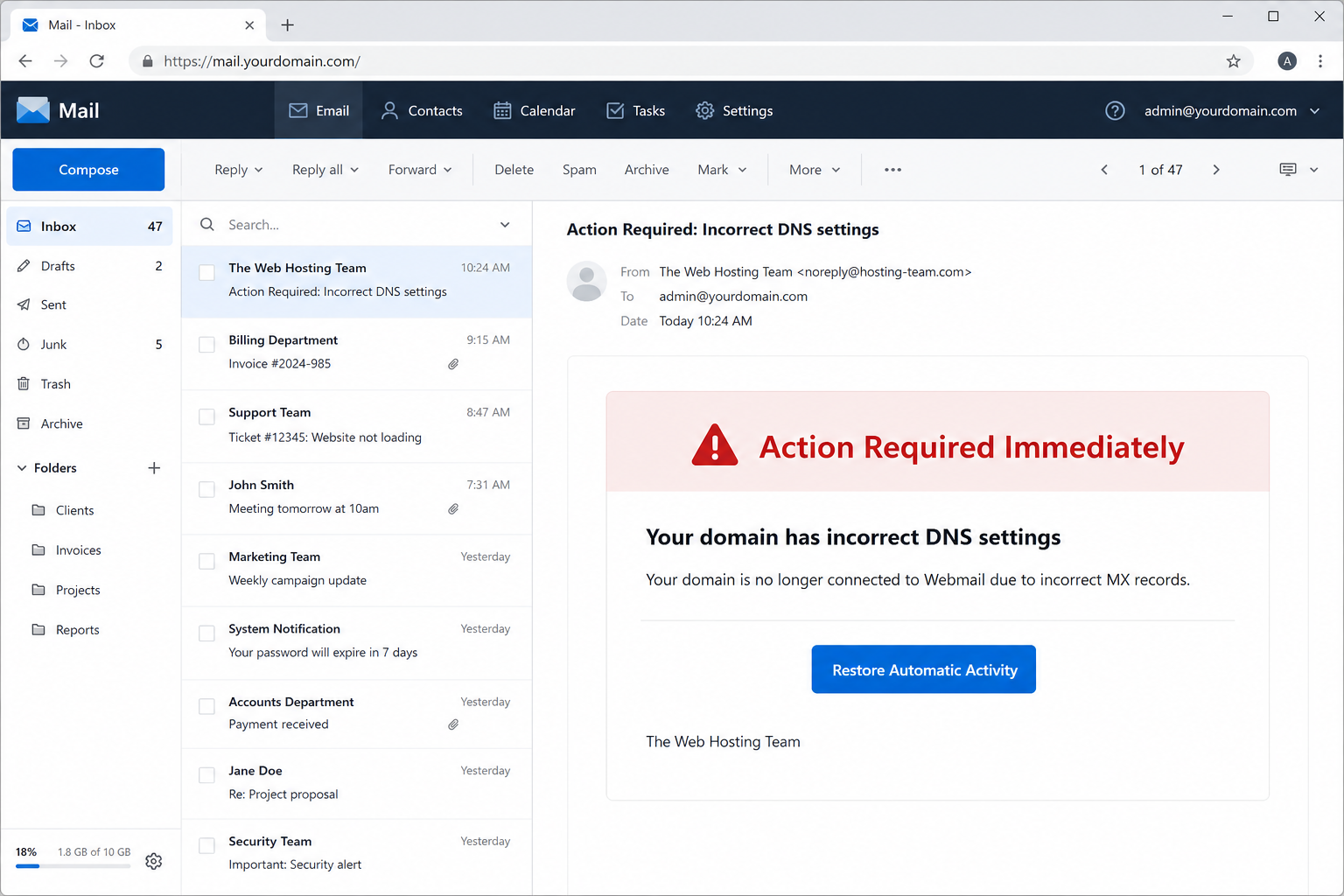
The email introduced itself as The Web Hosting Team. It said wrong MX records disconnected the recipient’s domain from webmail.
According to the message, incoming mail would fail starting that day. A Restore Automatic Activity button offered a rapid repair without explaining which record changed or who detected it.
The analyzed link was inactive when examined, so its form could not be confirmed. The wording is consistent with phishing that leads to a counterfeit hosting panel or webmail login.
Overview
A technical claim is used to create a business emergency
MX records determine where mail for a domain should be delivered, so a real error can interrupt communication. The scam chooses a genuine concept to support a fabricated warning.
Most recipients do not manage DNS every day and may feel unable to question the diagnosis. A single repair button appears easier than reviewing the domain configuration.
- The message says the domain is no longer connected to webmail.
- Incorrect MX records are blamed without showing the current or expected values.
- Incoming email is said to fail immediately, increasing operational pressure.
- A one-click restoration is offered by an unnamed hosting team.
The sender provides no verifiable hosting relationship
The Web Hosting Team is a generic role, not a company identity. It can be used against domains registered or hosted with completely different providers.
A legitimate notice should identify the provider, account, domain, and affected service. It should also be visible after independently opening the provider dashboard.
- The From name does not prove which organization operates the service.
- The warning may omit an account number, ticket, or support reference.
- The email does not list the supposed incorrect MX target.
- The recipient is encouraged to trust a link instead of normal account navigation.
Captured credentials can threaten email and the website
A fake restoration page may ask for a mailbox password, hosting-panel login, or domain credentials. Each level of access creates a different but serious risk.
Hosting or registrar access can permit DNS changes, resets, website edits, and certificates. Webmail access exposes messages and payment conversations.
- Stolen webmail credentials can support invoice interception and impersonation.
- Hosting-panel access may expose site files, databases, backups, and mailboxes.
- Registrar access can permit nameserver, MX, and ownership changes.
- Reused passwords can expand the compromise into unrelated services.
What MX Records Really Do
MX records route mail for a domain
A mail exchanger record tells sending servers which host accepts messages for an address such as name@example.com. Priorities determine which destination is preferred.
An incorrect value can cause delays or bounces, but changing it requires access to the authoritative DNS provider. Entering a webmail password alone does not repair public DNS.
DNS problems can be checked independently
Public lookup tools can display the currently published MX records without logging into anything. Compare those results with values documented by the actual mail provider.
A real outage may also appear in the provider status page or dashboard. Verification should begin there, not on a page selected by an unexpected email.
Propagation does not require a mysterious activation button
After an authorized DNS change, caching servers update according to time-to-live settings. A hosting provider may offer guidance, but no universal Restore Automatic Activity button exists.
The phrase sounds technical while avoiding a specific repair. That ambiguity lets the same lure target customers of many registrars and email services.
Why Domain Owners Are Valuable Phishing Targets
Email continuity affects revenue and trust
A company that misses quotations, reservations, password resets, or support requests can suffer immediate harm. Attackers know administrators feel responsible for preventing that interruption.
Urgency becomes especially effective when the recipient is the only person managing the website. There may be no colleague available to review the warning.
One control panel can manage many services
Hosting dashboards may manage files, databases, backups, DNS, certificates, and mailboxes. One captured account can therefore offer broad access.
Criminals may modify a site, create hidden mailboxes, or add forwarding rules. The original phishing page is only the opening move.
Technical language discourages questions
Terms such as MX, DNS, propagation, and automatic activity can make the sender seem expert. A recipient may assume the provider knows more and comply.
Specific technical evidence is what matters. A legitimate engineer can state which record, domain, resolver, and timestamp produced the warning.
How the Incorrect DNS Settings Email Scam Works
Step 1: Attackers identify domains and administrator addresses
Public websites expose contact mailboxes, while registration history, leaks, and address patterns can reveal likely administrators. The campaign does not need access to the real hosting account.
Messages can be customized with the recipient’s domain even when every other sentence stays identical. That small detail makes a mass mailing feel like a monitored service alert.
Step 2: A hosting-team identity is placed in the message
The sender adopts the generic title The Web Hosting Team. It sounds operational yet avoids a logo or provider name that the recipient could immediately reject.
Display names are not verified identities. The underlying address and mail-authentication results may reveal that the message came from unrelated infrastructure.
- The notice can reach customers of any hosting company.
- A vague signature reduces contradictions within the reusable template.
- Replying may simply open a conversation with the phisher.
Step 3: The email alleges an immediate MX failure
The recipient is told that incorrect settings disconnected the domain from webmail and that new messages will fail from today. No test result supports this assertion.
The operator expects the reader to imagine silent lost mail. Because delivery failures can be hard to observe, the threat feels possible even while messages continue arriving.
Step 4: A repair link promises automatic restoration
A text link and prominent button may point to the same destination. Repetition makes the repair path feel official and ensures the reader notices it.
The destination can change after delivery or remain inactive until selected visitors arrive. An unavailable page does not convert the original message into a legitimate alert.
Step 5: A counterfeit panel requests account details
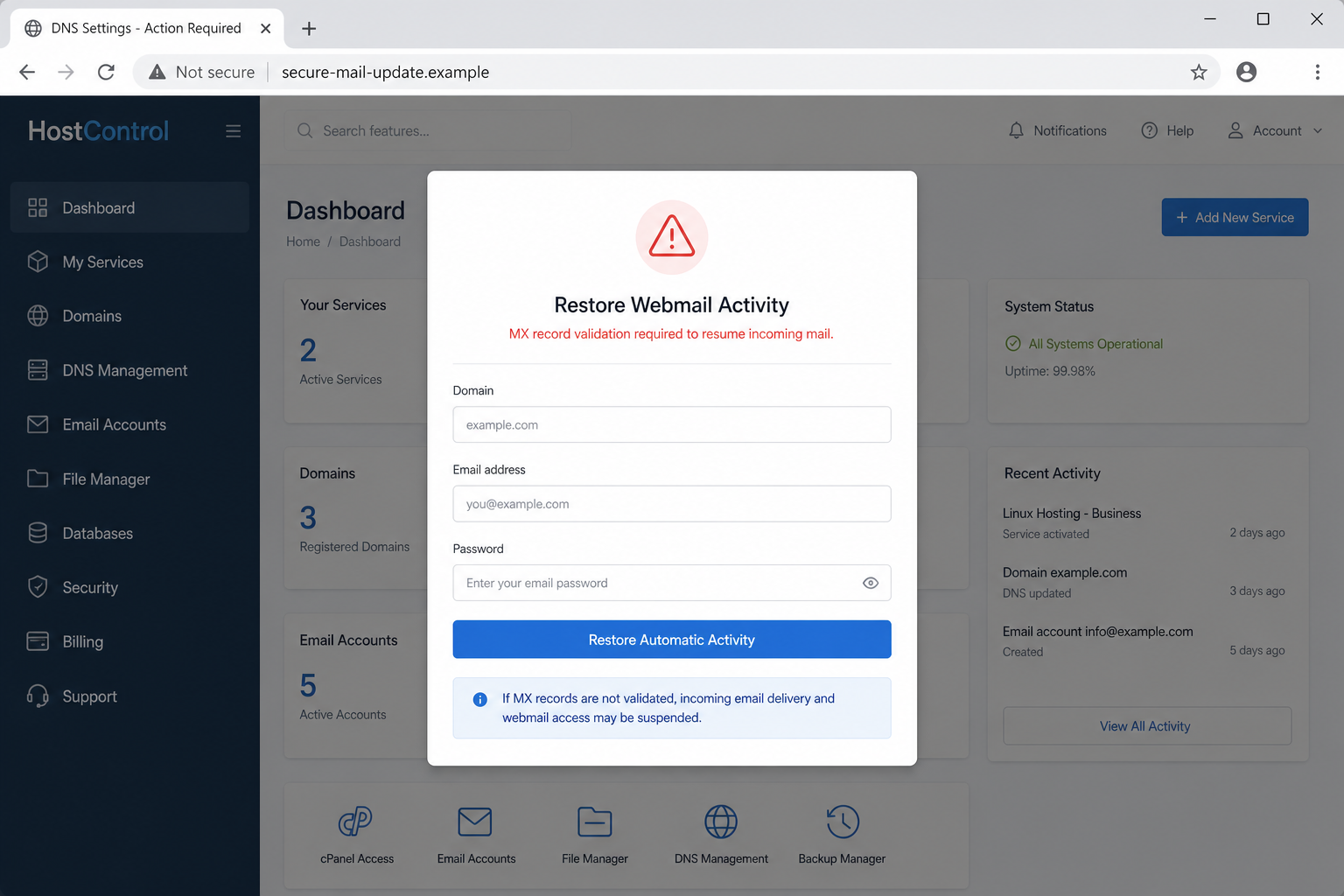
Common versions imitate cPanel, a registrar dashboard, hosting webmail, or a generic domain-control page. The exact design may depend on information encoded in the URL.
The form can ask for the domain, email address, password, or control-panel credentials. Those details are sent to the operator rather than used to test DNS.
- A public MX lookup does not need a mailbox password.
- A DNS repair should occur inside the provider dashboard opened independently.
- Never upload backup codes or approve remote support access from an email link.
Step 6: The criminal tests access and changes persistence settings
If the credentials work, the attacker may sign in from another location, create forwarding rules, add users, or change recovery information. Alerts can be routed away from the owner.
With broader domain access, the intruder may alter DNS records or publish phishing content beneath the victim’s trusted domain. This expands the campaign to customers and employees.
Step 7: Compromised communication supports financial fraud
Mailbox access lets criminals monitor invoices and supplier conversations. They can wait for the right moment to send modified payment instructions from a convincing account.
Website control can also produce fake login pages, malicious downloads, or checkout changes. Damage may continue after the original DNS warning is forgotten.
Company, Address, and Fulfillment Checks
The Web Hosting Team is not a named provider
The signature supplies no company that can be matched with a contract, invoice, or known support portal. It is descriptive text chosen by the sender.
Real notices typically use consistent branding and account context, although branding alone is insufficient. Confirm the issue after signing into the known dashboard.
The affected domain should be verified directly
Look up authoritative nameservers and current MX values using a trusted DNS service. Compare them with the configuration published by the contracted email provider.
If mail still arrives, that evidence contradicts the claimed total disconnection, though intermittent routing issues may require professional investigation.
The final phishing destination may change
The analyzed link was inactive, preventing confirmation of its exact credential form. Campaign operators commonly rotate pages as hosts remove them.
This uncertainty should be stated clearly. The email’s deceptive claims and unsafe repair route are established without inventing a specific active landing page.
The legitimate host can be reached outside the email
Use an old invoice, contract, bookmark, or company directory to locate the real support channel. Do not call a telephone number supplied only by the warning.
Ask whether a ticket exists for the domain and request the precise record values. A genuine technician can discuss the configuration without collecting a password by email.
Warning Signs in the Incorrect DNS Notice
The diagnosis contains no diagnostic data
The message names MX records but shows no hostname, priority, resolver response, expected target, or failure time. It supplies too little evidence to validate the diagnosis.
A dramatic conclusion without measurements is persuasion, not troubleshooting. Verify the records before accepting the sender’s proposed cure.
- The provider is never identified by its actual company name.
- The warning says mail fails today without citing a bounce or monitoring event.
- The repair button leads away from the normal customer dashboard.
- The requested credential does not logically change an MX record.
The message makes a complex repair sound instant
DNS changes involve authoritative access, correct values, and propagation. A generic button cannot safely infer which provider and routing policy every recipient uses.
Convenience is part of the lure. The recipient is encouraged to skip the very dashboard that would reveal whether any problem exists.
How to Investigate an MX Warning Safely
Test both DNS and actual delivery
Query the public MX records and send a controlled message from an external provider. Examine any bounce response for a real error code rather than relying on the email’s claim.
Do not flood the mailbox with tests. One or two documented messages and the provider’s status page usually provide enough initial evidence.
Compare settings inside the known control panel
Open the registrar or DNS host from a bookmark. Confirm nameservers, MX priorities, verification records, and recent account activity before making changes.
Export or screenshot the current configuration before editing. An unnecessary DNS change can create the outage the phishing email only pretended existed.
Escalate through an established support route
Contact the contracted provider using details from a prior invoice or its recognized website. Provide the domain and observed test results, never the account password.
For a company domain, involve IT and security teams early. They can inspect mail logs and determine whether other administrators received the same lure.
Security Practices for Domain and Mail Accounts
Separate registrar, hosting, and mailbox passwords
Unique credentials prevent one captured login from unlocking every layer of the domain. Store them in a reputable password manager and protect the manager strongly.
Enable multi-factor authentication on the registrar first because domain ownership can influence every downstream service and recovery route.
Monitor configuration and administrative changes
Turn on alerts for nameserver edits, DNS updates, new users, forwarding rules, and recovery changes. Send critical notifications to an address outside the managed domain when possible.
Maintain offline records of expected MX and nameserver values. A trusted baseline makes both real incidents and fake warnings easier to assess.
What to Do if You Have Fallen Victim to This Scam
- Go directly to the genuine provider and change the exposed webmail, hosting, or registrar password. Use a completely unique replacement and secure the controlling email account first.
- End unfamiliar sessions, remove unknown users and delegates, rotate application passwords, and verify recovery contacts. Inspect mailbox forwarding, filters, catch-all rules, and auto-responders.
- Review DNS history, nameservers, MX records, verification entries, redirects, certificates, and recently uploaded site files. Restore only from a known-good configuration or backup.
- If credentials were reused, replace them everywhere, prioritizing domain, billing, cloud storage, and financial systems. Check whether the intruder requested password resets from the mailbox.
- Notify staff, customers, and suppliers if messages or website content may have been altered. Confirm pending payments through a second channel before honoring changed banking instructions.
- Preserve the phishing email, full headers, clicked URL, access logs, DNS-change records, screenshots, and provider alerts. Report the campaign to the mail service, host, and cybercrime authority.
- Scan administrator devices with Malwarebytes when a file, browser extension, or remote-support program was installed. Patch the operating system and remove unauthorized software before changing credentials again.
- Add AdGuard or another reputable blocker to reduce phishing redirects and malicious advertisements. Keep DNS and mail monitoring active because blocking cannot undo stolen administrative access.
Is Your Device Infected? Run a Free Malware Scan
Slow performance, constant pop-ups, or strange behavior? These are classic signs of a malware infection. The fastest way to find out is to scan your device with Malwarebytes Free — one of the most trusted malware removal tools available.
The free version detects and removes the most common threats, including:
- Adware — the cause of those annoying pop-ups
- Browser hijackers — unwanted redirects and changed homepages
- Trojans and spyware — hidden programs stealing your data
- Potentially unwanted programs (PUPs) — software you never asked for
👉 Select your device below — Windows, Mac, or Android — then follow the simple steps to download Malwarebytes, scan your system, and remove any threats it finds. The scan usually takes 5 to 20 minutes.
Run a Malware Scan with Malwarebytes for Windows
Malwarebytes is one of the most popular and trusted anti-malware tools for Windows — and it’s completely free for removing infections. It catches threats that many antivirus programs miss, including adware, browser hijackers, and trojans. Follow the steps below to scan and clean your PC in just a few minutes.
Download Malwarebytes
Click the button below to download the latest version of Malwarebytes for Windows from the official source. The free version is all you need — it will scan your computer and remove adware, browser hijackers, and other malicious software at no cost.
Download MalwarebytesOfficial installer for Windows 11 and 10. Your download starts right away.Want real-time protection? See Malwarebytes Premium Malwarebytes Free for WindowsScans and removes malware at no cost
-
Install Malwarebytes
When the download finishes, open your Downloads folder and double-click the MBSetup file. If Windows shows a User Account Control pop-up, click “Yes” to allow the installation.

Follow the On-Screen Prompts to Install Malwarebytes
The setup wizard will walk you through a few quick screens:
-
Choose where you’re installing the program — “Personal Computer” or “Work Computer” — then click Next.

-
Malwarebytes will now install on your device. This usually takes under a minute.

-
When installation is complete, the “Welcome to Malwarebytes” screen will open automatically.

-
On the final screen, click Open Malwarebytes to launch the program.

-
Enable “Scan for Rootkits”
Before scanning, turn on rootkit detection so Malwarebytes can find even the most hidden threats. Click the Settings gear icon on the left side of the screen.

In the settings menu, find “Scan for rootkits” and click the toggle so it turns blue.

Done? Click “Dashboard” in the left pane to return to the main screen.
Start the Scan
Click the blue Scan button. Malwarebytes will automatically update its virus database and start checking your computer for malware.

-
Wait for the Scan to Finish
The scan checks your entire system for browser hijackers and other malicious programs, so it can take 5 to 20 minutes depending on your computer. Feel free to do something else — just check back occasionally to see the progress.

-
Quarantine the Detected Threats
When the scan is done, you’ll see a list of everything Malwarebytes found — malware, adware, and potentially unwanted programs. Click the “Quarantine” button to remove all of them at once.

Malwarebytes will now remove the malicious files and registry entries and move them safely into quarantine.

-
Restart Your Computer
Some threats can only be fully removed after a reboot. If Malwarebytes asks you to restart, click Yes. Once you’re logged back in, Malwarebytes has finished removing the threats it found.

That’s it — your Windows PC is now clean of trojans, adware, and other malware, and should be back to running smoothly.
If you are still having problems with your computer after completing these instructions, then please follow one of the steps:
- Run a computer scan with ESET Online Scanner
- Ask for help in our Windows Malware Removal Help & Support forum.
Run a Malware Scan with Malwarebytes for Mac
Malwarebytes for Mac is a free on-demand scanner that removes the malware other security software tends to miss — adware, browser hijackers, and unwanted programs included. Cleaning an infected Mac with Malwarebytes has always been completely free, and it’s our go-to recommendation. Follow the steps below to scan and clean your Mac in just a few minutes.
-
Download Malwarebytes for Mac
Click the button below to download the latest version of Malwarebytes for Mac.
Download MalwarebytesOfficial installer for macOS. Your download starts right away.Want real-time protection? See Malwarebytes PremiumMalwarebytes Free for MacScans and removes malware at no cost -
Open the Malwarebytes setup file
When the download finishes, open your Downloads folder and double-click the setup file to begin the installation.

-
Follow the On-Screen Prompts to Install Malwarebytes
The Malwarebytes for Mac Installer will guide you through a few quick screens. Click “Continue” and keep following the prompts until the installation completes.



When the installation is complete, Malwarebytes opens to the Welcome to Malwarebytes screen. Click “Get started“.
-
Select “Personal Computer” or “Work Computer”
Malwarebytes will ask what type of computer you’re installing it on. Click either Personal Computer or Work Computer, whichever applies.

-
Start the Scan
Click the “Scan” button. Malwarebytes will automatically update its detection database and begin checking your Mac for malware.

-
Wait for the Scan to Finish
Malwarebytes will scan your Mac for adware, browser hijackers, and other malicious programs. This can take a few minutes, so feel free to do something else — just check back occasionally to see the progress.

-
Quarantine the Detected Threats
When the scan is done, you’ll see a list of everything Malwarebytes found. Click the “Quarantine” button to remove all the threats at once.

-
Restart Your Mac
Malwarebytes will now remove all the malicious files it found. Some threats can only be fully removed after a reboot — if Malwarebytes asks you to restart, allow it. Once you’re logged back in, your Mac is clean.

That’s it — your Mac is now free of adware, rogue browser extensions, and other potentially harmful software.
If you are still experiencing problems while trying to remove a malicious program from your computer, please ask for help in our Mac Malware Removal Help & Support forum.
Run a Malware Scan with Malwarebytes for Android
Malwarebytes for Android automatically detects and removes dangerous threats like malware and ransomware so you don’t have to worry about your most-used device being compromised. Aggressive detection of adware and potentially unwanted programs keeps your Android phone or tablet running smooth.
-
Download Malwarebytes for Android.
You can download Malwarebytes for Android by clicking the link below.
Get Malwarebytes for AndroidOpens Google Play in a new tab.Want real-time protection? See Malwarebytes Premium for AndroidMalwarebytes for AndroidScans your phone and removes malware at no cost -
Install Malwarebytes for Android on your phone.
In the Google Play Store, tap “Install” to install Malwarebytes for Android on your device.

When the installation process has finished, tap “Open” to begin using Malwarebytes for Android. You can also open Malwarebytes by tapping on its icon in your phone menu or home screen.

-
Follow the on-screen prompts to complete the setup process
When Malwarebytes will open, you will see the Malwarebytes Setup Wizard which will guide you through a series of permissions and other setup options.
This is the first of two screens that explain the difference between the Premium and Free versions. Swipe this screen to continue.
Tap on “Got it” to proceed to the next step.
Malwarebytes for Android will now ask for a set of permissions that are required to scan your device and protect it from malware. Tap on “Give permission” to continue.
Tap on “Allow” to permit Malwarebytes to access the files on your phone.
-
Update database and run a scan with Malwarebytes for Android
You will now be prompted to update the Malwarebytes database and run a full system scan.

Click on “Update database” to update the Malwarebytes for Android definitions to the latest version, then click on “Run full scan” to perform a system scan.

-
Wait for the Malwarebytes scan to complete.
Malwarebytes will now start scanning your phone for adware and other malicious apps. This process can take a few minutes, so we suggest you do something else and periodically check on the status of the scan to see when it is finished.

-
Click on “Remove Selected”.
When the scan has been completed, you will be presented with a screen showing the malware infections that Malwarebytes for Android has detected. To remove the malicious apps that Malwarebytes has found, tap on the “Remove Selected” button.

-
Restart your phone.
Malwarebytes for Android will now remove all the malicious apps that it has found. To complete the malware removal process, Malwarebytes may ask you to restart your device.
That’s it — your Android phone is now clean — no more malicious apps, adware, or browser redirects.
If you are still having problems with your phone after completing these instructions, then please follow one of the steps:
- Restore your phone to factory settings by going to Settings > General management > Reset > Factory data reset.
- Ask for help in our Mobile Malware Removal Help & Support forum.
Stay Protected: Block Ads and Malicious Sites
Now that your device is clean, keep it that way. Most infections start with a malicious ad or a fake download button — so blocking them at the source is your best defense.
We recommend AdGuard, which blocks malicious ads, phishing pages, and dangerous redirects before they can reach you.
👉 Download AdGuard and browse safely
Frequently Asked Questions
Is the Incorrect DNS Settings email genuine?
The observed message is deceptive. It uses a generic hosting identity, supplies no diagnostic evidence, and directs the recipient toward an unsafe restoration link.
Can wrong MX records stop incoming email?
Yes, genuine MX errors can disrupt delivery. Verify them with a public lookup and the actual provider dashboard instead of following an unsolicited repair button.
Does checking MX records require my password?
No. Published DNS records are publicly readable. Credentials are needed only to make authorized changes inside the provider account you opened independently.
Why was the link inactive during analysis?
Phishing pages may be removed, rotated, restricted, or temporarily disabled. An inactive destination does not make the misleading email safe to trust.
What if I entered only my webmail password?
Change it immediately, revoke sessions, inspect rules and sent mail, secure recovery methods, and check every service where that password was reused.
Should I change DNS settings after receiving the warning?
Not until independent tests and the legitimate provider confirm an error. Unnecessary edits can interrupt real mail and make recovery harder.
The Bottom Line
The Incorrect DNS Settings Email Scam uses a real technical concept to invent an urgent mail outage. Its generic sender and unexplained repair button reveal the trap.
Check MX records independently and open the real provider yourself. If you submitted a password, secure every affected account immediately.

Join the discussion
0 commentsShare your experience or ask a question about this article.
Discussion
Start the conversation
Have a question or something useful to share? Add the first comment.