

NationZoom is a browser hijacker that is bundled with other free software that you download off of the Internet. When installed this browser hijacker it will set the homepage and search engine for your web browser to http://nationzoom.com/.
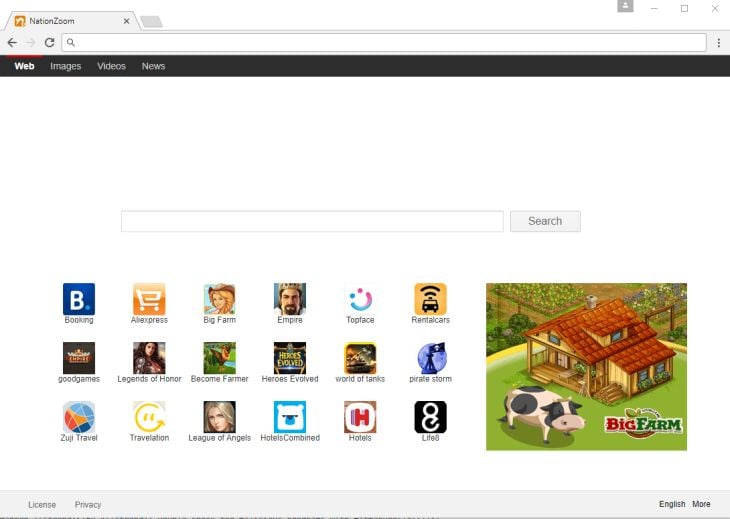
NationZoom browser hijacker is commonly bundled with other free programs that you download off of the Internet. Unfortunately, some free downloads do not adequately disclose that other software will also be installed and you may find that you have installed NationZoom without your knowledge.
Always opt for the custom installation and deselect anything that is not familiar, especially optional software that you never wanted to download and install in the first place. It goes without saying that you should not install software that you don’t trust.
How to remove NationZoom redirect (Virus Removal Guide)
Please perform all the steps in the correct order. If you have any questions or doubt at any point, STOP and ask for our assistance.
- STEP 1: Use Zemana AntiMalware Portable to remove NationZoom redirect
- STEP 2: Scan and clean your computer with Malwarebytes
- STEP 3: Double-check for malicious programs with HitmanPro
- (OPTIONAL) STEP 4: Reset your browser to default settings
STEP 1: Use Zemana AntiMalware Portable to remove NationZoom redirect
Zemana AntiMalware Portable is a free utility that will scan your computer for the NationZoom browser hijacker and other malicious programs.
- You can download Zemana AntiMalware Portable from the below link:
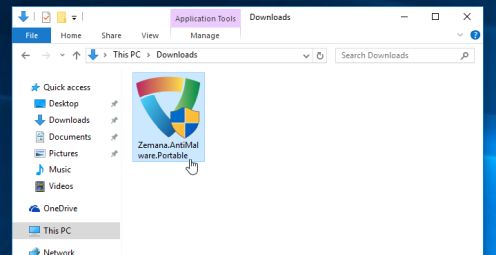
Download Zemana AntiMalwareOpens the download page in a new tab. - Double-click on the file named “Zemana.AntiMalware.Portable” to perform a system scan with Zemana AntiMalware Free.
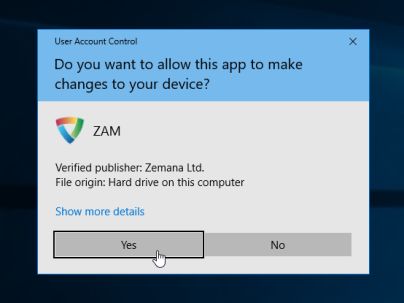
You may be presented with a User Account Control dialog asking you if you want to run this program. If this happens, you should click “Yes” to allow Zemana AntiMalware to run.
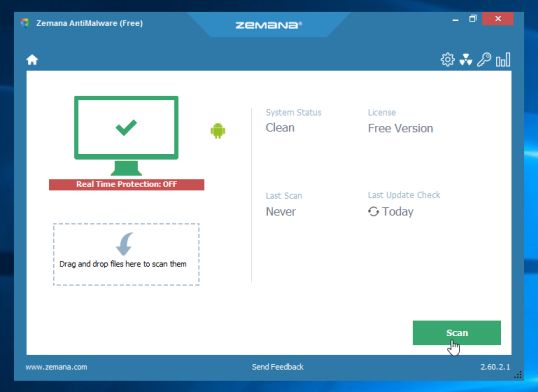
- When Zemana AntiMalware will start, click on the “Scan” button to perform a system scan.
- Zemana AntiMalware will now scan your computer for malicious programs. This process can take up to 10 minutes.
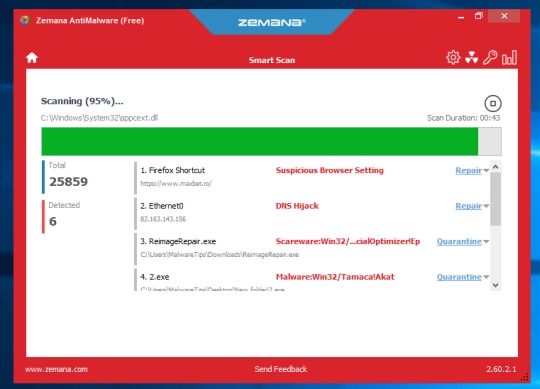
- When Zemana has finished finished scanning it will show a screen that displays any malware that has been detected. To remove all the malicious files, click on the “Next” button.
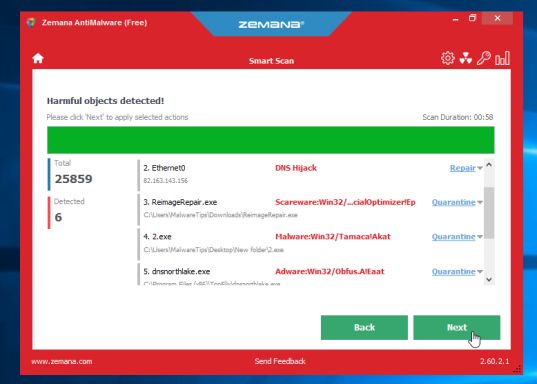
Zemana AntiMalware will now start to remove all the malicious programs from your computer. When the process is complete, you can close Zemana AntiMalware and continue with the rest of the instructions.
STEP 2: Scan and clean your computer with Malwarebytes
Malwarebytes is a powerful on-demand scanner which should remove the NationZoom redirect from your machine. It is important to note that Malwarebytes Anti-Malware will run alongside antivirus software without conflicts.
- You can download download Malwarebytes from the below link.
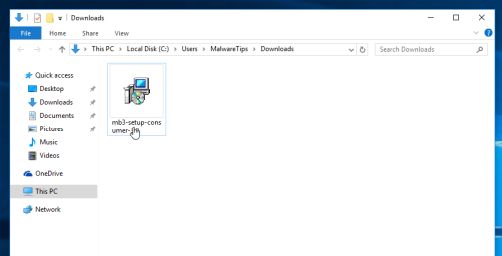
Download MalwarebytesFree official installer. Your download starts right away. - When Malwarebytes has finished downloading, double-click on the “mb3-setup-consumer” file to install Malwarebytes on your computer.
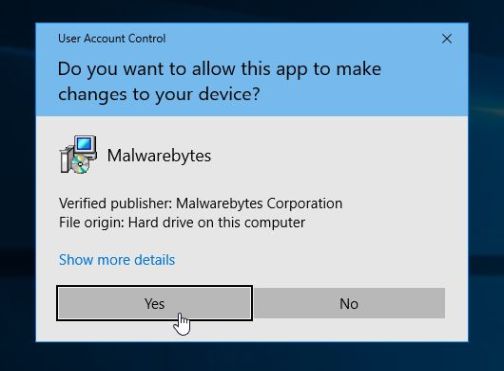
You may be presented with an User Account Control pop-up asking if you want to allow Malwarebytes to make changes to your device. If this happens, you should click “Yes” to continue with the installation.
- When the Malwarebytes installation begins, you will see the Malwarebytes Setup Wizard which will guide you through the installation process.
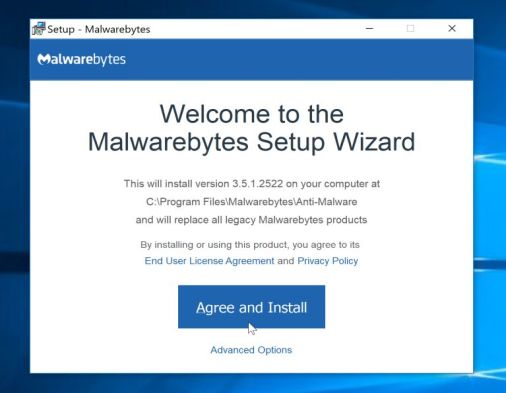
To install Malwarebytes on your machine, keep following the prompts by clicking the “Next” button.
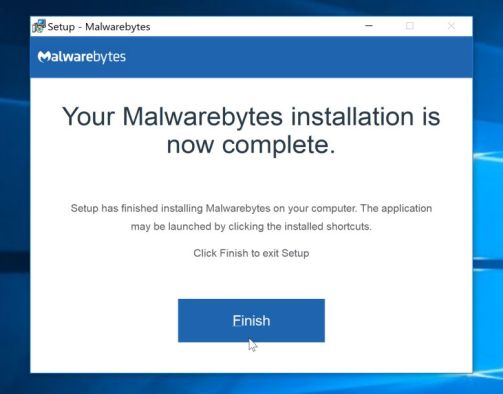
- Once installed, Malwarebytes will automatically start and update the antivirus database. To start a system scan you can click on the “Scan Now” button.
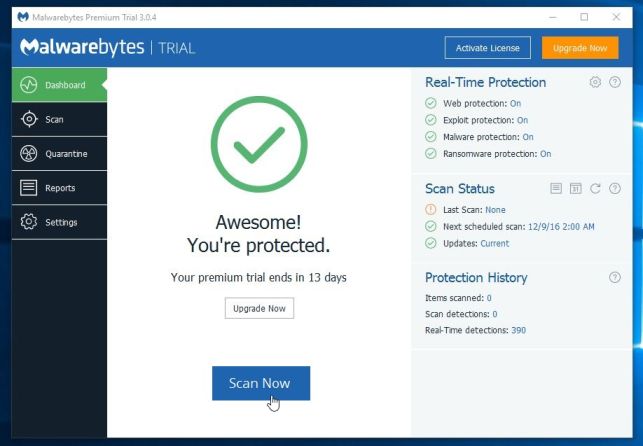
- Malwarebytes will now start scanning your computer for malicious programs.
This process can take a few minutes, so we suggest you do something else and periodically check on the status of the scan to see when it is finished.
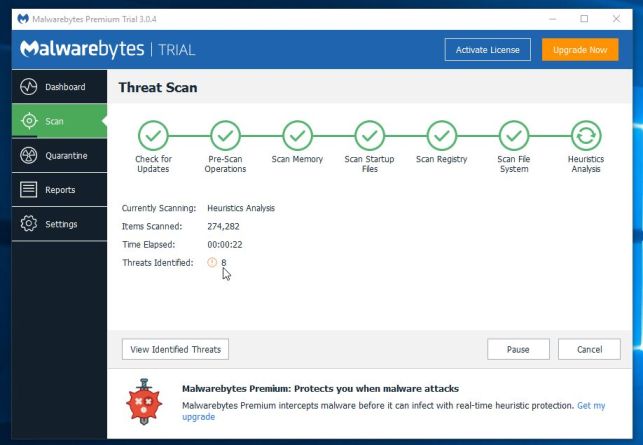
- When the scan has completed, you will be presented with a screen showing the malware infections that Malwarebytes has detected.
To remove the malicious programs that Malwarebytes has found, click on the “Quarantine Selected” button.
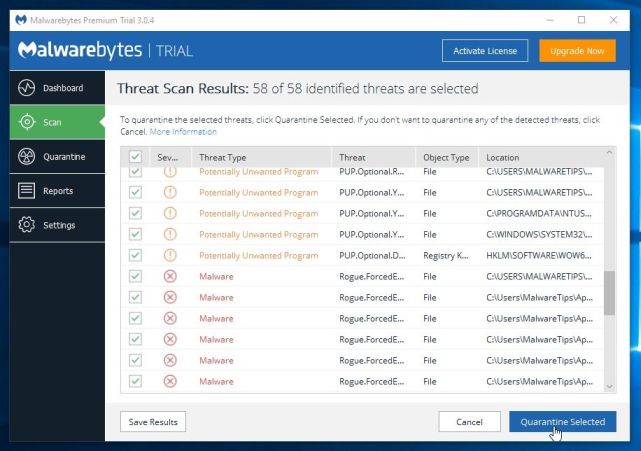
- Malwarebytes will now quarantine all the malicious files and registry keys that it has found.
To complete the malware removal process, Malwarebytes may ask you to restart your computer.
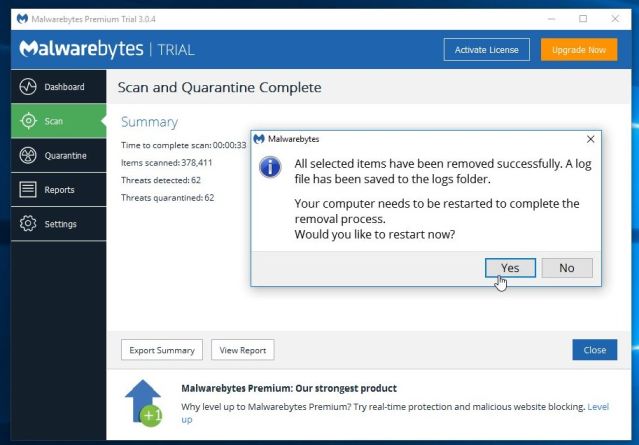
When the malware removal process is complete, you can close Malwarebytes and continue with the rest of the instructions.
STEP 3: Double-check for malicious programs with HitmanPro
HitmanPro can find and remove malware, adware, bots, and other threats that even the best antivirus suite can oftentimes miss. HitmanPro is designed to run alongside your antivirus suite, firewall, and other security tools.
- You can download HitmanPro from the below link:
Download HitmanProOfficial Sophos download. Free scan, free 30-day trial to remove threats. - When HitmanPro has finished downloading, double-click on the “hitmanpro” file to install this program on your computer.
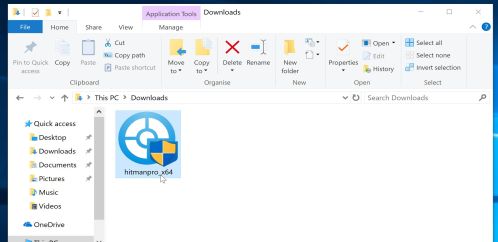
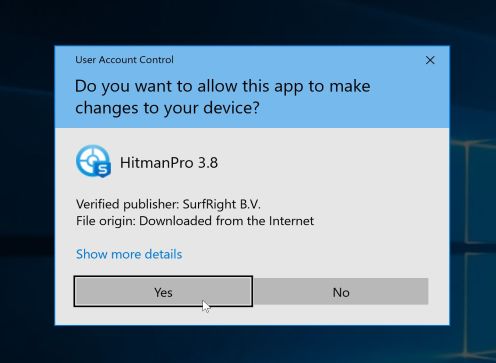
You may be presented with an User Account Control pop-up asking if you want to allow HitmanPro to make changes to your device. If this happens, you should click “Yes” to continue with the installation.
- When the program starts you will be presented with the start screen as shown below. Now click on the Next button to continue with the scan process.
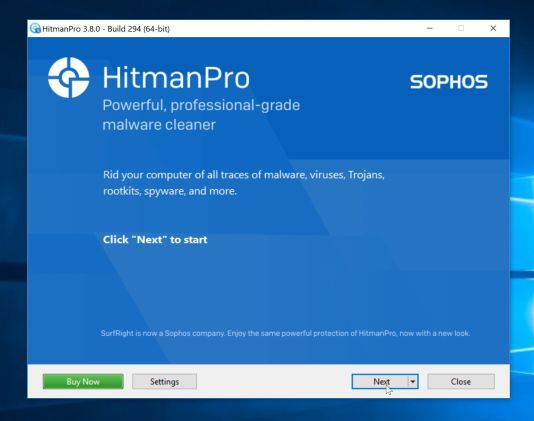
- HitmanPro will now begin to scan your computer for malware.
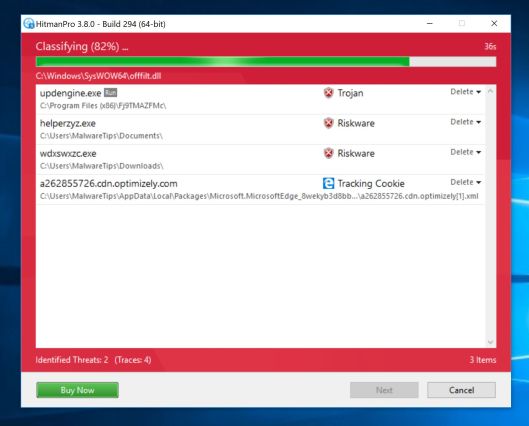
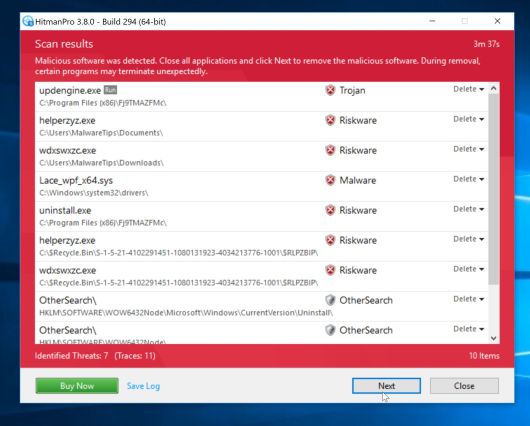
- When it has finished it will display a list of all the malware that the program found as shown in the image below. Click on the “Next” button, to remove malware.
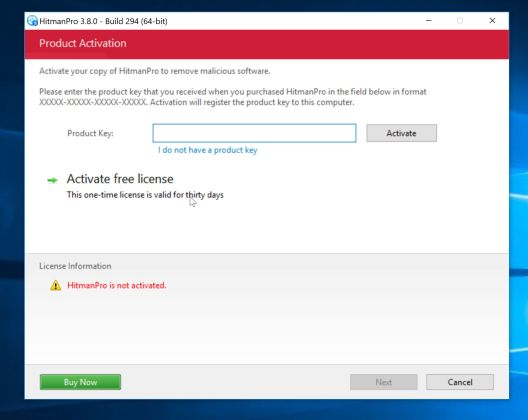
- Click on the “Activate free license” button to begin the free 30 days trial, and remove all the malicious files from your computer.
When the process is complete, you can close HitmanPro and continue with the rest of the instructions.
(OPTIONAL) STEP 4: Reset your browser to default settings
This step should be performed only if your issues have not been solved by the previous steps.
Google Chrome
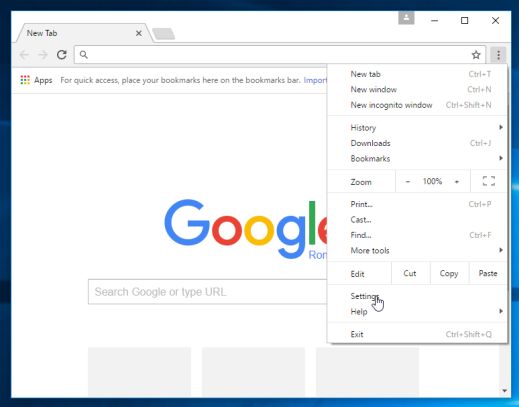
- Click on Chrome’s main menu button, represented by three horizontal lines. When the drop-down menu appears, select the option labeled Settings.
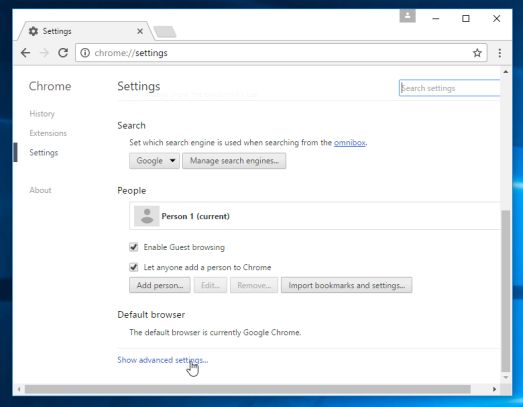
- Chrome’s Settings should now be displayed in a new tab or window, depending on your configuration. Next, scroll to the bottom of the page and click on the Show advanced settings link (as seen in the below example).
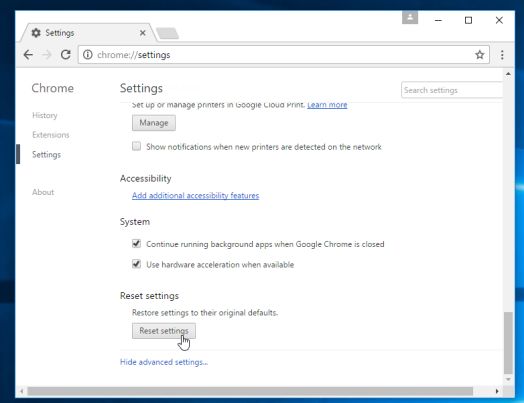
- Chrome’s advanced Settings should now be displayed. Scroll down until the Reset browser settings section is visible, as shown in the example below. Next, click on the Reset browser settings button.
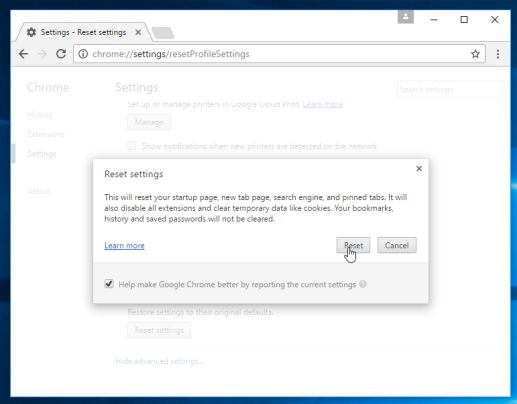
- A confirmation dialog should now be displayed, detailing the components that will be restored to their default state should you continue on with the reset process. To complete the restoration process, click on the Reset button.
Internet Explorer
- Open Internet Explorer, click on the “gear icon” in the upper right part of your browser, then click again on Internet Options.
![[Image: Internet Options in Internet Explorer]](https://malwaretips.com/blogs/wp-content/uploads/2014/03/Internet-Options-Internet-Explorer.jpg "Click on the Gear Icon then on Internet Options")
- In the “Internet Options” dialog box, click on the “Advanced” tab, then click on the “Reset” button.
![[Image: Reset Internet Explorer]](https://malwaretips.com/blogs/wp-content/uploads/2014/03/Reset-Internet-Explorer.jpg "In the Advanced tab click on the Reset button")
- In the “Reset Internet Explorer settings” section, select the “Delete personal settings” check box, then click on “Reset” button.
![[Image: Reset Internet Explorer to its default settings]](https://malwaretips.com/blogs/wp-content/uploads/2014/03/reset-button-Internet-Explorer.jpg "Click on the Reset button to revert IE to its default settings")
- When Internet Explorer has completed its task, click on the “Close” button in the confirmation dialogue box. You will now need to close your browser, and then you can open Internet Explorer again.
![[Image Reset Internet Explorer settings]](https://malwaretips.com/blogs/wp-content/uploads/2014/03/Close-button-Reset.jpg "Click on the Close button")
Mozilla Firefox
- In the upper-right corner of the Firefox window, click the Firefox menu button, then click on the “Help”
![[Image: Firefox Help button]](https://malwaretips.com/blogs/wp-content/uploads/2014/04/Firefox-Help.png "Firefox Help button") button.
button.
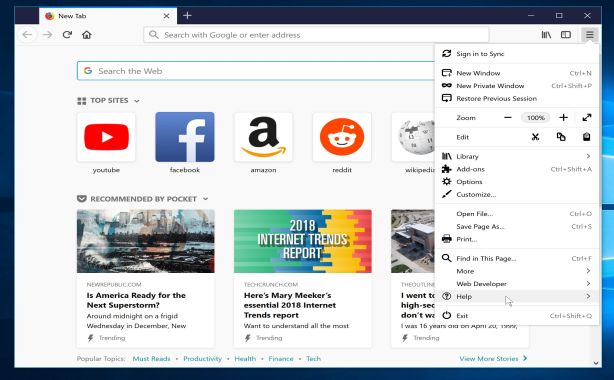
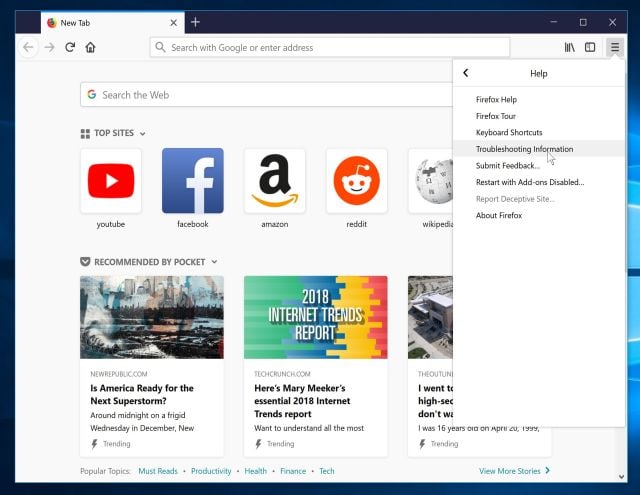
- From the Help menu, choose Troubleshooting Information.
If you’re unable to access the Help menu, type about:support in your address bar to bring up the Troubleshooting information page.
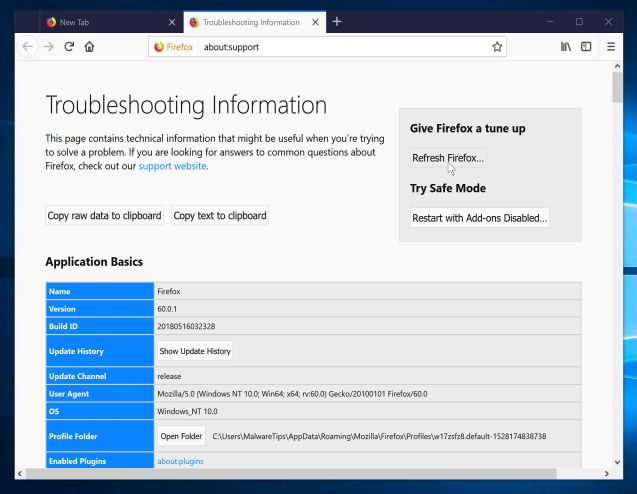
- Click the “Refresh Firefox” button in the upper-right corner of the “Troubleshooting Information” page.
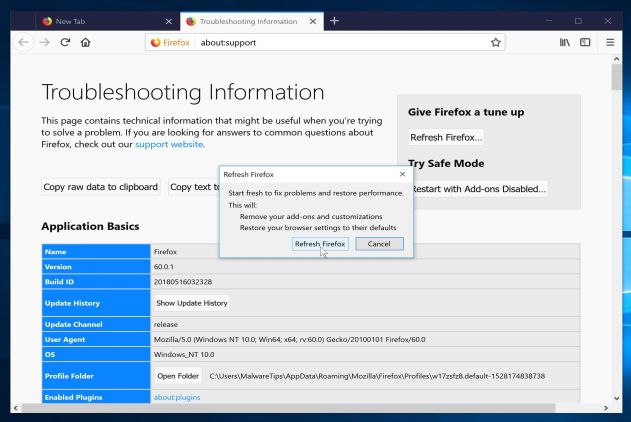
- To continue, click on the “Refresh Firefox” button in the new confirmation window that opens.
- Firefox will close itself and will revert to its default settings. When it’s done, a window will list the information that was imported. Click on the “Finish“.









Now that’s worth a quadruple thumbs up! Really, I’ve been losing my head over that Lightning Newsh*** for months now.
Perfect step by step instruction, thanks!
Thank You Very Much Bro…… For all people, just follow the steps…..
Thanks much Stelian. You saved my PC!
Thank you,, and God bless you!
Thanks so much. You have saved me from unwanted crap from Nation Zoom.
great work .. thanx
I could just hug you!!! THANK YOU!!!!!!!!!!!!!!
handy and useful!!!!
This was the only website that fixed this issue for me! I am in IT and had tried everything else on my on, including malware and adware scans. It was the file extensions under Properties that finally fixed it. Thanks so much!
Muito obrigada, sua explicação foi a única que conseguiu me ajudar, meu pc além de ficar livre do nation zoom, ficou mto melhor… obrigada
Muchas gracias por la ayuda
thank u so much for ur kind information
Thank you very much! :)
Thank you very much!
You saved my bacon, sir! Thank you VERY much!
Hello,
Yes, you can uninstall any programs that we have used in this guide. :)
Hello,
Lets reset Firefox to its default settings:
1.At the top of the Firefox window, click the Firefox button, go over to the Help sub-menu (on Windows XP, click the Help menu at the top of the Firefox window), and select Troubleshooting Information.
2.Click the Reset Firefox button in the upper-right corner of the Troubleshooting Informationpage.
3.To continue, click Reset Firefox in the confirmation window that opens.
4.Firefox will close and be reset. When it’s done, a window will list the information that was imported. Click Finish
Okay. I just posted that I had gotten rid of it except in IE. THen was re-reading here. I had checked my shortcuts, but I don’t have a shortcut for explorer, so I thought maybe I had missed that. SO I checked IE and yes, the target was that awful wrong line that I had found elsewhere. So I took that out and restarted IE and it seems to be gone.
(One funny thing, IE opened with Bing as the search engine, although I had just looked in manage add-ons and such and it is listed as Google. That’s for another day, and maybe not, as I don’t even use IE….)
Too many words to say yes, you are right, doublecheck step 3 for IE. At least, that worked for me. At least, for the time being.
Ellen
I have done this list. Thank you very much. It has helped. I have done parts of it several times. At the moment, nationzoom seems to be gone from Firefox and Chrome, but it is still working in Explorer.
Under “Manage extensions” in Explorer, it is listed as enabled, but grayed out so I cannot disable it. The publisher is “Not Available”. I asked for more information, and got this folder —
C:Program files (x86)SearchNewTab
and this file —
zkN.x64.dll
But cannot either folder or file, even when I go to cmd and run as administrator and ask WIndows to display all hidden files and folders.
I have run Adwcleaner again, and Hitman. Adwcleaner did find something in Explorer, and I asked it to clean it, but nationzoom still seems to be there. I don’t use IE, if I can avoid it, so do not know much about it. But I fear if nationzoom is still there it will spread itself again.
Hello,
Did you reset your Internet Explorer settings as seen in STEP 2?
I completed all of these steps, but when I open a new tab in Firefox, Nation Zoom still pops up!
Please help!!
Hello,
Did you reset your Firefox settings? Please re-do STEP 3, and this time please post the Target path in your next reply. Please make sure you get the path from the actual icon that you are using to start your browser.