


Your inbox looks normal until a notice says your account needs an update. The email makes it sound as though everyone else has already taken care of theirs.
The wording is vague, but the warning about interrupted service feels personal. Before you do anything with it, look at what the message actually tells you.
Overview
The notice says an update is pending
The Official Communication Service Update Required email is a phishing lure that presents itself as a notice from the recipient’s service provider. It claims that uninterrupted access depends on confirmation.
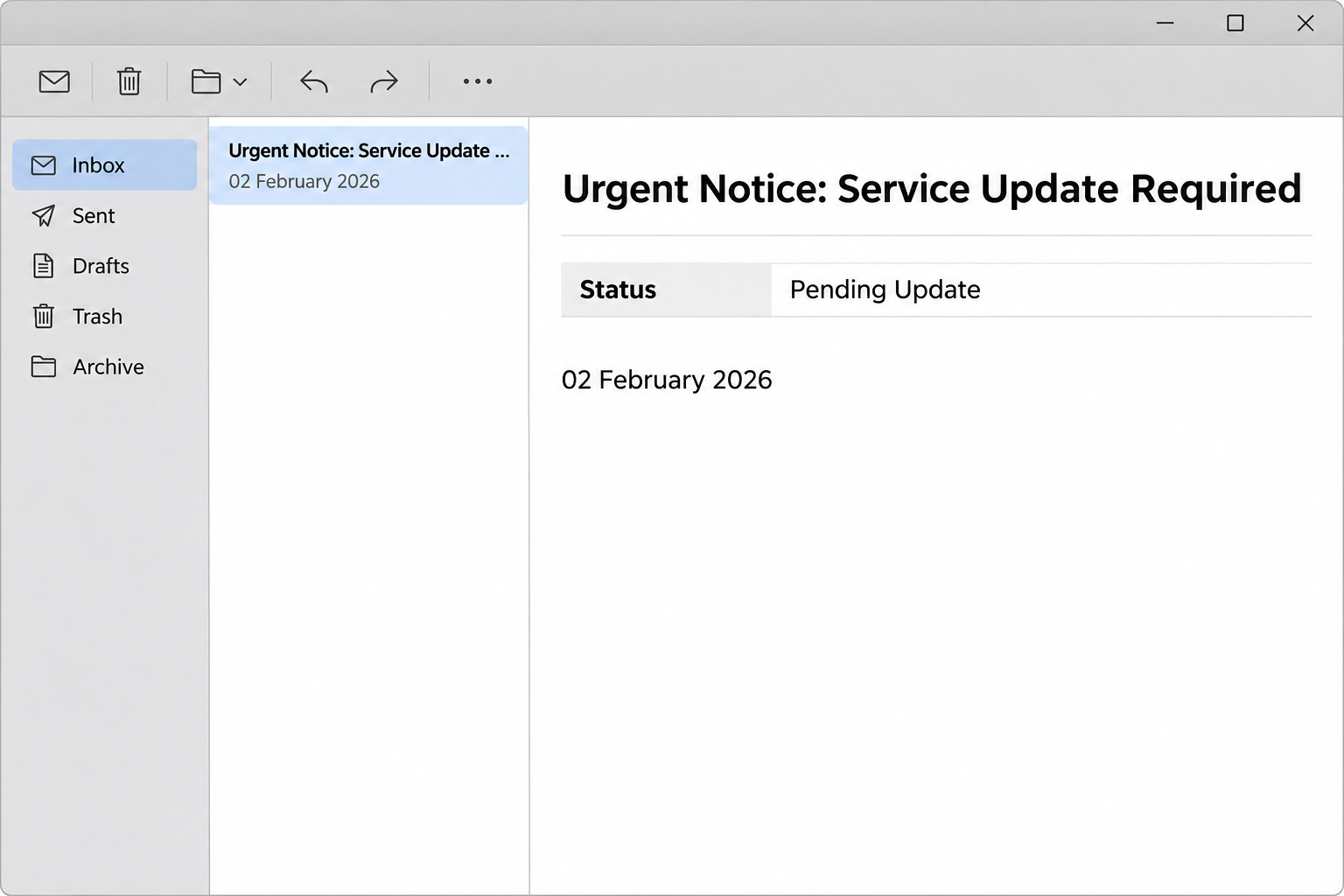
The documented version lists a date, the apparent account, and a status of “Pending Update.” The layout gives the message the appearance of an account record.
There is no usable explanation of what is being updated. It doesn’t tell you which feature will change, which software needs attention, or where to check independently.
That lack of detail is central to the notice. It asks the reader to move from a familiar inbox into an unverified process without explaining why.
How the deceptive notice is put together
The email combines a formal heading with a simple request. It looks official when skimmed, even though the information it provides would be inadequate to plan a real update.
- The subject asks you to confirm an account update immediately.
- The message presents itself as official communication rather than naming a support case you opened.
- The documented example shows the date February 2, 2026, beside a pending status.
- The button asks you to confirm and update, without telling you what would change.
- A confidentiality footer makes the email read like routine account correspondence.
An email with a newer date or more specific account information is not necessarily the same specimen. Check the claim independently instead of relying on a perfect visual match.
The intended phishing route and what remains unknown
The message’s demand takes the reader outside a known account route. It suggests a phishing attempt aimed at getting the recipient to identify themselves or give up account details.
The linked page was unavailable when documented, so its exact fields, the page design, and any subsequent request are not known for this sample.
That distinction is important if you already followed the link. Seeing an unavailable page is a different experience from typing a password or authorizing a sign-in.
There’s no established evidence of an actual service change or infection in the notice. Check the account first, then respond to any action you actually took.
How the Official Communication Service Update Scam Works
Step 1: The subject turns service continuity into an immediate task
Most people don’t want to find out their email stopped working after a missed appointment or a customer’s call. The subject treats a routine update as an urgent decision.
It tells you which action to take before you know what is being changed. That order favors a quick response over a check of the service itself.
A service announcement you didn’t expect is allowed to wait while you check your account. A real outage or maintenance window can be identified without approving the email.
If it’s a shared account, avoid acting on behalf of the whole team until someone establishes whether the provider actually scheduled any work.
Step 2: A neat account table makes an unsupported claim look recorded
A date and a pending status are the parts that look as if they came from an account system. The message does not establish how either was generated.
It’s easy to read “Pending Update” as a status you’ve personally earned by doing nothing. In the email, it’s simply a label the sender supplied.
Open the provider’s account dashboard separately and look for the same event. If the matter concerns a work-account change, use your organization’s approved support channel.
A provider that truly needs you to make a change should be able to identify that change through support or the portal you already use.
Step 3: The button blurs the difference between confirming and approving
The notice tells you to confirm and update, as if those were one task. Reading the message leaves you no wiser about what that combination would do.
Before approving a real change, you should know what setting will change and which account will be affected. A vague button isn’t enough to give that permission.
The documented link wasn’t accessible for verification. Don’t assume it was a password form, a file download, or a specific brand’s sign-in just because those are familiar tactics.
The practical step is the same either way. Leave the button alone and open the service with your normal app or by using your established bookmark.
Step 4: A later request can move the exposure beyond a click
In account phishing, the risk increases if a recipient supplies information or approves a request after following an untrusted route. A familiar-looking page does not make that route trustworthy.
If a page asks for a password, verification code, or a prompt on another device, stop and check whether you initiated that request from the actual provider.
Someone may follow up with a second message that claims the first update failed. The fact that it uses the same words doesn’t establish that the messages are genuine.
Report what actually happened rather than assuming the outcome. Opening a page that didn’t load isn’t proof that anybody accessed your account, and a password submission is more serious.
How to Check Whether Your Service Actually Needs an Update
Open the account from a trusted app or saved address. Use its notices, security settings, or current status information to see whether the claimed action exists.
If the email came during a real service disruption, that timing is not proof the message is authentic. Check the provider’s service status and your internal help desk separately.
Look for an explanation that answers what is changing, when it changes, and whether anyone other than an administrator needs to act. Those are normal questions for maintenance.
For work or school, updates may be managed centrally. Ask your help desk if the change was announced and whether your account is in the affected group.
Google’s phishing guidance explains why to visit the service directly when a message asks for credentials. The same principle applies beyond Gmail.
If the provider can’t verify the request, don’t send them your password or secret codes to help locate it. A support team can investigate the notice without those details.
Advice for an account you help someone else manage
If you’re helping a parent, coworker, or client, first ask whether they rely on the service the email claims to represent. An unrelated account requires no update.
Open their existing app with their permission rather than adding an account from the message. You can check the ordinary account page without ever seeing their password.
Ask them to describe what appeared if they already followed a link. A blank page and a screen asking for a verification code are useful, different details.
Don’t use a search ad for a phone number when you’re trying to verify service status. Open the service’s app, help page, or existing customer paperwork instead.
Advice if you expected a real update
A genuine change might be announced around the same date. Compare the service, scope, and required action through a trusted channel, not just how the two messages look.
If your device needs a software update, start it from the device or application settings. You generally don’t need an email action merely to open those settings.
If your employer planned an account migration, ask which identity portal will handle the change. Keep using your documented login address until your administrator confirms the switch.
Maintenance notices and personal verification requests are separate. Confirm an actual migration before entering a code, and refuse any unexpected approval pushed during the conversation.
If a ticket exists, take down its reference from the verified support system. That lets you return to the same issue without keeping the suspicious email open.
When a provider says nothing is pending, you can close the issue. You don’t need to test the button to learn which page the sender built.
What to Do if You Have Fallen Victim to This Scam
-
Check the real account without using the notice.
If you did nothing with the message, go straight to the account portal if you still want to confirm its status. Use the phishing report button if available.
If a coworker received the same email, share the subject and reporting route internally. Don’t forward a clickable copy as a warning.
-
If you followed the link, report the action you took.
Close the page without investigating further. If it didn’t load, tell your support team that rather than assuming the link installed something or stole account information.
If a trusted password manager filled in a field or your provider sent a prompt, mention it in your report. Those details help distinguish a visit from exposure.
-
If you typed a password, change it through the real service.
Use an app or browser session you trust, and create a password you don’t use anywhere else. Replace reused passwords on other services, starting with linked accounts.
For an organization-managed account, report it promptly and ask about revoking sessions. Don’t assume a reset by itself ends every existing sign-in.
-
Take any approved verification prompt seriously.
If you entered a code, scanned a sign-in request, or approved a prompt you didn’t initiate, tell the provider or administrator what you approved and when.
Review active devices and verification methods with their help. Remove methods you don’t recognize after verifying that you have a working recovery route for yourself.
-
Check for changes that would keep an intruder connected.
Look at recovery phone numbers, backup email addresses, forwarding rules, and connected apps. Ask your administrator to review unfamiliar or recently added settings if needed.
A change to where your email is delivered can matter even if your password now works. Protect other services that use that inbox for recovery.
-
Keep evidence without turning the email into a new task.
Preserve the original according to your organization’s rules. Make a note of the receiving time and any actions you took before closing the message.
If the account still behaves strangely, use a separate verified channel to get help. Don’t reply to an apparent support agent who continues the same update story.
A notification you never interacted with doesn’t need the same response as an approved sign-in. Start with what happened, not the message’s own description of the threat.
Frequently Asked Questions
Is “Pending Update” enough to tell me that my account needs work?
No, it’s a label in the suspicious message, not an account status you viewed through the service. Open the real portal to see whether any action is pending there.
If your provider’s ordinary help channel confirms no account change is needed, leave the email link alone. It doesn’t get a second chance because its table looks official.
What if the message includes my actual email address?
A sender can place a real email address in the message without having access to the account. That detail does not establish that your service provider sent it.
Check that the account in your known portal shows the same issue. If it’s a work account, the help desk can advise whether the update is meant for you.
Does a real maintenance announcement always appear in the account portal?
Providers handle notices differently, so a missing banner isn’t definitive by itself. You can still verify a specific claim through a support channel or status page you know.
Where the notice identifies no system or change, ask what is being maintained and whether there is anything for you to do. Don’t use the disputed link to ask.
What if the site showed an error when I clicked?
An error doesn’t prove the email was legitimate or establish that a credential was submitted. Don’t retry the suspicious link to find out whether it works now.
If you entered nothing and approved nothing, report the visit if the account is work-managed. Check your known portal for genuine account activity when useful.
Can someone use a real service outage to make this more convincing?
Yes, a fake update can sound credible when the real service has had problems. It doesn’t follow that the notice came from the provider or is part of a repair.
Check the official status or support route for the outage itself. Any required personal action should be verified independently of the unexpected message.
Should I reply to ask the sender which update they mean?
Don’t use the suspicious thread to verify itself. A reply can invite further pressure or a second link that appears to answer your question.
Open a separate support request using an address you already trust. Give the provider the email subject if useful, but keep passwords and codes out of the conversation.
The Bottom Line
Leave the “Confirm & Update Now” link alone. A service provider that needs you to make a real change can be reached without using this email.
If you already provided credentials or approved access, protect the account through its real support route. The message’s vague update story shouldn’t dictate how you recover.

Join the discussion
0 commentsShare your experience or ask a question about this article.
Community experiences
Did this happen to you?
Your experience could help someone recognize the same scam. Submit a private report for our team to review.
I experienced this tooReports are reviewed before publication. Sharing publicly is always your choice.
Discussion
Start the conversation
Have a question or something useful to share? Add the first comment.