Advice Request Best practices for setting up a new router: single vs multi-band SSID & firewall security level?

Please provide comments and solutions that are helpful to the author of this topic.
After three days of using the router, I discovered that all of my devices were using 2.4 GHz and none were using 5 GHz when I used a single SSID for both bands. I'm not sure if this is because the router is in the living room and the connected devices are in the other rooms, or if I need to split the bands as some advised and connect specific devices to 5 GHz if I want those devices to use it. However, I've read that 5 GHz isn't for long distances, and since our walls are made of cement, will 5 GHz work well in that scenario?
 
As @stonjean633 already posted, better to spilt reasons:

1. Let the fastest devices use the fastest band.
To optimize throughput, put slow devices of 2.4 and faster on 5Ghz and gaming on Wifi6. This is because your router tries to apply fair use. What is fair use? Imagine your wifi being a train with say (when you have 4 devices) with wagons number A, B. C, D, E.. Then the Wifi networks gives wagons to every device in repeated sets of A-B-C-D wagons,. Problem is the slow devices occasionally mis a wagon, so your wagon allocations looks like A - used (fast device), B (used), C empty (slow device), D used next set of wagons A used, B used, C half used, D empty, etc.

So the fast devices end up in traffic jam caused by the slow devices (they could have used the empty wagons), because your router tries to find a middle ground.

2. Dump old protocols on 5 GHz and 6Ghz networks
This only applies when your device has more than one CPU to monitor and manage network traffic. When the CPU has less protocols to manage, it has a smaller reference set and assigns traffic a tiny bit faster because it does not has to look for slow old protocols

3. Last and best reason to spilt
2.4 usually broadcast stronger signal than 5 Ghz, therefore your fast gaming device get assigned to slow 2.4 Ghz network (because the signal is stronger). Then slow devices join in with old protocols (nearly all IOT devices use cheap old protocols because they have to send little data) and they have to be connected to your 2.4 network. So you end up with a lame half used router
Tip: set signal strenght on 5 Ghz to strong
 
Last edited:
To ensure nothing is missed, here are the available settings on my ISP router. Are they configured correctly, or do you recommend any modifications?

View attachment 299115View attachment 299116View attachment 299117View attachment 299118View attachment 299119
Well, there's not much you can change and most of these don't have any effect on security anyway. I'd change default DNS servers though.
Not going to happen until either the bubble bursts or 2032 at the soonest. SSD/HDD/DDR prices have gone up 500% just on Amazon alone.
Soon. From what I recently read, for the first time ever, Google spend more money than what they earned due to investments in AI. This is why they are so desperate users using it and why they reduced the pricing for Gemini.

Once bubble bursts, it won't be nice... for them. It will be terrific for us.
That's a nice router (y)(y)(y) I have the GT-BE98 myself.
I have TUF-AX3000 V2 for a few years now and I don't see why would anyone need Wi-Fi 7. 6 and 6E are enough for everyone. I may get one if current one dies, but while it still works, no reason to change.
After three days of using the router, I discovered that all of my devices were using 2.4 GHz and none were using 5 GHz when I used a single SSID for both bands. I'm not sure if this is because the router is in the living room and the connected devices are in the other rooms, or if I need to split the bands as some advised and connect specific devices to 5 GHz if I want those devices to use it. However, I've read that 5 GHz isn't for long distances, and since our walls are made of cement, will 5 GHz work well in that scenario?
That's what I said. It's really bad system that doesn't work correctly sometimes. I'm not sure if that's router acting up or devices. Nonetheless, I don't recommend combining SSIDs into one.
 
Which DNS server is best for a home network, in your opinion?
Well... I'm using 1.1.1.1 over DoT on my Asus router. While I personally use Control D on my devices, not everyone wants filtering DNS. The most important thing for me is that the router provides fast, private, safe and uncensored DNS server to all clients. If anyone wants to use anything else on their device, they are free to do so as 1.1.1.1 won't override user choice. I set it like that on purpose.

ISP DNS servers are out of the question. In this day and age, it doesn't have DNSSEC, it doesn't support ECH; it simply doesn't have any privacy and safety features enabled whatsoever. Response time is also out of the roof, despite having fiber connection and is hosted relatively near me. I get way 3x better response time with Control D in Frankfurt than what I get ISP provided DNS servers. That says it all!
 
As @stonjean633 already posted, better to spilt reasons:

1. Let the fastest devices use the fastest band.
To optimize throughput, put slow devices of 2.4 and faster on 5Ghz and gaming on Wifi6. This is because your router tries to apply fair use. What is fair use? Imagine your wifi being a train with say (when you have 4 devices) with wagons number A, B. C, D, E.. Then the Wifi networks gives wagons to every device in repeated sets of A-B-C-D wagons,. Problem is the slow devices occasionally mis a wagon, so your wagon allocations looks like A - used (fast device), B (used), C empty (slow device), D used next set of wagons A used, B used, C half used, D empty, etc.

So the fast devices end up in traffic jam caused by the slow devices (they could have used the empty wagons), because your router tries to find a middle ground.

2. Dump old protocols on 5 GHz and 6Ghz networks
This only applies when your device has more than one CPU to monitor and manage network traffic. When the CPU has less protocols to manage, it has a smaller reference set and assigns traffic a tiny bit faster because it does not has to look for slow old protocols

3. Last and best reason to spilt
2.4 usually broadcast stronger signal than 5 Ghz, therefore your fast gaming device get assigned to slow 2.4 Ghz network (because the signal is stronger). Then slow devices join in with old protocols (nearly all IOT devices use cheap old protocols because they have to send little data) and they have to be connected to your 2.4 network. So you end up with a lame half used router
Tip: set signal strenght on 5 Ghz to strong


To be honest i feel things used to be that way but i no longer see it like that, all my devices connect at decent speeds, I get over 700 on both iPhones & two iPads, as I said the furthest device connects on 2.4 as it should and still get 130, my IOT cameras are on 2.4 fixed, I really do not think its how it was anymore, it may be for some but give it a try on mixed, works well here & I always used to decide myself the frequency, this PC however is on Ethernet as its only a 3 meters from the router all else is on Wifi, just my opinion here - My Panasonic TV in my lounge 15+ meters from the router with a wall between is on 6Ghz because it can & gives speeds of 350, just looked, how fast do I want a TV to connect, I feel you can faff around & gain nothing??
 
Last edited:
Well... I'm using 1.1.1.1 over DoT on my Asus router. While I personally use Control D on my devices, not everyone wants filtering DNS. The most important thing for me is that the router provides fast, private, safe and uncensored DNS server to all clients. If anyone wants to use anything else on their device, they are free to do so as 1.1.1.1 won't override user choice. I set it like that on purpose.

ISP DNS servers are out of the question. In this day and age, it doesn't have DNSSEC, it doesn't support ECH; it simply doesn't have any privacy and safety features enabled whatsoever. Response time is also out of the roof, despite having fiber connection and is hosted relatively near me. I get way 3x better response time with Control D in Frankfurt than what I get ISP provided DNS servers. That says it all!
I tried changing the "Primary DNS" to 1.1.1.1, but when I tested, it still indicated that I was using an ISP DNS. Should I change the "Gateway Address" instead?
 
I tried changing the "Primary DNS" to 1.1.1.1, but when I tested, it still indicated that I was using an ISP DNS. Should I change the "Gateway Address" instead?
No. Gateway address is the IP address of the router itself.

Change it again, put 1.1.1.1 as a primary DNS and 1.0.0.1 as a secondary DNS. Save settings and restart the router. Then, clear the DNS cache on your device and
go to dnscheck.tools to see if Cloudflare appears as your DNS. If it's still showing your ISP DNS, we'll go further steps.
 
I discovered that all of my devices were using 2.4 GHz and none were using 5 GHz when I used a single SSID for both bands. I'm not sure if this is because the router is in the living room and the connected devices are in the other rooms, or if I need to split the bands as some advised and connect specific devices to 5 GHz if I want those devices to use it. However, I've read that 5 GHz isn't for long distances, and since our walls are made of cement, will 5 GHz work well in that scenario?
On Android, I use "Network Analyzer" by Jiri Techet to see the signals. It shows both the 2.4Ghz and 5Ghz bands even with the same SSIDs. On the PC, I use "inSSIDer" wifi-analyzer by MetaGeek (by somebody else now?), but much less frequently.
 
I tried changing the "Primary DNS" to 1.1.1.1, but when I tested, it still indicated that I was using an ISP DNS. Should I change the "Gateway Address" instead?
Your browser could be bypassing the router DNS. Turn OFF SECURE DNS in your browsers. Then if your router has the capability to force all clients to use the router DNS no matter what config is in the browser,then there should be no bypass. Asus have this option.
 
Your browser could be bypassing the router DNS. Turn OFF SECURE DNS in your browsers. Then if your router has the capability to force all clients to use the router DNS no matter what config is in the browser,then there should be no bypass. Asus have this option.
I didn't try restarting the router after changing the DNS, so perhaps that was the problem. I'll try again tonight.
 
I didn't try restarting the router after changing the DNS
You didn't say, but I'll mention here just to make sure. Once you change the DNS on the server, you may need to disconnect and reconnect the testing device to grab the new configuration.

Should I change the "Gateway Address" instead?
That is usually the address of your router.

Regarding filtering DNS, I'd put the malware-filtering DNS addresses (1.1.1.2, 1.0.0.2). The malware filter for CloudFlare may not be the quickest to pick up or most comprehensive, but it does have some filter, and perhaps nobody else in your household will be downloading malware intentionally. If anyone else still does, they still can probably bypass your setup. As far as I know, it's significantly harder to completely block DNS over HTTPS.
 
I didn't try restarting the router after changing the DNS, so perhaps that was the problem. I'll try again tonight.
Some routers require restart, some don't. I remember I could change a lot of settings on my previous TP-Link router without a restart; current Asus requires restart for almost everything.
You didn't say, but I'll mention here just to make sure. Once you change the DNS on the server, you may need to disconnect and reconnect the testing device to grab the new configuration.
Yeah, that would be my next step—resetting the network settings and clearing DNS cache (ipconfig /flushdns) on device. It needs to get IP address automatically from the router.

If it still doesn't work, then the router has hardcoded DNS servers by ISP and the setting doesn't do anything. OR... ISP intercepts DNS requests made to popular DNS services and forwards them to their own. I heard cases of that happening.
 
No. Gateway address is the IP address of the router itself.

Change it again, put 1.1.1.1 as a primary DNS and 1.0.0.1 as a secondary DNS. Save settings and restart the router. Then, clear the DNS cache on your device and
go to dnscheck.tools to see if Cloudflare appears as your DNS. If it's still showing your ISP DNS, we'll go further steps.
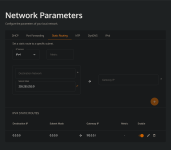
I tried, but it still displays my ISP DNS. Is there anything else I can do? Also, I saw an entry at the bottom of the screenshot that I didn't add, so I'm not sure if that's by default or something.

1785625323964.png
 
I tried, but it still displays my ISP DNS. Is there anything else I can do? Also, I saw an entry at the bottom of the screenshot that I didn't add, so I'm not sure if that's by default or something.

View attachment 299179
Cloudflare DNS is quite popular and often blocked in authoritarian regimes. Let's try with less popular DNS servers (we obviously don't want to use them, just test if it works). Use DNSGuard, dnsforge.de or Hagezi DNS.

Make sure that your network adapter is set to get IP addresses automatically through DHCP and that you also clean the DNS cache using ipconfig /flushdns in CMD.

Now... if you don't see your ISP DNS servers on browserleaks.com/dns or ipleak.net anymore, that means your ISP is censoring Cloudflare DNS and forwarding all queries coming to 1.1.1.1 to their own DNS servers. You can't use popular DNS services this way, but you can less popular ones.

If you still see your ISP DNS servers, that means the setting in router was made like this on purpose and it doesn't have any effect no matter which DNS you choose. The only way is to use your own router or the simplest solution, set DNS manually on all of the devices connected to the network.

The screenshot of the settings you took, doesn't show anything suspicious that might cause an issue with DNS.
 
Last edited:
I've had ISP routers in the past that are hard wired with often fixed settings potentially to cut down on support when things go wrong, on of the reasons I use my own plus there are other benefits with a guest SSID & IOT SSID, & the ASUS I have seems quite intelligent as to connections, but not everyone can use their own & I fully appreciate that, if you can use your own router there are distinct advantages, but often your ISP wont help you if its not there router, ISP own routers are usually made to the lowest cost they can get so?
 
I've had ISP routers in the past that are hard wired with often fixed settings potentially to cut down on support when things go wrong, on of the reasons I use my own plus there are other benefits with a guest SSID & IOT SSID, & the ASUS I have seems quite intelligent as to connections, but not everyone can use their own & I fully appreciate that, if you can use your own router there are distinct advantages, but often your ISP wont help you if its not there router, ISP own routers are usually made to the lowest cost they can get so?
In my country, ISP routers generally don't allow you to set your own DNS servers; the setting is locked behind admin account. However, under EU law, they are required to either give you bridge mode or completely remove their equipment so you can connect yours. You can use any DNS service you want because the web isn't censored at all. Only illegal casinos and betting sites are blocked on ISP DNS servers, that's all.

I remember when they introduced a law that would give ministry of finance ability to block any website they desire. We were afraid it would be used to block websites government doesn't like, or worse, that we'd lose access to piracy websites. Ministry of finance then came forward saying law would only be used to block illegal gambling sites due to massive amount of people using them for tax fraud and nothing else. This is still true to this day.
 
Cloudflare DNS is quite popular and often blocked in authoritarian regimes. Let's try with less popular DNS servers (we obviously don't want to use it, just test if it works). Use DNSGuard, dnsforge.de or Hagezi DNS.

Make sure that your network adapter is set to get IP addresses automatically through DHCP and that you also clean the DNS cache using ipconfig /flushdns in CMD.

Now... if you don't see your ISP DNS servers on browserleaks.com/dns or ipleak.net anymore, that means your ISP is censoring Cloudflare DNS and forwarding all queries coming to 1.1.1.1 to their own DNS servers. You can't use popular DNS services this way, but you can less popular ones.

If you still see your ISP DNS servers, that means the setting in router was made like this on purpose and it doesn't have any effect no matter which DNS you choose. The only way is to use your own router or the simplest solution, set DNS manually on all of the devices connected to the network.

The screenshot of the settings you took, doesn't show anything suspicious that might cause an issue with DNS.
It doesn't work either; it appears to be blocked by the ISP.
I've had ISP routers in the past that are hard wired with often fixed settings potentially to cut down on support when things go wrong, on of the reasons I use my own plus there are other benefits with a guest SSID & IOT SSID, & the ASUS I have seems quite intelligent as to connections, but not everyone can use their own & I fully appreciate that, if you can use your own router there are distinct advantages, but often your ISP wont help you if its not there router, ISP own routers are usually made to the lowest cost they can get so?
We have a TP-Link Archer C6 router that was connected to the previous ISP router and allowed me to override its settings. However, the new router has an extender/repeater, and since this is my first time using it, I'm not sure if I can connect the two and if the repeater will function properly. I connected the repeater yesterday using the quick setup guide, and it is functioning, but I am unable to access its control panel to check its settings. All I get on the ISP router dashboard is that the repeater is connected and synchronizing the router Wi-Fi settings, so I'm not sure if I need to do anything or not.
 
It doesn't work either; it appears to be blocked by the ISP.
Unfortunately, that means the setting is there purely as a decoration. They probably couldn't hide it, just lock it behind the admin account.
We have a TP-Link Archer C6 router that was connected to the previous ISP router and allowed me to override its settings. However, the new router has an extender/repeater, and since this is my first time using it, I'm not sure if I can connect the two and if the repeater will function properly. I connected the repeater yesterday using the quick setup guide, and it is functioning, but I am unable to access its control panel to check its settings. All I get on the ISP router dashboard is that the repeater is connected and synchronizing the router Wi-Fi settings, so I'm not sure if I need to do anything or not.
What brand is the router and extender? Every router will work with every extender, but you won't be able to get mesh network mixing two different brands (unless both support Wi-Fi EasyMesh standard).

Do you have mesh network currently?