It's only for ADATA SSDs though.This Toolbox give you all dates of your ssd drives. It´s free and really good.


The MalwareTips app
Your community, one tap away.
Open MalwareTips from your Home Screen or desktop. Follow discussions, find answers and pick up where you left off.
- Home Screen access
- Optional push alerts
- Your community
You're ready to explore.Explore what's new
Installation instructions
iPhone & iPad
- Open MalwareTips in Safari and tap Share. You may need to open the Page Menu first.
- Choose Add to Home Screen. If it is not listed, use Edit Actions to add it.
- Keep Open as Web App enabled if shown, then tap Add.
Android
- Open MalwareTips in Chrome or another browser that supports app installation.
- Open the browser menu and look for Install app, Install and create shortcut, or Add to Home screen.
- Choose Install and confirm. Wording varies by browser.
Desktop
- Chrome: use the install icon in the address bar, or the menu under Cast, save and share.
- Edge: open the menu, then More tools, Apps and Install this site as an app.
- Safari on Mac: choose Share or File, then Add to Dock. Firefox on Windows: look for the web apps button in the address bar.
If you cannot find an install option, update your browser or use its bookmark option to keep MalwareTips close.
Keep up with your conversations
After installation, open the app and sign in. Enable push notifications in Preferences if you want alerts. On iPhone and iPad, push requires a Home Screen web app and iOS or iPadOS 16.4 or later.
Sign in to manage notificationsInstallation is optional. Your notification settings stay under your control.
You are using an out of date browser. It may not display this or other websites correctly.
You should upgrade or use an alternative browser.
You should upgrade or use an alternative browser.
Advice Request is there any software to preserve the life span of my SSD?
- Thread starter Brie
- Start date
Hardware Discussions
51 Replies
13,536 Views
Share practical recommendations that address the author's needs.

You could look into Spinrite. (GRC | Hard drive data recovery software) It has a new version that supposedly works with or improves SSD performance. I'm sure many on here, who are much smarter than me, will argue against Spinrite as it's a very old program. I would encourage you to do your own research. Here is two links to consider:
 www.elevenforum.com
New SpinRite Version 6.1
Steve Gibson has just released SpinRite Version 6.1, which works with SSDs and can improve their performance. The upgrade is free for SpinRite 6 customers. If you are a registered SpinRite Version 6 customer, you should receive an email with upgrade instructions. The upgrade was very fast. I...
www.elevenforum.com
SSD Booster update..version 18.3

Download SSD Booster .NET Edition 19.10 - MajorGeeks
SSD Booster .NET Edition is a portable utility designed to help boost SSD efficiency and maintain peak performance; it provides you with slider-type options for optimizing and tweaking Windows for SSD. It will come in handy for users that want to get as much as possible from their SSD.
www.majorgeeks.com
SSD Booster... version 18.5
Download SSD Booster .NET Edition 19.10 - MajorGeeks
SSD Booster .NET Edition is a portable utility designed to help boost SSD efficiency and maintain peak performance; it provides you with slider-type options for optimizing and tweaking Windows for SSD. It will come in handy for users that want to get as much as possible from their SSD.
www.majorgeeks.com

This SSD Boster app made me curious to try out the options. Among these, hibernation was already off in my system. This is one of the first things I do after installing Windows.SSD Booster... version 18.5
Download SSD Booster .NET Edition 19.10 - MajorGeeks
SSD Booster .NET Edition is a portable utility designed to help boost SSD efficiency and maintain peak performance; it provides you with slider-type options for optimizing and tweaking Windows for SSD. It will come in handy for users that want to get as much as possible from their SSD.www.majorgeeks.com
The main controversial recommendation in this app is disabling Prefetch.
Prefetch aka SysMain should only be disabled under one specific circumstance and that is if you also completely disable PageFile. If you disable PageFile then you may disable Prefetch otherwise don't do it.
Keeping Pagefile while disabling Prefetch will cause significantly more disk writes.
Windows's memory management system has a feature named Memory Compression. Instead of paging to the pagefile, which is on your SSD, Windows first compresses them and stores them in memory. So, when a process suddenly needs to use those files again it uncompress the required files and give it back to the process.
Without the memory compression feature, all this paging will be done on your SSD's pagefile. So, there will be a lot more disk writes and disk related I/O operations in general. The memory compression ratio is usually more than twice the size. You can see how much memory has been compressed as well as the size of the uncompressed memory in Task Manager's Memory section. If you see 300 mb memory compression, then the uncompressed size could be more than 700 MB. So, if memory compression is not there, this uncompressed 700 MB would be written to the page file.
Memory Compression is directly tied to Prefetch/Sysmain so disabling Prefetch disables memory compression and instead of saving disk writes you would be unknowingly causing more disk writes.
Now memory compression doesn't disable paging to the pagefile because rarely used items will still be paged to the pagefile if required but this paged amount will also be in compressed format so fewer amount of disk writes.
You can check pagefile usage and peak usage in the current session using System Informer.
So, I don't like the fact that this SSD Booster app doesn't mention this crucial info. If they were also suggesting to disable the page file that I could have understood but disabling pagefile completely is not recommended anyway so they haven't put this into their app.
Disable PageFile only if you have plenty of RAM and your system never reaches high RAM usage, like 80-90%.
I can't afford to disable PageFile on my 16 GB RAM system. Running a browser while playing a ram-heavy game in the background results in instant crashes. The pagefile also helps me run certain games that require more RAM or even VRAM than my system has.
Lastly, I don't know what disabling the Thumbnail Cache option in the app does because thumbnails are still shown, and the cache is still created. Besides, thumbnails in some cases are useful and barely cause much disk writes especially on my system where Windows Explorer's view is set to details mode in all folders.
All other recommended options are safe in my experience. Disabling the search index causes slightly more CPU usage when you search for something on the start menu, but it's worth disabling it because of the absolutely unnecessary disk writes it causes.

So do you recommend using SSD Booster?This SSD Boster app made me curious to try out the options. Among these, hibernation was already off in my system. This is one of the first things I do after installing Windows.
The main controversial recommendation in this app is disabling Prefetch.
Prefetch aka SysMain should only be disabled under one specific circumstance and that is if you also completely disable PageFile. If you disable PageFile then you may disable Prefetch otherwise don't do it.
Keeping Pagefile while disabling Prefetch will cause significantly more disk writes.
Windows's memory management system has a feature named Memory Compression. Instead of paging to the pagefile, which is on your SSD, Windows first compresses them and stores them in memory. So, when a process suddenly needs to use those files again it uncompress the required files and give it back to the process.
Without the memory compression feature, all this paging will be done on your SSD's pagefile. So, there will be a lot more disk writes and disk related I/O operations in general. The memory compression ratio is usually more than twice the size. You can see how much memory has been compressed as well as the size of the uncompressed memory in Task Manager's Memory section. If you see 300 mb memory compression, then the uncompressed size could be more than 700 MB. So, if memory compression is not there, this uncompressed 700 MB would be written to the page file.
Memory Compression is directly tied to Prefetch/Sysmain so disabling Prefetch disables memory compression and instead of saving disk writes you would be unknowingly causing more disk writes.
Now memory compression doesn't disable paging to the pagefile because rarely used items will still be paged to the pagefile if required but this paged amount will also be in compressed format so fewer amount of disk writes.
You can check pagefile usage and peak usage in the current session using System Informer.
So, I don't like the fact that this SSD Booster app doesn't mention this crucial info. If they were also suggesting to disable the page file that I could have understood but disabling pagefile completely is not recommended anyway so they haven't put this into their app.
Disable PageFile only if you have plenty of RAM and your system never reaches high RAM usage, like 80-90%.
I can't afford to disable PageFile on my 16 GB RAM system. Running a browser while playing a ram-heavy game in the background results in instant crashes. The pagefile also helps me run certain games that require more RAM or even VRAM than my system has.
Lastly, I don't know what disabling the Thumbnail Cache option in the app does because thumbnails are still shown, and the cache is still created. Besides, thumbnails in some cases are useful and barely cause much disk writes especially on my system where Windows Explorer's view is set to details mode in all folders.
All other recommended options are safe in my experience. Disabling the search index causes slightly more CPU usage when you search for something on the start menu, but it's worth disabling it because of the absolutely unnecessary disk writes it causes.
View attachment 288183
Sure, why not? It's just an app to quickly enable/disable the given options, so it's a one time thing. As I explained above, Prefetch is the only option that should not be disabled if pagefile is enabled. Other options haven't caused any issue on mine. If they save some disk writes, then that is a positive thing.So do you recommend using SSD Booster?
Thank you I was not interested before in software that disable services or modify windows settings, but recently I noticed that some services constantly consuming resources, so I want to do something about it, for example windows search indexing write around 800 MB daily, I don't know why, but this is too much, and I'm using open shell instead of windows start menu, so I don't actually use windows search.Sure, why not? It's just an app to quickly enable/disable the given options, so it's a one time thing. As I explained above, Prefetch is the only option that should not be disabled if pagefile is enabled. Other options haven't caused any issue on mine. If they save some disk writes, then that is a positive thing.
Yeah, you should be cautious to disable certain windows services.Thank you I was not interested before in software that disable services or modify windows settings, but recently I noticed that some services constantly consuming resources, so I want to do something about it, for example windows search indexing write around 800 MB daily, I don't know why, but this is too much, and I'm using open shell instead of windows start menu, so I don't actually use windows search.
Some of the services that I have disabled on my system are,
Windows Error Reporting Service
Remote Desktop Services
Windows Remote Management (WS-Management)
Remote Assistance/Remoteregistry
Geolocation Service
Windows Search

Setup PCPC setup
should sysmain service be disabled?Yeah, you should be cautious to disable certain windows services.
Some of the services that I have disabled on my system are,
Windows Error Reporting Service
Remote Desktop Services
Windows Remote Management (WS-Management)
Remote Assistance/Remoteregistry
Geolocation Service
Windows Search


This is cool, and it is easy to use too.I've been using SSDFresh on my SSDS for years and it works perfectly, in the 2025 version it monitors everything down to writes and reads and it's super light.
@SeriousHoax it have mostly the same settings as SSD Booster, here is how it works:
Most big name SSD manufacturers provide tools. For example there is Samsung Magician and Crucial Storage Executive. However they only work with retail model SSDs, not the OEM variants that come with brand name PCs.I use the Sandisk Dashboard that comes with my Western Digital SSD. SSD Booster complements the dashboard by providing features it doesn't cover.
I don't know if a dashboard is available for every SSD?
SSD Booster 18.6
Download SSD Booster .NET Edition 19.10 - MajorGeeks
SSD Booster .NET Edition is a portable utility designed to help boost SSD efficiency and maintain peak performance; it provides you with slider-type options for optimizing and tweaking Windows for SSD. It will come in handy for users that want to get as much as possible from their SSD.
www.majorgeeks.com
@SeriousHoax I tried both SSD Booster and SSD Fresh together in the same time, as noticed both have the same options, but I found something odd that I can't understand:
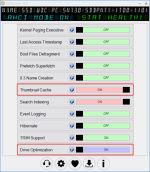
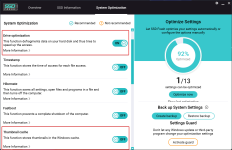
- While both recommend turning off thumbnail cache, when one of them shows it is ON, the other shows that it is OFF.
- If you turn drive optimization ON in SSD Fresh it will show as ON in SSD Booster too, but if you turn it OFF then ON again in SSD Booster it will show as MN "manual which is recommended by SSD Booster" while it will continue to show ON in SSD Fresh in both cases.
Yeah, I noticed the thumbnail cache thing too which is very odd. But for both cases, no matter it is on or off, thumbnails are still created.@SeriousHoax I tried both SSD Booster and SSD Fresh together in the same time, as noticed both have the same options, but I found something odd that I can't understand:
View attachment 288270View attachment 288271
Do you have any explanations?
- While both recommend turning off thumbnail cache, when one of them shows it is ON, the other shows that it is OFF.
- If you turn drive optimization ON in SSD Fresh it will show as ON in SSD Booster too, but if you turn it OFF then ON again in SSD Booster it will show as MN "manual which is recommended by SSD Booster" while it will continue to show ON in SSD Fresh in both cases.
The drive optimization part I didn't notice before. But I think the main way to check whether it is on or off is to open Windows's own Defrag tool and check at the bottom if weekly schedule is turned on. If it is on then everything should be fine I suppose.
Ok, I digged deep to find the differences between both of them and found the following:Yeah, I noticed the thumbnail cache thing too which is very odd. But for both cases, no matter it is on or off, thumbnails are still created.
The drive optimization part I didn't notice before. But I think the main way to check whether it is on or off is to open Windows's own Defrag tool and check at the bottom if weekly schedule is turned on. If it is on then everything should be fine I suppose.
As you noticed about thumbnails creation, whatever they show, the setting related to that still unchecked in both cases.
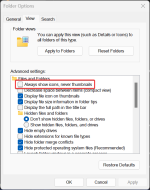
As for the drive optimization part, SSD Fresh prefer "Automatic" for the service, while SSD Booster prefer it to be "Manual", both will not affect the settings on Windows's own Defrag tool and the schedule will still be ON with both of them, but the difference was in the services.
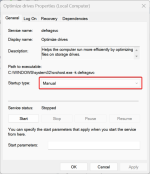
So in the end, both of them have the same options and the same results on the device.
Great find. I wasn't aware of that icons option in file explorer's settings. So it seems that's the proper way to disable thumbnail cache.Ok, I digged deep to find the differences between both of them and found the following:
As you noticed about thumbnails creation, whatever they show, the setting related to that still unchecked in both cases.
View attachment 288288
As for the drive optimization part, SSD Fresh prefer "Automatic" for the service, while SSD Booster prefer it to be "Manual", both will not affect the settings on Windows's own Defrag tool and the schedule will still be ON with both of them, but the difference was in the services.
View attachment 288289
So in the end, both of them have the same options and the same results on the device.
Will the defrag tool still run weekly on time even when set to manual? I think I'll set it to Automatic as recommended by SSD Fresh just to be safe.
Recently browsing
Members who viewed this thread in the last 5 minutes
You may also like...
-

-

-
-
 Advice Request Kaspersky Disk Monitor reporting SSD as 0% Health
 -
 Setup Idea Pretty Good PC Security Regimen