

The MalwareTips app
Your community, one tap away.
Open MalwareTips from your Home Screen or desktop. Follow discussions, find answers and pick up where you left off.
- Home Screen access
- Optional push alerts
- Your community
You're ready to explore.Explore what's new
Installation instructions
iPhone & iPad
- Open MalwareTips in Safari and tap Share. You may need to open the Page Menu first.
- Choose Add to Home Screen. If it is not listed, use Edit Actions to add it.
- Keep Open as Web App enabled if shown, then tap Add.
Android
- Open MalwareTips in Chrome or another browser that supports app installation.
- Open the browser menu and look for Install app, Install and create shortcut, or Add to Home screen.
- Choose Install and confirm. Wording varies by browser.
Desktop
- Chrome: use the install icon in the address bar, or the menu under Cast, save and share.
- Edge: open the menu, then More tools, Apps and Install this site as an app.
- Safari on Mac: choose Share or File, then Add to Dock. Firefox on Windows: look for the web apps button in the address bar.
If you cannot find an install option, update your browser or use its bookmark option to keep MalwareTips close.
Keep up with your conversations
After installation, open the app and sign in. Enable push notifications in Preferences if you want alerts. On iPhone and iPad, push requires a Home Screen web app and iOS or iPadOS 16.4 or later.
Sign in to manage notificationsInstallation is optional. Your notification settings stay under your control.
You are using an out of date browser. It may not display this or other websites correctly.
You should upgrade or use an alternative browser.
You should upgrade or use an alternative browser.
Windows Process Manager Virus Removal Help?
-
Thread starter Tyler V
- Start date
- 9 Replies
- 2,897 Views

Hello,
Please download Farbar Recovery Scan Tool x64 and save it to a flash drive.
 Access the notepad and identify your USB drive
In the Command Prompt please type in:
and press Enter.
 Scan with Farbar Recovery Scan Tool
Once back in the command prompt window, please do the following:
Transfer it to your clean machine and include it in your next reply.
Please download Farbar Recovery Scan Tool x64 and save it to a flash drive.
- Plug the flashdrive into the infected PC.
- Boot to windows recovery by using one of the methods on this link: Boot to Advanced Startup Options in Windows 10
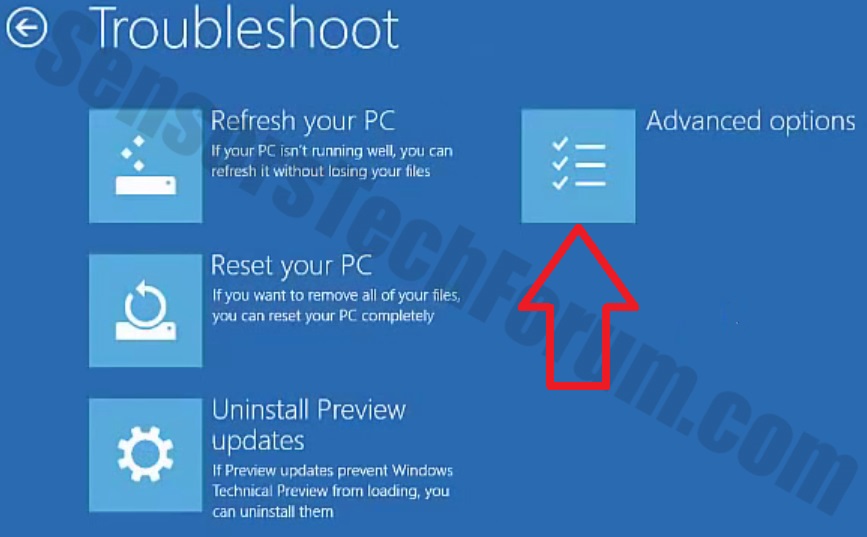
- Now you should get a window like this where you need to click Troubleshoot.
- In the next window, click Advanced options and select Command Prompt.
- Now you should log in into your account and after that Command Promptwindow.
In the Command Prompt please type in:
Code:
notepad- When the notepad opens, go to File menu.
- Select Open.
- Go to Computer and search there for your USB drive letter.
- Note down the letter and close the notepad.
Once back in the command prompt window, please do the following:
- Type in e:\frst64.exe and press Enter.
You need to replace e with the letter of your USB drive taken from notepad! - FRST will start to run. Give him a minute or so to load itself.
- Click Yes to Disclaimer.
- In the main console, please click Scan and wait.
- When finished it will produce a logfile named FRST.txt in the root of your pendrive and display it. Close that logfile.
Transfer it to your clean machine and include it in your next reply.

Tyler V
New Member
Hello,
Please download Farbar Recovery Scan Tool x64 and save it to a flash drive.
- Plug the flashdrive into the infected PC.
- Boot to windows recovery by using one of the methods on this link: Boot to Advanced Startup Options in Windows 10
- Now you should get a window like this where you need to click Troubleshoot.
- In the next window, click Advanced options and select Command Prompt.
- Now you should log in into your account and after that Command Promptwindow.
Access the notepad and identify your USB drive
In the Command Prompt please type in:
and press Enter.Code:notepad
- When the notepad opens, go to File menu.
- Select Open.
- Go to Computer and search there for your USB drive letter.
- Note down the letter and close the notepad.
Scan with Farbar Recovery Scan Tool
Once back in the command prompt window, please do the following:
- Type in e:\frst64.exe and press Enter.
You need to replace e with the letter of your USB drive taken from notepad!- FRST will start to run. Give him a minute or so to load itself.
- Click Yes to Disclaimer.
- In the main console, please click Scan and wait.
- When finished it will produce a logfile named FRST.txt in the root of your pendrive and display it. Close that logfile.
Transfer it to your clean machine and include it in your next reply.
Attachments
Download attached fixlist.txt and save it to your USB flashdrive as fixlist.txt
>> Boot into Recovery Environment
Start FRST in a similar manner to when you ran a scan earlier, but this time when it opens ....
>> Exit out of Recovery Environment and post me the log please.
Try to boot Windows normally...
>> Boot into Recovery Environment
Start FRST in a similar manner to when you ran a scan earlier, but this time when it opens ....
- Press the Fix button once and wait.
- FRST will process fixlist.txt
- When finished, it will produce a log fixlog.txt on your USB flashdrive.
>> Exit out of Recovery Environment and post me the log please.
Try to boot Windows normally...
Attachments
Tyler V
New Member
Download attached fixlist.txt and save it to your USB flashdrive as fixlist.txt
>> Boot into Recovery Environment
Start FRST in a similar manner to when you ran a scan earlier, but this time when it opens ....
- Press the Fix button once and wait.
- FRST will process fixlist.txt
- When finished, it will produce a log fixlog.txt on your USB flashdrive.
>> Exit out of Recovery Environment and post me the log please.
Try to boot Windows normally...
Attachments
How is the situation now?
Tyler V
New Member
Still the same, windows process manager still uses up allof my CPU % on task managerHow is the situation now?
Please re-run Farbar Recovery Scan Tool to give me a fresh look at your system.
- Right-click on icon and select
Run as Administrator to start the tool.

(XP users click run after receipt of Windows Security Warning - Open File). - Make sure that Addition.txt option is checked.

- Press Scan button and wait.
- The tool will produce two logfiles on your desktop: FRST.txt and Addition.txt.
Tyler V
New Member
Scan with Farbar Recovery Scan Tool
Please re-run Farbar Recovery Scan Tool to give me a fresh look at your system.
Please attach report into your next reply.
- Right-click on
icon and selectRun as Administrator to start the tool.
(XP users click run after receipt of Windows Security Warning - Open File).- Make sure that Addition.txt option is checked.
- Press Scan button and wait.
- The tool will produce two logfiles on your desktop: FRST.txt and Addition.txt.
Attachments
You will need to run FRST scan from recovery again. This time, download a fresh FRST on a clean computer and transfer it to USB.
Recently browsing
Members who viewed this thread in the last 5 minutes
You may also like...
- J
- T
-

-
 Software Review ZOHO Endpoint Managed Antivirus 2026
 -
