


Apple Watch Live Rewind and Siri Recap can both turn speech into text, but they have different controls and leave different things behind after you use them.
Start by identifying which feature is active. The steps below show how to stop future processing, check for saved material, and look for copies you exported.
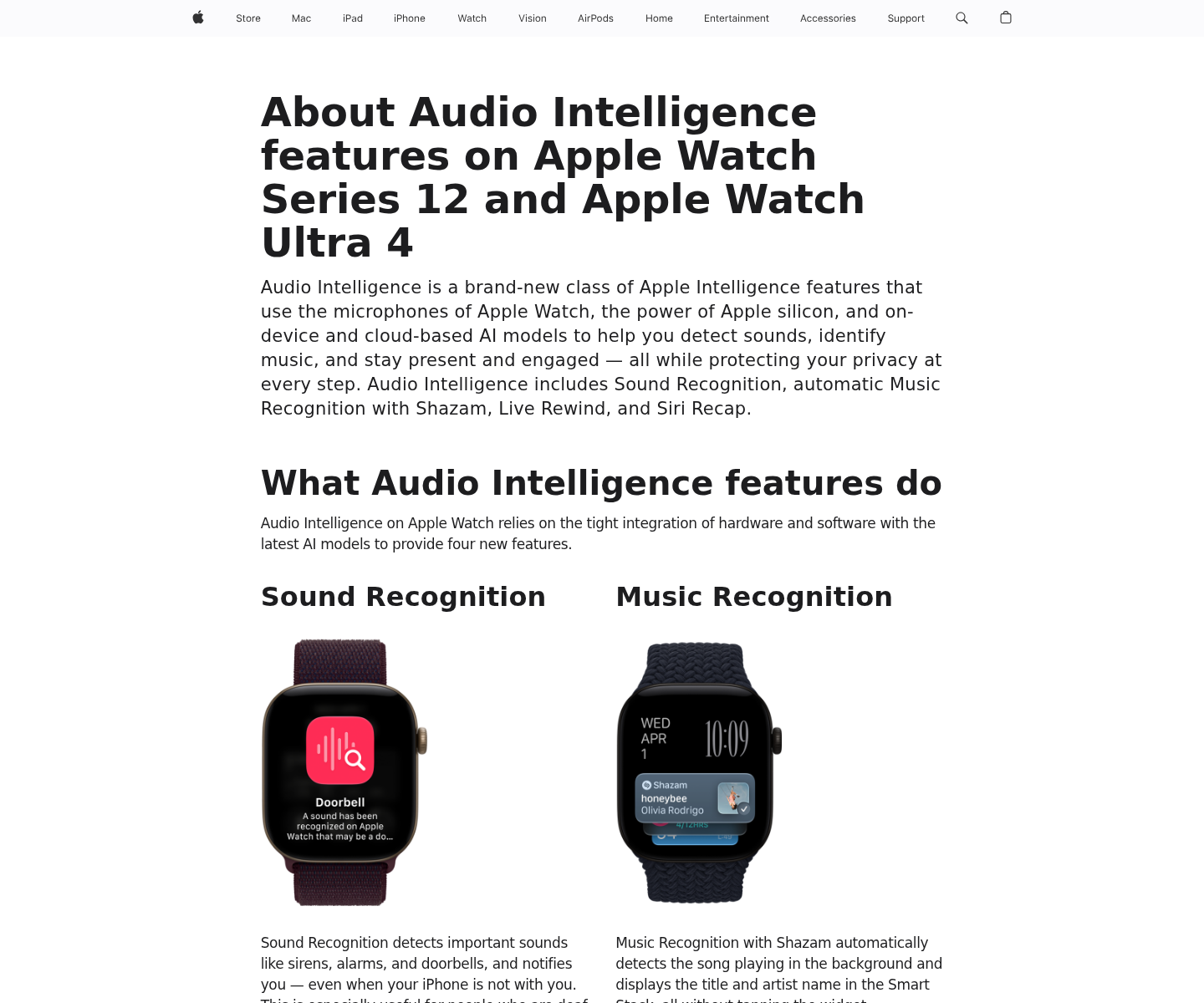
Overview
Live Rewind Looks Back at One Brief Moment
With the feature enabled, a double press of the Digital Crown can show words from roughly the previous 15 seconds. It does not start a continuing transcript.
Siri Recap Can Work During an Active Window
Siri Recap creates summaries, not a chronological transcript. It can run manually or during matching schedules, so check both the active control and any rules you configured.
Turning a Feature Off Does Not Clear Its History
Use the Watch app or the watch controls to stop collection, then open the Siri app to review anything the feature has already saved or summarized.
- Stop now: Pause or turn off Siri Recap on the watch if a conversation is about to begin.
- Disable the shortcut: Change the Live Rewind option in the Watch app on your paired iPhone.
- Check old items: Review the Recaps tab and any destination where you exported content.
Start With the Model, Software and Feature Name
Apple documents these controls for Apple Watch Series 12 and Apple Watch Ultra 4, paired with a supported iPhone. A newer watch alone does not satisfy the requirements.
Open the Watch app on the iPhone, choose General, and open About to check the watch model and installed version before assuming something has disappeared.
Apple’s November documentation identifies watchOS 27.3 as the beta introduction. Availability also depends on Apple Intelligence, Siri AI, the paired phone, language, age eligibility, and region.
Use the compatibility list in Apple’s Audio Intelligence documentation, especially if your iPhone model looks eligible by name but isn’t explicitly listed.
If the setting is absent, you do not need to install a beta to check it. Confirm the model and operating system, then leave your software configuration unchanged.
A missing control on one family member’s watch does not tell you how another watch is configured. Run the check on the particular watch and its paired iPhone.
If the watch is set up for a child, Apple does not make these two features available under age 13. Additional guardian approval applies to eligible Child Accounts.
A child account can explain why a feature appears on one watch but not another. Do not adjust the child’s birth date to work around the restriction.
Test recognition and recap controls separately. If your check is about speech, seeing an unrelated Apple Watch microphone feature does not mean you found the right switch.
Sound Recognition and Shazam have their own controls. Hearing a sound alert, recognizing a song, or seeing a hearing accessibility setting isn’t evidence that Siri Recap is active.
What the Watch Actually Shows, Saves and Exports
Apple describes Live Rewind as a short look back, not a feature that waits for the crown press and then records everything that follows in the room.
When you deliberately use it, an audible chime and visible watch indicators announce activation. Apple says the chime still plays when Silent Mode is on or headphones are connected.
The resulting text can contain something another person said. It does not identify the speaker, so a displayed sentence cannot establish by itself who originally said it.
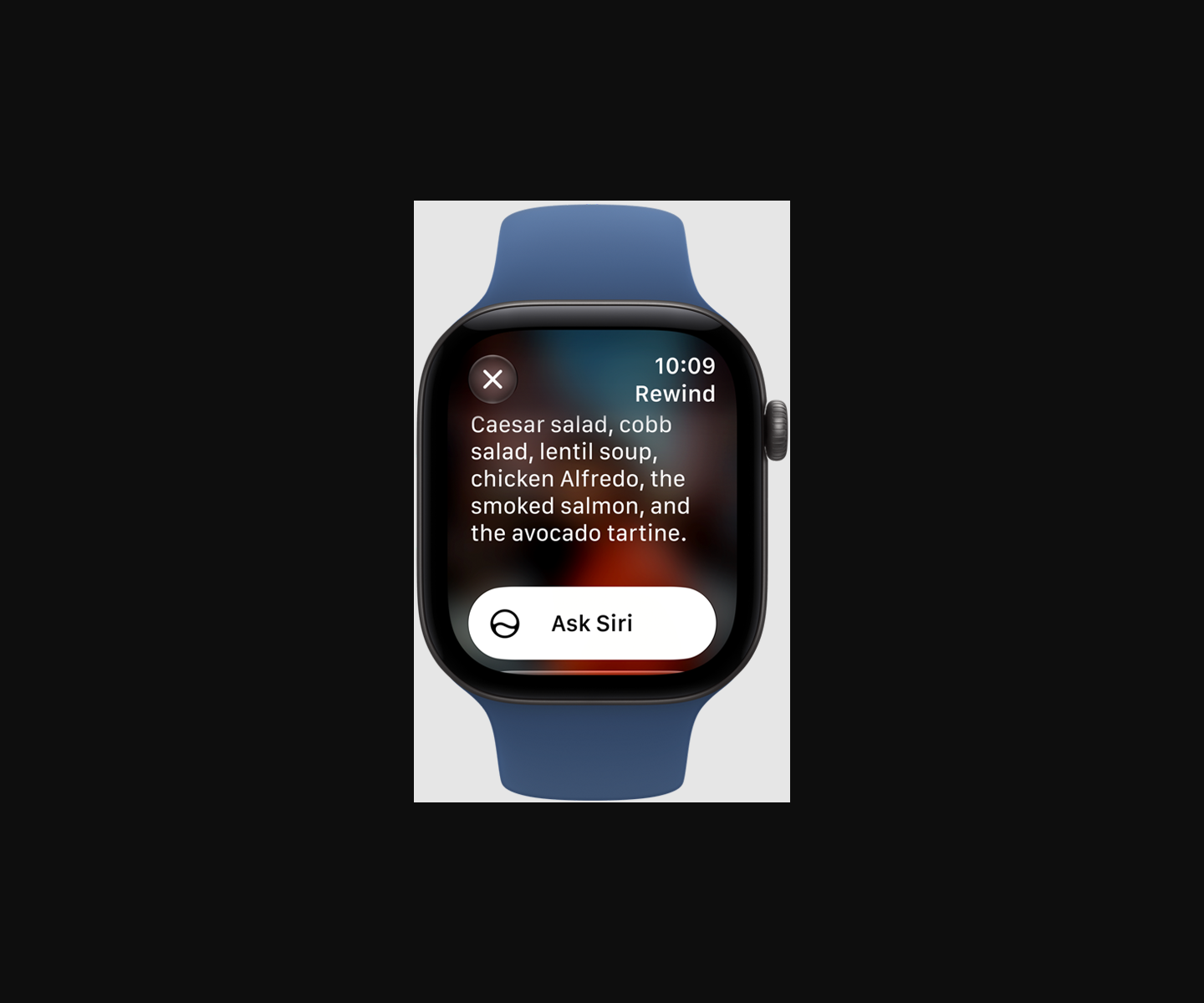
Unless you choose to save the snippet or use Ask Siri, Apple says it disappears approximately 30 seconds after the screen dims. That is about the visible text.
Using either action changes what you need to check later. A snippet saved to Siri or used in another interaction should not be treated as an untouched preview.
Siri Recap works differently. During its active window, it generates a short account of what it recognized, with emphasis on speech it judges to be relevant to you.
The summary might reflect the clearest voice in the room rather than the intended subject of a conversation. It can also miss a correction or compress conflicting instructions.
For example, if someone suggests meeting Wednesday and then corrects it to Thursday, confirm the day with them rather than treating the summary as an appointment record.
Apple says recap processing can pause during certain calls, paired headphone playback, or active noise cancellation on supported AirPods and Beats. A pause is not your privacy setting.
If you want the feature off for a particular conversation, change its state yourself. Do not depend on playback, a closed watch app, or headphones to do that for you.
What to Do to Stop Siri Recap and Live Rewind on Your Apple Watch
Check Siri Recap Before the Next Conversation
- On your watch, press the side button to open Control Center. Look for the Siri Recap control when the feature is available on your setup.
- Use that control to turn Siri Recap off. Double check the state after the change instead of relying on whether the last recap has appeared yet.
- On the paired iPhone, open the Watch app, choose Siri, and open Siri Recap to review the durable settings.
- Turn the feature off there if you do not want it to run again. If keeping it, check for time or location rules you previously set.
- After a schedule would normally start, inspect the status again. The check matters especially if you intended a temporary pause to become a permanent change.
Apple documents manual control and options to schedule use by time or location. Those settings answer different questions: whether it can run and whether it is running now.
For a shared workspace, the simpler choice is to leave Recap disabled until there is a clear reason to use it and everyone involved understands the setting.
When a meeting includes material that should not be summarized, switch the feature off before the conversation starts. Review the schedule later if the meeting repeats every week.
Do not turn off privacy or accessibility controls elsewhere on the phone to change Siri Recap. Keep the adjustment tied to the feature you actually want to stop.
Remove the Live Rewind Shortcut Separately
- Open the Watch app on the paired iPhone and tap Siri. Confirm you are looking at the watch whose shortcut you want to change.
- Choose Live Rewind and turn off Double Click Digital Crown. Apple lists that control separately from Siri Recap in its current documentation.
- Return to the same panel and confirm the switch stayed off. This avoids demonstrating the shortcut in a room where other people are having a conversation.
- If a second watch is paired, check it separately instead of assuming the shortcut setting changed on both watches together.
Stopping the shortcut is useful if you enabled it during setup and later found the gesture easy to trigger. This does not remove any snippet you saved before.
You also do not have to disable unrelated safety alerts or disconnect the watch from your iPhone just to turn off Live Rewind. Start with the documented switch.
Find Saved Items and Copies Before You Consider the Cleanup Finished
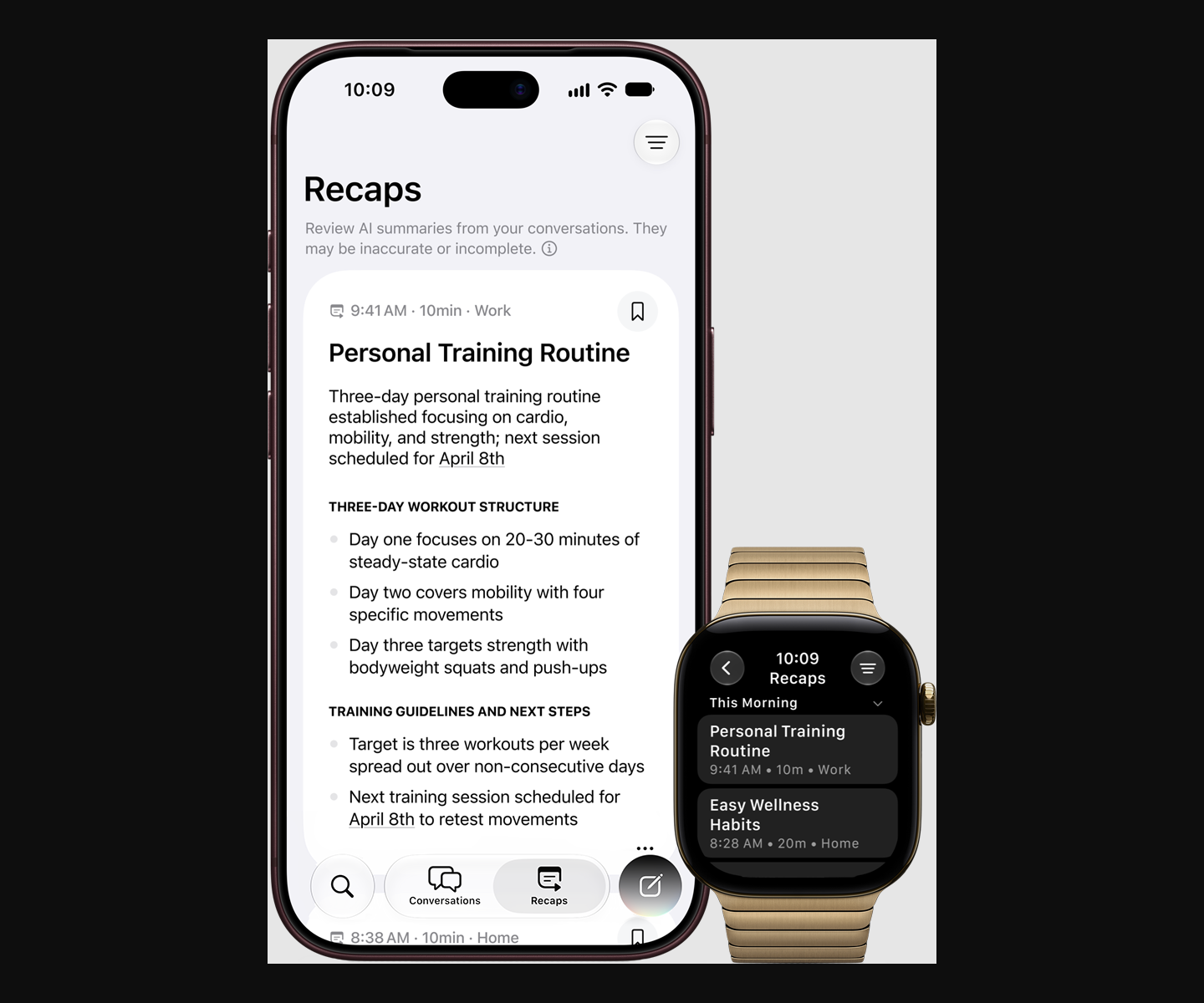
Review the Recaps Tab in the Siri App
Open the Siri app on a supported paired device and choose Recaps. Inspect the dates and identify any summary or saved snippet that you want to remove.
Use the app’s delete action on that item. According to Apple, deletion propagates to devices that sync the Siri app, rather than leaving a separate synced copy there.
The same claim does not extend to a copy in Notes or Journal, a screenshot, a pasted message, or a file you exported. Those are separate objects.
If you cannot find an item by date, check whether you saved the original snippet at all. A momentary view on the watch is different from a stored entry.
Apple describes a seven day automatic deletion period for Siri Recaps you do not save or export. Do not use the timer as a reason to leave material there.
When a recap contains sensitive information you should not retain, check it promptly and remove the item directly. An export or save is not covered by the same assumption.
Check the Places You Sent or Copied Material
Start with the destinations you actually use. In Notes or Journal, inspect the likely entry by date and search for a distinctive phrase only on your own device.
If you copied it into Messages or a shared document, look at that send or document separately. Removing a local Siri item does not take back what someone received.
For an exported file, check the destination folder and any workspace that received it. Removing your copy does not revoke someone else’s downloaded or copied version.
For a workplace device or confidential material, follow the organization’s instructions about reporting and retention before deleting a record that may need to be preserved.
Finally, return to the watch controls and validate what will happen next. Deleting old material and stopping new material are two separate accomplishments, even when you do both together.
Choose a Setting That Fits the Conversation
At home: Discuss the feature with the people you live with before setting a routine that can run when someone is talking nearby. Opting in is your choice.
Shared offices: Keep it off in situations where a private call, a visitor conversation, or a coworker’s discussion could become part of a summary by accident.
Classrooms and appointments: Ask the person running the session before using AI transcription or note features, and follow the venue’s rules instead of relying on your watch settings.
Sensitive discussions: Do not rely on automated filtering to remove every identifier or financial detail. Apple describes safeguards, but a summary may still contain something you should not share.
A draft note is rarely a good substitute for checking the original source. Verify measurements, names, instructions, or commitments before you act on the words shown in a recap.
If you need human notes in a sensitive setting, arrange that in advance. The decision then belongs to the people involved, not to a time or location trigger.
Understand the Privacy Boundary Before Sharing a Recap
Apple’s Audio Intelligence privacy overview describes processing for short Rewind text separately from the final summary generated for Siri Recap.
Apple describes device processing for the short Live Rewind workflow and Private Cloud Compute involvement for final Recap generation. This guide does not independently measure the data flow.
Apple also describes encrypted iCloud syncing for saved material under its documented conditions. That protection should not be assumed for text you export into an unrelated application.
Before sending a recap to someone else, check both accuracy and whether the details belong in that destination. Correct the wording before sharing, not after people act on it.
When you are done, look at the narrower safety goal you had in mind: prevent future notes, remove an old item, or contain a copy that already left Siri.
Use a Voluntary Test if You Need to Confirm the Fix
Once interruptions are safe, verify that the scheduled Recap control stays off during a window when it used to start. No private conversation is needed for that check.
If you decide to test a recap you intend to keep enabled, use a deliberate practice sentence with someone who agrees. Pick a phrase that contains no private information.
Do not infer success from one delayed or empty recap when your settings still say the feature is active. Summaries can be incomplete even when processing is enabled.
At the end of the practice, review what the Siri app actually kept and clear the test item if it is not needed. Avoid exporting it during testing.
Frequently Asked Questions
Does Live Rewind Keep a Transcript of My Entire Day?
Apple describes a short look back that is triggered on purpose. It does not continue transcribing after the snippet and does not expose a full day of audio.
Will Silent Mode Mute the Activation Chime?
Apple says the watch speaker still plays the Live Rewind chime in Silent Mode and with headphones connected. That signal is separate from Siri Recap scheduling.
Can I Leave Sound Recognition On and Disable Siri Recap?
Yes, the options serve different purposes. Change Siri Recap without turning off the sound alerts you depend on for accessibility or reminders around the home.
What If I Cannot Find Recaps in the Siri App?
Check Apple’s model and software requirements and whether the feature is available for your language and location. An unsaved Live Rewind preview may never appear there.
If I Delete a Summary, Will a Person I Shared It With Lose Their Copy?
No, deletion from Siri does not erase a copy sent elsewhere. Review the destination and use its own controls if you need to manage access.
Can a Recap Tell Me Exactly Who Said Something?
These features do not attribute speech to individual speakers. Treat an AI summary as a memory aid and ask the people involved to confirm anything important.
The Bottom Line
Turn off Siri Recap in the watch controls when you need it stopped now, and check its durable settings and the Live Rewind shortcut separately.
Then review existing entries in Siri and any exports you kept. You will know whether you stopped the feature, removed a record, or still need to handle a copy.

Join the discussion
0 commentsShare your experience or ask a question about this article.
Your progress
Did these steps help?
Let us know how the guide worked for you.
Describe what you see and the step you reached. Keep passwords and other private information out.
Discussion
Start the conversation
Have a question or something useful to share? Add the first comment.