


BoxGifted.com is another fake rewards-style website using the promise of a high-value gift card to pull people into a questionable offer funnel. At first glance, it may look like a simple product testing or rewards program. In reality, the site shows the same warning signs seen in many affiliate-driven reward scams.
This article explains how the BoxGifted.com scam works, why the promised reward is suspicious, what risks users face, and what to do if you already entered your information.
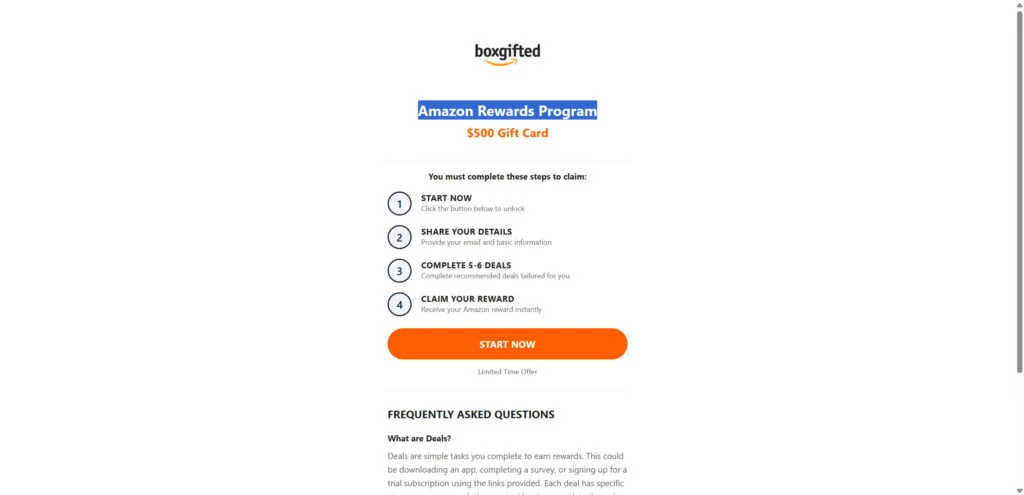
Scam Overview
BoxGifted.com presents itself as a rewards or product-testing website where users can allegedly review products, complete simple tasks, and earn a large gift card. The main lure is usually an Amazon-themed reward, often promoted as a $500 gift card.
The site’s message is simple: complete a few “deals,” follow the steps, and unlock your reward.
That is where the problem starts.
These “deals” are not normal verification steps. They are usually third-party offers, surveys, trial subscriptions, app downloads, games, lead-generation forms, or partner promotions. Each completed offer can generate affiliate revenue for the people behind the funnel.
The visitor does the work. The operator earns commissions. The promised gift card is either never delivered, becomes nearly impossible to qualify for, or is buried behind more requirements.
This is why BoxGifted.com should be treated as a scam, not a legitimate Amazon rewards program.
What BoxGifted.com Claims to Offer
BoxGifted.com appears to promote itself as a rewards and product testing website. The pitch usually includes claims such as:
- You can earn a high-value gift card
- You only need to complete a few simple deals
- The process is quick and easy
- The offer is connected to well-known brands
- Users are selected or eligible for a limited-time reward
- The reward can be unlocked after completing required steps
The site may use clean branding, simple instructions, “verified” style testimonials, or urgency-based messages to make the offer look normal.
But the core promise does not make sense.
A real company is not going to hand out $500 gift cards to random visitors just because they downloaded apps, completed unrelated surveys, or signed up for trial offers through a third-party website.
Is BoxGifted.com Legit?
No. BoxGifted.com does not appear to be a legitimate Amazon rewards program.
The biggest issue is that BoxGifted.com is not an official Amazon domain. If Amazon runs a gift card promotion, users should be able to verify it through Amazon’s official website, Amazon app, or official Amazon communication channels.
BoxGifted.com instead appears to operate as a third-party rewards funnel. The page pushes users toward completing “deals” to qualify for a reward. This is a common structure used by fake prize and affiliate scams.
The site may not directly steal money from every visitor immediately, but that does not make it safe. The danger comes from the full funnel:
- Personal information collection
- Email and phone spam
- Trial subscriptions
- Recurring charges
- App installs
- Survey redirects
- Affiliate commission abuse
- Fake reward promises
- Follow-up phishing attempts
The entire system is built to extract value from the visitor before any real reward is delivered.
How the BoxGifted.com Scam Works
The BoxGifted.com scam usually follows a familiar pattern.
1. The User Sees a Fake Reward Offer
The funnel may begin with a social media ad, pop-up, sponsored post, redirect, email, or search result. The message claims that the user can get a high-value gift card, often connected to Amazon or another trusted brand.
The offer may use wording like:
- “Amazon Rewards Program”
- “Claim your $500 gift card”
- “You have been selected”
- “Complete a few deals”
- “Product testers wanted”
- “Limited-time reward available”
The goal is to make the user curious enough to click.
2. The Landing Page Builds False Trust
After clicking, the user lands on BoxGifted.com. The page may look clean and professional, with a basic reward explanation and simple instructions.
This is intentional.
Scam reward pages usually avoid looking too complicated at the beginning. They want the visitor to feel that the process is easy, safe, and official. They may use recognizable brand names, fake trust signals, testimonials, countdown timers, or “recent winner” notifications.
The design is not proof of legitimacy. It is part of the conversion funnel.
3. The Site Collects Personal Information
Before the user can move forward, the page may ask for details such as:
- Name
- Email address
- Phone number
- ZIP code
- Home address
- Date of birth
- Shopping preferences
- Device information
- Survey answers
This information can be used for lead generation, targeted advertising, spam campaigns, or follow-up scams.
Even if the site does not ask for payment immediately, submitting personal information can still create problems. Users may start receiving more fake reward emails, scam texts, robocalls, phishing links, or suspicious promotional offers.
4. The User Is Told to Complete “Deals”
This is the main part of the scam.
To unlock the gift card, the user is told to complete several deals. These may include:
- Downloading apps
- Playing mobile games to a certain level
- Completing surveys
- Signing up for trial subscriptions
- Entering credit card details for “free trials”
- Registering for services
- Subscribing to streaming, wellness, finance, or shopping offers
- Sharing more personal data
- Confirming phone numbers
- Allowing browser notifications
The site may say that completing more deals brings the user closer to the full reward.
In reality, each completed deal may generate affiliate revenue for the people behind the funnel.
5. The Requirements Keep Expanding
Many fake reward funnels use moving goalposts.
The user may complete one deal, then be told to complete another. After that, they may need to verify an email, complete more offers, install an app, or wait for approval.
The process can become confusing by design.
This keeps users engaged longer and increases the chances that they will complete more affiliate offers. The longer they stay in the funnel, the more valuable they become to the operators.
6. The Gift Card Never Arrives
Eventually, most users realize there is no easy $500 gift card.
They may experience one of these outcomes:
- No reward is delivered
- The reward remains “pending”
- The site claims the user did not complete all steps correctly
- The user is redirected to more offers
- The user receives spam instead of a gift card
- The user is charged for subscriptions they forgot to cancel
- The support page does not respond
- The original offer disappears
By then, the site may already have collected personal data, generated affiliate commissions, or pushed the user into paid trials.
Why BoxGifted.com Looks Like an Affiliate Scam
BoxGifted.com appears to follow the structure of an affiliate reward funnel.
Affiliate marketing itself is not automatically illegal or unethical. Many legitimate businesses use affiliate links. The problem begins when affiliate marketing is hidden behind fake rewards, fake brand associations, misleading claims, and unrealistic promises.
In this type of scam, the operators may earn money when users:
- Submit lead forms
- Install apps
- Sign up for services
- Start trial subscriptions
- Complete surveys
- Enter payment details
- Engage with partner offers
The visitor thinks they are working toward a reward. The operator is actually monetizing the visitor’s actions.
This is why these scams are so common. They can be cheap to create, easy to clone, and profitable even if no real prize is ever sent.
BoxGifted.com and Similar Reward Scam Sites
BoxGifted.com is not unique. It appears to be part of a broader pattern of similar reward pages that use the same basic playbook:
- A trusted brand name
- A large gift card promise
- A simple landing page
- “Complete deals” language
- Fake testimonials
- Limited-time urgency
- Affiliate redirects
- No realistic path to receiving the reward
MalwareTips has covered this type of scam before. Similar schemes have used names and themes connected to major brands, streaming services, retailers, online platforms, and fake product testing programs.
The branding changes, but the structure stays the same.
One site may claim to offer an Amazon gift card. Another may claim to offer a Target, Costco, Walmart, Spotify, YouTube, Ulta, Shein, or fashion gift card. Some pages target students. Others target shoppers, app users, gamers, or people looking for free products.
The goal is always the same: get the user to click, submit information, complete offers, and generate revenue for the funnel.
Major Red Flags on BoxGifted.com
Several warning signs make BoxGifted.com highly suspicious.
It Uses a Third-Party Domain
A real Amazon rewards program should be hosted on an official Amazon domain or be verifiable through Amazon’s official website or app.
BoxGifted.com is not Amazon.
That alone is a major red flag.
It Promises a Large Reward for Little Effort
A $500 gift card for completing a few basic tasks is not realistic. Scammers often use large but believable amounts because they are attractive enough to create excitement but not so extreme that everyone immediately rejects the offer.
It Requires Completing Unrelated Deals
Legitimate gift card promotions do not usually require users to download random apps, complete unrelated offers, or sign up for multiple trials.
This is a classic affiliate funnel tactic.
It May Collect Personal Information
Any site that asks for personal information before clearly proving the legitimacy of the reward should be treated with caution.
Once submitted, that data may be used for spam, phishing, robocalls, or resale to lead brokers.
It May Push Trial Subscriptions
Some “deals” may require a credit card for a trial. These trials can turn into recurring charges if not canceled quickly.
Victims may think they are completing a harmless step, only to later see unfamiliar charges on their card.
It Uses Fake Urgency
Countdown timers, “limited spots,” “today only,” or “reward reserved” messages are common pressure tactics.
They are designed to make users act before checking whether the offer is real.
It Has No Clear Sponsor Verification
A legitimate sweepstakes or rewards program should clearly disclose the sponsor, terms, eligibility rules, contact information, privacy practices, and reward conditions.
Fake reward funnels often keep these details vague or hidden.
It Looks Like a Clone Funnel
The language and structure used by BoxGifted.com are similar to many other reward scam pages. These sites can be quickly copied, rebranded, and relaunched under new domains.
What Information Is at Risk?
If you interacted with BoxGifted.com, the risk depends on what you entered or clicked.
If You Only Visited the Site
If you only opened the page and did not enter anything, the risk is lower. Close the tab and avoid returning through ads, pop-ups, or social media links.
You may also want to clear browser data for the site if it keeps reappearing.
If You Entered Your Email Address
You may receive more spam, fake reward offers, phishing emails, or promotional messages.
Watch for emails claiming:
- Your gift card is pending
- You need to verify your reward
- Amazon needs account confirmation
- A delivery is waiting
- You won another prize
- Your payment failed
- You need to complete one last step
Do not click links in these emails.
If You Entered Your Phone Number
You may receive scam texts, robocalls, fake delivery messages, or verification-code scams.
Be especially careful with messages that ask you to provide a code. Scammers may try to use your phone number to access accounts or register services.
If You Entered Your Address
Your address may be added to marketing databases or used in more personalized scams.
You may receive fake delivery notices, fake sweepstakes mail, or scam calls that include your name and address to sound more convincing.
If You Entered Payment Details
This is more serious.
Check your bank or card statement immediately. Look for small test charges, trial subscriptions, unfamiliar billing names, or recurring payments.
Contact your bank or card issuer if you see anything suspicious.
If You Reused a Password
If you entered a password that you also use elsewhere, change it immediately. Start with your email account, Amazon account, banking accounts, PayPal, and any other important services.
Enable two-factor authentication where possible.
What to Do If You Fell for the BoxGifted.com Scam
If you entered information or completed offers through BoxGifted.com, take action quickly.
1. Stop Completing Deals
Do not continue through the funnel. Do not complete more offers hoping the reward will appear.
That is exactly how these scams keep users engaged.
2. Do Not Pay Any Fees
Do not pay shipping, activation, verification, processing, handling, tax, or reward-release fees.
A real prize should not require a surprise payment through a random third-party page.
3. Check Your Bank Statements
Look for:
- Small authorization charges
- Subscription charges
- Trial-to-paid conversions
- Unknown billing names
- Repeated monthly fees
- Charges from companies you do not recognize
If you see suspicious activity, contact your card issuer and dispute the charge.
4. Cancel Any Trial Subscriptions
If you signed up for trials while completing “deals,” cancel them immediately. Do not assume they will cancel automatically.
Check your email for confirmation messages from each service.
5. Change Reused Passwords
If you entered a password or created accounts using a password you reuse elsewhere, change it.
Use unique passwords for every account.
6. Enable Two-Factor Authentication
Turn on two-factor authentication for your email, Amazon account, bank accounts, PayPal, and other important services.
Use an authenticator app when available.
7. Watch for Follow-Up Scams
Scammers may contact you again because you showed interest in a reward offer.
Expect messages like:
- “Your reward is almost ready”
- “Complete final verification”
- “Your gift card has been approved”
- “We need your delivery address”
- “Pay $4.95 shipping”
- “Confirm your Amazon account”
- “Enter this code to continue”
Do not respond.
8. Remove Browser Notification Permissions
If the site asked to show notifications and you clicked “Allow,” remove that permission from your browser settings.
Scam notification spam can appear as fake antivirus alerts, fake system warnings, fake delivery updates, or reward reminders.
9. Scan Your Device
If you downloaded an app, browser extension, or file from the funnel, scan your device with reputable security software.
Remove unfamiliar extensions and apps.
10. Report the Scam
Report the site to:
- The FTC at ReportFraud.ftc.gov
- Your bank or card issuer if payment details were entered
- Amazon if the scam used Amazon branding
- Your email provider if you received the link by email
- The social media platform where the ad appeared
Reporting helps platforms and authorities track scam campaigns.
Why These Fake Reward Scams Keep Spreading
Fake reward scams are popular because they are easy to scale.
Scammers can create dozens of similar sites with different names and brand themes. One week the lure may be Amazon. The next week it may be Costco, Target, Walmart, Spotify, Shein, YouTube, or a fake product testing panel.
The formula works because it combines three powerful tactics:
Familiar Brands
People trust names they recognize. Scammers use that trust to reduce suspicion.
Large Rewards
A $500 gift card is attractive enough to make people curious.
Small Steps
The process starts with easy actions: answer a question, enter an email, complete a quick deal.
Once the user starts, they are more likely to keep going.
This is called commitment escalation. After someone spends time completing the first steps, they may continue because they do not want that effort to be wasted.
Is Your Device Infected? Run a Free Malware Scan
Slow performance, constant pop-ups, or strange behavior? These are classic signs of a malware infection. A quick way to check is to scan your device with Malwarebytes Free, one of the most trusted malware removal tools available. If you only visited a scam page and didn’t download or install anything, this scan is optional.
The free version detects and removes the most common threats, including:
- Adware — the cause of those annoying pop-ups
- Browser hijackers — unwanted redirects and changed homepages
- Trojans and spyware — hidden programs stealing your data
- Potentially unwanted programs (PUPs) — software you never asked for
👉 Select your device below — Windows, Mac, or Android — then follow the simple steps to download Malwarebytes, scan your system, and remove any threats it finds. The scan usually takes 5 to 20 minutes.
Run a Malware Scan with Malwarebytes for Windows
Malwarebytes is one of the most popular and trusted anti-malware tools for Windows — and it’s completely free for removing infections. It catches threats that many antivirus programs miss, including adware, browser hijackers, and trojans. Follow the steps below to scan your PC and remove what Malwarebytes finds.
Download Malwarebytes
Click the button below to download the latest version of Malwarebytes for Windows from the official source. The free version is all you need — it will scan your computer and remove adware, browser hijackers, and other malicious software at no cost.
Download MalwarebytesOfficial installer for Windows 11 and 10. Your download starts right away.Want real-time protection? See Malwarebytes Premium Malwarebytes Free for WindowsScans and removes malware at no cost
-
Install Malwarebytes
When the download finishes, open your Downloads folder and double-click the MBSetup file. If Windows shows a User Account Control pop-up, click “Yes” to allow the installation.

Follow the On-Screen Prompts to Install Malwarebytes
The setup wizard will walk you through a few quick screens:
-
Choose where you’re installing the program — “Personal Computer” or “Work Computer” — then click Next.

-
Malwarebytes will now install on your device. This usually takes under a minute.

-
When installation is complete, the “Welcome to Malwarebytes” screen will open automatically.

-
On the final screen, click Open Malwarebytes to launch the program.

-
Optional: Check for rootkits with a Custom Scan
You don’t need to change any settings for a normal scan. The standard Threat Scan in the next step is enough for most problems, so you can go straight to it.
If you also want to check for rootkits, use a Custom Scan. In current versions of Malwarebytes, rootkit scanning is only available there:
- On the Scanner tile, click the three-dot menu and select Advanced Scan.
- Choose Custom Scan. In its options, check Scan for rootkits.
- Select your system drive (usually C:\) as the location to scan, then start the scan. It takes longer than a Threat Scan.
- When it finishes, review and quarantine the results as described in the steps below.
Rootkit scanning isn’t available on Windows devices with ARM processors.
Start the Scan
Click the blue Scan button. Malwarebytes will automatically update its virus database and start checking your computer for malware.

-
Wait for the Scan to Finish
The scan checks your entire system for browser hijackers and other malicious programs, so it can take 5 to 20 minutes depending on your computer. Feel free to do something else — just check back occasionally to see the progress.

-
Quarantine the Detected Threats
When the scan is done, you’ll see a list of everything Malwarebytes found — malware, adware, and potentially unwanted programs. Click the “Quarantine” button to remove all of them at once.

Malwarebytes will now remove the malicious files and registry entries and move them safely into quarantine.

-
Restart Your Computer
Some threats can only be fully removed after a reboot. If Malwarebytes asks you to restart, click Yes. Once you’re logged back in, Malwarebytes has finished removing the threats it found.

When the scan is done, check whether the problems you noticed have stopped. If they continue, see the options below.
If you are still having problems with your computer after completing these instructions, then please follow one of the steps:
- Run a computer scan with ESET Online Scanner
- Ask for help in our Windows Malware Removal Help & Support forum.
Run a Malware Scan with Malwarebytes for Mac
Malwarebytes for Mac is a free on-demand scanner that removes the malware other security software tends to miss — adware, browser hijackers, and unwanted programs included. Cleaning an infected Mac with Malwarebytes has always been completely free, and it’s our go-to recommendation. Follow the steps below to scan your Mac and remove what Malwarebytes finds.
-
Download Malwarebytes for Mac
Click the button below to download the latest version of Malwarebytes for Mac.
Download MalwarebytesOfficial installer for macOS. Your download starts right away.Want real-time protection? See Malwarebytes PremiumMalwarebytes Free for MacScans and removes malware at no cost -
Open the Malwarebytes setup file
When the download finishes, open your Downloads folder and double-click the setup file to begin the installation.

-
Follow the On-Screen Prompts to Install Malwarebytes
The Malwarebytes for Mac Installer will guide you through a few quick screens. Click “Continue” and keep following the prompts until the installation completes.



When the installation is complete, Malwarebytes opens to the Welcome to Malwarebytes screen. Click “Get started“.
Malwarebytes needs Full Disk Access to check your whole Mac. When it asks, open System Settings > Privacy & Security > Full Disk Access, turn on Malwarebytes (it may be listed as Malwarebytes Protection), and confirm with your password or Touch ID. Then return to Malwarebytes. On macOS Monterey and earlier, this setting is in System Preferences > Security & Privacy > Privacy.
-
Select “Personal Computer” or “Work Computer”
Malwarebytes will ask what type of computer you’re installing it on. Click either Personal Computer or Work Computer, whichever applies.

-
Start the Scan
Click the “Scan” button. Malwarebytes will automatically update its detection database and begin checking your Mac for malware.

-
Wait for the Scan to Finish
Malwarebytes will scan your Mac for adware, browser hijackers, and other malicious programs. This can take a few minutes, so feel free to do something else — just check back occasionally to see the progress.

-
Quarantine the Detected Threats
When the scan is done, you’ll see a list of everything Malwarebytes found. Click the “Quarantine” button to remove all the threats at once.

-
Restart Your Mac
Malwarebytes will now remove all the malicious files it found. Some threats can only be fully removed after a reboot — if Malwarebytes asks you to restart, allow it. Once you’re logged back in, check whether the problems you noticed have stopped. If they come back, save the scan report and ask for help in our forum.

If the problems you noticed continue after the scan, see the options below.
If you are still experiencing problems while trying to remove a malicious program from your computer, please ask for help in our Mac Malware Removal Help & Support forum.
Run a Malware Scan with Malwarebytes for Android
Malwarebytes for Android scans your phone or tablet for malware, adware, and potentially unwanted apps. The free version scans only when you start a scan. Real-time protection, which checks apps automatically, is part of the paid Premium version.
-
Download Malwarebytes for Android.
You can download Malwarebytes for Android by clicking the link below.
Get Malwarebytes for AndroidOpens Google Play in a new tab.Want real-time protection? See Malwarebytes Premium for AndroidMalwarebytes for AndroidScans your phone and removes malware at no cost -
Install Malwarebytes for Android on your phone.
In the Google Play Store, tap “Install” to install Malwarebytes for Android on your device.

When the installation process has finished, tap “Open” to begin using Malwarebytes for Android. You can also open Malwarebytes by tapping on its icon in your phone menu or home screen.

-
Follow the on-screen prompts to complete the setup process
When Malwarebytes opens, it walks you through a short setup. Tap Get started and follow the prompts. If you see an offer for a trial or a paid plan, read it before you accept. You can skip it and keep using the free scanner.
Malwarebytes will ask for permission to access the files on your phone so it can scan them. Tap Allow, or turn on the permission in the Android screen that opens, then return to Malwarebytes.
-
Run a scan with Malwarebytes for Android
On the main screen, tap Scan now. In some versions, you open the menu, tap Scanner, and then tap Run a scan.
-
Wait for the Malwarebytes scan to complete.
Malwarebytes will now start scanning your phone for adware and other malicious apps. This process can take a few minutes, so we suggest you do something else and periodically check on the status of the scan to see when it is finished.

-
Remove the detected apps.
When the scan has been completed, you will see a list of the threats that Malwarebytes for Android has detected. Next to each detected item, tap the menu icon (three dots), then choose to uninstall the app or delete the file. Android then asks you to confirm. Tap OK or Uninstall to remove the app.
-
Restart your phone.
When the detected apps are removed, restart your phone if Malwarebytes asks you to. Then check whether the problems you noticed have stopped.
If the problems you noticed continue after the scan, see the options below.
If you are still having problems with your phone after completing these instructions, then please follow one of the steps:
- Ask for help in our Mobile Malware Removal Help & Support forum.
- Only as a last resort, reset your phone to factory settings. Read the warning below first.
- Back up your photos, videos, files, and messages, for example to your Google account or a computer.
- Make sure you know your Google account email and password. The phone asks for them after the reset. If you changed the password recently, Google recommends waiting 24 hours before you reset.
- On a Samsung phone, also make sure you know your Samsung account password.
- If you use an authenticator app for two-step verification, move your accounts to another device or save your backup codes first.
Stay Protected: Block Ads and Malicious Sites
No scan can prove a device is completely clean, so it helps to block threats before they reach you. Most infections start with a malicious ad or a fake download button — so blocking them at the source is your best defense.
We recommend AdGuard, which blocks malicious ads, phishing pages, and dangerous redirects before they can reach you.
👉 Download AdGuard and browse safely
The Bottom Line
BoxGifted.com should be treated as a fake rewards scam.
It is not an official Amazon rewards program, and the promise of a $500 gift card appears to be bait for an affiliate-driven offer funnel. The site pushes users toward completing “deals,” submitting personal information, and potentially signing up for trials or subscriptions.
The safest move is simple: do not enter your information, do not complete the offers, do not provide payment details, and do not trust follow-up messages claiming your reward is pending.
If you already interacted with BoxGifted.com, check your accounts, cancel any trials, monitor your bank statements, change reused passwords, and watch for follow-up phishing attempts.
A real reward should not require you to jump through endless third-party offers. If a website promises a large gift card in exchange for completing random deals, assume the real product is you.
FAQ
Is BoxGifted.com a real Amazon rewards program?
No. BoxGifted.com is not an official Amazon website. It appears to use Amazon-themed reward messaging to attract users into a third-party offer funnel.
Can I really get a $500 Amazon gift card from BoxGifted.com?
You should not count on it. The site uses the same structure seen in fake rewards scams where users are pushed to complete deals, surveys, app downloads, or trial offers while the promised reward remains difficult or impossible to obtain.
Why does BoxGifted.com ask users to complete deals?
The “deals” are likely part of an affiliate marketing funnel. When users complete offers, sign up for trials, or install apps, the operators may earn commissions.
Is affiliate marketing always a scam?
No. Affiliate marketing can be legitimate. The issue here is the deceptive reward promise, the use of trusted brand names, the unclear qualification process, and the risk that users complete offers without receiving the advertised gift card.
What happens if I entered my email on BoxGifted.com?
You may receive more spam, fake reward emails, phishing attempts, or promotional messages. Do not click follow-up links claiming your reward is ready.
What if I entered my phone number?
Watch for scam texts, robocalls, fake delivery alerts, and verification-code scams. Never share one-time codes with anyone who contacts you unexpectedly.
What if I entered my credit card?
Check your bank statement immediately. Look for unfamiliar charges or trial subscriptions. Contact your card issuer if you see anything suspicious.
Should I complete more deals to get the reward?
No. Stop interacting with the site. Completing more deals may only expose you to more subscriptions, spam, data collection, and unwanted charges.
Can BoxGifted.com infect my device with malware?
Simply visiting the page does not always mean your device is infected. However, if you downloaded an app, browser extension, or file through the funnel, scan your device and remove anything suspicious.
How can I avoid fake reward scams?
Avoid any site that promises a large gift card for completing unrelated offers. Check the domain carefully, verify promotions through the official brand website, never pay fees to claim a prize, and do not enter personal or payment details on random reward pages.

Reviews & discussion
0 commentsShare a firsthand experience, or ask a question.
Community reviews
boxgifted.com
Moderated reader experiences, not an editorial verdict.
Start the conversation
Have a question or something useful to share? Add the first comment.