

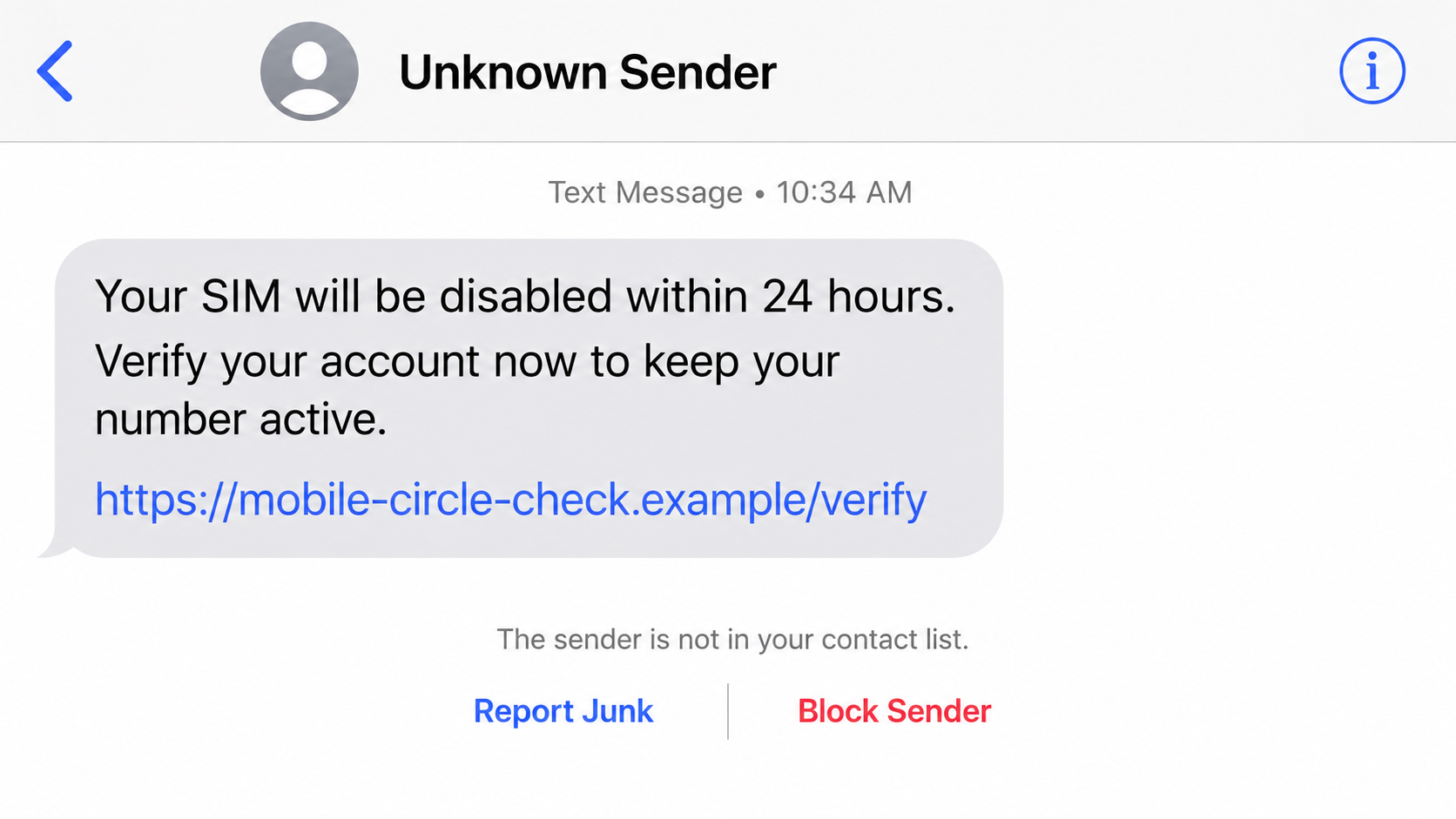
A text message says your Giffgaff SIM is about to stop working unless you confirm the account through a link before an urgent deadline.
The Fake Giffgaff SIM Warning Text Scam arrives at an inconvenient moment and makes a quick tap feel safer than waiting.
Overview
The message impersonates Giffgaff, but Giffgaff is not the scam
Giffgaff is a genuine United Kingdom mobile network. Its members can receive legitimate service, payment, security, and account notifications.
Criminals exploit that familiarity by sending texts that copy the company’s name, tone, colors, and common account language.
The fraudulent message is an impersonation campaign operated by outsiders.
Nothing about the text proves that Giffgaff created it, approved it, or experienced a security breach.
The warning creates a believable reason to act immediately
Versions claim the SIM is inactive, a payment failed, terms changed, security verification expired, or the account will be restricted.
Some mention a specific date or short response window, making delay appear risky.
Mobile service is essential for banking codes, work, family contact, and emergencies, so a disconnection warning naturally creates anxiety.
That pressure is the attacker’s advantage. A worried recipient may inspect the logo but overlook the actual website address.
The link leads away from the genuine account
The destination can resemble Giffgaff’s sign-in or payment page while using an unrelated or subtly altered domain.
It may request a member name, password, mobile number, card details, billing address, or one-time security code.
Information entered there goes to the phishing operator, even if the page later displays an error or redirects to the real website.
Common warning signs include:
- An unexpected threat to suspend mobile service.
- A deadline measured in hours rather than days.
- A shortened, misspelled, or unrelated web address.
- A request to confirm full card details.
- A small fee described as verification.
- Pressure to share a one-time passcode.
- Unusual grammar or inconsistent capitalization.
- A page that resists normal navigation.
What the Text Message Usually Says
The exact wording changes because mobile carriers and spam filters block repeated templates.
One message may claim the recipient has not accepted updated terms, while another warns that the SIM will expire because it appears inactive.
A payment version says the latest goodybag renewal failed and asks for immediate card verification.
A security variation reports suspicious account activity and provides a link to “protect” the number.
These stories share one objective: make the recipient leave the normal Giffgaff application or bookmarked website.
The displayed sender name can be misleading.
SMS sender IDs are not equivalent to digitally signed proof, and some phones group messages by a label that criminals can imitate.
A new fraudulent text can occasionally appear inside or near a genuine conversation thread.
That placement feels convincing, but the requested action still needs independent verification.
Spelling is not a reliable test either. Modern phishing messages can use polished British English and accurate brand terminology.
Conversely, an ordinary typing error does not automatically make a genuine communication malicious.
The safest test is procedural: ignore the embedded route and check the account through a trusted route you open yourself.
Why a SIM Warning Is an Effective Phishing Story
A mobile number has become a key to much of a person’s digital life.
Banks, email providers, messaging services, employers, and government portals may use that number for recovery or verification.
Losing service therefore sounds more serious than losing access to an ordinary shopping account.
The warning also arrives on the device supposedly affected, which makes the story feel technically connected to the SIM.
In reality, bulk messaging tools can send similar claims to large groups without knowing which carrier each recipient uses.
Some campaigns target known customer lists obtained through unrelated data leaks.
Others send messages broadly and depend on chance, knowing that a portion of recipients will use the named network.
A recipient who recently changed a plan, replaced a card, travelled, or experienced weak signal may find the lie especially plausible.
Attackers do not need perfect information. They need a story that overlaps with normal life often enough.
The deadline reduces the chance that the recipient will ask another person, contact support, or inspect the domain carefully.
It also encourages action while commuting, working, or handling another distraction.
Phishing succeeds frequently through timing and pressure, not advanced technical compromise.
How the Fake Giffgaff SIM Warning Text Scam Works
Step 1: Criminals distribute a carrier-themed text
The campaign sends thousands of messages through compromised accounts, online SMS services, infected devices, or other messaging infrastructure.
The sender may use a normal mobile number, an international number, or an alphanumeric label resembling Giffgaff.
Recipients are selected from leaked data or reached through broad, untargeted distribution.
The attacker does not need access to Giffgaff’s network to send a convincing imitation.
Step 2: The warning turns inconvenience into an emergency
The message claims an inactive SIM, failed renewal, account restriction, security problem, or unaccepted policy will interrupt service.
A deadline makes the threat appear immediate and discourages independent checks.
The wording may threaten loss of the number, a detail that increases fear because people rely on it for account recovery.
Legitimate urgency can exist, but urgency never makes an embedded link trustworthy.
Step 3: A lookalike address hides the destination
The link may use extra words, hyphens, unusual endings, URL shorteners, or visually similar letters around the Giffgaff name.
On a narrow phone screen, the complete address may not be visible before tapping.
HTTPS and a padlock only show that traffic to that domain is encrypted.
They do not prove the domain belongs to Giffgaff or that the page is honest.
Step 4: A copied sign-in page captures account credentials
The landing page reproduces logos, colors, buttons, help text, and loading animations from the genuine service.
Victims enter their member name, email, mobile number, or password because the form looks familiar.
The phishing server records those details immediately.
An error message may then ask the victim to try again, capturing alternate passwords as well.
Step 5: A payment form collects financial information
The next page may request card number, expiry date, security code, billing address, and telephone number.
A small verification charge can make the request appear routine and reduce hesitation.
The amount is not the main risk. The criminals now possess details that can support larger purchases or resale.
Never submit card information to preserve service through a link received unexpectedly.
Step 6: A one-time code can authorize the real transaction
After stealing card details, attackers may attempt a purchase or add the card to a digital wallet.
The bank sends a genuine one-time passcode to the victim’s phone.
The fake page requests that code as “SIM verification,” then forwards it to complete the attacker’s transaction.
A real code does not make the surrounding page legitimate. Read the code message carefully before using it anywhere.
Step 7: The victim is redirected to hide the theft
Once the information is captured, the page can display maintenance, report successful verification, or open the real Giffgaff site.
That final redirect reduces suspicion because the victim sees a legitimate page moments later.
The stolen data may be used immediately or weeks afterward.
Delayed misuse makes it harder to connect an unfamiliar transaction with the earlier text.
Step 8: Follow-up callers exploit the original incident
Criminals can call pretending to be Giffgaff, a bank, police, or a fraud investigator.
They already know details submitted on the page, which makes their story sound informed.
The caller may request another code, remote-access software, a “safe account” transfer, or payment for account recovery.
End the call and contact the organization through a separately verified number.
Giffgaff Is Real, the Impersonating Message Is Not
It is important to describe the responsible party accurately.
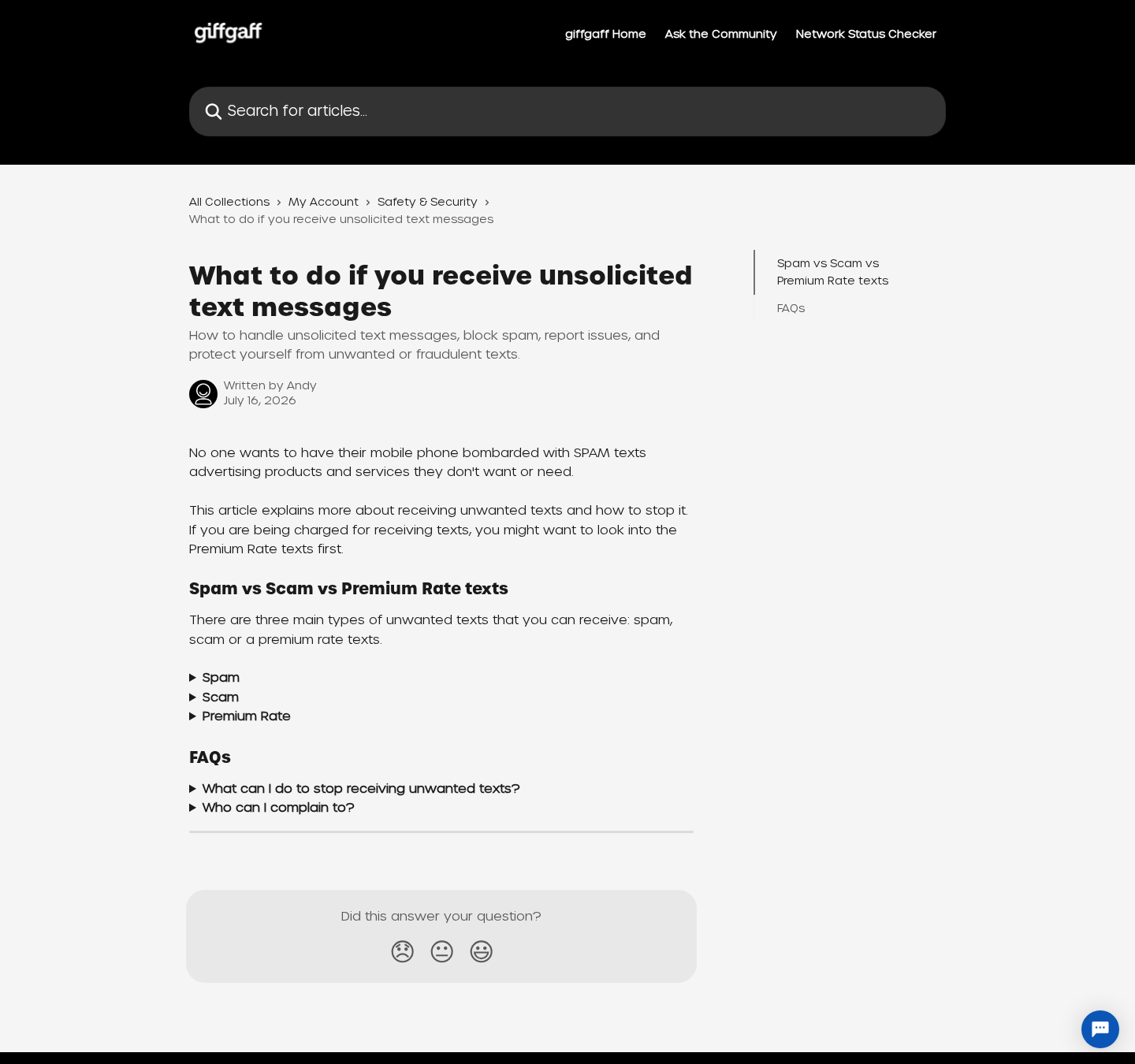
Giffgaff provides a legitimate mobile service and publishes guidance for handling unsolicited messages and protecting accounts.
The existence of phishing texts using its brand does not show that the company sent them.
Well-known banks, delivery firms, streaming platforms, tax agencies, and mobile carriers are regularly impersonated for the same reason.
Customers recognize their names and expect occasional account communication.
A fake text also does not prove that Giffgaff’s internal systems were breached.
Attackers can guess the carrier, use data collected elsewhere, or send identical messages to unrelated numbers.
If the message contains your name or partial details, treat that as a warning that some information may circulate outside its original context.
Still, do not assume where the data came from without evidence.
Genuine account problems should appear when you sign in through the official application or manually entered website.
If nothing appears, contact Giffgaff support through its verified help system rather than replying to the sender.
Separating company from impersonator helps people report the right incident and avoids spreading an unsupported breach rumor.
How to Check a Giffgaff Message Without Taking the Bait
Do not tap the link, reply, or call a number provided inside the suspicious message.
Open the official Giffgaff application independently or type the known website address into a fresh browser window.
Check account status, payment information, goodybag renewal, recent activity, and help notifications there.
If action is genuinely required, the trusted account area should explain it.
Press and hold the link only when you can inspect its full destination safely without opening it.
Look at the registered domain, which is the critical portion immediately before the first single slash.
Words such as “secure,” “account,” or “giffgaff” placed elsewhere do not transfer ownership to the real company.
Do not depend on a padlock, professional layout, or flawless grammar.
Phishing operators can obtain encryption certificates and copy public website code quickly.
Search a distinctive sentence from the message, but avoid clicking promoted results that repeat the same warning.
Official Giffgaff advice says spam texts can be forwarded free to 7726.
The service uses that report to identify the sender, while your device can separately block the number.
If a message requests payment information, contact the bank using the number printed on your card before interacting further.
Bank staff can check attempted transactions and explain whether a card replacement is appropriate.
Company, Address, and Fulfillment Checks
The domain must belong to the company being impersonated
A logo can be copied in seconds, while control of the genuine registered domain is harder to fake.
Read the address from right to left and identify the true domain before any path or tracking text.
A subdomain containing “giffgaff” may still belong entirely to a criminal’s unrelated domain.
Use a bookmarked official page or the installed application instead of correcting a suspicious address manually.
A postal address on the fake page proves very little
Phishing pages sometimes copy a genuine company’s office address, registration number, legal wording, and footer links.
Accurate public details can coexist with a criminal form.
Do not mail documents, SIM cards, or identification to any address supplied through an unsolicited text.
Verify contact instructions inside the official account or established help center.
Telephone support can also be impersonated
A number displayed by the message may reach a call center operated by the same criminals.
Callers can spoof caller identification and claim they see a pending SIM suspension.
Real support should not need your password, complete card security code, or one-time bank authorization code.
Disconnect and start a new contact through an independently located route.
There is no parcel or fulfillment issue to solve
This campaign generally steals information rather than selling a physical item, so warehouse and return promises are distractions.
A request to post the SIM or identity documents would represent an additional warning.
Keep possession of the SIM unless verified support provides a documented replacement process.
If replacement is needed, obtain it through the genuine account and confirmed delivery channel.
What Criminals Can Do With the Stolen Details
A Giffgaff password can expose account information, payment history, contact details, and controls associated with the mobile number.
If the password was reused, criminals may try the same combination against email, shopping, social-media, and financial accounts.
Email access is especially serious because it supports password resets elsewhere.
Card details can fund unauthorized purchases or be sold within criminal marketplaces.
Billing address and telephone information help attackers pass weak identity checks and write more convincing follow-up messages.
A one-time bank code may authorize the exact transaction described in the legitimate code notification.
Victims should never read such codes aloud or enter them into a page reached through an unexpected message.
Mobile account access can also support number-transfer or SIM-swap attempts.
If an attacker controls the number, some incoming calls and security messages may move to another SIM.
Sudden loss of service, unexpected transfer notices, or account-change emails require immediate attention.
Identity details can later support refund fraud, fake bank investigations, tax messages, parcel scams, and targeted social engineering.
The first incident may therefore become the opening chapter of a longer attack.
Keep notes about dates, sender numbers, domains, conversations, transaction references, and actions taken.
A clear timeline helps the carrier, bank, police, and other providers understand what happened.
What to Do if You Have Fallen Victim to This Scam
- Close the page without entering more information. Do not follow later prompts, download security tools, or call numbers displayed by the phishing site.
- Change the Giffgaff password safely. Open the official app or manually entered website. Use a unique password and review account details for unauthorized changes.
- Protect reused credentials. Change the same or similar password everywhere else, beginning with email, banking, shopping, and social accounts. Enable multifactor authentication.
- Contact the bank immediately. If card details or a one-time code were submitted, use the number on the card. Review transactions and discuss replacement.
- Watch for loss of mobile service. Unexpected disconnection or transfer messages can indicate a SIM-swap attempt. Contact genuine support promptly from another device if necessary.
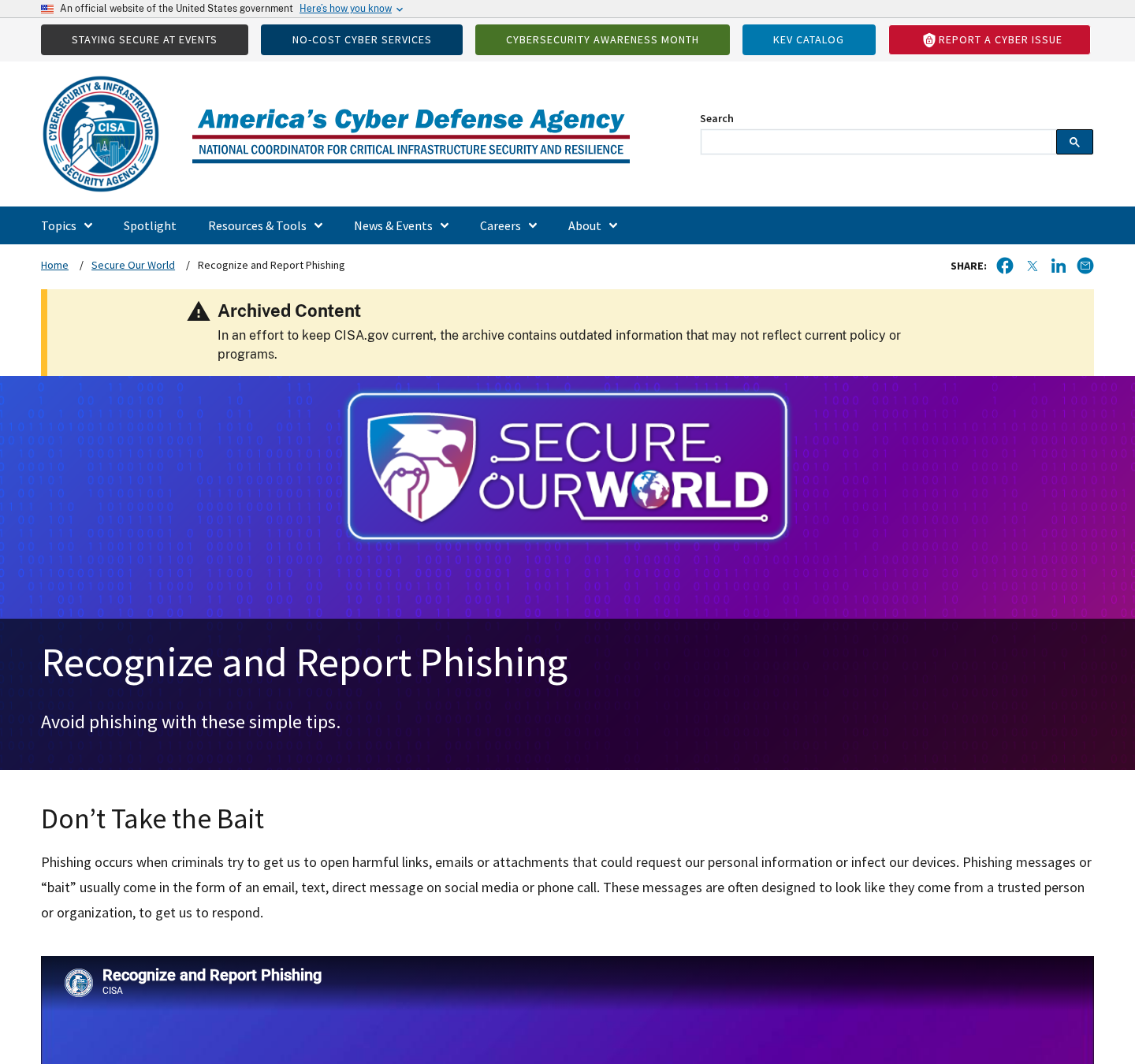
- Report the text to 7726. Forward the suspicious message free of charge, then follow Giffgaff’s official reporting and blocking guidance.
- Preserve evidence. Capture the sender, wording, link, fake page, timestamps, bank alerts, and conversations. Do not revisit the phishing page simply to gather more.
- Check the device. Run Malwarebytes if you downloaded a file, installed an application, or granted unusual browser permissions after following the link.
- Limit future exposure. AdGuard can block many recognized phishing domains and intrusive advertisements, but continue checking sender requests independently.
- Reject follow-up recovery calls. No legitimate investigator needs remote access, cryptocurrency, gift cards, or a transfer into a “safe” account.
Is Your Device Infected? Run a Free Malware Scan
Slow performance, constant pop-ups, or strange behavior? These are classic signs of a malware infection. The fastest way to find out is to scan your device with Malwarebytes Free — one of the most trusted malware removal tools available.
The free version detects and removes the most common threats, including:
- Adware — the cause of those annoying pop-ups
- Browser hijackers — unwanted redirects and changed homepages
- Trojans and spyware — hidden programs stealing your data
- Potentially unwanted programs (PUPs) — software you never asked for
👉 Select your device below — Windows, Mac, or Android — then follow the simple steps to download Malwarebytes, scan your system, and remove any threats it finds. The scan usually takes 5 to 20 minutes.
Run a Malware Scan with Malwarebytes for Windows
Malwarebytes is one of the most popular and trusted anti-malware tools for Windows — and it’s completely free for removing infections. It catches threats that many antivirus programs miss, including adware, browser hijackers, and trojans. Follow the steps below to scan and clean your PC in just a few minutes.
Download Malwarebytes
Click the button below to download the latest version of Malwarebytes for Windows from the official source. The free version is all you need — it will scan your computer and remove adware, browser hijackers, and other malicious software at no cost.
Download MalwarebytesOfficial installer for Windows 11 and 10. Your download starts right away.Want real-time protection? See Malwarebytes Premium Malwarebytes Free for WindowsScans and removes malware at no cost
-
Install Malwarebytes
When the download finishes, open your Downloads folder and double-click the MBSetup file. If Windows shows a User Account Control pop-up, click “Yes” to allow the installation.

Follow the On-Screen Prompts to Install Malwarebytes
The setup wizard will walk you through a few quick screens:
-
Choose where you’re installing the program — “Personal Computer” or “Work Computer” — then click Next.

-
Malwarebytes will now install on your device. This usually takes under a minute.

-
When installation is complete, the “Welcome to Malwarebytes” screen will open automatically.

-
On the final screen, click Open Malwarebytes to launch the program.

-
Enable “Scan for Rootkits”
Before scanning, turn on rootkit detection so Malwarebytes can find even the most hidden threats. Click the Settings gear icon on the left side of the screen.

In the settings menu, find “Scan for rootkits” and click the toggle so it turns blue.

Done? Click “Dashboard” in the left pane to return to the main screen.
Start the Scan
Click the blue Scan button. Malwarebytes will automatically update its virus database and start checking your computer for malware.

-
Wait for the Scan to Finish
The scan checks your entire system for browser hijackers and other malicious programs, so it can take 5 to 20 minutes depending on your computer. Feel free to do something else — just check back occasionally to see the progress.

-
Quarantine the Detected Threats
When the scan is done, you’ll see a list of everything Malwarebytes found — malware, adware, and potentially unwanted programs. Click the “Quarantine” button to remove all of them at once.

Malwarebytes will now remove the malicious files and registry entries and move them safely into quarantine.

-
Restart Your Computer
Some threats can only be fully removed after a reboot. If Malwarebytes asks you to restart, click Yes. Once you’re logged back in, Malwarebytes has finished removing the threats it found.

That’s it — your Windows PC is now clean of trojans, adware, and other malware, and should be back to running smoothly.
If you are still having problems with your computer after completing these instructions, then please follow one of the steps:
- Run a computer scan with ESET Online Scanner
- Ask for help in our Windows Malware Removal Help & Support forum.
Run a Malware Scan with Malwarebytes for Mac
Malwarebytes for Mac is a free on-demand scanner that removes the malware other security software tends to miss — adware, browser hijackers, and unwanted programs included. Cleaning an infected Mac with Malwarebytes has always been completely free, and it’s our go-to recommendation. Follow the steps below to scan and clean your Mac in just a few minutes.
-
Download Malwarebytes for Mac
Click the button below to download the latest version of Malwarebytes for Mac.
Download MalwarebytesOfficial installer for macOS. Your download starts right away.Want real-time protection? See Malwarebytes PremiumMalwarebytes Free for MacScans and removes malware at no cost -
Open the Malwarebytes setup file
When the download finishes, open your Downloads folder and double-click the setup file to begin the installation.

-
Follow the On-Screen Prompts to Install Malwarebytes
The Malwarebytes for Mac Installer will guide you through a few quick screens. Click “Continue” and keep following the prompts until the installation completes.



When the installation is complete, Malwarebytes opens to the Welcome to Malwarebytes screen. Click “Get started“.
-
Select “Personal Computer” or “Work Computer”
Malwarebytes will ask what type of computer you’re installing it on. Click either Personal Computer or Work Computer, whichever applies.

-
Start the Scan
Click the “Scan” button. Malwarebytes will automatically update its detection database and begin checking your Mac for malware.

-
Wait for the Scan to Finish
Malwarebytes will scan your Mac for adware, browser hijackers, and other malicious programs. This can take a few minutes, so feel free to do something else — just check back occasionally to see the progress.

-
Quarantine the Detected Threats
When the scan is done, you’ll see a list of everything Malwarebytes found. Click the “Quarantine” button to remove all the threats at once.

-
Restart Your Mac
Malwarebytes will now remove all the malicious files it found. Some threats can only be fully removed after a reboot — if Malwarebytes asks you to restart, allow it. Once you’re logged back in, your Mac is clean.

That’s it — your Mac is now free of adware, rogue browser extensions, and other potentially harmful software.
If you are still experiencing problems while trying to remove a malicious program from your computer, please ask for help in our Mac Malware Removal Help & Support forum.
Run a Malware Scan with Malwarebytes for Android
Malwarebytes for Android automatically detects and removes dangerous threats like malware and ransomware so you don’t have to worry about your most-used device being compromised. Aggressive detection of adware and potentially unwanted programs keeps your Android phone or tablet running smooth.
-
Download Malwarebytes for Android.
You can download Malwarebytes for Android by clicking the link below.
Get Malwarebytes for AndroidOpens Google Play in a new tab.Want real-time protection? See Malwarebytes Premium for AndroidMalwarebytes for AndroidScans your phone and removes malware at no cost -
Install Malwarebytes for Android on your phone.
In the Google Play Store, tap “Install” to install Malwarebytes for Android on your device.

When the installation process has finished, tap “Open” to begin using Malwarebytes for Android. You can also open Malwarebytes by tapping on its icon in your phone menu or home screen.

-
Follow the on-screen prompts to complete the setup process
When Malwarebytes will open, you will see the Malwarebytes Setup Wizard which will guide you through a series of permissions and other setup options.
This is the first of two screens that explain the difference between the Premium and Free versions. Swipe this screen to continue.
Tap on “Got it” to proceed to the next step.
Malwarebytes for Android will now ask for a set of permissions that are required to scan your device and protect it from malware. Tap on “Give permission” to continue.
Tap on “Allow” to permit Malwarebytes to access the files on your phone.
-
Update database and run a scan with Malwarebytes for Android
You will now be prompted to update the Malwarebytes database and run a full system scan.

Click on “Update database” to update the Malwarebytes for Android definitions to the latest version, then click on “Run full scan” to perform a system scan.

-
Wait for the Malwarebytes scan to complete.
Malwarebytes will now start scanning your phone for adware and other malicious apps. This process can take a few minutes, so we suggest you do something else and periodically check on the status of the scan to see when it is finished.

-
Click on “Remove Selected”.
When the scan has been completed, you will be presented with a screen showing the malware infections that Malwarebytes for Android has detected. To remove the malicious apps that Malwarebytes has found, tap on the “Remove Selected” button.

-
Restart your phone.
Malwarebytes for Android will now remove all the malicious apps that it has found. To complete the malware removal process, Malwarebytes may ask you to restart your device.
That’s it — your Android phone is now clean — no more malicious apps, adware, or browser redirects.
If you are still having problems with your phone after completing these instructions, then please follow one of the steps:
- Restore your phone to factory settings by going to Settings > General management > Reset > Factory data reset.
- Ask for help in our Mobile Malware Removal Help & Support forum.
Stay Protected: Block Ads and Malicious Sites
Now that your device is clean, keep it that way. Most infections start with a malicious ad or a fake download button — so blocking them at the source is your best defense.
We recommend AdGuard, which blocks malicious ads, phishing pages, and dangerous redirects before they can reach you.
👉 Download AdGuard and browse safely
Frequently Asked Questions
Is Giffgaff sending the SIM warning texts?
The fraudulent messages are sent by impersonators, not evidence that Giffgaff created or approved the campaign.
Check any genuine account issue through the official app or independently opened website.
Can a fake text appear beside genuine Giffgaff messages?
Yes. Sender-name behavior can cause misleading grouping on some devices.
Conversation placement is not authentication, so verify the requested action through a trusted channel.
Does the padlock prove the linked page is safe?
No. A padlock indicates encryption between your browser and that particular domain.
Criminal websites can use encryption while stealing every detail entered.
Should I reply STOP to the suspicious text?
Do not reply to an unknown sender because a response can confirm that the number is active.
Forward the message to 7726 and use the phone’s blocking function.
What if I entered my password but not my card?
Change the Giffgaff password immediately through the genuine service and update every account where it was reused.
Review recovery details and recent activity for changes.
What if the warning arrived when my service stopped?
The timing may be coincidence or may require urgent account review.
Use another connection to contact official support, and never authenticate through the link in the unexpected message.
The Bottom Line
The Fake Giffgaff SIM Warning Text Scam exploits fear of losing an important mobile number, then uses a copied page to steal credentials, payment details, or security codes.
Giffgaff itself is a legitimate service being impersonated. Open the official account independently, report suspicious texts to 7726, and contact the bank quickly after disclosure.
Urgency is the trap’s strongest tool. A brief pause to verify the domain and request through a trusted route can prevent a much longer recovery.

Join the discussion
0 commentsShare your experience or ask a question about this article.
Discussion
Start the conversation
Have a question or something useful to share? Add the first comment.