
No, Free version does not have Application Control...


Open MalwareTips from your Home Screen or desktop. Follow discussions, find answers and pick up where you left off.
If you cannot find an install option, update your browser or use its bookmark option to keep MalwareTips close.
After installation, open the app and sign in. Enable push notifications in Preferences if you want alerts. On iPhone and iPad, push requires a Home Screen web app and iOS or iPadOS 16.4 or later.
Sign in to manage notificationsInstallation is optional. Your notification settings stay under your control.
 Thread starter
harlan4096
Thread starter
harlan4096
I mean you have tested Kaspersky more then me what are the chances of ransomware actually getting past system watcher?No, Free version does not have Application Control...
 so there will be always a rsw that will bypass SW


thanks for reply , just need it for new apps i used it before with eset and no "BUNCH OF PROMPTS"it's great to control the access . and for now i don't find away .to ask for new application

KIS/KTS/KSC Cloud1.- Go to Settings -> Protection -> Application Control -> Manage Resources
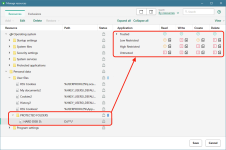
Implementing Protected Folders via Manage Resources
2.- Expand Personal Data folder and then select User Files folder
3.- Click on Add and then on Category and type a name, for example: PROTECTED FOLDERS
4.- Then select the new PROTECTED FOLDER category/folder just created, and click on Add again, but this time select File or Folder
5.- In Name give a name for the resource We want to protect, for example: Hard Disk C:
6.- In Patch We can type manually the path to the resources (full drive or folder) or use [Select] to directly select, for example: C:\*
As You can see if We add a * to the end of path folder, all the content inside will be included, also We can specify concrete file types to protect:
7.- Finally click over [Add]
8.- Then expand PROTECTED FOLDERS category and select the new resource Hard Disk C:
9.- On the right We’ll get the rights (in the different trusted groups) assigned by default to the new resource
10.- Click on Trusted to collapse all the groups, and then We are ready to change rights. The default rights assigned are:
We have to remember here that Prompt For Action rights are working only if Interactive Mode is enabled, otherwise They will be ignored and the actions allowed…
So now my suggested tweaks are:
After making the changes -> click on [Save] button below.
Now We have to complement these tweaks making some additional changes:
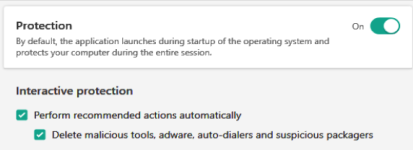
1. Having Protection in Defaults (Auto Mode):
2. Then go to Application Control and change the settings:
For Advanced and/or more Paranoid users, We may even change:
- Protection to Interactive Mode -> unticking Performs recommended actions automatically
- Unticking Trust digitally signed applications
- Or even going beyond -> Change trust group for unknown applications to UnTrusted
WARNING:
With these tweaks You probably will get some blocks while installing new applications (unknown in KSN) and/or if there is no connection to KSN/access to InterNet.
If in Interactive Mode, You will get also some/many Kaspersky prompts warnings, I usually select (in the prompt warning) Additional Actions -> Trust this Application and ticking 1stly Remember my choice for this application, if You trust the application being installed, but We may always go to Application Control -> Manage Applications and move the blocked files to Trusted Group manually.
okii thanks! I added download folder to protected folder, when i try to save a image from internet to that download location from MS edge ,it doesn't save!Yes, why not? But I use also Veracrypt, and may secure container does not have extension (I also have it located in an uncommon folder)... usually crypto attacks search for common user folders and known types of files such pic, docs, exe, etc. to encrypt... so it is interesting to leave container without extension, for security, maybe be less affected in a ransomware attack
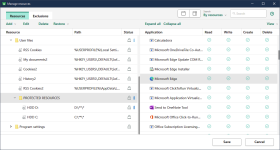
It depends on how did You set up the rightswhen i try to save a image from internet to that download location from MS edge ,it doesn't save!

Question: i use kaspersky encryption vault. In lock, ransomware won't be able to affect the files inside it, right?
oh okay! what is the difference between Write and Create? , which is equivalent for modification?I think this is not possible at 1st glance... since the rights are Read/Right/Create/Delete...
Members who viewed this thread in the last 5 minutes

