


You turned off model training in ChatGPT, then noticed an old conversation was still in the sidebar. That does not mean the switch failed.
ChatGPT handles training, memory, shared links and saved files separately. Choosing the wrong control can leave the exact copy you meant to remove untouched.
Overview
Start with the outcome you actually want
Preventing a future conversation from contributing to model improvement is one task. Removing an old conversation from your account is another, even if both involve the same sensitive topic.
Think about what you are trying to stop before changing a setting:
- Use Data controls to change eligible model-improvement use.
- Delete an existing chat instead of merely archiving it.
- Review saved memories separately from your chat history.
- Handle shared links and uploaded files in their own controls.
Temporary describes a mode, not an offline conversation
In Temporary chat, an unsaved conversation stays out of your regular history and is not used to improve OpenAI models. It still takes place on an online service.
OpenAI says it may keep a copy for safety for up to 30 days. A third-party action can have its own rules, and saving a temporary conversation changes its status.
Check the account and workspace before trusting a setting
This procedure is for personal ChatGPT accounts. Work and school spaces can have different retention, access and settings controlled by their administrators.
If you move between a personal account and a work workspace, open the account menu first. Confirm which workspace holds the conversation you want to manage.
How to Stop Eligible New ChatGPT Conversations From Improving Models
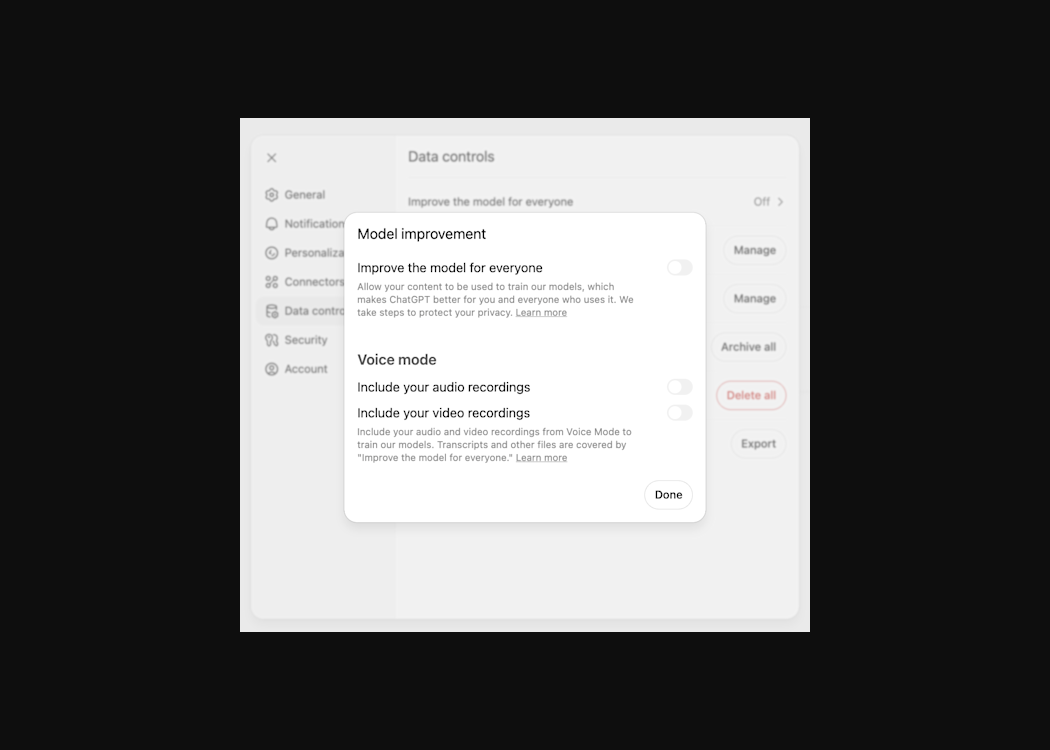
On the web, sign in to the account you use, open the profile menu, and select Settings > Data controls. Find Improve the model for everyone.
Turn that setting off if available. Close Settings, reopen the same control, and check the displayed state before starting work you expected the setting to cover.
The switch applies to your account rather than just that computer. Still, check the account displayed on another device rather than assuming you signed into the same one.
Do not infer your account preference from a signed-out browser window. Sign in and verify the state on the account where you plan to start the conversation.
Read OpenAI’s Data controls documentation if the toggle is absent. Plan differences, managed settings and parent or guardian controls can affect what you see.
Turning off the switch does not hide regular chats, unarchive anything, or empty project conversations. An older title still appearing in Search is expected behavior.
The control does not give you a record of whether a particular older chat was used. Treat it as a preference for future eligible content, not retroactive removal.
There is one easy-to-miss exception. OpenAI says that if you voluntarily rate a response, the associated conversation may be used for training even after opting out.
If a conversation contains internal or personal details, do not send feedback on it as a way to request removal. Use the relevant privacy control instead.
Voice and video can have separate sharing controls. Check the related settings if your concern is a recording rather than relying only on the switch for general conversations.
When Temporary Chat Is the Better Starting Point
Start a new conversation, then select Temporary before entering a prompt. Confirm the Temporary chat mode is shown before uploading a file or adding information.
If offered a choice between Personalized and Unpersonalized, choose before you start. An unpersonalized chat is the simpler option when you want to avoid ordinary personalization.
OpenAI says personalized Temporary chats can use existing memories, custom instructions and plugins depending on the account. While temporary, neither mode creates or updates saved memories.
OpenAI also describes a separate ability to use limited safety-relevant context. Disabling ordinary personalization is not a guarantee that safety systems never consider any earlier information.
If you choose to save that conversation, it becomes a regular chat. Check the destination and account settings before saving something you had planned to keep temporary.
Temporary chat is a reasonable option for a one-off request you do not want in your sidebar. It is not a reason to paste passwords or payment information.
When using a GPT that sends data through an external action, check the recipient first. The recipient’s rules can allow retention beyond the temporary conversation’s own window.
Do not assume an upload always disappears with the chat either. Some eligible files can be saved separately in Library or Space, depending on your account.
How to Remove a Conversation Without Confusing It With Memory
Before deleting anything you rely on, decide whether you need a safe copy. Downloading or exporting an entire account creates another place where sensitive material can be stored.
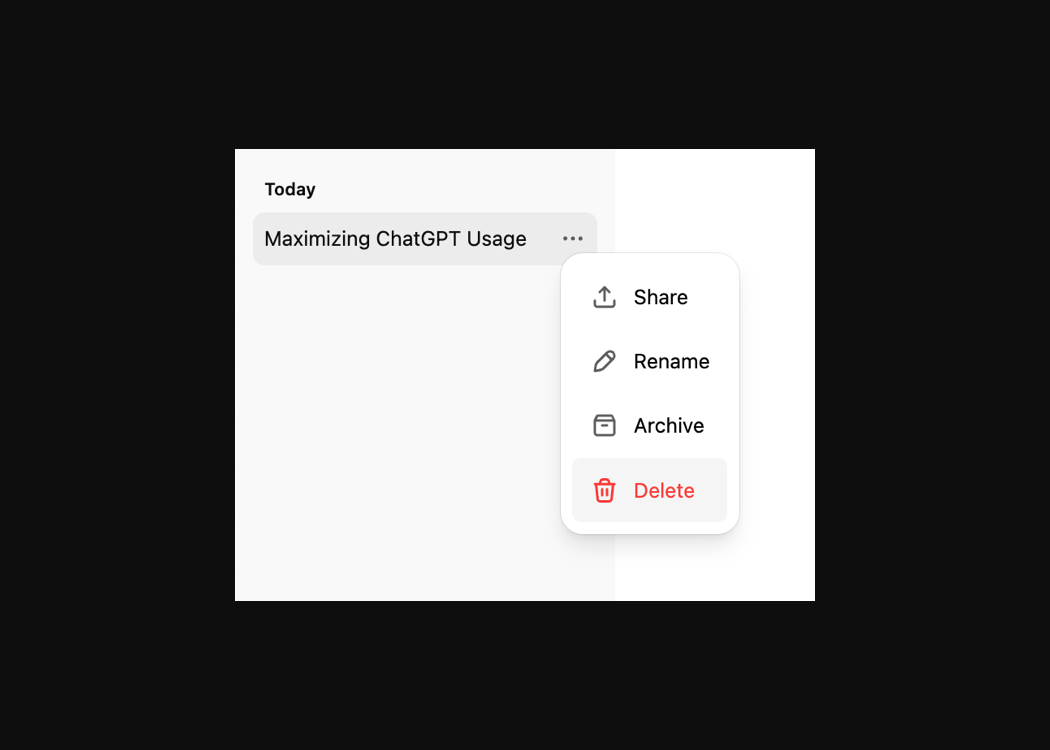
Find the conversation in the history sidebar on the web. Open its three-dot menu, choose Delete, and confirm that you selected the correct conversation.
OpenAI says a deleted chat disappears from the account immediately and is scheduled for deletion from its systems within 30 days, subject to specified exceptions.
Those exceptions can include security or legal obligations, or content already de-identified and disassociated from your account. Do not describe the disappearance as instant server-side erasure.
Archive is useful for clearing the sidebar without losing a chat. It retains the conversation, so it does not achieve the same thing as Delete.
To find a conversation you archived, go to Settings > Data controls > Archived chats and use Manage. Find the correct entry before deleting it.
Then open Settings > Personalization to review the memory controls your account offers. Use the option to manage saved memories, and remove the specific item you identified.
Turning memory off is not the same as deleting what was previously saved. If a detail exists in both places, handle the stored memory and the source chat.
Check other conversations where you repeated the detail too. A saved memory sometimes points to a preference, while a separate chat still contains the actual original text.
Use OpenAI’s memory guidance to identify the controls your account has. Avoid deleting everything just because the labels differ from someone else’s settings.
Use a different workflow when you only need to hide the title
Suppose a project has a sensitive name and you sometimes screen-share. If you still depend on that conversation, deleting it to clear the sidebar could cost valuable work.
Archiving can hide the title from the regular sidebar without removing it from your account. Archived conversations can still turn up in account search.
Before sharing your screen, close the history pane or only share the required window. Account organization is not the best defense against revealing a private tab.
If you later decide you no longer need the chat, return to the archived list to delete it. Browsing the regular sidebar cannot confirm an archived chat was removed.
A chat you intend to keep can still contain material that needs a different response. For example, replace a credential you pasted there rather than just changing the title.
Check Shared Links and Files as Separate Copies
If you shared a link, open Settings > Data controls and look for the option to manage shared links. Identify the link associated with the right conversation.
Remove the link if access should end. When it is safe to do so, check the original address in a signed-out window to verify that it no longer opens.
Revoking the link does not recall a screenshot, pasted text or content another person imported into their own history. Ask the recipient about those copies when appropriate.
If you cannot identify the link in its list, check that you’re in the workspace where you created it. A similarly titled chat may not be the shared conversation.
OpenAI’s shared links guidance explains how the links work. Do not make a test link to an already sensitive chat just to inspect the feature.
For an uploaded document, open Library or the space where you saved it, if available. Find the actual file, then use that location’s delete or Trash control.
In Library on the web, hover over the item and select its checkbox. Choose Delete, review the selection, and confirm only the file you meant to remove.
Use the file search or source filter if several versions share a name. Look again in the main list afterward to make sure the intended item disappeared.
Check the filename and containing space first. A revised file and an earlier upload can survive as separate copies even when their displayed names are very similar.
Deleting the conversation may not delete an eligible file kept separately. Review OpenAI’s retention guidance before assuming your document followed the chat.
An external file can outlive its use in a conversation
For example, if you attached a document from a connected drive, removing the ChatGPT conversation does not delete the original file from that drive.
To stop future access, open the settings for the connected app and disconnect it where appropriate. Then check the source service for its own sharing permissions.
If the document exists in a shared space, a personal file control may not be enough. Ask the file owner to inspect its actual access and retention.
Where Library offers a Trash view, use its settings to check whether a file you removed is still recoverable. Review the item before choosing permanent deletion.
Do not empty the entire Trash folder to handle one mistaken upload. Change only the affected copy and keep other deleted files available for recovery.
OpenAI’s Library and Space guide distinguishes direct uploads from connected files. Keep a note of the place where you removed each item.
A document may also survive as text in a message. If the chat quoted sensitive passages, check the affected conversation rather than looking only for the attachment.
What to Do If You Already Pasted Something Sensitive
-
Identify what was exposed before trying to clean up the interface. A password or access token can still work even after the conversation is gone.
-
Replace or revoke a credential through the service that issued it. Ask the appropriate administrator for help if it is an access key you do not own.
-
Remove the affected chat and review stored memories, saved files and shared links separately. Save only the evidence your organization actually needs for its response.
-
Check whether a GPT action or connected service received the content. If it did, use that recipient’s verified support or privacy channel to ask about its copy.
-
Report any work or client exposure through the process your organization provides. State what went in, when, through which workspace, and whether anyone received a shared link.
-
Set the training preference before your next conversation, then use an edited excerpt or fictional data when the task does not need real identifiers.
For a personal question, you can often describe the situation without an address, date of birth or case number. Keep the problem and replace the identifying details.
For account-level privacy requests, use the official OpenAI Privacy Portal. Do not send sensitive material to someone offering to erase your history on your behalf.
If the content relates to an incident under review, follow the responsible organization’s instructions on preservation. A privacy cleanup is not a reason to destroy required evidence.
There is no need to upload an untouched document just to ask for editing advice. Replace client names, case identifiers and detailed figures with realistic placeholders first.
If someone else shared a chat with you, you can manage your copy but not the sender’s settings. Tell the sender privately if the link should be withdrawn.
Check whether the same secret appeared in a prompt, an attachment and a copied reply. Each can have a different owner, audience and place to remove it.
Frequently Asked Questions
Why are my conversations still there with training turned off?
The training preference does not delete your history. If you want an existing conversation out of the account, use Delete on that entry instead.
Can feedback still be used after I turn off training?
OpenAI says the conversation associated with feedback may be used for training, even after opting out. Leave feedback off sensitive conversations you want to keep out.
Does Temporary chat automatically stop all personalization?
Not necessarily on accounts that offer personalized Temporary chats. Choose the unpersonalized option before sending anything if you want ordinary memory and custom instructions excluded.
Will deleting a chat remove the same detail from saved memory?
Deleting history and managing saved memories are separate actions. Check both places and remove the exact item from each one where it exists.
Can I take back a chat link someone already opened?
You can remove the shared link, but that does not recall content someone copied into another account, document or screenshot. Ask the recipient about those separate copies.
Can I tell whether an older chat was used for model training?
The ordinary account settings do not give you conversation-by-conversation training receipts. A current opt-out cannot tell you what happened to an older conversation.
The Bottom Line
Set your ChatGPT training preference separately from the decision to keep or delete your conversations. Use Temporary chat for suitable one-off requests, not confidential raw material.
If sensitive information was shared, identify where the copies went. Replace exposed credentials immediately and remove the copies you control in each location.

Join the discussion
0 commentsShare your experience or ask a question about this article.
Your progress
Did these steps help?
Let us know how the guide worked for you.
Describe what you see and the step you reached. Keep passwords and other private information out.
Discussion
Start the conversation
Have a question or something useful to share? Add the first comment.