


You close the video call, but the camera light still seems to be on. Before sticking anything over the lens, check which kind of access you’re seeing.
A built-in shutter, a Windows or Mac permission and a browser rule solve different problems. The right fix depends on where the camera was requested.
Overview
A cover blocks the view, not the permission
Closing a physical shutter can prevent an image from passing through the covered lens. The app may still have permission to ask for the camera.
A cover also does not stop a microphone or protect another attached camera. If you need to end access, identify the device and change the relevant control.
Work through the layers in a useful order
A meeting site can need permission in both the browser and the operating system. Turning one off may fix the concern without breaking access for every other app.
- Identify the camera that shows the activity indicator.
- Quit the browser tab or app using it.
- Review the operating-system and individual website controls.
- Retest the camera and microphone separately with a harmless preview.
A privacy habit is not an infection diagnosis
In an Incogni survey of 1,517 US adults, 36% of respondents said they covered their device cameras. That measures what respondents reported doing, not how often cameras are abused.
An indicator that lights up when you sign in or join a meeting is not by itself evidence of unwanted recording. First check what was running.
What a Webcam Cover Can Safely Do
If your laptop has a built-in shutter, check that it covers the lens you intend to use. On a desk with a USB camera, the active lens may be elsewhere.
Use a preview you control before your next call. Close the shutter and confirm the preview becomes blocked, then open it and check that the image returns.
A shutter can be a useful temporary boundary if you share a space. It keeps the image out of view while you sort out which software is active.
Do not infer microphone status from a black image. Check the call’s microphone button and your system’s microphone activity separately before discussing anything you want kept private.
Apple warns that a camera cover can damage a MacBook display when the lid closes. Its camera cover guidance explains the small clearance.
Remove an aftermarket cover before closing a Mac notebook, rather than pressing the lid against something attached to the bezel. Avoid covering the camera indicator or nearby sensors.
If you normally use a separate USB webcam, unplugging it is another reversible option. Check whether your conferencing app switches to the laptop camera when the USB device disappears.
The goal is a boundary you can check. Something over the lens should not become a reason to leave unnecessary camera permission enabled everywhere else.
How to Check Camera Access in Windows 11
Step 1: Confirm which camera and indicator you are seeing
Check whether your laptop lens or external camera is lit. If a meeting app is open, look at the camera selected in that app’s video settings.
Microsoft says Windows can show a notification when a camera without an indicator switches on or off. A microphone icon in the taskbar is a separate activity signal.
Close the expected preview or meeting and check again. If you use multiple browsers or conferencing apps, quit them one at a time so you can identify the source.
Step 2: Check Windows camera permissions and recent access
Open Start > Settings > Privacy & security > Camera. The device’s Camera access control and the app-access switches serve different purposes.
Under Let apps access your camera, check the individual app entries you can control. Turn off access for apps that do not need to use a camera.
If Windows shows an access history or an app under the desktop section, note its name and time. Compare that information with the meeting or preview you opened.
A missing desktop entry is not proof that nothing used the camera. Microsoft documents exceptions and says the desktop list is limited to activity Windows detects through supported methods.
Windows Hello can also use a camera for sign-in. That is different from an individual app permission and can explain activity when you unlock the computer.
Step 3: Choose between the Windows switch and a site-specific block
When the issue is a specific classic program, check its own camera setting or quit it. Windows does not provide an individual permission switch for each desktop app.
Let desktop apps access your camera affects desktop apps together. Turning it off may interrupt a browser or legitimate call software you still need.
If one website is the problem, manage that website’s browser permission instead. Verify the change before broadening it to all of the other desktop programs.
Afterward, try a video preview in a trusted app that still needs access. If it stopped working, review the group switch and that app’s specific settings.
Check macOS and Browser Controls Without Disabling Every Meeting
Review permissions for installed apps on Mac
Open the Apple menu and choose System Settings > Privacy & Security > Camera. In the displayed list, turn off access for an app you no longer trust or use.
If prompted, quit and reopen the app for the change to take effect. A conferencing app may need to be reopened even when the toggle changed successfully.
Apple’s Mac camera instructions explain which apps appear. Built-in apps such as FaceTime and Photo Booth can have access without appearing as individual requests.
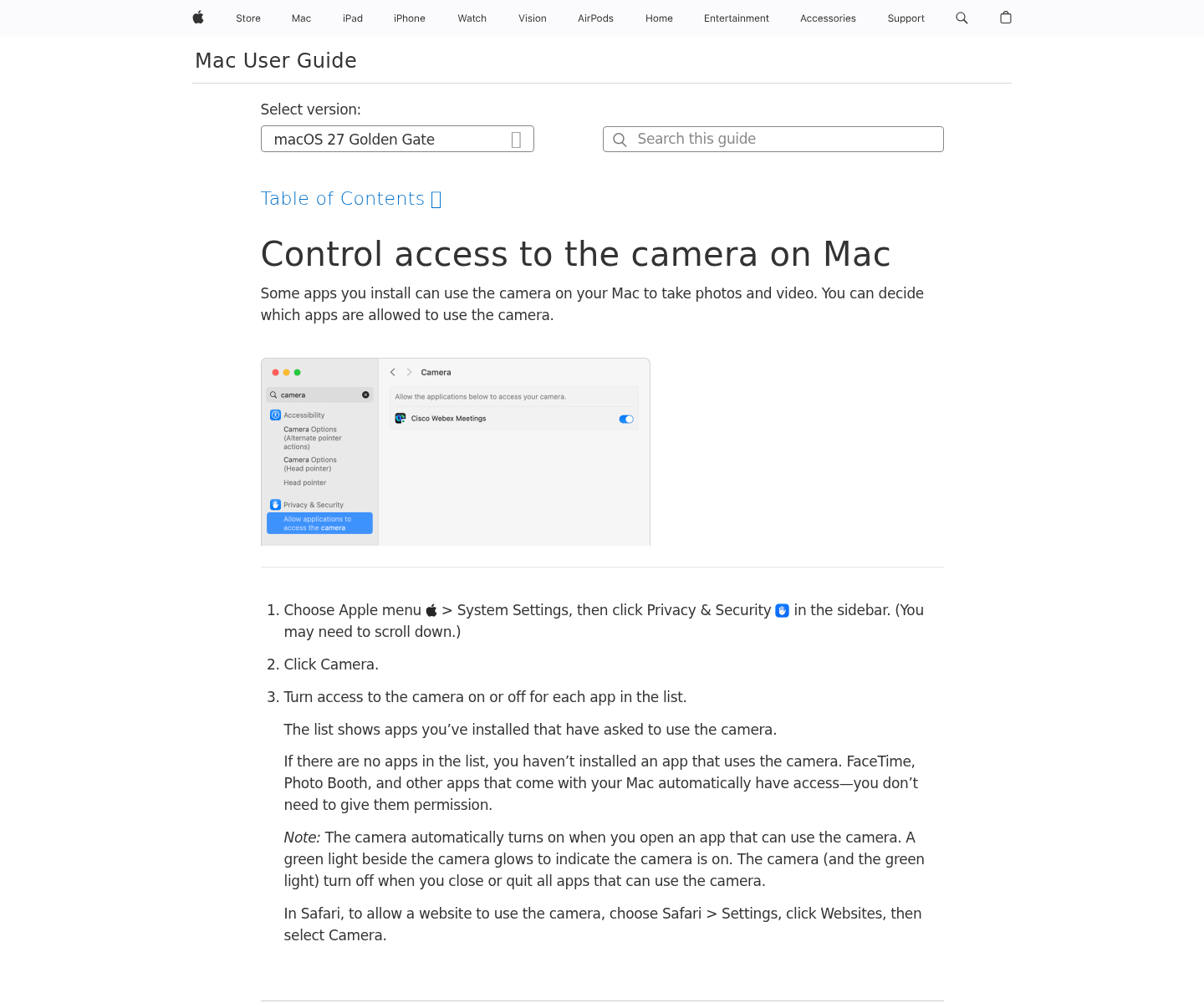
The green light by the built-in camera indicates camera activity. Close or quit the expected camera app and check whether the light goes off before looking for another cause.
On a Mac with a separate webcam, also check the active device in your meeting app. A choice made inside one app does not automatically change every other app.
Block a specific site in Chrome or Safari
In Chrome, open the three-dot menu and choose Settings > Privacy and security > Site settings > Camera. Review allowed sites and remove permission for an unnecessary one.
Removing the permission lets the site ask again under your default policy. To keep a specific site blocked, select that site’s permission and choose the blocking option.
To check a particular page, open its site controls beside the address bar and review Camera. Verify the actual website address before changing access.
In Safari on Mac, choose Safari > Settings > Websites > Camera. Find the website, then select Deny if that site should no longer use the camera.
Use the browser’s microphone controls separately if a site should stop using audio too. A site can still be authorized to listen when its camera is blocked.
After changing a site rule, close the old call tab and return through a known address. Check the new prompt or preview without making an actual call.
If a browser setting is managed by your employer or school, ask their support to clarify the rule. Do not remove management just to make one toggle editable.
Check Edge without changing the other browsers
Open Edge’s Settings and more menu, then choose Settings > Privacy, search, and services > Site permissions > All sites. Select the affected website.
In its permission list, set Camera to Block for that site if it should not access video. Review the Microphone dropdown separately.
Reopen that site and check whether a preview is blocked. If another site still needs video, test that site separately instead of removing the browser’s Windows permission.
Chrome and Edge store their choices in their own browser profiles. If you switch between work and personal profiles, inspect the one the affected website actually used.
Test the Boundary With Your Own Preview
Use a trusted video app’s settings screen or a local camera preview. Aim the selected camera at a blank surface so the test does not show anything sensitive.
Check that the selected device corresponds to the lens you are testing. A black picture from an unplugged USB camera says nothing about the built-in camera.
Close the built-in cover while watching the preview. If the image looks unchanged, make sure you closed the cover on the camera supplying the image.
Next, quit the application rather than just minimizing it. Check whether the indicator and preview stop; a preview may remain open when no meeting is in progress.
If you used a site-level block, confirm that specific site cannot start a preview. Verify a trusted meeting site still works if you meant to leave it available.
Finish with the microphone on its own path. In Windows 11, open Settings > Privacy & security > Microphone to review app access and the separate desktop group control.
On Mac, open System Settings > Privacy & Security > Microphone and review the relevant apps. Removing permission there is different from muting inside a call.
You can always reopen these settings if a work call loses access. Keep a note of the exact control you changed rather than turning everything back on.
What to Do If the Camera Still Appears Active
-
Move away from the lens or use its built-in shutter if you need immediate privacy. On a Mac notebook, do not trap a cover under the closed lid.
-
Check the physical light and the selected camera. Note whether the computer just unlocked, a meeting is open, or a separate webcam is connected.
-
Quit obvious camera apps and close suspect site tabs. Observe after each closure so you can tell which action actually changed the indicator.
-
Review permissions for the app and website that matter. If you get a prompt from an unfamiliar domain, deny it without testing with a private video feed.
-
Document the unexpected activity and the program or service shown, if available. Keep the screenshot private, especially when it contains a meeting title or participant names.
-
Contact your administrator or trusted support if the activity persists after expected apps are closed. Mention any recent remote-access session or installation rather than assuming a cause.
If a browser asks for access on an unfamiliar page, blocking the site is usually the simplest first move. The prompt does not prove that the site already recorded anything.
On Windows, the camera and microphone guidance helps distinguish app controls from Windows features that can also use the camera.
If Chrome denies a meeting after you made changes, revisit the site permission only after confirming the correct meeting domain and device.
Keep a working preview as your final check. A camera light turning off tells you about the current session, not whether anything already captured was retained elsewhere.
If you need to report an incident, describe what the indicator did, not what you think the camera recorded. That distinction helps support staff narrow down the cause.
On a shared household computer, explain the permission you changed to anyone who relies on the camera. Otherwise someone may enable everything again to fix a single call.
On a work device, use the approved support channel for a persistent unexplained indicator. Do not send footage from a private space as a first diagnostic step.
A claim in an extortion email deserves a separate check. Someone saying they recorded you is not evidence of camera use, even if they mention the webcam model.
When you saw access begin immediately after granting a permission, write down the site or app. A specific change is more useful to support than a general claim.
Keep the manufacturer shutter available as a quick boundary while troubleshooting. That lets you verify settings calmly instead of making permanent changes during a private conversation.
If you are not certain which device made a sound or showed a light, pause and isolate them. Laptop, dock and external webcam may all have activity indicators.
Frequently Asked Questions
Does a camera cover stop microphone access too?
A cover blocks light at the lens, not sound at the microphone. Check your microphone’s controls separately if the conversation itself is private.
Can a Windows Hello camera light be normal?
Yes, if you use face sign-in, which Microsoft treats separately from an app’s camera permissions. Compare the timing with when the device unlocked.
Why is my Windows desktop app missing from the camera switches?
Classic desktop apps are not separately switchable in the same way as listed Store apps. Check the group setting, app settings and browser permissions as relevant.
Should I leave a sliding cover attached before closing my MacBook?
Apple warns about damage from closing a Mac notebook with a camera cover fitted. Remove the cover first, especially if it is a rigid slider.
Why is the light still on after I ended the call?
A preview, another program or a different tab may still be open. Quit those individually and check what happens, rather than assuming the light proves intrusion.
Can I block one website and keep video calls on another?
Yes, use per-site browser permissions where available. Keep the operating-system permission that the trusted browser needs, then deny access only to the website that should not use it.
The Bottom Line
Use a built-in shutter for immediate visual privacy, and use device or website permissions to control who can request the camera later. Check your microphone separately.
If the light stays active unexpectedly, quit likely apps, verify the selected camera and review permissions. Escalate activity you still cannot explain instead of treating a cover as a fix.

Join the discussion
0 commentsShare your experience or ask a question about this article.
Discussion
Start the conversation
Have a question or something useful to share? Add the first comment.