


You want recruiters to find you on LinkedIn without putting a green frame on your profile. The audience setting makes a difference, but it governs only one signal.
Check what happens when you change that signal, edit your profile, and submit an application. Each action reaches a different audience and has its own privacy limits.
Overview
Open to Work Can Be Public, Recruiter-Facing, or Unshared
All LinkedIn Members can include people at your employer. Recruiters only limits where the signal appears. Use the private preference option or disable sharing if exposure matters more than reach.
LinkedIn Does Not Guarantee Employer Exclusion
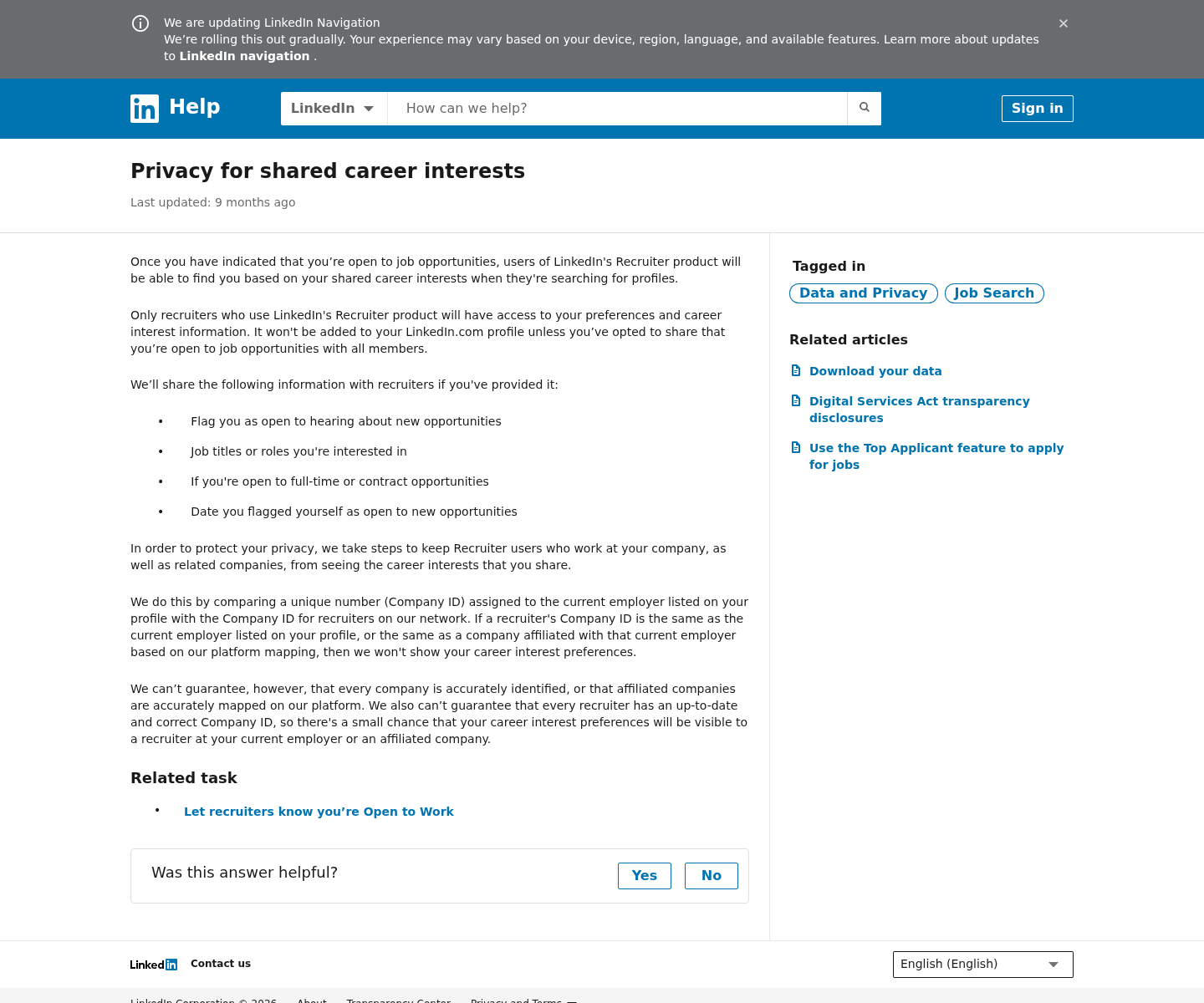
LinkedIn says it tries to exclude Recruiter users associated with your employer. Incorrect company information, related organizations, or a recruiter outside that mapping can limit the protection.
Your Résumé and Profile Updates Have Their Own Controls
A recruiter-facing availability choice does not stop profile change notifications or prevent a job poster from receiving information you submit. Check all three before an important application.
- Keep job recommendations without broadcasting availability: Choose the private preference option where available or remove the recruiter-facing signal.
- Use Recruiters only deliberately: Verify the current employer entry and decide whether the remaining disclosure risk is acceptable.
- Check other exposure: Review profile updates, saved résumés and each application as separate actions.
Decide What You Want to Disclose Before Changing the Setting
Start by deciding whether you want inbound recruiting messages or just a place to find job listings. You can review roles without announcing that you’re actively looking.
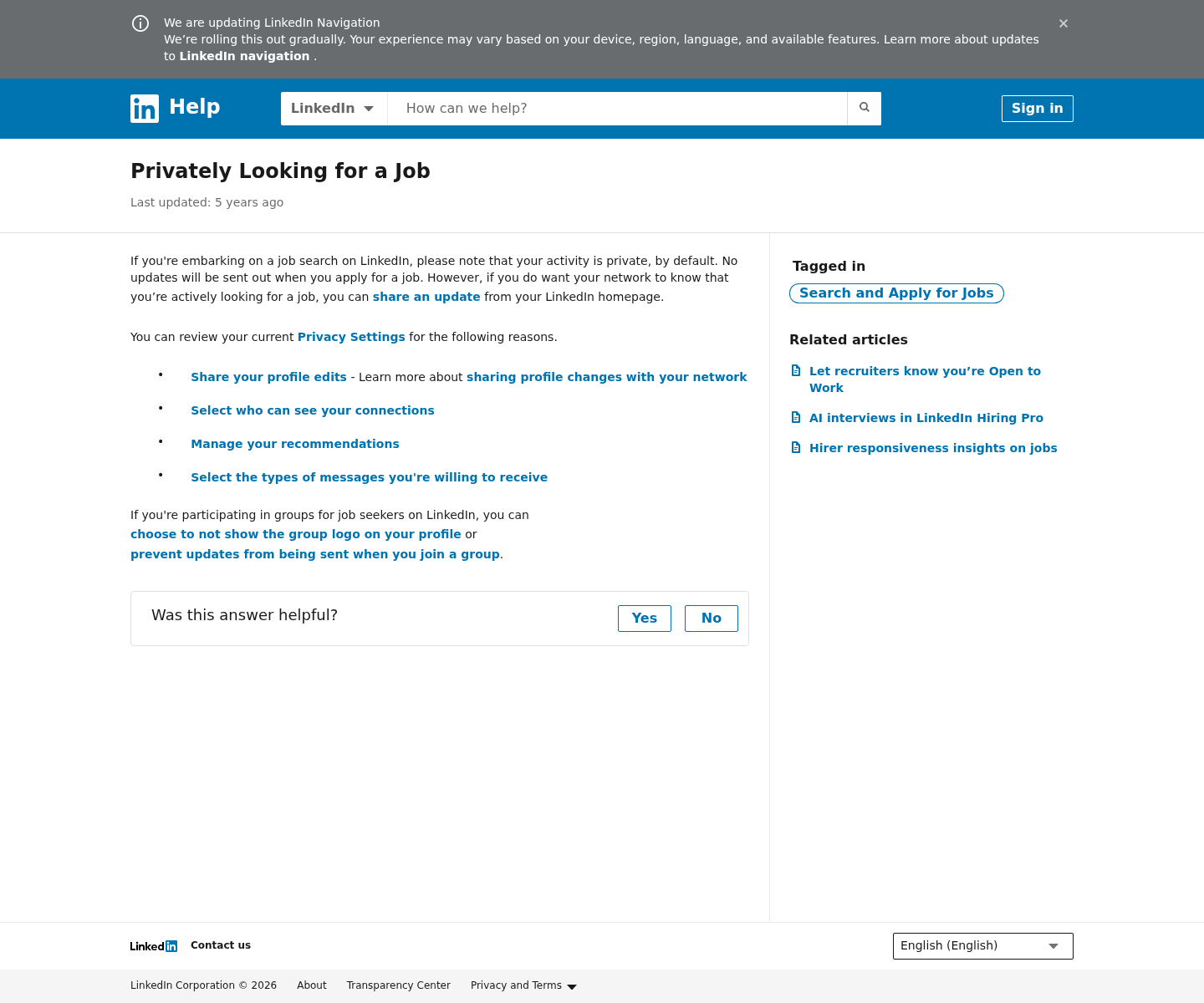
LinkedIn’s privacy FAQ says it does not send your connections or employer a notification when you view or apply for a job through LinkedIn.
That is not a promise that the recruiter or employer receiving your application won’t know about it. It is about alerts sent to your wider network.
Likewise, a person at your company can still see material you post publicly. A job search alert, a public post, and a submitted application are not one audience setting.
A study by Incogni surveyed 1,000 recent job seekers in the United States and evaluated the public policies of nine platforms. This guide answers a narrower LinkedIn settings question.
If the consequences of being identified are serious for you, do not treat a limited audience as a promise of privacy. Keep availability unshared and apply only where you intend.
For a quiet search, decide separately whether you want to keep job recommendations, share preferences with recruiters, and alert people you know. You do not need all three enabled.
What to Do to Change Open to Work Visibility on LinkedIn
Choose the Audience From Your Profile on Desktop
- Sign in to LinkedIn yourself, click Me, and choose View profile. Do not sign in through an unexpected recruiter link to change this setting.
- Click Open to and select Finding a new job. If the Open to Work card already exists, use its edit icon instead.
- Review the roles and locations you want to use. Then choose the visibility option that matches the audience you actually intend to reach.
- Choose Recruiters only to share the availability signal with LinkedIn Recruiter users rather than all LinkedIn members. This option isn’t a guarantee against discovery by your employer.
- Choose Visible only to you if offered and you want private recommendations. If your screen doesn’t offer it, leave the signal disabled when you need to avoid sharing.
- Click Save, then reopen the same control and check the audience. A missing green frame alone does not tell you whether recruiter sharing is active.
On desktop, you can also go to Jobs, open Preferences in the left rail, and select Open to work. Review the visibility choice before saving any changes.
LinkedIn’s help for Open to Work documents the two entry points and notes that some versions show different wording for the job preferences panel.
Make the Same Choice in the LinkedIn App
- Tap your profile photo, then tap it again to open your profile. Find Open to in the introduction card or use the existing card’s edit control.
- Choose Finding a new job if needed, then select your preferred audience and tap Save. Check the saved choice after you exit and return.
- If you want to stop using the feature entirely, open the card’s edit screen and choose Delete. LinkedIn says your previous preferences won’t be saved when you re-enable it.
Disabling the availability feature does not mean closing your LinkedIn account. You can still browse job listings and submit applications while leaving this particular signal off.
If you switched from All LinkedIn Members to Recruiters only, revisit the card and make sure the membership-wide option isn’t still selected. Check the profile photo as a second clue.
If the old green frame was baked into the image you uploaded, replacing the audience won’t remove pixels from that file. Replace the photo only if it actually contains them.
Deleting the card keeps you from reusing the previous preferences. If you want to use them later, make a private note of role and location choices before deleting.
Check What Recruiters Only Does and Does Not Protect
LinkedIn’s career-interest privacy guidance describes comparing the current employer recorded on your profile with company affiliations of Recruiter users. It says these matches may be incomplete.
Review your Experience section for the actual employer entry and whether it is marked as a current role. Don’t mark incorrect employment information to try to manipulate the filter.
Even when the company entry is right, an outside search firm may not be identified as part of your employer. Don’t rely on the filter to govern that relationship.
If a recruiter contacts you, they might have found your regular profile through skills or experience. Outreach by itself doesn’t tell you which visibility setting they saw.
There is also a distinction between what somebody can see inside a product and what they can share after seeing it. A private setting is not a confidentiality agreement.
For a role change within the same firm, confirm what the internal recruitment process shares before applying. LinkedIn’s availability controls don’t determine how the employer routes its own applications.
For an external recruiter, ask which employer they represent before sending a full résumé. The audience setting cannot make that decision for you after someone starts a conversation.
If you are applying through an agency, distinguish that agency’s staff from the employer ultimately receiving the file. Decide what contact details you want available at each stage.
Turn Off Unwanted Profile Announcements Separately
Profile announcements can draw attention even while you keep your job search unshared. Review this setting before making changes to your headline, education, or employment information.
- On desktop, click Me, open Settings & Privacy, and select Visibility. In the app, start at your profile photo and look for the same settings area.
- Under Visibility of your LinkedIn activity, open Share profile updates. Some versions use a longer label that names job and education changes and work anniversaries.
- Switch the control off if you want to suppress those automated updates. If a specific edit has a Share with network option, check it before saving.
- Open your profile and confirm you are comfortable with what the edited page itself displays. The notification switch does not hide edits from people who can visit the profile.
LinkedIn explains the profile update notification controls separately from job visibility. Turning off alerts now should not be treated as retrieving an alert somebody already received.
When checking the public profile, use a signed-out browser as a limited check of what’s visible there. It does not show what a connected member or Recruiter user sees.
Check manually published posts as their own audience decision. Changing an automatic announcement setting does not remove a post you already chose to share.
After a change, check your profile’s recent activity for anything you actually published. If a scheduled post announces your search, review that post’s own status separately.
A quiet profile changes how often connections receive certain alerts. It does not remove a note in your headline explicitly saying that you are looking for new roles.
Keep Useful Job Alerts Without Broadcasting Your Search
Search the kind of position you want in LinkedIn’s Jobs view. Use the job alert switch on the results page if you want recurring notices for that search.
On desktop, open Manage alerts and select the available frequency and delivery method, then click Done. Change the switch later if you want to stop those alerts.
Read LinkedIn’s job alert instructions if you use the mobile app. The documented mobile default can include both email and in-app notices.
A notification to your own mailbox is different from a broadcast to coworkers. Review the receiving mailbox and whether alerts are visible to other people who use your device.
For a personal search, avoid routing notices into an employer-managed mailbox. Use your own device and appropriate personal contact details, while respecting your employer’s device and account rules.
Review Saved Résumés and What You Actually Send
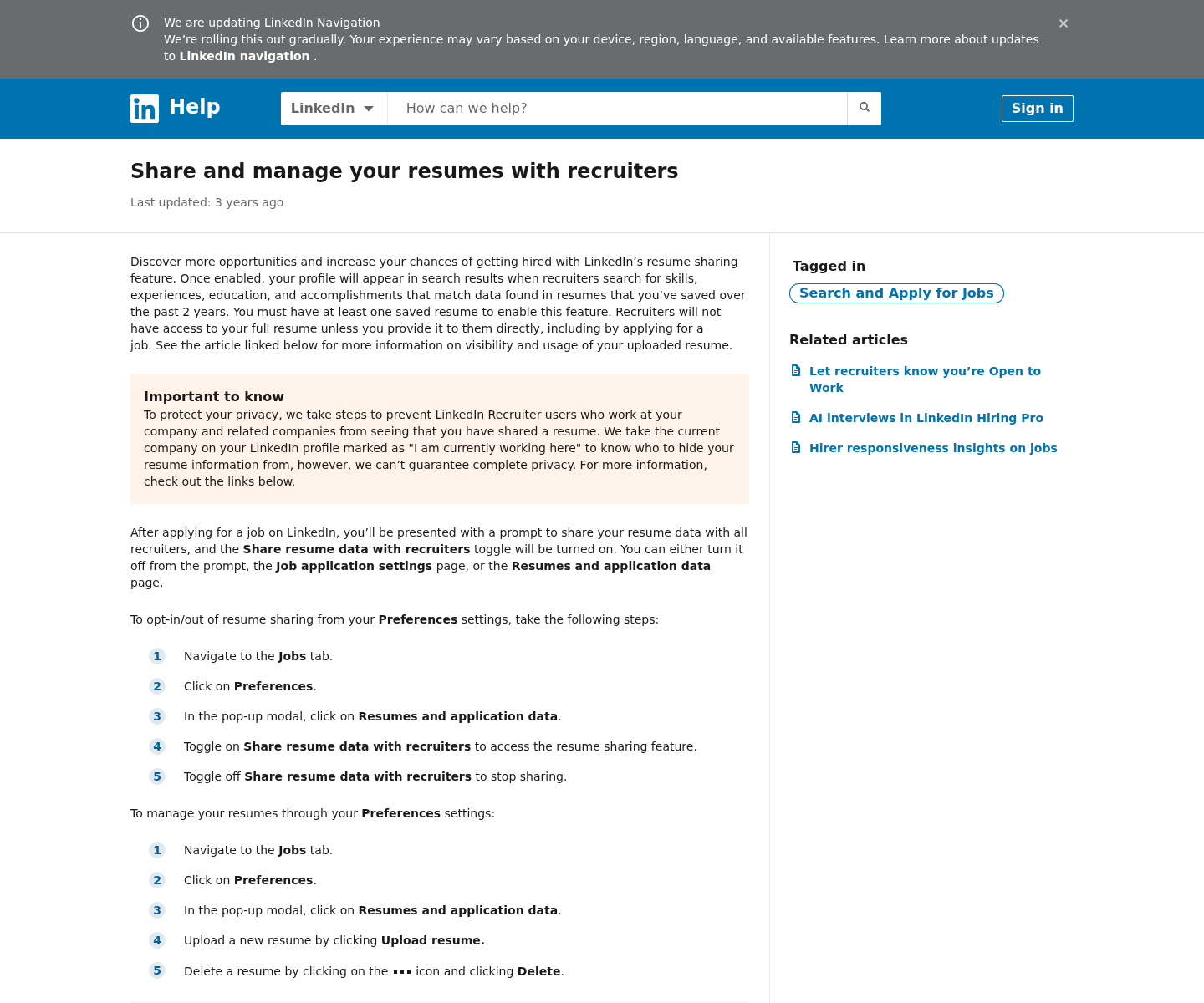
LinkedIn separates using your saved résumé information for recruiter discovery from sending an application to a specific recipient. You can decide about one without automatically approving the other.
- Open Jobs, select Preferences, and choose Resumes and application data. Look for the recruiter sharing toggle rather than a setting for availability.
- Turn off Share resume data with recruiters if you don’t want this use. Review the choice again if an application prompts you to share your saved résumé data.
- Open the menu for a saved résumé and choose Delete if you don’t need it. Keep an authorized local copy before removing a file you may need again.
- When applying, review the résumé and contact details selected in the application itself. If the form opens somewhere outside LinkedIn, check the recipient and that site’s own privacy notice.
LinkedIn’s résumé sharing help says recruiter discovery can use facts from saved résumés while the full document goes to recipients you share it with directly.
If you’ve already sent a résumé, turning off sharing does not recall an application. Contact the actual recipient if you want to ask about correction, withdrawal, or retention.
Before submitting, remove an unnecessary home address or reference’s private contact details from the file. Review the final attachment, not just the title shown in the uploader.
LinkedIn’s application data documentation says it includes your primary account email and full profile when you apply through LinkedIn, alongside the material you provide.
Check the primary email address on your account in advance if you don’t want an application associated with a particular address. Don’t assume the résumé header is the only contact.
Before changing your main email, make sure you can access the new mailbox and sign in afterward. Confirm the new address from LinkedIn rather than following a surprise confirmation link.
If a newly uploaded version omits a reference, check that the older version isn’t still selected when you apply. Two files with similar names are easy to confuse.
Choose the résumé you need for this posting, then read any screening answers before submission. A draft response in another field can disclose information even when the attachment is clean.
Keep a local copy of what you actually sent and note the recipient. If you later remove a saved file, you will still know which applications require a follow-up.
If a recruiter requests a government ID or banking details before you have verified the hiring process, pause. Confirm the role through the employer before sharing anything that sensitive.
If you’ve taken a new job, finish by revisiting your alert settings, availability signal, and recruiter résumé sharing separately. Some may still be useful even after the search ends.
When you remove a preference, reopen the controls once to confirm it stayed off. If a new application surfaces a sharing prompt, review it before completing the next submission.
Frequently Asked Questions
Does Recruiters Only Guarantee My Boss Cannot Find Out?
No, LinkedIn describes an effort to exclude relevant Recruiter accounts. It cannot guarantee the employer and affiliation matches, and other people may already know about your application.
Does a Green Frame Appear When I Choose Recruiters Only?
LinkedIn ties the green Open to Work frame to the broad member audience. Even without that frame, the recruiter signal can remain active.
Does Viewing a Job Alert My Network?
LinkedIn says it does not notify the network or employer when you view or apply for a job through LinkedIn. Sending an application still involves its recipient.
Will Turning Off Profile Updates Hide My Edits?
No, it controls eligible profile notifications. Somebody who can visit your profile may still see the changes when they open it.
Can I Still Apply if I Turn Off Open to Work?
Yes, you can search for jobs and apply without broadcasting availability. Review what the selected application asks for and who receives it before submitting.
Does Deleting a Saved Résumé Delete One I Already Sent?
No, manage previously sent applications separately. Removing a saved file from your own LinkedIn preferences does not recall a copy a recipient already received.
The Bottom Line
For a discreet search, don’t broadcast Open to Work by default. Use private recommendations or leave the signal off when you can’t accept the risk of employer discovery.
Before applying, confirm the audience, turn off unnecessary profile announcements, and inspect your selected résumé. Treat the application you send as its own deliberate disclosure.

Join the discussion
0 commentsShare your experience or ask a question about this article.
Discussion
Start the conversation
Have a question or something useful to share? Add the first comment.