


With Apple Ask to Browse, a child can ask to open a website that Screen Time restricts, and a parent or guardian can decide on that specific request.
This guide covers what happens when a request arrives, what to check before approving it, and how to take back access without switching off the family’s web restrictions.
Overview
The Request Is Separate From the Filtering Rule
A filtering rule decides when access is restricted. Ask to Browse is the family workflow that lets a child ask an authorized adult to make an exception.
An Approval Can Outlast the Original Activity
Apple adds an approved website to the allowed list. Set a separate reminder to review the approval if the child needs that site only for a temporary activity.
Revoke Access to One Website Rather Than Changing the Whole List
Open the child’s Apps & Websites settings and block the approved entry. Keep the rest of the child’s settings in place while you check the outcome.
- Request received: Confirm who asked and inspect the actual website before deciding.
- Request missing: Check the family role, supported software, contact, and whether that request has expired.
- Approval no longer needed: Find the approved entry and block that website for the child.
Make Sure You Are Using the Family Approval Workflow
These steps are for the Family Sharing organizer or a parent or guardian, not for changing restrictions on an account you don’t manage. Ask an administrator about school devices.
Open Settings and choose Family on iPhone or iPad, or open System Settings and choose Family on Mac. Confirm the child’s name appears there.
The child needs their own Apple Account in the Family Sharing group. Sharing an adult’s account with the child does not establish the separate relationship this workflow requires.
On the child’s device, make sure the organizer or intended parent or guardian is in Contacts. Apple lists this as a requirement for sending requests for approval.
Check the installed software and whether the household upgraded to the newer Screen Time controls. Apple documents Ask to Browse in iOS 27, iPadOS 27, and macOS 27.
If one family device still needs to be updated, note that before giving up on requests. Apple provides version and family setup requirements in its Ask to Browse guide.
On the adult’s device, select the child and go to Apps & Websites, Restrictions, then Filtering under Websites. Choose Approved Websites Only for an allow-list workflow.
This is enough to identify the setting that the request workflow depends on. For older controls or a manual block list, use our Safari filtering guide.
Do not use an unrestricted setting just to see whether the request works. That test changes the behavior you are trying to validate and may hide the actual problem.
What to Do When an Ask to Browse Request Arrives
Review the Request on Your Own Device
- On your own iPhone, iPad, or Mac, open the message containing the pending request. Check that it belongs to the child you intend to respond to.
- Review the website shown in the request. Ask your child what they need it for before approving an unfamiliar service or a site that asks them to sign in.
- Decide whether to approve or decline it in the message. Apple’s documented options are for the Family Sharing organizer or a parent or guardian.
- Ask the child to retry the website in the same supported browser. Confirm the route works before deciding that the approval solved their problem.
Approving a website doesn’t confirm that its downloads are safe. A familiar school page could contain links to unfamiliar services, and those destinations deserve their own checks.
For an unexpected request, check the address against information you already trust, such as the school’s portal or a previous notice. A familiar icon is not enough.
If your child asks for a game guide but you don’t recognize the site, ask them where the link came from. You can pause before deciding.
Look for the actual domain rather than the title of the page. An address can put a familiar name in its path without being owned by that service.
If the requested link is shortened, ask where it came from and look for the known destination separately. A parent can decline until the requested access makes sense.
When the site asks for account information, verify the provider or school relationship before anyone signs in. An approval should not substitute for checking an unfamiliar sign-in page.
Make the decision in the original family request on your device, not in a text link claiming that parental approval is required. The child can send it again if needed.
Apple says the child receives a notification if you decline. If you never answer, the child needs to submit the request again after 24 hours rather than wait indefinitely.
The 24-hour period does not mean an approval lasts only one day. Once approved, that site stays accessible under the documented workflow unless you block it later.
Respond on the Child’s Device When You Are Together
- Have the child return to the blocked website in the supported browser and choose Ask Permission when that option appears on the blocked screen.
- As the authorized adult, choose Enter Screen Time passcode and enter the code yourself. Follow the prompts to decide whether to allow the website.
- After the decision, retest the original website. Do not share the settings passcode with the child or enter it into a form on an unrelated web page.
Use the in-person route if you can confirm the child and website directly. It also provides a way to respond without needing to find the message on another device.
Do not use that shortcut on a device you do not manage. If an administrator controls restrictions, send the name of the legitimate resource to the authorized person instead.
Approve a Website in Advance Without Opening the Filter
A child may need a known portal before a parent is available to answer a request. Use the manual entry option for that specific website rather than allowing general browsing.
Open the child’s Apps & Websites settings, use the add control, and enter the website you intend to allow. Check it appears in the Allowed list.
Apple describes this process in its guide to blocked and allowed websites. Compare the new entry with the known address before leaving the settings panel.
A site may open another domain during sign-in or checkout. If that address triggers another request, verify it rather than approving it on the original site’s reputation.
When helping with a one-time event, record the site and the date it is no longer needed. This makes the approval easier to find without keeping an unnecessary access list.
When two guardians handle approvals, agree who will review project sites and when. An approval by one adult should not surprise the other when they later inspect the list.
Use a private note with the site and purpose rather than keeping a copy of the child’s conversations. The review only needs enough context to identify the approval.
Remove Access to a Website You Previously Approved
On iPhone or iPad
- Open Settings, tap Family, and select the relevant child. Open Apps & Websites instead of returning to the general filtering chooser.
- Find the website in the allowed list, open that entry, and tap Block Website. Check the website and child name before confirming the decision.
- Tap Block Website again to confirm. Enter your Screen Time passcode if prompted, then check the entry moved to the blocked list.
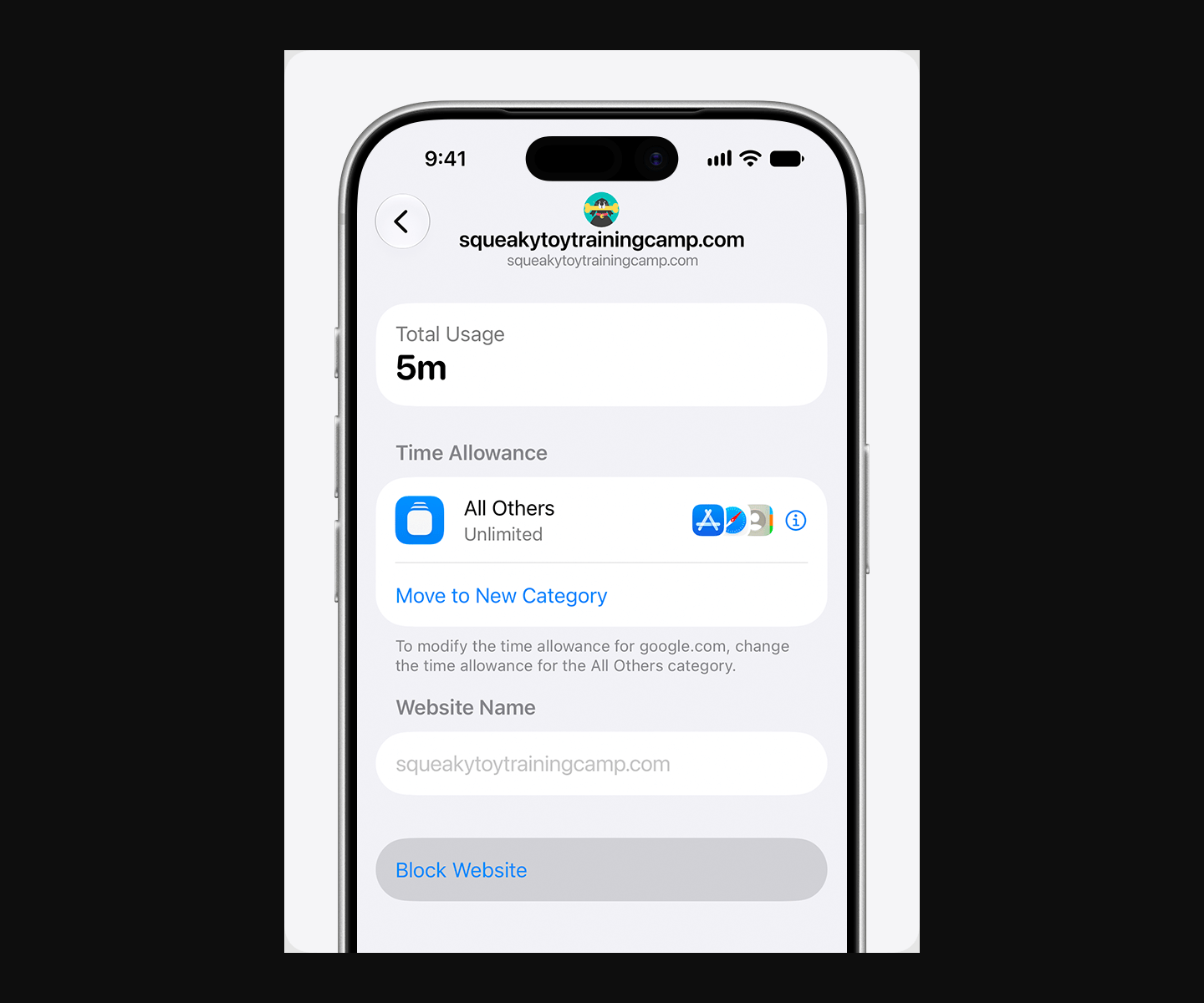
Apple’s example shows the website detail page and its Block Website control. Select that entry instead of disabling the filter for the entire family account.
On a Mac
- Open the Apple menu and choose System Settings, then choose Family. Click the child’s name and open Apps & Websites.
- Choose the site, select Block, confirm with Block Website, and finish with Done. Check the selected family member before closing Settings.
- Retest from the child’s device and the supported browser that mattered. Check that the intended site is restricted and that an unrelated permitted site still opens.
A change for the selected child should not be treated as a change for every sibling. If parents manage more than one account, review each approved entry separately.
If the site still opens, compare the saved entry and the actual address appearing in the browser. A different website in the same flow may have its own permission.
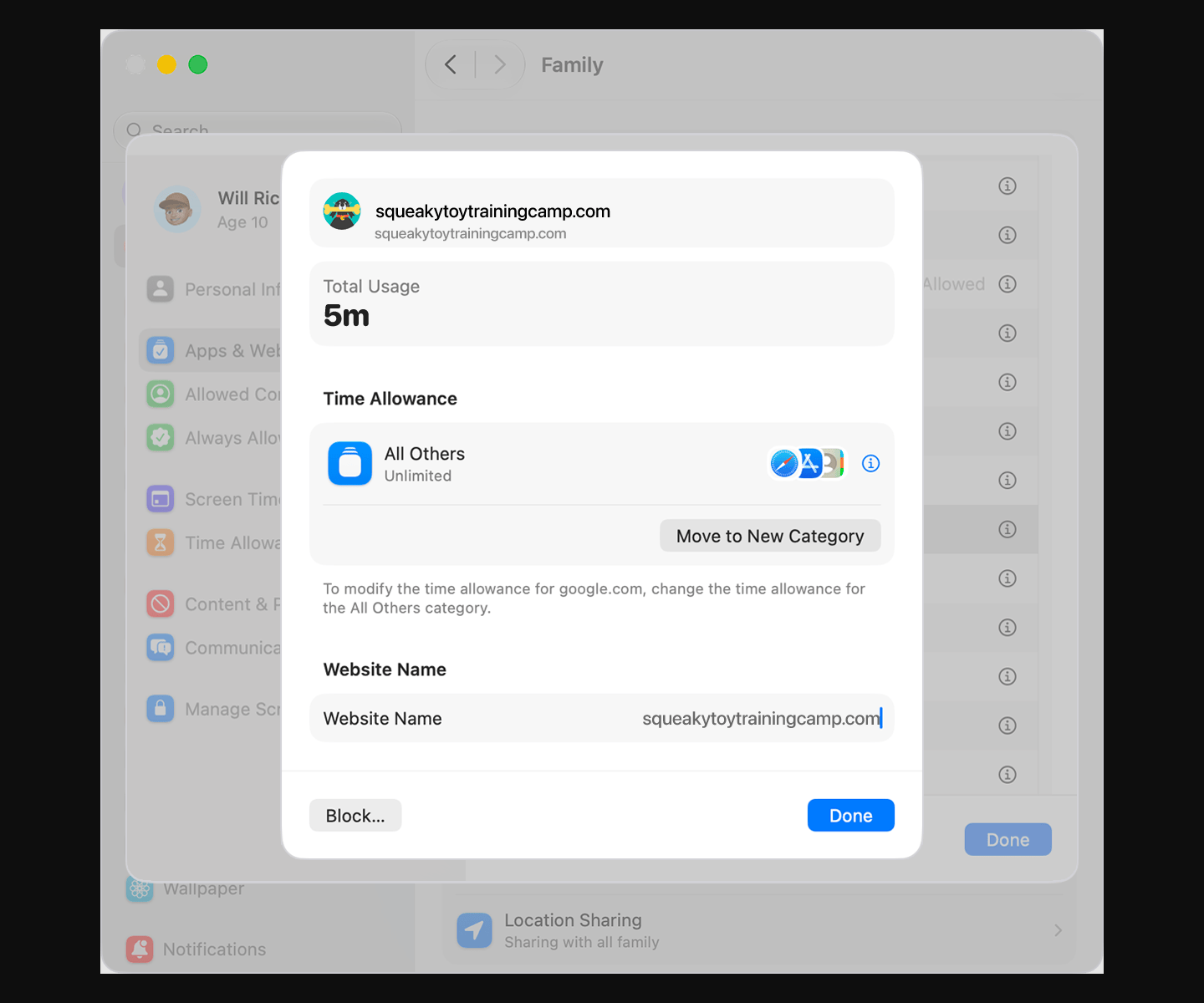
Review the blocked list before adding the same entry again. An older decision may still be visible there, which is more useful than guessing from the browser alone.
If you removed approval by mistake, verify the address again before restoring it from Apps & Websites. The same website can change owners or content over time.
When you are checking a recurring approval, consider whether the original activity still requires that website. Confirm the trusted address for this term before leaving an old entry active.
Find Out Why a Request Never Arrived or the Website Still Won’t Open
Nothing Appears on the Parent’s Device
Ask when the child first sent the request. A request more than 24 hours old needs to be made again. It isn’t necessarily a failure of Family Sharing.
For a fresh request, confirm the child selected the permission action on the blocked page. Then verify the family role and that the adult’s contact exists on the child’s device.
Check the approved application and software first. Apple supports Safari and certain other browsers on eligible versions; it does not promise that every in-app browser uses the same request flow.
Try one harmless website in Safari after verifying the family configuration. Keep the current restrictions and avoid changing accounts or toggling off Screen Time to force the issue.
The Request Was Approved but the Activity Still Stops
Open Apps & Websites and confirm the approval belongs to the expected child and site. Compare the requested address with the page where the child now gets stuck.
If that page is a sign-in destination listed by the school or service, investigate its address independently. Do not assume permission on the first page automatically approves every subsequent one.
If the browser never reaches the expected page because the app itself is unavailable, check app restrictions separately. Website approval does not grant an app installation or change time allowances.
Don’t loosen unrelated restrictions to finish the test. Take note of the account, device, browser, and screen where the issue happens before looking for a wider cause.
Confirm Both Sides of the Change With a Harmless Test
Pick one innocuous site that is not already allowed and one known permitted site. On the child’s device, confirm the first needs approval and the second still loads.
Send the request to the intended adult. Check that the message identifies the expected site before you approve it, then confirm the child can reach that site in Safari.
When the test is over, block the test entry and retry the same address. Confirm the previously permitted site still works after you remove the temporary approval.
Use this test after upgrading family controls or replacing a device, not as a reason to change the rules on every device. It checks one outcome with minimal disruption.
If the site opens on one device but not another, record each software version and which account is signed in. Review the mismatched device before making any broader change.
Keep time controls and app restrictions in place while you test. Otherwise a second change can make it harder to tell whether website approval was actually the problem.
Frequently Asked Questions
Does a Parent Have to Wait for a Request Before Allowing a Site?
No, an authorized adult can add a known entry manually in Apps & Websites. A trusted resource can therefore be approved before a planned activity starts.
What Happens if I Do Not Answer Within 24 Hours?
Apple says the child needs to submit the request again. That deadline applies to the pending request and does not put a time limit on an existing approval.
Can I Respond on the Child’s Device Without Sharing My Passcode?
Yes, use the passcode option in the Screen Time permission prompt and enter it yourself. The child does not need to know or handle the code.
Can the Child Still Open an Approved Website Later?
Under the documented workflow, it stays on the allowed list until you block it. Check the entry after any temporary event or change in household rules.
Why Can the Child Reach the School Homepage but Not the Lesson?
The lesson may take them to a different website, and that address can have its own restriction. Identify the destination before considering another approval.
Does Ask to Browse Replace Ask to Buy?
They serve different purposes. Ask to Browse handles website requests; Ask to Buy concerns eligible purchases or downloads, so one approval does not settle both.
The Bottom Line
Use Ask to Browse to make a decision about one website at a time. Check the child’s account and actual destination before approving, especially for an unexpected request.
When the approval is no longer useful, block that entry from Apps & Websites and retest. You can maintain the rest of the family’s rules while taking back that access.

Join the discussion
0 commentsShare your experience or ask a question about this article.
Discussion
Start the conversation
Have a question or something useful to share? Add the first comment.