


Apple HomeView is a shared display, but a guest’s music request and your private calendar entry are not supposed to appear under the same access rules.
Use this guide to turn off Personal Content, separate incoming calls from profile access, review guest permissions, and remove a local profile when someone no longer uses the display.
Overview
Personal Content and Personalization Are Different
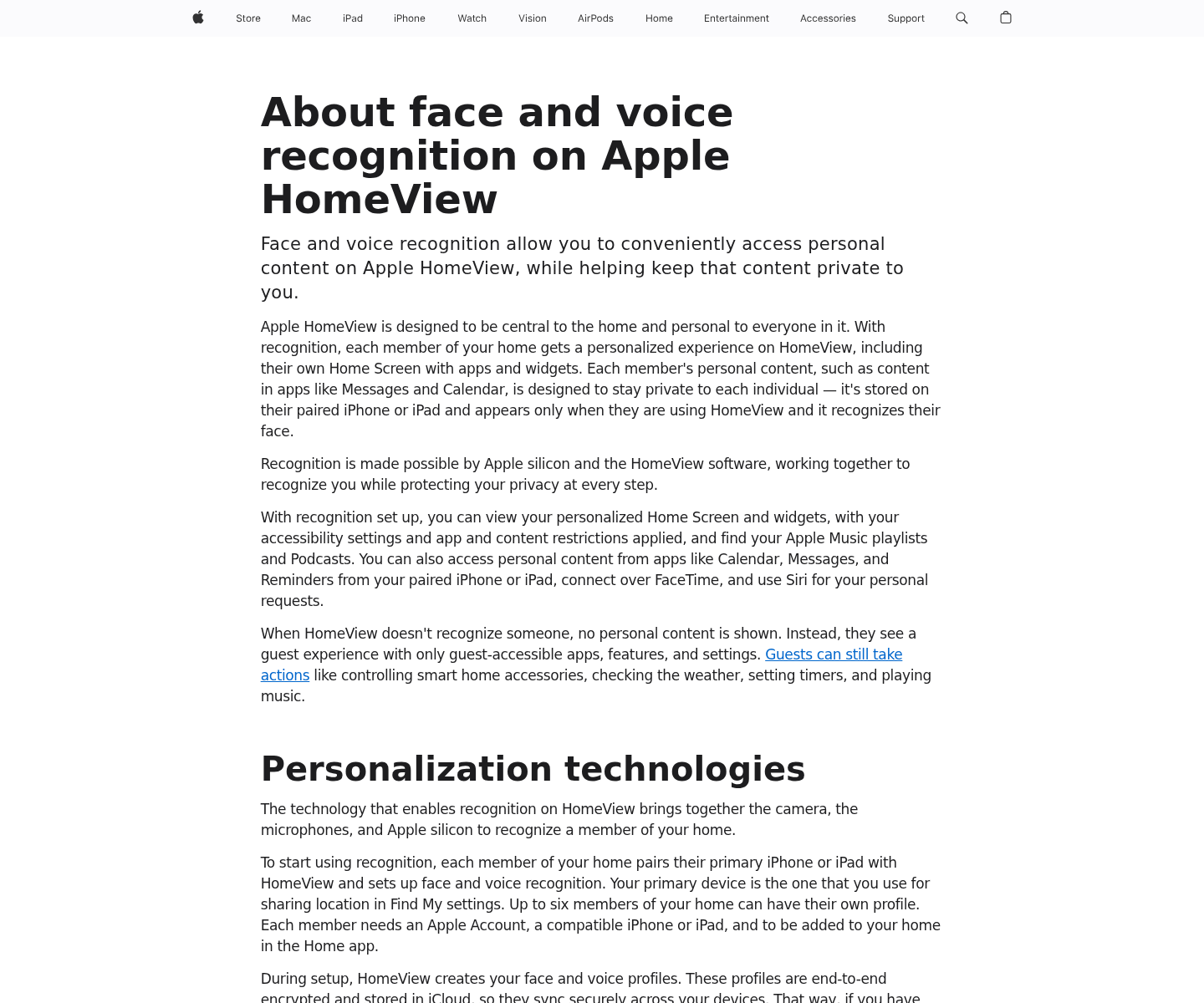
Personal Content includes private information such as messages, calendars, and reminders. A profile can also have a particular Home Screen, widgets, and playlists that are not equally private.
Nearby People Can Still Use Some Shared Features
An unrecognized person does not get your private messages. That person may still be able to use a timer, play media, or control some smart home accessories.
One Change Does Not Cover Every Display or Device
Personal Content is a per-device choice. Removing a profile from a HomeView does not delete the person’s Apple Account or replace a separate review of Home app permissions.
- Keep the profile: Turn off Personal Content on the individual display where you want less exposure.
- Reduce shared options: Review what a guest can do without a recognized profile on that device.
- Remove a profile: Use the People menu on the display when someone no longer needs it there.
Decide What You Want Off the Shared Screen
Start with a concrete example from your household. Calendar previews, an incoming FaceTime call, and a guest opening Safari are three different events and use different settings.
Do the review on the HomeView where the issue happened. Two displays signed into the same home can occupy different rooms and expose their controls to different people.
Check the account you’re using before changing a setting. Personal Content belongs to a profile; some guest controls are managed by the homeowner or a person with admin permissions.
Apple describes up to six recognized profiles. The device can show someone their own layout when recognized, while private content depends on additional conditions involving that user’s paired device.
Apple says recognition of your face and recent authentication on the paired iPhone or iPad help govern when private material is accessible. Its documentation describes network and location requirements.
Do not use your phone leaving Wi-Fi as the privacy control. Apple documents a limited cellular exception involving a recent connection, the same location, and recent authentication.
If messages never belonged on a display in a guest area, disable Personal Content there. That is less ambiguous than waiting for your paired phone to become unavailable.
What to Do to Limit Personal Content on Apple HomeView
Turn Off Private Content Without Removing Your Profile
- Swipe up from the bottom of the HomeView screen to reach the Home Screen. Open the Settings app on the display itself.
- Tap your name in Settings. Verify the profile matches the person whose messages, calendar, and reminders you want off that device.
- Turn off Personal Content. Leave the profile in place if you still want its supported personalization without showing private content.
- Return to the main display. Confirm the change using a harmless item that only you control, rather than opening a private conversation while someone else is nearby.
- If the home has a second HomeView, review that display separately. Repeat only for the devices where you want to change what the profile can show.
Apple says Personal Content is enabled by default when recognition is set up. Review it deliberately after setup rather than assuming the shared nature of the display disables it.
Do not assume a visible playlist proves messages are accessible. HomeView distinguishes a person’s personalized layout or preferences from protected app information, and those categories do not disappear together.
Similarly, turning off Personal Content does not promise that the display will become anonymous. General home information and guest-accessible apps may remain, along with some personalized elements.
If you use the display in a shared entrance, check the selected clock face and its widgets as well. Removing a widget addresses visibility without changing profile permissions.
On a unit in a more private room, you may choose to keep Personal Content enabled. Review what is actually presented rather than copying the entrance settings automatically.
Review Incoming Calls as a Separate Choice
Open HomeView Settings, tap your name, and find Incoming Calls. Turn it off if you do not want calls from your paired primary device to appear there.
Ask someone you trust to place a routine test call while you are present. Confirm that it still reaches your normal device but does not surface on the shared display.
This is particularly useful on a unit near an entrance, where you may be comfortable showing a clock or weather but not want a caller’s name visible.
If Settings does not show your name, first check whether you are using your own recognized profile. Avoid changing a housemate’s settings to solve a problem on your account.
Review Guest Controls Before Someone Else Uses the Display
On HomeView, non-profile access is not the same thing as joining the household in the Home app. A visitor can use supported shared features without getting your account.
Sign in as the homeowner or an authorized admin before changing the experience for all guests. Confirm you are comfortable with the effects on children and other residents.
- Open Settings on HomeView, choose People, and open the settings for unrecognized people. Apple documents this area in its HomeView guide.
- Review Safari access first. If guests need browser access, check the available web content restrictions; otherwise disable Safari for that guest experience.
- Review the guest Siri settings and allowed media. Restrict capabilities you do not want on a shared screen instead of adjusting a resident’s separate Siri settings.
- Use HomeView as an unrecognized person, with a willing guest if available, to check the expected shared features without opening private items.
Apple’s guidance for families also describes a Content Restrictions pane under People for guest browsing, explicit content, and Siri AI capabilities.
Do not rely on what an adult’s recognized account can see as a proxy for a guest check. Returning to a neutral screen before testing avoids confusing the two profiles.
A child with their own recognized profile is a different case. Some restrictions from their paired iPhone or iPad carry over, so check their family settings as well.
Do not remove family restrictions just to see which switch is active. Use a harmless test that checks whether an app is available, not a page you intended to block.
Remove a HomeView Profile or Review an Unexpected One
When a Person Stops Using That Display
For authorized household maintenance, open Settings on the HomeView. Tap People, select the correct local profile, and choose Remove if that is the intended scope.
Apple says the person loses access to their Personal Content and personal Siri requests on that display. Their Apple Account and the information it holds are not deleted.
After removing the local profile, go back to People and check the intended identity. If there are several displays, verify the list on each affected device separately.
Moving out may require a separate review of Home app access, including invitations and accessory permissions. Removing the display profile by itself should not replace that review.
On an iPhone or iPad you manage, open Home, tap the More button, and select Home Settings. Under People, confirm which homes and people you are reviewing.
Tap the affected person to inspect the access granted there. The home owner can remove home membership if authorized, but should understand which other permissions depend on it.
For example, changing a former resident’s access to smart accessories is different from not showing their calendar anymore. Establish what needs to stop before using the broader removal.
Apple’s Home sharing instructions describe the distinction between remote access, edit permissions and removal. A device shared another way may need its own access review.
When the Display Recognizes the Wrong Person or No One
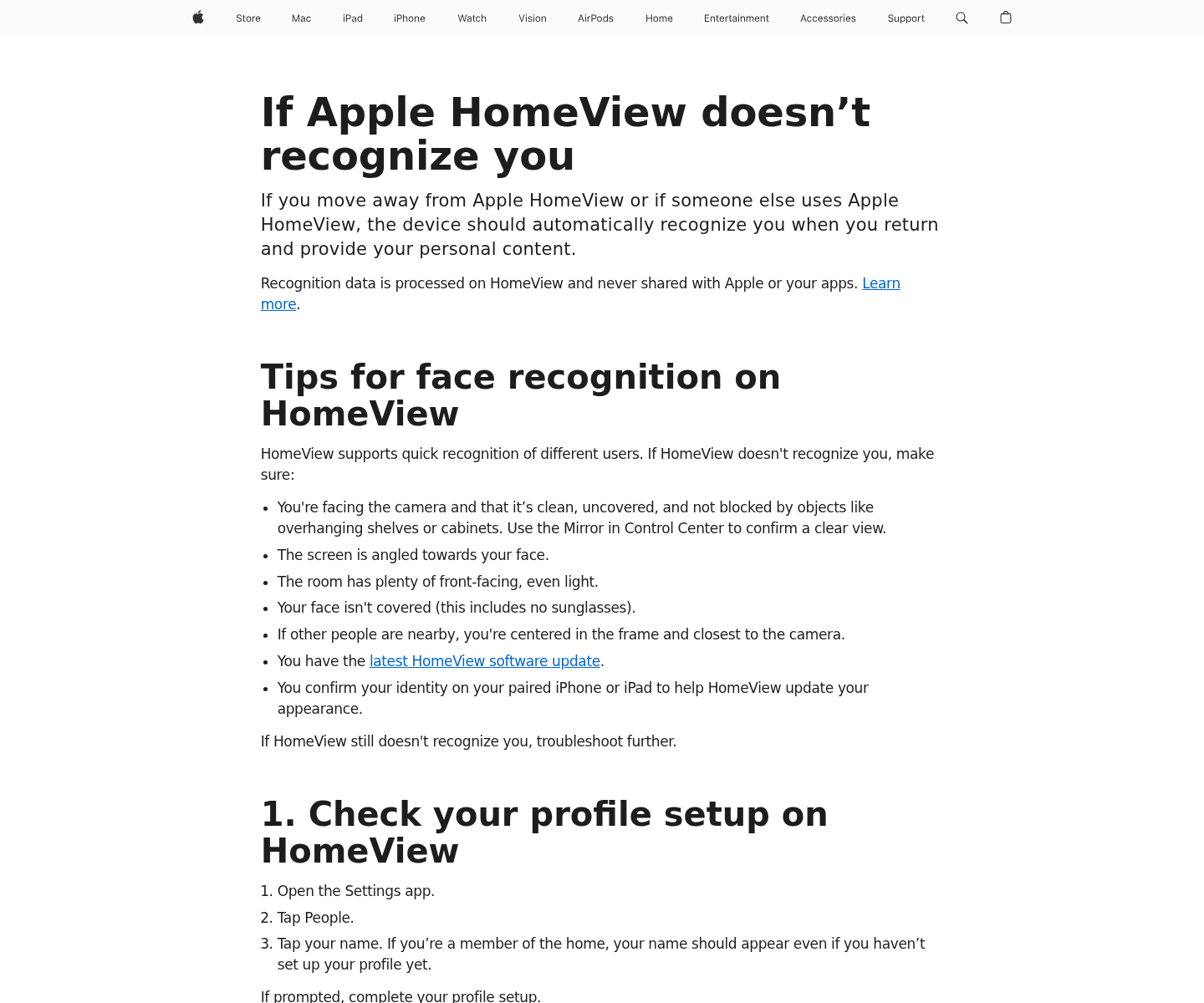
On HomeView, open Settings, go to People, and select your name. This tells you whether the intended profile is present without enrolling a different person.
If HomeView asks you to identify yourself on your own paired device, check that the prompt belongs to the display you’re using. Do not accept an unexpected request blindly.
Follow Apple’s recognition troubleshooting instructions to review the device angle, lighting, and pairing. Initial recognition problems do not automatically mean someone accessed your account.
If an unfamiliar name appears, verify it with the homeowner before removing it. A resident can be known to the household but use an account name you do not recognize.
When a test suggests someone else can reach actual private app content, turn Personal Content off on that display while you check the profile, pairing, and recognition settings.
What the Camera Indicator Tells You and What It Does Not
Apple’s HomeView recognition documentation describes an orange indicator for app microphone use and a green indicator for app camera use, with or without microphones.
The same documentation says these indicators do not appear for face and voice recognition processing. A dark indicator area is not proof that no recognition is taking place.
Apple says the data used in recognition is processed separately and discarded, rather than retained as a room feed. We did not independently measure the sensor or device.
Apple also describes encrypted face and voice profiles stored through iCloud. A stored profile and the temporary pictures or audio used to compare against it are different things.
Do not read the recognition setting as a toggle for every sensor use. Personal Content, recognition, an active call, and a separate Home-compatible camera answer four different questions.
If the concern is a separate security camera in the Home app, inspect the settings for that camera specifically. Stopping a HomeView profile does not stop an accessory from recording.
The Home camera guide describes storage for compatible HomeKit Secure Video accessories. An iCloud+ recording period for those cameras is not a retention period for the HomeView recognition process.
On an iPhone you manage, choose the relevant camera tile in Home and open its settings. Review which person can view the stream before you change any access.
If playback history appears under an accessory, identify the camera by name. Do not assume the stream belongs to the HomeView merely because you can view it there.
For a sensitive room, consider whether you need a shared display there at all. Placement can solve an exposure problem that takes several profile controls to manage otherwise.
Check the Result Using the Right Kind of Access
After a change, test the behavior you set out to stop. A hidden calendar does not tell you whether calls still appear or whether guests can open Safari.
Create a harmless reminder on your own device and check whether it stays off the display when expected. Do not use personal messages to demonstrate the privacy setting.
If Personal Content is supposed to stay available, confirm your paired device is present and recently unlocked before testing. Otherwise a failed test may only reflect unmet access conditions.
Resolve an incorrect profile separately from an incorrect accessory permission. In a household with several administrators, agree on which person will make and confirm each change.
Have another willing resident check their own profile if appropriate. That verifies you did not disrupt an account that was supposed to keep its own personal access.
Finally, write down which display and profile you changed for your household. A quick note helps when you add a new screen or reconsider what guests can do.
Frequently Asked Questions
Can a Guest Open My Messages From My Profile Layout?
Apple says manual profile switching does not by itself grant private app access. Recognition and the conditions involving your paired device still apply to Personal Content.
Should I Unpair My iPhone to Avoid Incoming Calls?
Start with the separate Incoming Calls setting on your profile. Change the paired device only if it is the underlying problem you are trying to solve.
Does Turning Off Personal Content Disable Face Recognition?
These are separate controls. Personal Content limits private app access; use the recognition setting or the authorized profile removal path if recognition itself is the concern.
Why Can a Visitor Still Use a Timer After I Removed Their Profile?
Timers are among the shared features Apple lists for unrecognized people. Removing a profile is not meant to lock every function on the display.
Will Removing a Profile Delete Its iCloud Data?
Apple says removing a profile from HomeView does not erase its Apple Account or personal data. Manage account data separately from this device’s profile list.
Does HomeView Face Recognition Create a Security Camera Recording?
Apple says the images and audio used for recognition are discarded after processing. A separate camera configured in the Home app has its own settings and storage behavior.
The Bottom Line
Use Personal Content to limit private app information on one HomeView. Then check Incoming Calls, guest access, or profile removal only where the corresponding behavior needs to change.
Finish with a harmless test on the actual display and profile you changed. Avoid resetting the entire device when the issue belongs to one switch.

Join the discussion
0 commentsShare your experience or ask a question about this article.
Discussion
Start the conversation
Have a question or something useful to share? Add the first comment.