


An app can feel familiar before you even open it. The icon is where you expect it, the menus look right, and the feature you wanted still works.
If you installed it from a file someone sent you, check where that copy came from. You can ask that question without opening it again.
Overview
The counterfeit copy is the issue, not the original app
Cellik is an Android remote access Trojan described by researchers at iVerify. The operators advertised a tool for creating modified copies of genuine apps rather than inventing a new interface.
A malicious copy can look like a real app and may keep useful parts of it. Functionality doesn’t make a file authentic when it came through an unofficial route.
An untouched app in Google Play and a repackaged copy sent over chat are different things. One being available through the official store doesn’t make the other an official install.
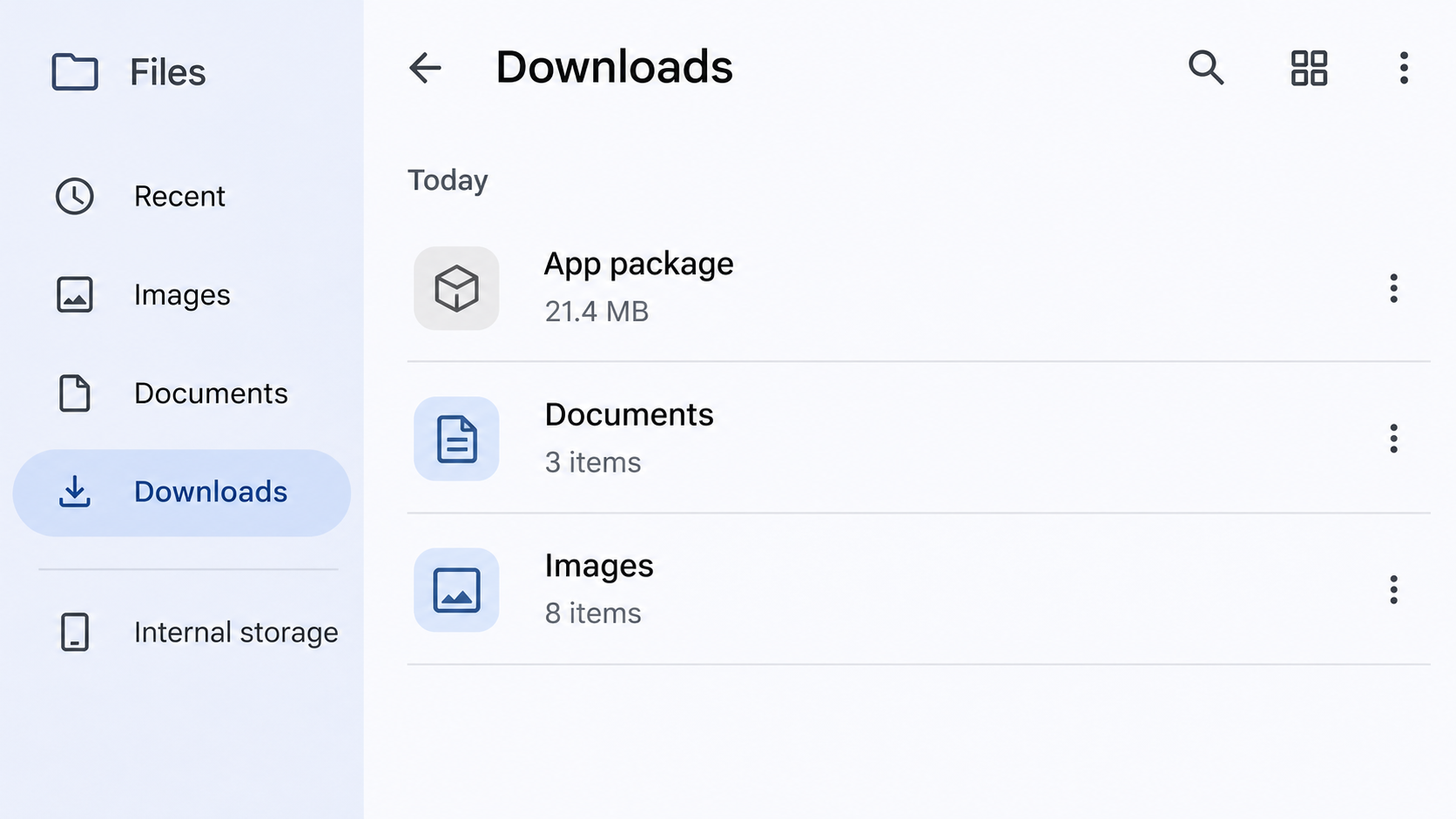
The Downloads image here is a reconstruction, not a picture of a specific app. The important question is which file your phone received and how Android installed it.
What the research says about Google Play
The reporting describes a tool that can select real apps as the basis for modified packages. It doesn’t establish that the modified copies were distributed through genuine Google Play listings.
The seller claimed it could evade Play Protect. That claim is not a promise of success, and it isn’t proof that Play Protect was actually switched off on someone’s phone.
Reported behavior includes screen access, viewing notifications, and obtaining information through imitation interfaces. The actual impact depends on whether the copy was installed and what access it obtained.
An unknown app may ask for permission to act outside its stated purpose. Think about what you granted rather than assuming the app received every capability named in the report.
Prioritize the facts that identify your copy
- Record whether you found the app in Google Play or received a separate Android package.
- Check what persuaded you to install the file instead of using the official listing.
- Note any unexpected access requests, especially accessibility or notification access.
- Tell the account provider if the app showed a strange prompt while you were signed in.
- Check with your administrator before removing tools from a work or school phone.
The quickest place to begin is often the original message or Downloads entry. Get the name and time without tapping an APK to see which app it opens.
How Cellik Can Reach an Android Phone
Step 1: A person is offered a different copy of a familiar app
The advertised Cellik tool is built around repackaging. The copy can inherit the appearance of an ordinary program while arriving through a link or file the official developer didn’t provide.
Someone may describe an outside install as an update or a special edition. Verify the claim with the real developer before opening the attachment or approving any installs.
If you received it through a friend, ask them how they obtained the file. A legitimate contact can pass along a questionable download without knowing what it contains.
Step 2: Android treats an app package as an installation
Saving a package is not the same as approving installation. If Android asked whether to allow the browser or chat app to install from that source, note how you answered.
The approved source setting belongs to the app providing the package. Installing from a familiar browser doesn’t mean a website you visited through it was verified.
Android can block or warn about outside installs. If an unknown sender tells you that the warning is normal, don’t make an exception based on that reassurance.
Step 3: The familiar interface can keep working
A modified app may still do the ordinary thing you installed it for. The difference can remain hidden when the icon, menu, or first screen still looks familiar.
The reported threat can get additional access that affects other activity on the phone.
What it can see depends on the installed copy and access, not the features of the real app.
If a prompt appears over another app, stop before entering personal or payment details. Check what the real service wants from a separate device.
Step 4: Other services may have to review their own records
An app with notification access can make an ordinary sign-in approval more sensitive. The provider can check which requests actually reached its account and which actions it recorded.
The risk does not end just because the outside app was uninstalled. If the account was already used, removal cannot undo the activity or revoke an existing session.
Don’t let a single phone symptom settle the outcome. Verify payments and sessions independently, then check whether the suspect app and its access remain on the device.
What to Do if You Installed a Suspect Cellik Copy
-
Pause account activity on the affected phone. If Android still responds normally, disconnect Wi-Fi and mobile data when you can safely do so. Use a trusted device for recovery.
A phone that belongs to work may have a specific incident process. Tell the administrator about the installation before removing anything that it may need to inspect.
-
Save evidence of the route rather than reopening the file. Note the message sender, time, advertised app name, and whether you installed the copy.
Write down which permissions appeared and what you remember approving. Don’t send the executable package to a friend or a public group.
-
Reach the affected services through established channels. If you typed details into an unexpected prompt or saw an approval you didn’t recognize, use the actual provider’s known contact.
Tell it which phone or account was affected and when the activity happened. End unknown sessions or revoke access where the provider offers a way to do so.
-
Contact the bank promptly if money is involved. Tell it about the application and the exact transaction or challenge you didn’t expect. Use a separate trusted phone or computer.
Ask which mobile access or saved payment method needs attention. Don’t rely on an app scan to confirm that a transfer was canceled.
-
Warn others who received the same file. Give them enough information to identify the file without sending it again. Contrast its source with the app’s established official route.
If someone you know sent the file, let them verify their chat account independently. Don’t claim their account was stolen just because the download file was suspicious.
-
Confirm how you will regain normal access. If the phone usually receives recovery codes, work out an alternate way to verify important accounts while it is offline.
Use official account support if you can’t sign in. No helper needs your passwords or codes simply to see which app you installed.
How to Remove a Suspect Cellik App From Android
Step 1: Identify the installed copy before touching another app
Open Settings > Apps and locate the installation from the date you remember. The icon may resemble the original app, so compare it with your own installation history.
If the name alone doesn’t distinguish the copies, don’t open the app to test it. Ask phone support or your administrator to help establish what was installed.
Some Android models can open app details in the store. A corresponding store listing shows that a genuine app exists, not necessarily that the installed copy was obtained there.
Step 2: Review special permissions and remove the confirmed app
Use Settings search for Accessibility and Notification access. Inspect the confirmed suspect app rather than making blanket changes to legitimate accessibility services or work tools.
Find Install unknown apps and review whether the browser, messenger, or file manager retained permission to install packages. Disable the unneeded permission for the relevant source.
Then go to Settings > Apps, choose the confirmed unwanted app, and tap Uninstall. If Android says the device or app is managed, don’t try to bypass the administrator.
Step 3: Check the phone through its official tools
When you can safely reconnect, open Google Play, tap your profile icon, and choose Play Protect. Run the check and read any warnings it displays.
If you want a second check, open the genuine Malwarebytes listing in Google Play and confirm the developer before using the Install button.
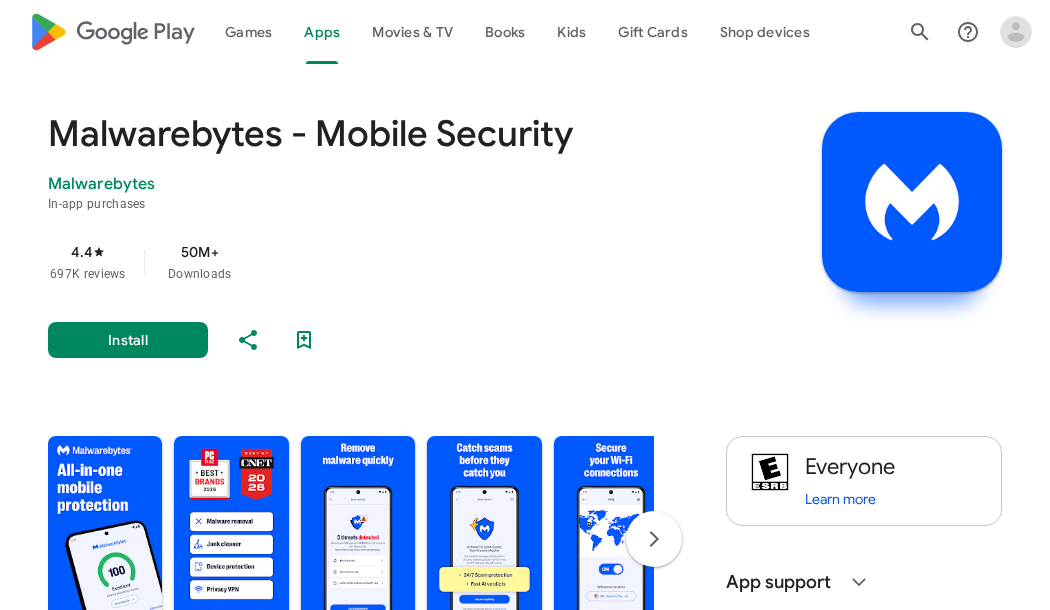
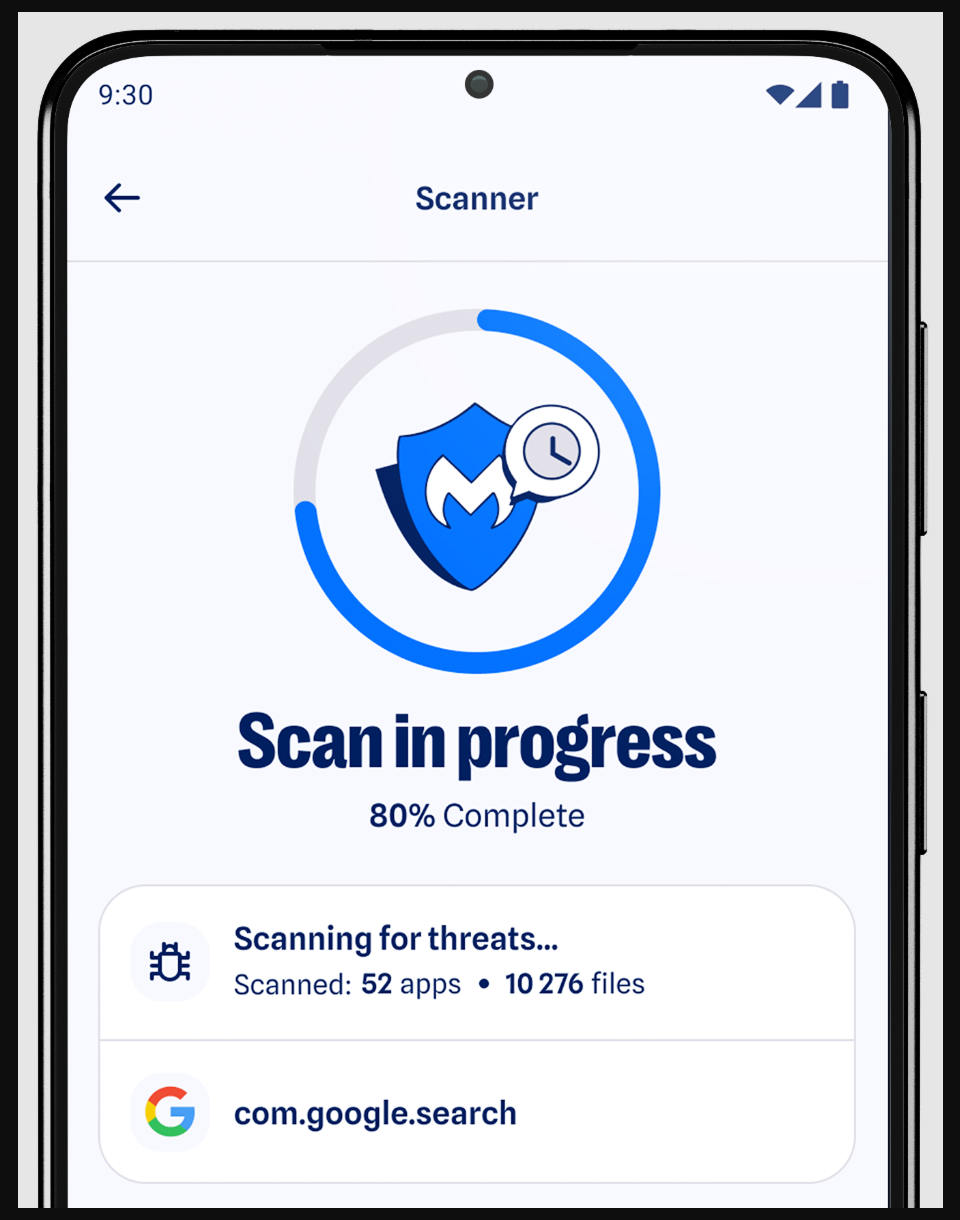
Launch Malwarebytes, then choose Scan now under Device. The official Android scan guide describes where to review results and act on detections.
Wait for the scan to finish, review what it found, and follow the uninstall prompt for confirmed unwanted software. Recheck for the detection after restarting a personal phone.
Review special permissions again after that restart. If the same app or access returns, contact a qualified technician rather than assuming the phone is ready for banking.
The Malwarebytes Android upgrade is an optional affiliate link for ongoing protection. It doesn’t authenticate a past download or resolve an account access problem.
Step 4: Return to the genuine app without bringing the file back
Use the official developer’s site or the known Google Play listing to identify the genuine publisher. Install only from its verified source when the phone is ready.
Once you preserve what support needs, remove the older APK from Downloads. Don’t restore it along with other files from a backup or copy it to a new phone.
If you can’t remove the app or something keeps reappearing, ask the device maker or MalwareTips mobile malware support for help. Keep private notifications out of public support posts.
How to Distinguish an Official App From an Outside Copy
Use the developer’s route, not the name in the file
Start with the official developer’s site on a device you trust. Find the app from that site and compare its listed publisher with the version you expected.
If the official route points you to Google Play, open that listing directly. Don’t use a button on an unrelated site as a shortcut to the developer’s verification.
If you are certain a legitimate institution distributes its app another way, check the exact source with its help desk.
Ask for its published instructions rather than accepting an unsolicited file.
Before approving any installation, confirm you know why you need it.
If the current official app already works, you don’t need an unverified copy from someone who says it is newer.
Check the origin of the copy already on your phone
Read the existing chat or browser download record for the time and file name. Compare them with when your phone first showed the app or an unusual prompt.
Don’t rely on the package icon or an app store badge in a message. The developer and delivery route matter more than an image in someone else’s instructions.
If you manage several phones, give each user an official installation route. Have users stop sharing packages in chats so the same questionable copy doesn’t come back after cleanup.
Make sure your backup doesn’t reinstall an old package
Confirm that important account, photo, and contact data is available somewhere you trust before resetting anything. A reset can erase local data and may require the original Google Account.
After any clean setup recommended by support, install needed apps from verified publishers rather than restoring the entire old app set. Leave unrelated downloaded packages out of the restore.
Check after setup that only the expected source can install apps. Then verify which legitimate tools need special permissions before giving them back.
If the app is no longer available through its known publisher, don’t substitute a mirror without checking why it disappeared. Ask the developer which supported version you can use.
Keep the company or school administrator involved when licensing or access depends on that app. A safe replacement may already be available through the organization’s managed store.
Frequently Asked Questions
Did Google Play distribute the modified copies?
The ability to build a counterfeit from a real app is not proof it was distributed through Google Play. That’s the distinction that matters in this case.
Does a copy have to show fake screens immediately?
No visible change is required for a suspicious copy to be worth checking. Look at the source of the installation and the permissions granted, not just whether menus looked normal.
Can I tell the copy apart by its name?
Names and icons can be shared with a real app. Establish where the file came from and whether you personally installed it through the developer’s official route.
Is a downloaded Android package the same as an infection?
The file in Downloads is not proof that the app was installed. Check whether Android shows it as installed, and do not run it to settle the question.
Can I keep apps that use notification access legitimately?
Yes, where you trust the app and understand its purpose. Focus on permissions granted to the confirmed unwanted app rather than treating a normal Android feature as a threat.
Will a clean scan tell me whether someone copied a code?
A scan checks the device for software it can detect. The provider that issued the code is the right place to check whether the related sign-in happened.
The Bottom Line
Don’t install an app file just because you recognize its icon. Get the genuine version from the developer’s approved route and leave the outside package unopened.
If you already installed the copy, remove it and check the permissions it received. Follow up on unusual account or payment activity from another device before resuming normal use.

Join the discussion
0 commentsShare your experience or ask a question about this article.
Your progress
Did these steps help?
Let us know how the guide worked for you.
Describe what you see and the step you reached. Keep passwords and other private information out.
Discussion
Start the conversation
Have a question or something useful to share? Add the first comment.