


People who coordinate aid often share documents in their everyday chats, where a familiar name and a little context can make the next file seem routine.
Before opening a new volunteer file, check who sent it through a route you already trust. You don’t need to forward the file to ask that question.
Overview
A charity pretext brought a Windows backdoor into trusted chats
Ukraine’s national incident response team, CERT-UA, described a campaign targeting people in the country’s defense forces. Messages impersonating charitable organizations led to malware known as PLUGGYAPE.
The reported route used Signal and WhatsApp, but neither app is the backdoor. The conversation was a way to deliver or promote a file that could run on Windows.
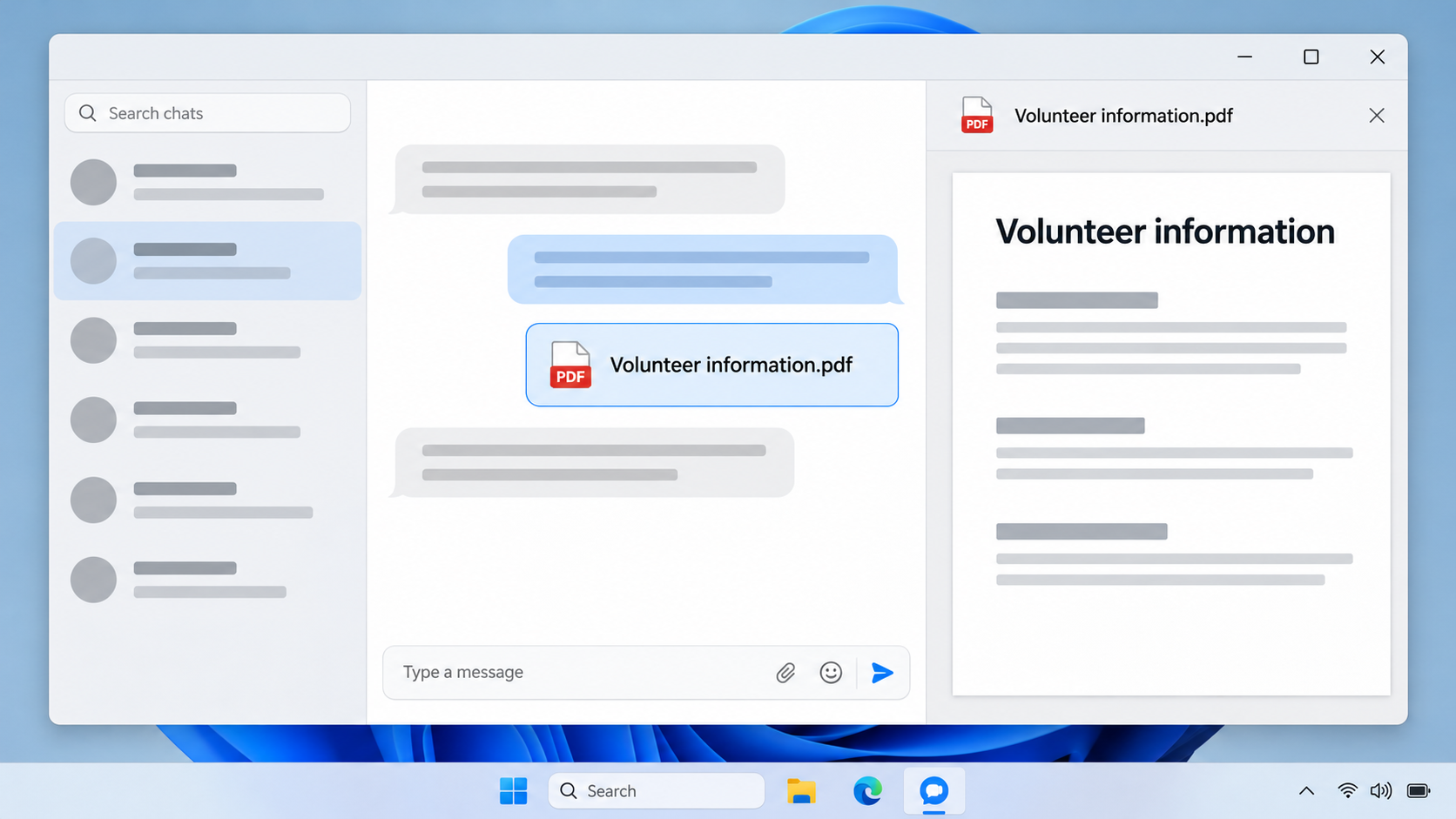
The opening scene depicts a fictional volunteer document. It doesn’t identify a real charity or reproduce a message from the reported incident.
The case matters to people who handle ordinary paperwork, too. An encrypted archive is not a familiar person’s signature, even when the message sounds right for that conversation.
An archive password doesn’t certify what is inside
People use password-protected archives to keep contents private. A password supplied alongside an unexpected file only tells you that the sender can give you access to that file.
The investigated material contained a Windows executable disguised as a document. Someone expecting an information sheet might look at the first part of its name and miss that distinction.
If you already know which organization should have sent the records, verify with it separately. A confirmation from the same possibly compromised account isn’t independent.
Start with the device that actually opened the file
- Note whether you saw the message, downloaded its attachment, or ran something.
- Establish whether the file moved from a phone to a Windows computer.
- Tell your support team if a shared document folder received a copy.
- Give a known incident contact the time and filename without rerunning the item.
- Avoid posting private organization details, addresses, or member lists in support forums.
The distinction between the chat and the computer matters. Deleting a conversation on a phone doesn’t remove software already started from its attachment on Windows.
How the PLUGGYAPE Infection Happens
Step 1: The conversation borrows a volunteer organization’s credibility
The reported messages used familiar messaging apps and practical language about charity work. People active in that work have a plausible reason to read a new document.
If a message comes from someone you know, confirm it using a separate established method. An account showing the right name can be used by someone other than its owner.
Ask a narrow question before you do anything else. Check whether the person sent that document by that route and whether a safer official copy exists.
Step 2: The recipient is directed to a protected archive
The investigated campaign included a site posing as a charitable organization. Some delivery was made directly through a message instead, so a single link isn’t the only clue.
The archive asked for a password, a detail that can make the contents feel unusually official. In practice, it doesn’t tell you whether the enclosed file is safe.
If the archive is already in Downloads, don’t extract it just to identify it. Send the message date and file name to the appropriate security contact through a verified channel.
Step 3: A supposed document can turn out to be a Windows program
The researchers described files with names suggesting documents even though Windows could execute them. A document icon or the first extension in a name isn’t a trusted file-type check.
On a personal PC, Windows 11 can display suffixes in File Explorer under View > Show > File name extensions. You don’t need to launch the file to see the suffix.
If security software blocked the file, read the actual event rather than trying it again. A pre-execution block is different from malware found after the program started.
Step 4: The backdoor can enable activity beyond that message
The public advisory described remote access and command execution on affected systems. That could give an outside party access to material unrelated to the original conversation.
What actually occurred on your computer has to be checked independently. Don’t infer that a particular contact list, account, or document was copied simply because the malware has broad capabilities.
A defense, public-service, or nonprofit organization may need a coordinated response. Its incident team should decide which accounts, documents, or systems to isolate and which evidence to preserve.
What to Do if You Received or Ran a PLUGGYAPE File
-
Stop before opening or moving the file again. Note where you received it and whether you merely read the chat, saved an attachment, opened the archive, or ran something.
If a work or personal Windows machine may have executed it, use a separate trusted device to contact support. Keep the suspect file out of ordinary message threads.
-
Report through a known incident channel. If your organization owns the PC or the information involved, tell its incident team before removing software or restarting the computer.
Isolate the affected system from the network if it’s safe and consistent with your response policy. Ask the incident team how it wants the computer left.
-
Contact the apparent sender through an established channel. Ask whether the person sent the file or link. Mention the time and purpose without resending it.
If their account appears compromised, use an established alternate route to warn people likely to have received the same item. Don’t speculate about who controls the account.
-
Preserve useful evidence in a private channel. Save the existing message, time, filename, and any security alert. Keep unnecessary contacts or operational details out of public reports.
A security team can tell you whether it needs the file itself. Don’t upload it to a public scanner when you have an obligation to protect the material.
-
Review the accounts that were usable from the Windows PC. On a separate device, start with work email, organization chat access, and shared storage.
Tell the account administrator if a chat client or cloud drive was open when the item ran. Ask which sessions or linked devices should be checked or removed.
-
Turn a private warning into practical instructions. Tell affected colleagues which message and filename to avoid and where they can obtain genuine records.
For a genuine charity or group whose name was used, make clear that the imitation is the issue. An established group’s name is not proof it distributed the file.
How to Remove PLUGGYAPE From Windows
Step 1: Separate a managed-device response from personal cleanup
If your Windows device handles sensitive work, let the responsible team decide what to preserve and when to run a scan. Those priorities can matter more than quick removal.
On a personal computer, start with Windows Security > Virus & threat protection > Protection history. Read Microsoft’s guide if the status is unclear.
Write down the event time and whether Windows says the file was blocked, quarantined, or still needs action. Don’t choose Allow or Restore to test the original item.
Step 2: Get a clean copy of the Windows scanning tool
On a personal system, use the Malwarebytes installer for Windows. Use a clean computer to download it if support tells you to keep the affected machine offline.
Check the installer publisher and follow normal setup. Install only through an approved route, not through someone replying to the original charity message.

Step 3: Scan, act on findings, and check what remains
Open Malwarebytes from Start and choose Scan in the scanner area. Let it finish and review every detection relevant to the incident before choosing what to quarantine.
Quarantine confirmed threats, and keep the names and paths for assistance. If the scanner asks for a restart, follow that instruction on a personal PC after preserving necessary information.
Open scan history after the restart and check whether anything returned. A recurring alert needs investigation rather than repeated attempts to open the original document.

The Malwarebytes Premium option is an optional affiliate link. It does not replace revoking account access or deciding whether sensitive files were exposed.
Step 4: Check shared folders and existing backups for the same download
After evidence is no longer needed, remove the confirmed archive or executable from your own Downloads. Skip extra copies you can’t positively identify as part of the incident.
If you placed the file in a shared drive, tell its administrator to check who accessed it. Don’t delete the organization’s shared evidence without permission.
When a backup predates the message, verify that it has the files you need. If it was taken afterward, don’t bring back the suspicious program with legitimate documents.
Step 5: Restore normal communication through an independently verified route
Ask the real organization where it publishes volunteer or partner records. Get the replacement file there after the device owner has cleared the PC for normal work.
Use a separate verified account to send any corrections about earlier messages. If you need help with a recurring Windows detection, try the MalwareTips support forums or a technician.
Before a rebuild, confirm backups and installation media with the person responsible. Recover needed data selectively rather than restoring an entire Downloads folder.
Verify the Real Sender Without Spreading the File
Decide what a useful independent check looks like
If the chat sender claims to be a regular volunteer, use a number you already had or the organization’s staff directory. A number supplied by that account is not independent.
Give the claimed sender enough detail to identify the message without relaying the archive password. Ask for the name of the person who should have issued the document.
If the organization uses an internal portal for records, sign in there through your normal route. Compare the version and title before assuming the phone message was a genuine update.
Don’t tell coworkers to test the file on their own computers. Give them the official document owner and the incident-reporting contact instead.
Keep the warning scoped to what you know
Say that a particular message or file is under investigation. Don’t publish names of suspected recipients or claim their accounts were affected without evidence.
If your team accepts redacted screenshots, crop out unrelated conversations and identifying details. Keep the original in an approved evidence location if the team asks for it.
Don’t put an archive or a sample in a public image or document folder.
A link intended for incident responders can reach people who have no reason to open the file.
If the legitimate sender confirms that it sent no message, record what they said. Let the organization’s incident contact decide whether to advise people beyond the original group.
Distinguish outreach on the phone from access on the PC
If you used a desktop messenger on Windows, check which accounts and shared files it could reach.
Use a clean device to ask the service about unexpected linked devices or sessions.
If the only action was viewing the message on a phone, don’t assume Windows was affected.
First identify whether the file ever reached a PC and who had access to it.
Do not wipe the phone or the computer simply because the two devices share an account. Ask the administrator which device and session records are relevant before losing them.
When the team provides a corrected document, use the channel it independently verifies. Record the new route so volunteers know where to look when the next legitimate update arrives.
If you’re responsible for distributing the corrected file, don’t send everyone back to the original thread. State where to find the verified copy and who can confirm it.
Keep the incident contact in the organization’s normal directory. New members should be able to find it without relying on a number supplied through an unexpected message.
Frequently Asked Questions
Does receiving a WhatsApp or Signal message infect a Windows device?
The documented chain involved a download and a file that could execute on Windows. Reading the message on its own is not the same as running that file.
Is a password-protected archive always suspicious?
Organizations use protected archives for ordinary reasons. Verify the sender and the expected contents independently instead of letting the password stand in for an identity check.
Does the real charity have to be involved?
No association follows from someone’s choice of a name. Get the organization’s own contact route before accepting or circulating a message purporting to come from it.
Can I forward the file to a colleague to confirm it?
Don’t forward it through ordinary chat. Give a verified security contact the file name and message time, then follow the organization’s process for handling a suspected sample.
What if I opened the archive on a phone?
Tell support exactly what was opened and whether it was transferred elsewhere. The Windows backdoor finding doesn’t establish a mobile infection just because the conversation began on a phone.
Is a clean scan enough to resume sensitive work?
A scan describes what the tool detected on one machine. The organization may still need to investigate access to accounts, material, or other connected systems before clearing the device.
The Bottom Line
Don’t run a file from an unexpected charity message, even if it arrived in a chat you know. Verify the sender and obtain documents through a trusted route.
If the program ran, report the device promptly and stop using it for sensitive work. Preserve the evidence, then follow the appropriate Windows cleanup and account review.

Join the discussion
0 commentsShare your experience or ask a question about this article.
Community experiences
Did this happen to you?
Your experience could help someone recognize the same scam. Submit a private report for our team to review.
I experienced this tooReports are reviewed before publication. Sharing publicly is always your choice.
Discussion
Start the conversation
Have a question or something useful to share? Add the first comment.