

Livana Complete Liver Support is sold through a polished landing page filled with medical-sounding promises, dramatic customer stories, a ticking sale, and a liquid formula said to reach the bloodstream with up to 98% absorption.
The most important detail is easier to miss: the “Automatic refills” box was already checked when we opened the order form. We examined that subscription design, the company behind the site, the refund rules, the health claims, and a formula that appears under several unrelated brand names.
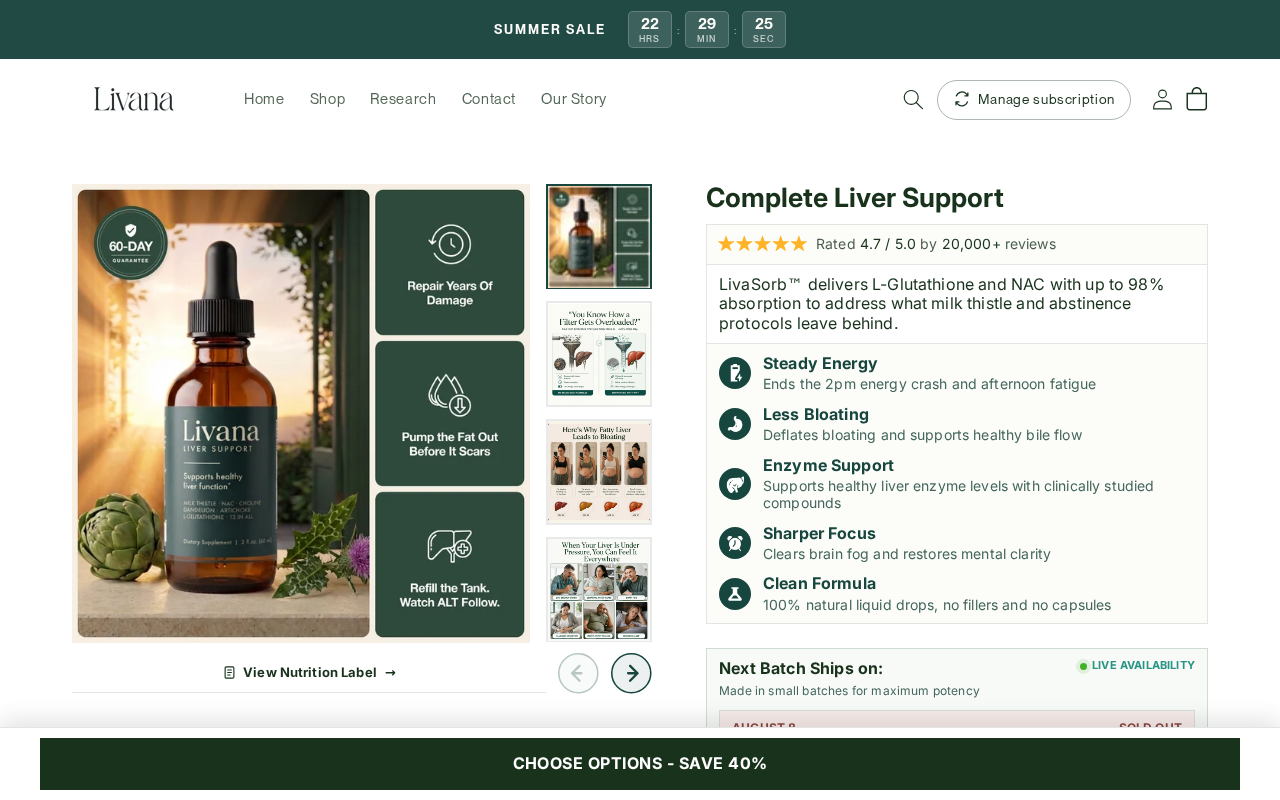
Livana Complete Liver Support Overview
Livana is a liquid dietary supplement marketed for energy, bloating, brain fog, bile flow, liver enzyme support, and fatty-liver concerns. The landing page calls its delivery approach LivaSorb and says L-glutathione and NAC are absorbed at rates of up to 98%.
The label lists 50 mg of glutathione, 200 mg of milk thistle extract, 200 mg of dandelion extract, 100 mg of artichoke extract, 100 mg of beet extract, 50 mg of choline citrate, and a 100 mg proprietary blend containing NAC and six herbs.
Our quick verdict
Livana is not proven to be a fake product or a company that never ships. Its policies identify Print Labs LLC, provide an address, email, and telephone number, and describe a 60-day refund process.
Nevertheless, we consider the landing page a high-risk subscription and health-marketing offer. The recurring plan is selected by default, and the renewal interval is not stated next to that checkbox.
The page also combines unverified urgency with treatment-like claims about liver enzymes, scarring, fat accumulation, and delivery “straight into the bloodstream.”
- Product: Livana Complete Liver Support liquid drops
- Seller named in policies: Print Labs LLC
- Advertised one-time prices: $44.49 for one bottle, $133.47 for three, or $222.45 for five before discounts
- Displayed subscription prices: $39.99 for one, $79.98 for three, or $109.97 for five
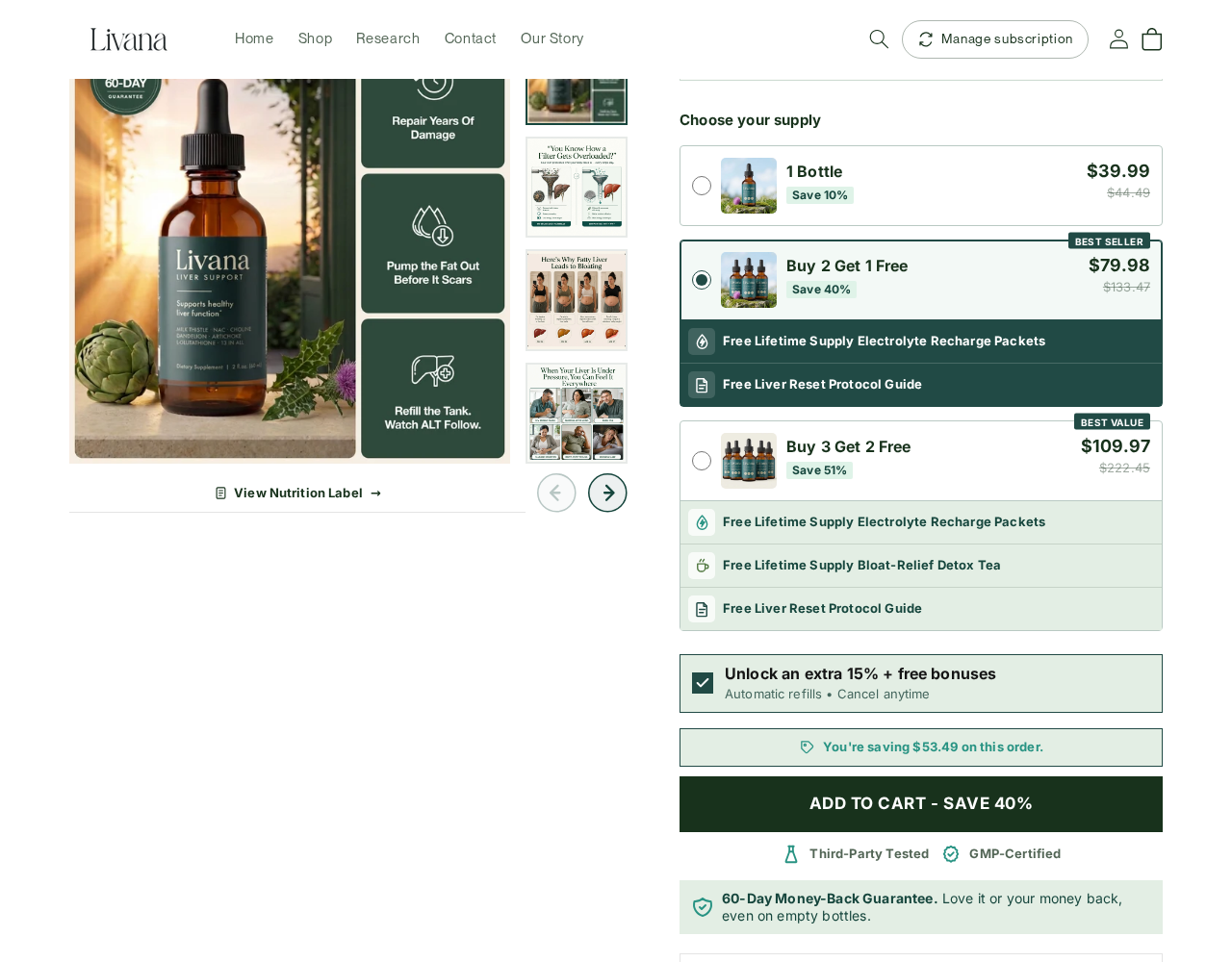
- Default order: buy two, get one free, with automatic refills selected
- Subscription discount: an extra 15% off
- Cancellation deadline: at least 24 hours before the next scheduled shipment
- Refund window: 60 days from fulfillment
- Risk level: high risk for an unwanted subscription and unrealistic health expectations
Is Livana a Subscription Trap?
A subscription trap does not always hide every recurring term. Sometimes the page mentions automatic refills but uses design choices that make enrollment more likely than a clear, deliberate opt-in would.
Livana fits that risk pattern. The recurring option is visible, but it is checked before the shopper makes a choice. The “best seller” three-bottle bundle is also selected, so a hurried buyer can click the large Add to Cart button without actively choosing either the bundle or the subscription.
The Federal Trade Commission specifically warns consumers to look for pre-checked subscription boxes because some businesses use them in hopes that shoppers will not notice future billing. A visible label helps, but meaningful consent should come from the customer taking an affirmative action.
For that reason, we believe Livana creates a substantial risk of unwanted refills. That is not the same as proving that every subscription is unauthorized, but it is enough to recommend slowing down, clearing the checkbox, and capturing the final checkout before paying.
How the Livana Liver Support Offer Works
1. The ad connects vague symptoms to liver damage
The page begins with familiar concerns: low energy, afternoon crashes, bloating, brain fog, discomfort under the right ribs, alcohol use, and elevated liver enzymes. It suggests that common approaches such as milk thistle or drinking less may leave the real problem untouched.
That story is emotionally effective because liver disease can be silent and frightening. However, symptoms and abnormal laboratory results require medical evaluation. A supplement landing page cannot determine whether someone has fatty liver disease, fibrosis, medication injury, viral hepatitis, gallbladder disease, or another cause.
2. LivaSorb is presented as the missing delivery system
Livana says its liquid format carries glutathione and NAC “straight into the bloodstream,” bypassing the processing burden of capsules. The headline advertises up to 98% absorption, while other copy compares NAC to a compound used in hospital IV treatment.
We did not find a product-specific pharmacokinetic study demonstrating 98% absorption for the finished Livana formula. Research on a particular micellar, liposomal, film, or sublingual formulation cannot automatically be transferred to a different commercial liquid at a different dose.
Hospital use of NAC also does not prove that a low-dose supplement treats chronic liver disease. The route, dose, diagnosis, medical supervision, and treatment objective are entirely different.
3. A countdown and batch meter create urgency
The landing page displayed a “Summer Sale” countdown that supposedly ended at midnight. A batch panel marked an earlier date sold out, said “Tomorrow” was 92% reserved, and showed another batch in production.
When dates and timers are generated dynamically, they can make an evergreen promotion feel like a one-time deadline. Consumers should not let a countdown replace comparison shopping, medical advice, or a review of the recurring terms.
4. The page preselects a three-bottle bundle
The selected bundle was “Buy 2 Get 1 Free.” With the subscription option active, the displayed price was $79.98 instead of the stated $133.47 reference price.
A shopper can choose one or five bottles, but no choice is required before proceeding because the middle package is already active. This reduces friction for the seller while increasing the chance that the buyer accepts a larger order than intended.
5. Automatic refills are enabled before the shopper opts in
Immediately below the bundles, the checked box promises an extra 15% off and free bonuses. The adjacent text says “Automatic refills” and “Cancel anytime,” but it does not specify the renewal interval or the future amount in that line.
Livana’s own FAQ says refills begin only when a customer deliberately selects the option. That wording conflicts with the behavior we observed, because the checkbox was already selected when the page loaded.
6. The policy places the burden on the customer to cancel in time
The refund policy says subscribers may cancel before the next billing date, but they must do so at least 24 hours before the scheduled shipment to avoid another charge. Once an order has shipped, the standard refund rules apply.
Customers can reportedly use an account portal or email support@mylivana.com. Anyone who subscribes should locate that portal immediately, record the next billing date, and set a reminder well before the 24-hour cutoff.
7. Bonuses encourage customers to keep the refill option
The selected subscription adds bonuses such as electrolyte packets and a liver-reset guide. The five-bottle option adds detox tea. These extras make unchecking the refill box feel like losing value, even when the shopper originally wanted only the supplement.
8. The 60-day guarantee reduces hesitation
Livana says customers can seek a refund within 60 days of fulfillment and may not need to return opened bottles. The policy tells customers to contact support before sending anything back.
This is more detailed than many supplement guarantees, but it does not cancel a subscription automatically. A refund request and a recurring-plan cancellation should be treated as two separate actions unless support confirms both in writing.
The Livana Formula Appears Under Multiple Brand Names
One of the strongest reasons for caution is not that the ingredients are secret. It is that the exact ingredient amounts and large portions of the sales copy appear on other stores selling apparently similar liver drops under unrelated names.
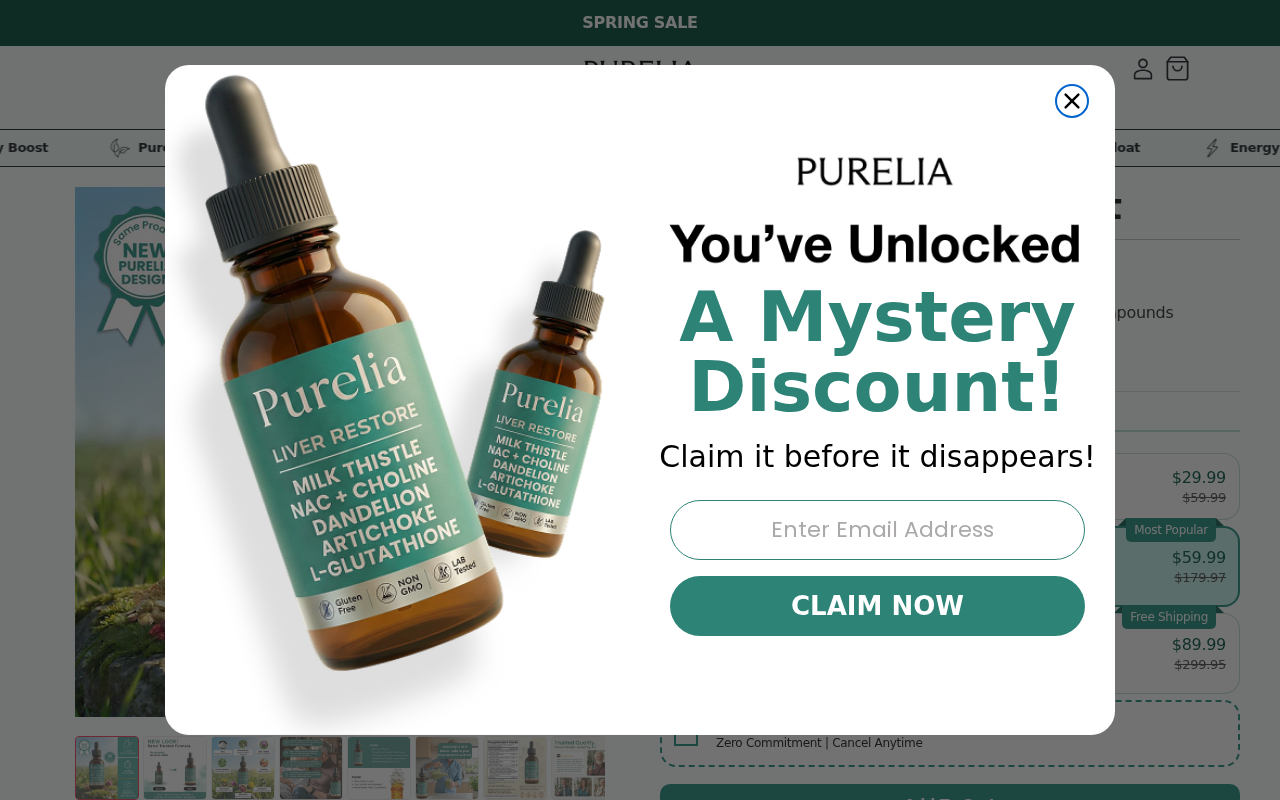
Purella, Purelia, Livora, Ocuvana, Aloura, and other shops list the same 200 mg milk thistle extract, 200 mg dandelion, 100 mg artichoke, 100 mg beet root, 50 mg choline citrate, 50 mg glutathione, and 100 mg proprietary blend with the same six supporting herbs.
Some of those pages also repeat near-identical explanations about glutathione, liver enzymes improving in 60 to 90 days, bile flow, “silent scarring,” and ingredients working where milk thistle alone supposedly fails.
This pattern strongly suggests a white-label or turnkey product-and-copy package. White-label manufacturing is legal and does not make a supplement fake. It does mean the branding story, proprietary-sounding delivery language, and exclusivity claims should not be accepted at face value.
It also raises practical questions: Who manufactures the finished formula? Is every seller sourcing the same batch? Where is the batch-specific certificate of analysis? Which company substantiated the 98% figure? We did not find clear product-specific answers on the landing page.
Are Livana’s Liver Claims Supported by Evidence?
Ingredient research is not a clinical trial of Livana
NAC, glutathione, milk thistle, choline, and several herbs in the formula have been studied. Results vary by condition, formulation, dose, study design, and outcome. That body of research cannot prove that Livana’s finished mixture produces the advertised changes.
For example, a recent randomized trial in people with metabolic dysfunction-associated fatty liver disease used 1,800 mg of NAC per day. It found no significant improvement in liver enzymes or hepatic steatosis compared with placebo.
Livana places NAC inside a 100 mg proprietary blend shared with six herbs, so the NAC amount is not separately disclosed.
Studies of oral or sublingual glutathione show that formulation affects absorption. They do not validate an “up to 98%” figure for Livana or establish that 50 mg of glutathione reverses fatty liver, fibrosis, or abnormal laboratory values.
Milk thistle evidence for liver disease remains uncertain
The National Center for Complementary and Integrative Health says there is not enough high-quality evidence to draw definite conclusions about milk thistle for health conditions. Trials involving several liver diseases have been conflicting or too limited, and two NCCIH-funded studies did not show a benefit.
That does not prove every ingredient is useless. It means the landing page’s confident timeline for improved enzymes and slower scarring is much stronger than the evidence supports for this product.
Elevated liver enzymes need a real diagnosis
The National Institute of Diabetes and Digestive and Kidney Diseases explains that doctors evaluate possible liver disease with medical history, physical examination, blood tests, and imaging. They also ask about alcohol, medicines, and herbal supplements.
If ALT or AST is elevated, the safest response is not to wait 60 to 90 days for an online supplement to change the number. A clinician can determine the cause, assess urgency, and advise whether any ingredient could interact with medication or worsen an existing condition.
Who Is Behind MyLivana.com?
Livana’s refund and shipping policies name Print Labs LLC, 30 N Gould St Ste N, Sheridan, Wyoming 82801. They also list support@mylivana.com and (855) 610-5613.
Providing a legal name, phone number, and address is a positive transparency signal compared with an anonymous product page. It does not independently verify the manufacturer, laboratory, clinical claims, inventory meter, testimonials, or the location where orders are fulfilled.
We also found no batch-specific certificate of analysis linked prominently from the landing page. A “third-party tested” badge is not enough to confirm identity, potency, microbes, heavy metals, or contaminants for the bottle a customer receives.
Red Flags in the Livana Complete Liver Support Offer
- The subscription is checked by default. The customer must opt out instead of affirmatively opting in.
- The larger middle bundle is also preselected. A quick click accepts three bottles and recurring refills.
- The renewal interval is not next to the checkbox. “Automatic refills” is visible, but the timing and future charge require more investigation.
- The page uses a countdown and 92% reservation claim. Dynamic urgency can pressure consumers to buy before researching.
- Medical language is unusually aggressive. Claims touch liver enzymes, scarring, fatty accumulation, and bloodstream delivery.
- The 98% absorption figure lacks product-specific substantiation. We found no Livana clinical trial demonstrating it.
- The formula and copy are widely duplicated. Several unrelated brands sell the same amounts with remarkably similar explanations.
- Review and outcome numbers are controlled by the seller. Claims of 20,000+ reviews and customer percentages are not accompanied by an independently auditable dataset.
- Testing badges lack batch evidence. No prominently linked certificate showed what an independent lab found in a current batch.
- A refund does not necessarily cancel future refills. Customers need written confirmation of both actions.
What to Do If You Bought Livana or Were Charged for Automatic Refills
- Read the order confirmation line by line. Search for subscription, automatic refill, recurring, subscribe and save, next order, or future charge. Record the next shipment date and amount.
- Log in to the subscription portal now. Do not wait until the day before renewal. Confirm whether the plan is active and capture a screenshot of its status.
- Cancel at least 24 hours early. Use the portal and email support@mylivana.com. Clearly revoke permission for every future recurring charge and request written confirmation.
- Separate cancellation from the refund request. If you want your money back, say both that you are canceling the subscription and that you are requesting a refund under the 60-day policy.
- Preserve all evidence. Save the prechecked order form, checkout, confirmation email, policy pages, tracking, bottle label, lot number, support replies, and card statement.
- Monitor the next two billing cycles. A canceled portal page is useful evidence, but you should still watch for a new merchant charge or a slightly different billing descriptor.
- Dispute an unauthorized renewal promptly. Contact the card issuer or PayPal if the seller bills after cancellation or if you did not knowingly agree to recurring shipments. Provide the prechecked-box screenshot and correspondence.
- Report deceptive billing. U.S. consumers can report negative-option problems to the FTC at ReportFraud.ftc.gov and to their state attorney general. Other countries have equivalent consumer authorities.
- Tell your clinician what you took. Bring the ingredient list and bottle if you develop nausea, jaundice, dark urine, itching, unusual fatigue, abdominal pain, swelling, or another concerning symptom.
- Do not delay liver care. If your liver enzymes are elevated or you have pain under the right ribs, seek medical evaluation instead of relying on testimonials or waiting for a supplement timeline.
Is Your Device Infected? Run a Free Malware Scan
Slow performance, constant pop-ups, or strange behavior? These are classic signs of a malware infection. The fastest way to find out is to scan your device with Malwarebytes Free — one of the most trusted malware removal tools available.
The free version detects and removes the most common threats, including:
- Adware — the cause of those annoying pop-ups
- Browser hijackers — unwanted redirects and changed homepages
- Trojans and spyware — hidden programs stealing your data
- Potentially unwanted programs (PUPs) — software you never asked for
👉 Select your device below — Windows, Mac, or Android — then follow the simple steps to download Malwarebytes, scan your system, and remove any threats it finds. The scan usually takes 5 to 20 minutes.
Run a Malware Scan with Malwarebytes for Windows
Malwarebytes is one of the most popular and trusted anti-malware tools for Windows — and it’s completely free for removing infections. It catches threats that many antivirus programs miss, including adware, browser hijackers, and trojans. Follow the steps below to scan and clean your PC in just a few minutes.
Download Malwarebytes
Click the button below to download the latest version of Malwarebytes for Windows from the official source. The free version is all you need — it will scan your computer and remove adware, browser hijackers, and other malicious software at no cost.
Download MalwarebytesOfficial installer for Windows 11 and 10. Your download starts right away.Want real-time protection? See Malwarebytes Premium Malwarebytes Free for WindowsScans and removes malware at no cost
-
Install Malwarebytes
When the download finishes, open your Downloads folder and double-click the MBSetup file. If Windows shows a User Account Control pop-up, click “Yes” to allow the installation.

Follow the On-Screen Prompts to Install Malwarebytes
The setup wizard will walk you through a few quick screens:
-
Choose where you’re installing the program — “Personal Computer” or “Work Computer” — then click Next.

-
Malwarebytes will now install on your device. This usually takes under a minute.

-
When installation is complete, the “Welcome to Malwarebytes” screen will open automatically.

-
On the final screen, click Open Malwarebytes to launch the program.

-
Enable “Scan for Rootkits”
Before scanning, turn on rootkit detection so Malwarebytes can find even the most hidden threats. Click the Settings gear icon on the left side of the screen.

In the settings menu, find “Scan for rootkits” and click the toggle so it turns blue.

Done? Click “Dashboard” in the left pane to return to the main screen.
Start the Scan
Click the blue Scan button. Malwarebytes will automatically update its virus database and start checking your computer for malware.

-
Wait for the Scan to Finish
The scan checks your entire system for browser hijackers and other malicious programs, so it can take 5 to 20 minutes depending on your computer. Feel free to do something else — just check back occasionally to see the progress.

-
Quarantine the Detected Threats
When the scan is done, you’ll see a list of everything Malwarebytes found — malware, adware, and potentially unwanted programs. Click the “Quarantine” button to remove all of them at once.

Malwarebytes will now remove the malicious files and registry entries and move them safely into quarantine.

-
Restart Your Computer
Some threats can only be fully removed after a reboot. If Malwarebytes asks you to restart, click Yes. Once you’re logged back in, Malwarebytes has finished removing the threats it found.

That’s it — your Windows PC is now clean of trojans, adware, and other malware, and should be back to running smoothly.
If you are still having problems with your computer after completing these instructions, then please follow one of the steps:
- Run a computer scan with ESET Online Scanner
- Ask for help in our Windows Malware Removal Help & Support forum.
Run a Malware Scan with Malwarebytes for Mac
Malwarebytes for Mac is a free on-demand scanner that removes the malware other security software tends to miss — adware, browser hijackers, and unwanted programs included. Cleaning an infected Mac with Malwarebytes has always been completely free, and it’s our go-to recommendation. Follow the steps below to scan and clean your Mac in just a few minutes.
-
Download Malwarebytes for Mac
Click the button below to download the latest version of Malwarebytes for Mac.
Download MalwarebytesOfficial installer for macOS. Your download starts right away.Want real-time protection? See Malwarebytes PremiumMalwarebytes Free for MacScans and removes malware at no cost -
Open the Malwarebytes setup file
When the download finishes, open your Downloads folder and double-click the setup file to begin the installation.

-
Follow the On-Screen Prompts to Install Malwarebytes
The Malwarebytes for Mac Installer will guide you through a few quick screens. Click “Continue” and keep following the prompts until the installation completes.



When the installation is complete, Malwarebytes opens to the Welcome to Malwarebytes screen. Click “Get started“.
-
Select “Personal Computer” or “Work Computer”
Malwarebytes will ask what type of computer you’re installing it on. Click either Personal Computer or Work Computer, whichever applies.

-
Start the Scan
Click the “Scan” button. Malwarebytes will automatically update its detection database and begin checking your Mac for malware.

-
Wait for the Scan to Finish
Malwarebytes will scan your Mac for adware, browser hijackers, and other malicious programs. This can take a few minutes, so feel free to do something else — just check back occasionally to see the progress.

-
Quarantine the Detected Threats
When the scan is done, you’ll see a list of everything Malwarebytes found. Click the “Quarantine” button to remove all the threats at once.

-
Restart Your Mac
Malwarebytes will now remove all the malicious files it found. Some threats can only be fully removed after a reboot — if Malwarebytes asks you to restart, allow it. Once you’re logged back in, your Mac is clean.

That’s it — your Mac is now free of adware, rogue browser extensions, and other potentially harmful software.
If you are still experiencing problems while trying to remove a malicious program from your computer, please ask for help in our Mac Malware Removal Help & Support forum.
Run a Malware Scan with Malwarebytes for Android
Malwarebytes for Android automatically detects and removes dangerous threats like malware and ransomware so you don’t have to worry about your most-used device being compromised. Aggressive detection of adware and potentially unwanted programs keeps your Android phone or tablet running smooth.
-
Download Malwarebytes for Android.
You can download Malwarebytes for Android by clicking the link below.
Get Malwarebytes for AndroidOpens Google Play in a new tab.Want real-time protection? See Malwarebytes Premium for AndroidMalwarebytes for AndroidScans your phone and removes malware at no cost -
Install Malwarebytes for Android on your phone.
In the Google Play Store, tap “Install” to install Malwarebytes for Android on your device.

When the installation process has finished, tap “Open” to begin using Malwarebytes for Android. You can also open Malwarebytes by tapping on its icon in your phone menu or home screen.

-
Follow the on-screen prompts to complete the setup process
When Malwarebytes will open, you will see the Malwarebytes Setup Wizard which will guide you through a series of permissions and other setup options.
This is the first of two screens that explain the difference between the Premium and Free versions. Swipe this screen to continue.
Tap on “Got it” to proceed to the next step.
Malwarebytes for Android will now ask for a set of permissions that are required to scan your device and protect it from malware. Tap on “Give permission” to continue.
Tap on “Allow” to permit Malwarebytes to access the files on your phone.
-
Update database and run a scan with Malwarebytes for Android
You will now be prompted to update the Malwarebytes database and run a full system scan.

Click on “Update database” to update the Malwarebytes for Android definitions to the latest version, then click on “Run full scan” to perform a system scan.

-
Wait for the Malwarebytes scan to complete.
Malwarebytes will now start scanning your phone for adware and other malicious apps. This process can take a few minutes, so we suggest you do something else and periodically check on the status of the scan to see when it is finished.

-
Click on “Remove Selected”.
When the scan has been completed, you will be presented with a screen showing the malware infections that Malwarebytes for Android has detected. To remove the malicious apps that Malwarebytes has found, tap on the “Remove Selected” button.

-
Restart your phone.
Malwarebytes for Android will now remove all the malicious apps that it has found. To complete the malware removal process, Malwarebytes may ask you to restart your device.
That’s it — your Android phone is now clean — no more malicious apps, adware, or browser redirects.
If you are still having problems with your phone after completing these instructions, then please follow one of the steps:
- Restore your phone to factory settings by going to Settings > General management > Reset > Factory data reset.
- Ask for help in our Mobile Malware Removal Help & Support forum.
Stay Protected: Block Ads and Malicious Sites
Now that your device is clean, keep it that way. Most infections start with a malicious ad or a fake download button — so blocking them at the source is your best defense.
We recommend AdGuard, which blocks malicious ads, phishing pages, and dangerous redirects before they can reach you.
👉 Download AdGuard and browse safely
The Bottom Line
Livana appears to sell a real white-label liver supplement through an identifiable company, so we cannot call it a confirmed fake-store scam.
The serious problem is the sales design. Automatic refills and a three-bottle bundle are selected before the customer makes a choice, while the page uses aggressive medical claims and artificial urgency.
We would avoid this offer, particularly for anyone trying to treat abnormal liver tests or diagnosed liver disease. If you buy anyway, uncheck automatic refills, capture the final terms, use a protected payment method, and discuss the full ingredient list with a licensed healthcare professional.

Reviews & discussion
0 commentsShare a firsthand experience, or ask a question.
Community reviews
Livana Liver Support
Moderated reader experiences, not an editorial verdict.
Start the conversation
Have a question or something useful to share? Add the first comment.